How to Disable System Integrity Protection for Dell Data Security Mac Products
概要: Learn how to temporarily disable System Integrity Protection (SIP) on your Mac for Dell Data Security and Dell Data Protection products.
この記事は次に適用されます:
この記事は次には適用されません:
この記事は、特定の製品に関連付けられていません。
すべての製品パージョンがこの記事に記載されているわけではありません。
現象
Note:
- As of February 2021, Dell Encryption Enterprise for Mac has reached End of Maintenance. This product and its articles are no longer updated by Dell.
- As of May 2022, Dell Endpoint Security Suite Enterprise has reached End of Maintenance. This product and its articles are no longer updated by Dell.
- As of May 2022, Dell Threat Defense has reached End of Maintenance. This product and its articles are no longer updated by Dell.
- For more information, reference Product Life Cycle (End of Support / End of Life) Policy for Dell Data Security. If you have any questions on alternative articles, either reach out to your sales team or contact endpointsecurity@dell.com.
- Reference Endpoint Security for additional information about current products.
This article provides information about how to manage System Integrity Protection (SIP).
Affected Products:
- Dell Data Protection | Enterprise Edition for Mac
- Dell Encryption Enterprise Mac
- Dell Endpoint Security Suite Enterprise
- Dell Threat Defense
Affected Versions:
- 10.11.X (El Capitan) and Later
Affected Operating Systems:
- Mac
Apple introduced SIP in 10.11.X (El Capitan) to protect system processes, files, and folders from being modified or tampered with by other processes. For more information about System Integrity Protection, reference About System Integrity Protection on your Mac
Dell Data Security products may require SIP to be temporarily disabled to:
- Encrypt with Dell Volume Encryption (DVE)
- Automatically allow kernel extensions (KEXTs) in High Sierra (10.13.X) and later for:
- Dell Encryption Enterprise for Mac
- Dell Endpoint Security Suite Enterprise
- Dell Threat Defense
Note: It is not required to disable SIP if manually approving KEXTs. For more information, reference How to Allow Dell Data Security Kernel Extensions on macOS.
原因
Not applicable
解決方法
A Dell Data Security administrator may either Check SIP Status, temporarily Disable SIP, or Enable SIP. Click the appropriate option for more information.
Check SIP Status
- In the Apple Menu, select Go, and then click Utilities.
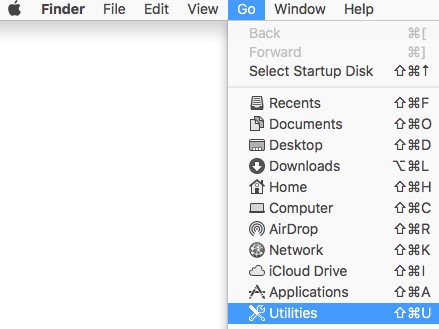
- Double-click Terminal.

- In Terminal, type
csrutil statusand then press Enter.
Disable SIP
- Shut down the targeted Mac operating system.
- Power on the Mac while holding down the Command + R keys to boot in enter recovery mode.
- In recovery mode, select Utilities, and then click Terminal.
- In Terminal, type
csrutil disableand press Enter. - Click the Apple icon and click Restart.
Enable SIP
- Shut down the targeted Mac operating system.
- Power on the Mac while holding down the Command + R keys to boot in enter recovery mode.
- In recovery mode, select Utilities, and then click Terminal.
- In Terminal, type
csrutil enableand press Enter. - Click the Apple icon and click Restart.
Note: SIP can be confirmed enabled using Terminal by typing
csrutil STATUS and then pressing Enter. This command is case-sensitive.
To contact support, reference Dell Data Security International Support Phone Numbers.
Go to TechDirect to generate a technical support request online.
For additional insights and resources, join the Dell Security Community Forum.
その他の情報
ビデオ
対象製品
Dell Encryption文書のプロパティ
文書番号: 000126858
文書の種類: Solution
最終更新: 10 11月 2023
バージョン: 15
質問に対する他のDellユーザーからの回答を見つける
サポート サービス
お使いのデバイスがサポート サービスの対象かどうかを確認してください。