How to Manage Multi-Factor Authentication in the Dell Security Management Server Administration Console
概要: Dell Security Management Server can be configured to require two-factor authentication (2FA) to log in to the administration console.
この記事は次に適用されます:
この記事は次には適用されません:
この記事は、特定の製品に関連付けられていません。
すべての製品パージョンがこの記事に記載されているわけではありません。
手順
Affected Products:
- Dell Security Management Server
- Dell Security Management Server Virtual
Affected Versions:
- v11.4.0 and Later
Multi-factor authentication can be managed at either a User Group or Individual User level. Choose the appropriate section below for more information.
User Group
- Log in to the Dell Data Security Administration Console with an account that has the account administrator role. For more information, reference How to Access the Dell Data Security Server Administration Console.
Note: For more information about administrator roles, reference the Administrator Roles section of the AdminHelp - Security Management Server PDF in Manuals and Documents.
- From the left menu pane, expand the Populations tab and then click User Groups.
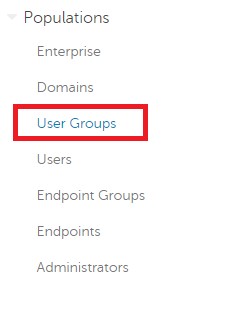
Figure 1: User Groups
- Select a User Group from the list to edit.
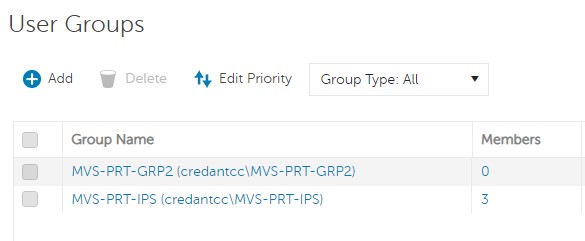
Figure 2: Selecting a user group
Note: The group’s position in this list is what determines Group Priority. For more information, reference the Edit User Group Priority section of the AdminHelp - Security Management Server PDF in Manuals and Documents.
- Select the Admin tab.

Figure 3: Admin tab
- From MFA Configuration:
- Select Enabled.
- Select either Email or Google Authenticator.
- Click the Update button.
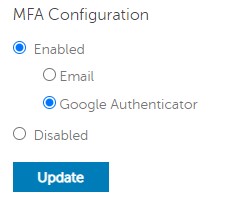
Figure 4: MFA Configuration
Individual User
- Log in to the Dell Data Security Administration Console with an account that has the account administrator role. For more information, reference How to Access the Dell Data Security Server Administration Console.
Note: For more information about administrator roles, reference the Administrator Roles section of the AdminHelp - Security Management Server PDF in Manuals and Documents.
- From the left menu pane, expand the Populations tab and then click Users.
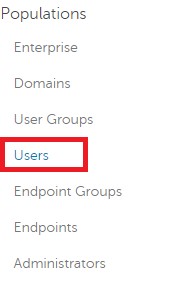
Figure 5: Users
- Select a User from the list to edit.
- Select the Admin tab.

Figure 6: Admin tab
- From MFA Configuration:
- Select Enabled.
- Select either Email, Google Authenticator, or Inherited Configuration from User Group.
- Click the Update button.
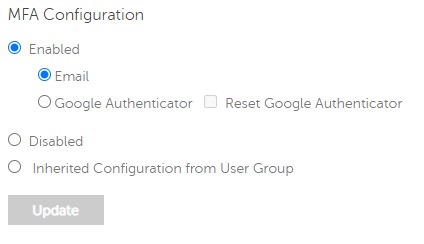
Figure 7: MFA Configuration
To contact support, reference Dell Data Security International Support Phone Numbers.
Go to TechDirect to generate a technical support request online.
For additional insights and resources, join the Dell Security Community Forum.
対象製品
Dell Encryption文書のプロパティ
文書番号: 000200440
文書の種類: How To
最終更新: 22 11月 2023
バージョン: 6
質問に対する他のDellユーザーからの回答を見つける
サポート サービス
お使いのデバイスがサポート サービスの対象かどうかを確認してください。