PowerProtect Data Manager: How to change the interface timeout
Podsumowanie: The PowerProtect Interface times out after the default 1800 seconds (30 minutes).
Ten artykuł dotyczy
Ten artykuł nie dotyczy
Ten artykuł nie jest powiązany z żadnym konkretnym produktem.
Nie wszystkie wersje produktu zostały zidentyfikowane w tym artykule.
Instrukcje
How to increase the PowerProtect Interface timeout in 19.22.0.24 and older.
- Open an SSH session to PowerProtect and authenticate with the admin account.
- Make a copy of the
app-config.jsonfile:cp -p /usr/local/brs/lib/ecdm-ui/main/app-config.json /usr/local/brs/lib/ecdm-ui/main/app-config.json.orig - Update the
idle-timeoutvalue in theapp-config.jsonfile with a value between 1 and 3600 seconds.- Text editor:
vi /usr/local/brs/lib/ecdm-ui/main/app-config.json - The
sedutility:sed -i 's/"idle-timeout": 1800/"idle-timeout": 3600/' /usr/local/brs/lib/ecdm-ui/main/app-config.json
- Text editor:
- Verify that the
app-config.jsonfile was properly updated:grep 'idle-timeout' /usr/local/brs/lib/ecdm-ui/main/app-config.json
Note: The default 1800 seconds (30 minutes) is used if the value is not between 1 and 3600 seconds.
How to increase the PowerProtect Interface timeout in 20.1.0.0-17 and newer.
In the PowerProtect Interface, navigate to "Administration > Access Control > Session Settings."
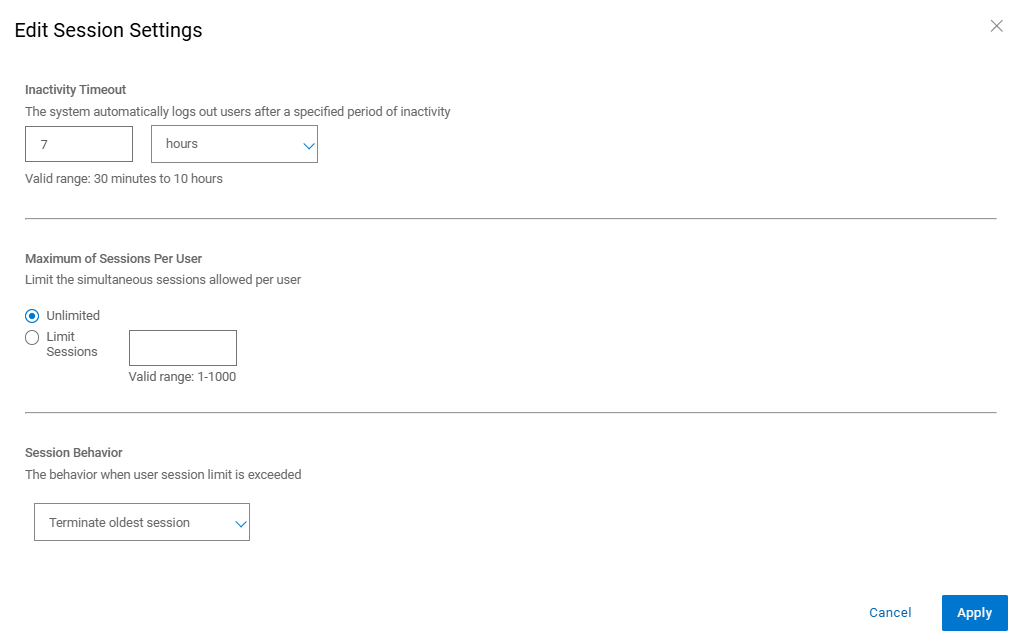
Dodatkowe informacje
The default app-config.json file:
admin@ppdm:/> cat /usr/local/brs/lib/ecdm-ui/main/app-config.json
{
    "idle-timeout": 1800
}
admin@ppdm:/>
The app-config.json file after the update:
admin@ppdm:/> cat /usr/local/brs/lib/ecdm-ui/main/app-config.json
{
    "idle-timeout": 3600
}
admin@ppdm:/>
Właściwości artykułu
Numer artykułu: 000221611
Typ artykułu: How To
Ostatnia modyfikacja: 22 maj 2026
Wersja: 3
Znajdź odpowiedzi na swoje pytania u innych użytkowników produktów Dell
Usługi pomocy technicznej
Sprawdź, czy Twoje urządzenie jest objęte usługą pomocy technicznej.