How to Package and Upload .NET Desktop Runtime 8.0 x64 for use in Microsoft Intune
Resumo: This article provides information about packaging and uploading .NET Desktop Runtime 8.0 x64 for use in Microsoft Intune as a prerequisite for Dell Software solutions.
Este artigo aplica-se a
Este artigo não se aplica a
Este artigo não está vinculado a nenhum produto específico.
Nem todas as versões do produto estão identificadas neste artigo.
Instruções
Affected Products:
- Dell Pro AI Studio
Package .NET Desktop Runtime 8.0 x64 with Microsoft Win32 Content Prep Tool and upload windowsdesktop-runtime-8.0.16-win-x64.intunewin for use in Microsoft Intune as a prerequisite for Dell software solutions by following these steps:
Prerequisites
- Download the Microsoft Win32 Content Prep Tool
from Microsoft's GitHub and extract it to a temporary folder (for example:
C:\Temp) - Download .NET Desktop Runtime 8.0 x64 and place it in a temporary folder (for example,
C:\Temp\App). - In the temporary folder, create a folder called Output (for example,
C:\Temp\Output).
Using Microsoft Win32 Content Prep Tool to create an .intunewin file:
- Right-click the Windows start menu and select Terminal.
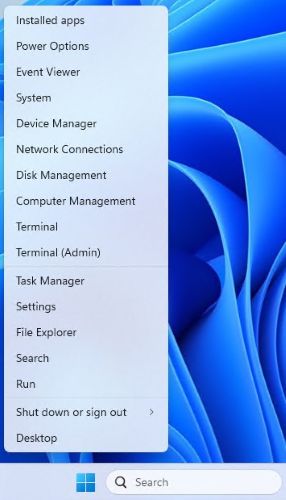
- Change the directory in the Terminal to where you extracted your files into (for example, Type
cd C:\Temp\and press Enter.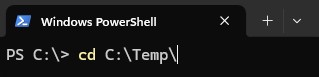
- Type
.\IntuneWinAppUtil.exe -c C:\Temp\App\ -s C:\Temp\App\windowsdesktop-runtime-8.0.16-win-x64.exe -o C:\Temp\Output\and press Enter
Uploading windowsdesktop-runtime-8.0.16-win-x64.intunewin to Microsoft Intune:
- Open a browser and go to https://intune.microsoft.com/
- Click Apps

- Click All Apps

- Click Create

- In the Select App type pane, under App Type pick Windows app (Win32) and then click Select.

- Click Select app package file and locate the
windowsdesktop-runtime-8.0.16-win-x64.intunewincreated in Step 3. Then click OK.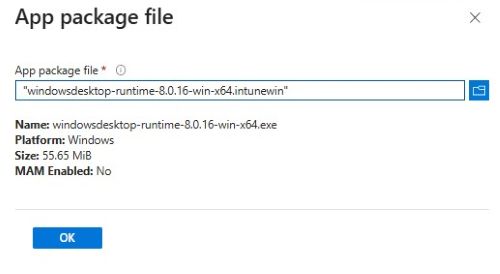
- On the App information page enter Name, Description, Publisher, and any other additional details. Then click Next.

- On the program page input the information listed below and then, click Next.
- Install Command:
windowsdesktop-runtime-8.0.16-win-x64.exe /install /quiet /norestart - Uninstall Command:
windowsdesktop-runtime-8.0.16-win-x64.exe /uninstall /quiet /norestart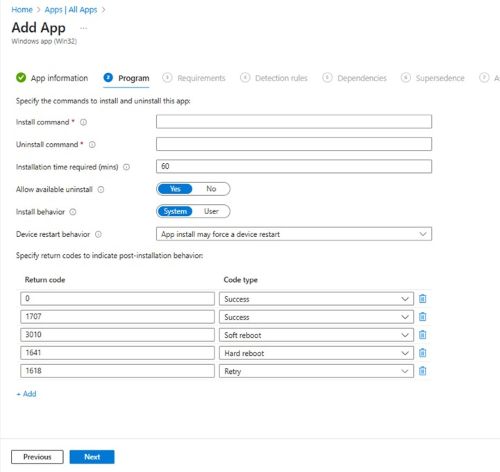
- Install Command:
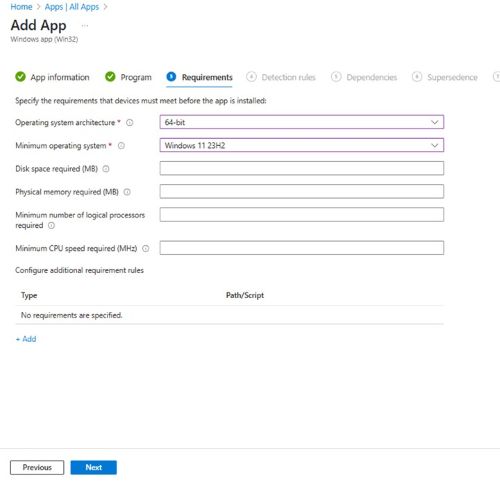
- On the Requirements screen set any needed requirements for Operating systems architecture and Minimum operating system, then click Next.
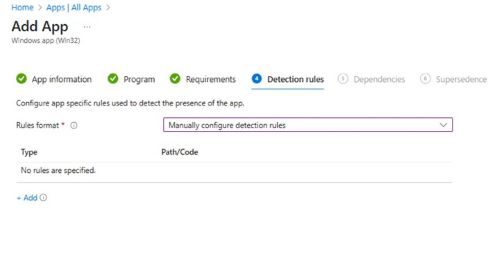
- On Detection Rules, select Manually Configure Detection Rules and then click Add
- On the Detection Rule pane, input the information below and, click OK.
- Rule Type: MSI
- MSI product code:
{71CD19D6-C448-4B5D-9A38-018741753290}Note: Verify the product code that you are using as they may be updated in newer versions.
- Back on the Detection rules page, click Next.

- On Dependencies click Next.

- On Supersedence click Next.

- On Assignments select any needed configurations for your environment and click Next.
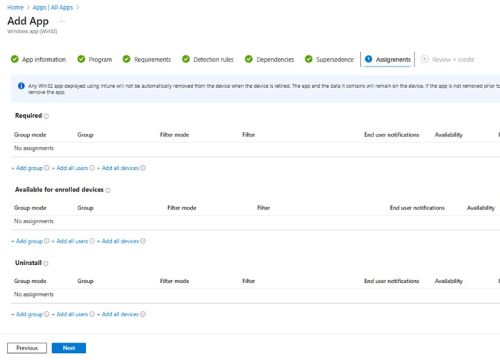
- On Review + create confirm your configuration and click Create.

Produtos afetados
Dell Pro AI StudioProdutos
Dell Client Device Manager, Dell Trusted DevicePropriedades do artigo
Número do artigo: 000322807
Tipo de artigo: How To
Último modificado: 27 mai. 2025
Versão: 3
Encontre as respostas de outros usuários da Dell para suas perguntas.
Serviços de suporte
Verifique se o dispositivo está coberto pelos serviços de suporte.