Data Domain: Managing Host Certificates for HTTP and HTTPS
Resumo: Host certificates allow browsers and applications to verify the identity of a Data Domain system when establishing secure management sessions. HTTPS is enabled by default. The system can use either a self-signed certificate or an imported certificate from a trusted Certificate Authority (CA). This article explains how to check, generate, request, import, and delete certificates for HTTP/HTTPS on Data Domain systems. ...
Instruções
Certificates may expire or become invalid. If no certificate is imported, the system uses a self-signed certificate, which browsers or integrated applications may not trust.
- Check Existing Certificates.
On the Data Domain (DD-CLI), run the following command to view installed certificates:
adminaccess certificate show
If certificates are expired or nearing expiration:
- If self-signed, regenerate using DD-CLI
- If imported, follow the CSR and import steps below.
- Generate Self-Signed Certificates.
To regenerate the HTTPS certificate:
adminaccess certificate generate self-signed-cert
To regenerate HTTPS and trusted CA certificates:
adminaccess certificate generate self-signed-cert regenerate-ca
- Generate a Certificate Signing Request (CSR)
Use DD System Manager:
- Set a passphrase, if not done already:
system passphrase set
- Go to Administration > Access > Administrator Access.
- Select HTTPS > Configure > Certificate tab > Add.
- Click Generate the CSR for this Data Domain system.
- Complete the CSR form and download the file from:
/ddvar/certificates/CertificateSigningRequest.csr
CLI Alternative Example:
adminaccess certificate cert-signing-request generate key-strength 2048bit country "CN" state "Shanghai" city "Shanghai" org-name "Dell EMC" org-unit "Dell EMC" common-name "ddve1.example.com" subject-alt-name "DNS:ddve1.example.com, DNS:ddve1"
- Import Signed Certificate
Use DD System Manager:
- Select Administration > Access > Administrator Access
- In the Services area, select HTTPS and click Configure
- Select the Certificate tab
- Click Add. An Upload dialog appears:
- For
.p12file:- Select Upload certificate as
.p12file, enter password, browse, and upload. - Example for
.p12selection:
- Select Upload certificate as
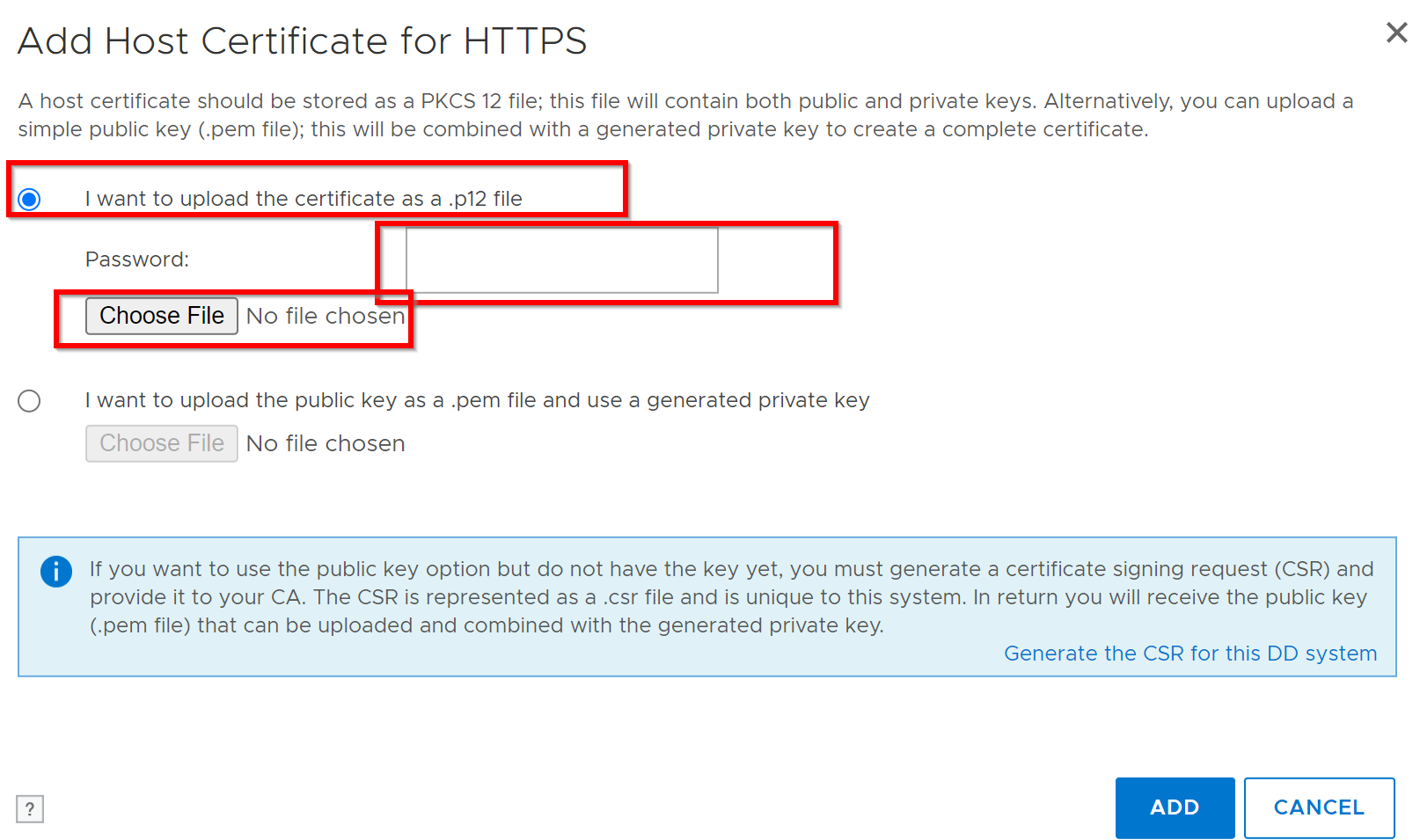
- For
.pemfile:- Select Upload public key as
.pemfile and use generated private key, browse, and upload.
- Select Upload public key as
DD CLI alternative: Refer to article Data Domain: How to Generate a Certificate Signing Request and Use Externally Signed Certificates
- Delete Existing Certificate.
Before adding a new certificate, delete the current certificate:
-
- Go to Administration > Access > Administrator Access > HTTPS > Configure > Certificate tab.
- Select certificate and click Delete.
- CSR Validation
Validate CSR using Windows Command Prompt:
certutil -dump <CSR file path>
- Troubleshooting: Browser Shows "Certificate Untrusted" After CA-Signed Certificate Import
If the browser displays a "certificate not trusted" or "connection is not secure" warning after importing a CA-signed certificate, the imported PEM or P12 file may be missing intermediate CA certificate(s) in the certificate chain.
Cause: When the imported file contains only the leaf (server) certificate without the intermediate CA certificate(s), the Data Domain serves an incomplete certificate chain. Some desktop browsers may auto-retrieve missing intermediates, but mobile devices, monitoring systems, and DD-to-DD trust operations will fail.
Verify the Certificate Chain:
On a workstation with OpenSSL installed, inspect the PEM file before import:
openssl crl2pkcs7 -nocrl -certfile <certificate_file.pem> | openssl pkcs7 -print_certs -nooutThis command lists all certificates in the file. A complete chain should include:
- The leaf (server) certificate (subject CN matching the DD hostname/FQDN)
- One or more intermediate CA certificates
- Optionally, the root CA certificate
If only the leaf certificate is present, the chain is incomplete.
Resolution:
-
Obtain the intermediate CA certificate(s) from the enterprise Certificate Authority team.
-
Concatenate the certificates into a single PEM file in the following order:
- Leaf certificate (first)
- Intermediate CA certificate(s) (in chain order)
- Root CA certificate (last, optional)
-
Delete the current imported certificate from the Data Domain:
adminaccess certificate delete imported-host application https -
Import the reconstructed PEM file containing the full chain using the GUI or CLI procedures in Section 4 above.
Mais informações
- Private and public keys must be 2048 bits.
- DDOS only supports an active CSR and a signed certificate for HTTPS at a time.
Reference: Deployment KB: Data Domain: How to use externally signed certificates