File Explorer Not Responding in Windows 10
Summary: Having trouble with File Explorer not responding in Windows 10? Follow this guide to resolve issues by clearing history, resetting folders, and restoring default settings. Restart your computer to fix the problem. ...
Acest articol se aplică pentru
Acest articol nu se aplică pentru
Acest articol nu este legat de un produs specific.
Acest articol nu acoperă toate versiunile de produs existente.
Symptoms
Affected Operating Systems:
- Windows 10
Does Windows 10 File Explorer fail to respond, continues in a working loop and then the non-responding message appears?
Cause
This problem occurs because of certain applications downloaded to the computer that can cause some settings to be changed, causing FILE EXPLORER locking and slow computer performance. To resolve the issue, follow the steps below:
Resolution
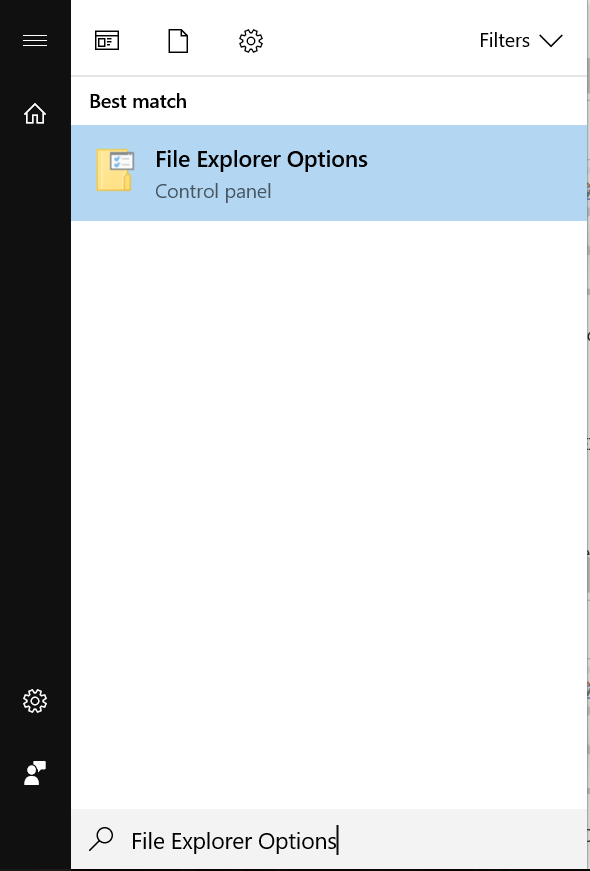
- Click the Start button and type FILE EXPLORER OPTIONS:
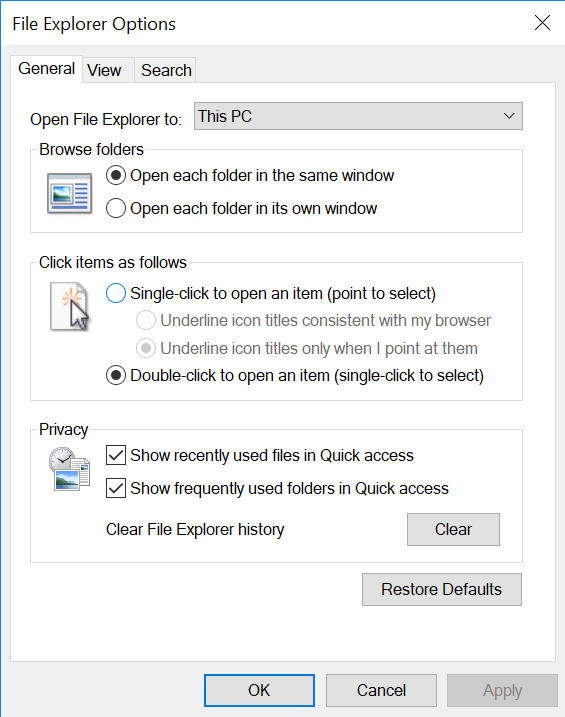
- Click the GENERAL tab, in the Clear File Explorer History option click CLEAR, then click RESTORE DEFAULTS, and finally click APPLY.
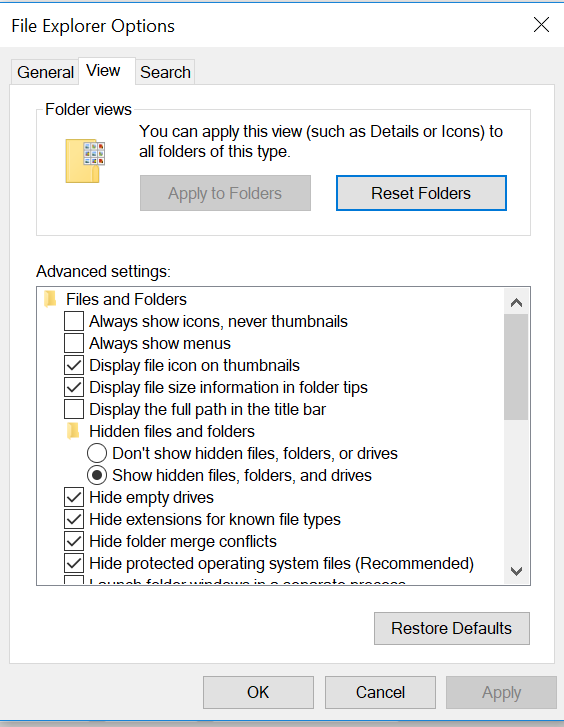
- Now click the VIEW tab, select RESET FOLDERS, and then click YES. Then click RESTORE DEFAULTS, and then APPLY.
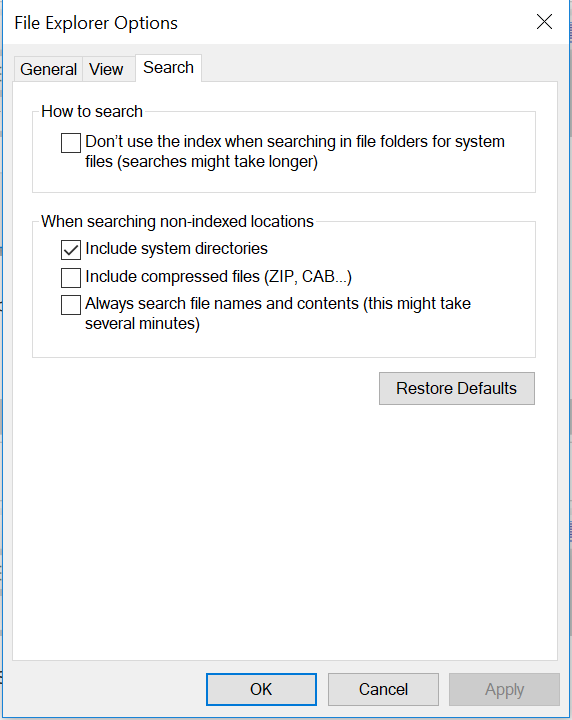
- In the SEARCH tab, click RESTORE DEFAULTS after this click APPLY.
- Once this is done, restart the computer, and the issue should be resolved.
Produse afectate
Alienware, Inspiron, Legacy Desktop Models, OptiPlex, Vostro, XPS, G Series, G Series, Alienware, Inspiron, Latitude, Vostro, XPS, Legacy Laptop Models, Fixed Workstations, Mobile WorkstationsProprietăți articol
Article Number: 000148462
Article Type: Solution
Ultima modificare: 17 iul. 2025
Version: 8
Găsiți răspunsuri la întrebările dvs. de la alți utilizatori Dell
Servicii de asistență
Verificați dacă dispozitivul dvs. este acoperit de serviciile de asistență.