Live Optics | Upload an SIOKIT File using the Live Optics Collector
Сводка: How to upload an SIOKIT file using the Live Optics collector.
Данная статья применяется к
Данная статья не применяется к
Эта статья не привязана к какому-либо конкретному продукту.
В этой статье указаны не все версии продуктов.
Инструкции
The Live Optics collector sends data to the Live Optics web portal for analysis in two ways:
- Automatically, while a Live Optics collector run is in progress
- Manually, by uploading an encrypted SIOKIT file which is created and saved locally to the machine on which it is run.
This article describes how to manually upload an SIOKIT file using the Live Optics collector.
- Open the Live Optics collector and select Upload SIOKIT.
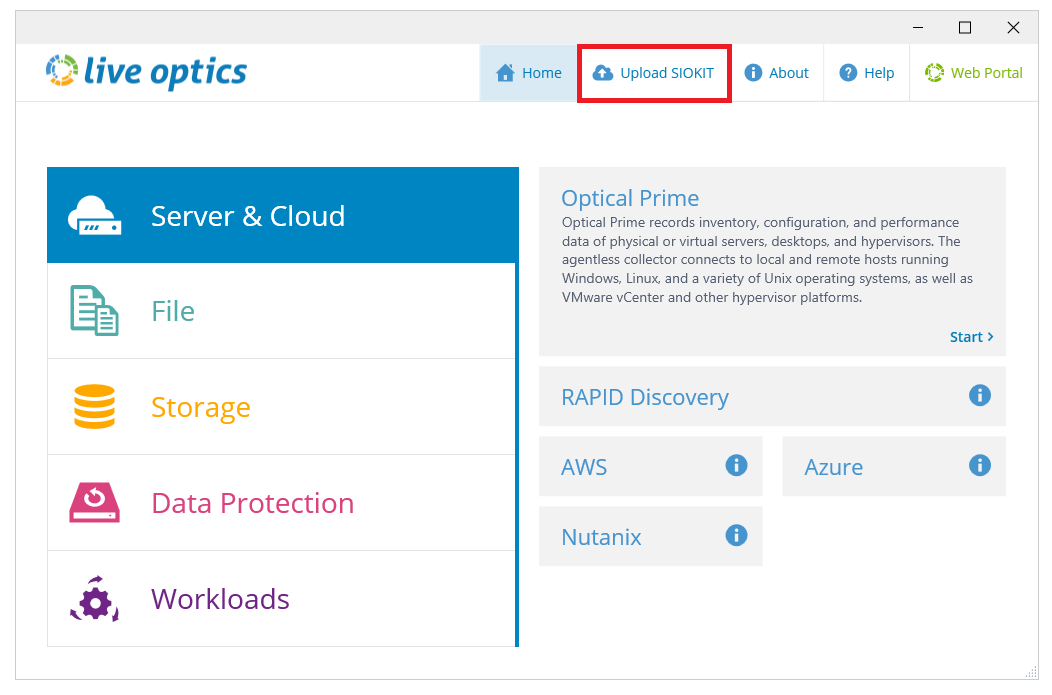
- Click Browse for File and choose the SIOKIT file you want to upload. Enter a project name and click Upload to continue.
- The file is uploaded to the Live Optics web portal. During the upload, a status bar indicates the progress. The upload may take some time to complete depending on the speed of your Internet connection and size of the file. When the upload is complete, the following screen displays. A confirmation email follows, when your project is ready to view on the Live Optics web portal.
- Click Quit to close the Collector.
Дополнительная информация
If you have any questions, reach out to Live Optics Support at liveoptics.support@dell.com.
Затронутые продукты
AnalyticsСвойства статьи
Номер статьи: 000228710
Тип статьи: How To
Последнее изменение: 21 Oct 2025
Версия: 3
Получите ответы на свои вопросы от других пользователей Dell
Услуги технической поддержки
Проверьте, распространяются ли на ваше устройство услуги технической поддержки.