Live Optics | Collector | Download the Live Optics Collector (Linux)
Сводка: This article describes how to download the Live Optics Corporate Edition collector using WGET and Curl from a Linux OS terminal session. This collector version requires registration with a corporate email address for access to all Live Optics configuration and performance data collection options. The Live Optics Corporate Edition collector is seen as "the Live Optics collector" and "the collector." ...
Инструкции
Download the Live Optics collector (Linux):
-
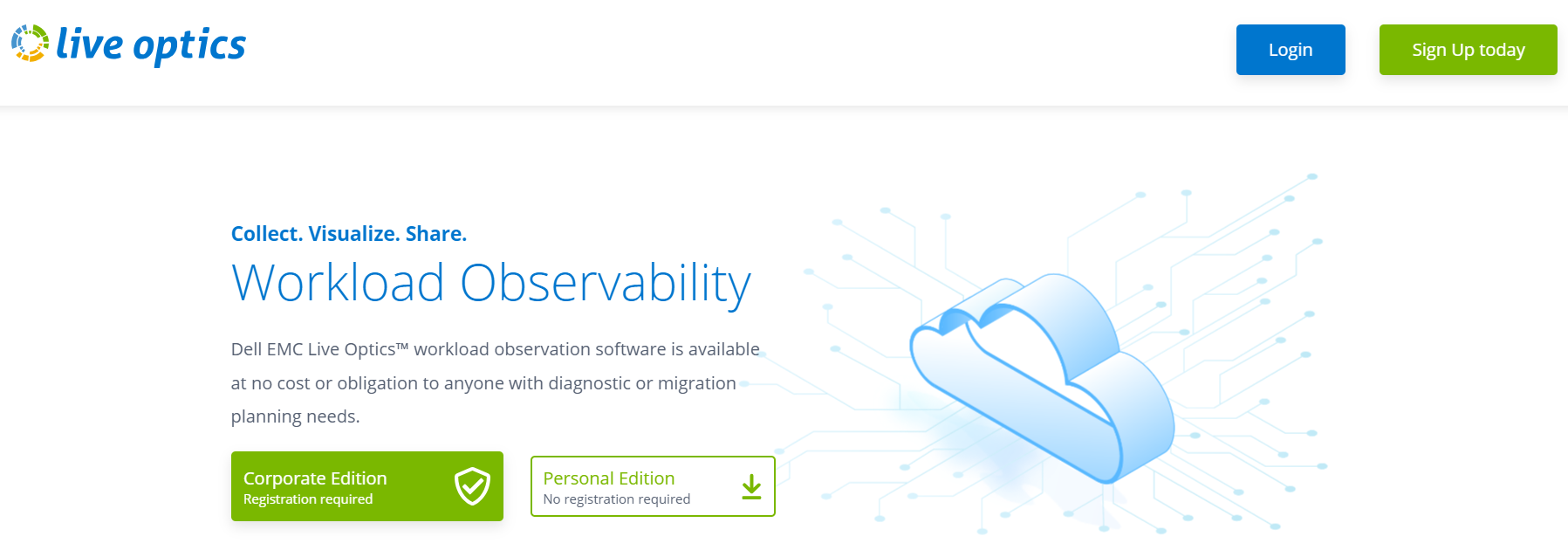
Go to https://www.liveoptics.com. The software downloads screen displays.
-
Select Corporate Edition to access the full range of Live Optics data collection options.
-
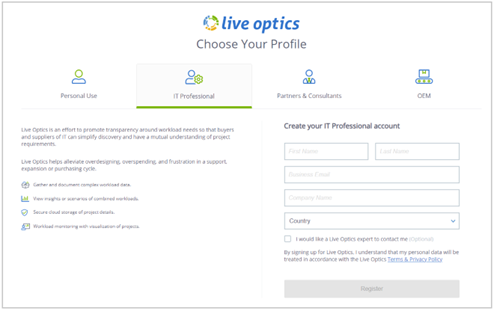
On the Choose Your Profile page, enter your details to register. You receive an email within 24 hours to complete the registration of your account by creating your account password. The link expires after 30 days if registration is not completed. The email contains a link to the Live Optics dashboard to download the Live Optics collector.
-
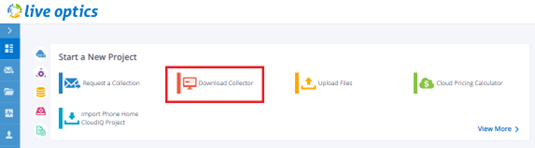
Log in to the Live Optics dashboard. From the main dashboard screen, select Download Collector. You can also expand the blue menu panel on the left of the screen and select Collectors > Download Collector to access the Live Optics collector download page.
-
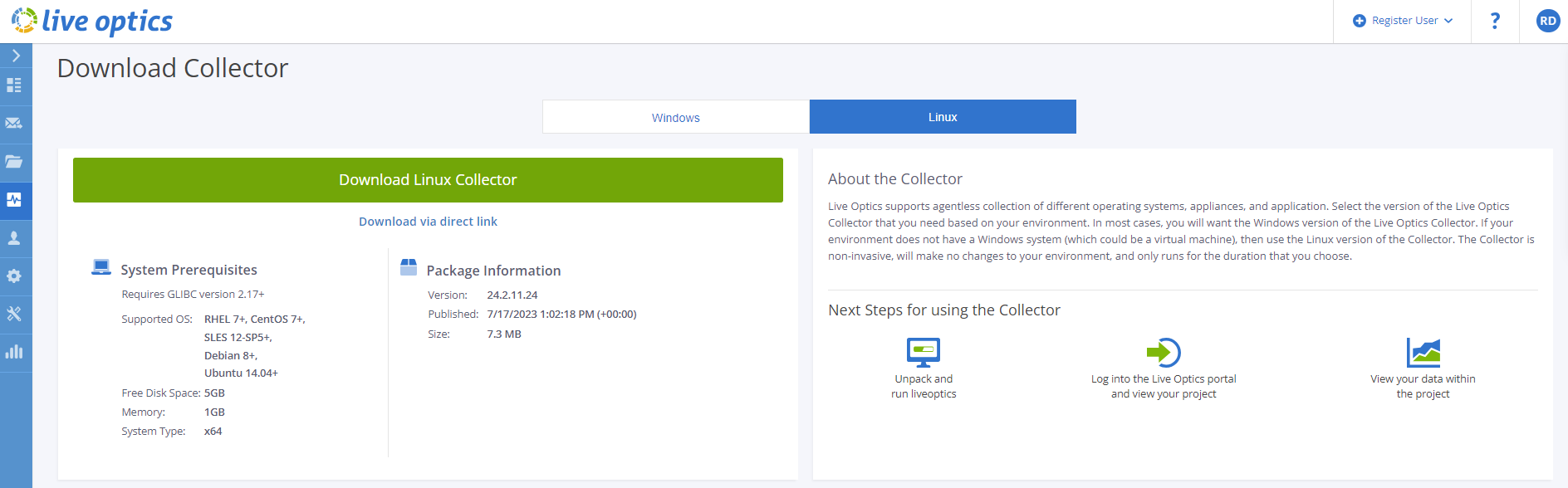
Select the Linux collector version.
-
Select Download Linux Collector to download a tar.gz file to extract using your command line.
-
Open a terminal session and go to the location in which you downloaded the tar.gz file. Use the following commands to extract the Live Optics software:
/home/[file location] $mkdir liveoptics $mv liveoptics_x86_64.tar.gz liveoptics/ $cd liveoptics $tar -xzvf liveoptics_x86_64.tar.gz $./liveoptics -
Follow the instructions on the screen to complete a Live Optics collection.
-
When the collection is complete, an SIOKIT file is created. SIOKIT files must be manually uploaded to Live Optics for processing before your project can be viewed. To upload collection data, see Upload an SIOKIT file from the Live Optics collector or Upload an SIOKIT file from the Live Optics web portal.
Дополнительная информация
If you have any questions, please reach out to Live Optics Support at liveoptics.support@dell.com