如何卸载 Dell Security Management Server
摘要: 可以按照以下说明卸载 Dell Security Management Server 或 Dell Data Protection Enterprise Edition Server。
本文适用于
本文不适用于
本文并非针对某种特定的产品。
本文并非包含所有产品版本。
症状
您可能需要卸载 Dell Security Management Server(以前称为 Dell Data Protection | Enterprise Edition Server),以满足以下目的:
- 对产品进行故障处理。
- 解决操作系统不兼容性。
- 迁移服务器。
本文介绍了产品的卸载步骤。
受影响的产品:
- Dell Security Management Server
- Dell Data Protection | Enterprise Edition Server
受影响的版本:
- v8.0.0 及更高版本
受影响的操作系统:
- Windows
原因
不适用
解决方案
Dell Security Management Server 的卸载因版本而异。单击相应的版本,了解特定的步骤。有关版本信息,请参阅如何确定 Dell Data Security/Dell Data Protection Server 版本。
警告:卸载之前,应备份 Dell Security Management Server。有关执行备份的更多信息,请参阅如何备份和还原 Dell Security Management Server/Dell Data Protection Enterprise Edition Server(英文版)。
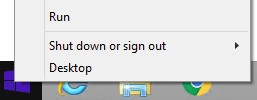
- 以管理员身份登录,右键单击 Windows 开始菜单,然后单击运行。
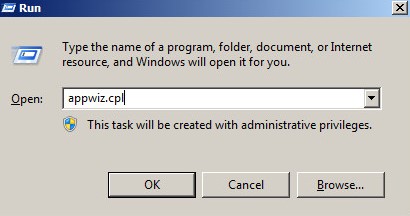
- 在“运行”UI 中,键入
appwiz.cpl,然后按确定。
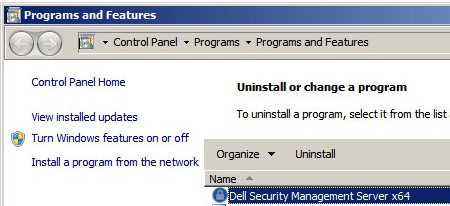
- 在“程序和功能”中,双击 Dell Security Management Server x64。
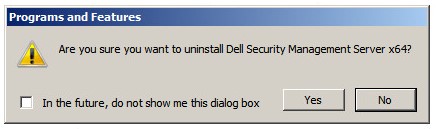
- 单击 Yes。
- 以管理员身份登录,右键单击 Windows 开始菜单,然后单击运行。
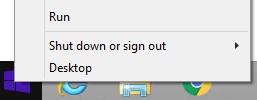
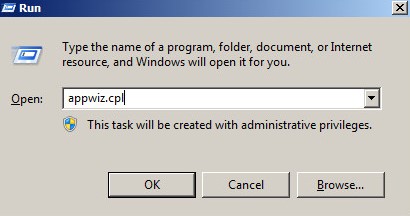
- 在“运行”UI 中,键入
appwiz.cpl,然后按确定。这将打开“程序和功能”。
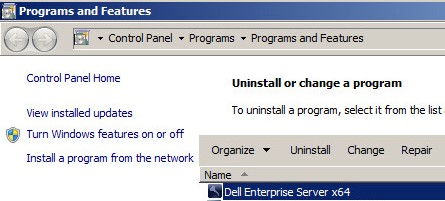
- 双击 Dell Enterprise Server x64 或 Dell Enterprise Server x86。
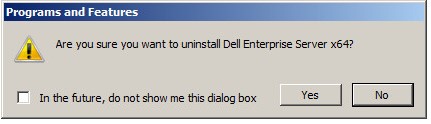
- 单击 Yes。
- 以管理员身份登录,右键单击 Windows 开始菜单,然后单击运行。
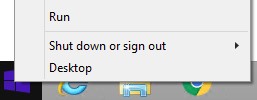
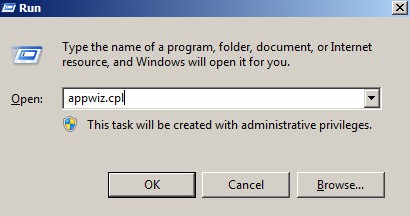
- 在“运行”UI 中,键入
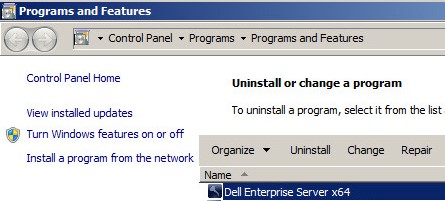
appwiz.cpl,然后按确定。这将打开“程序和功能”。
- 双击 Dell Enterprise Server x64 或 Dell Enterprise Server x86。
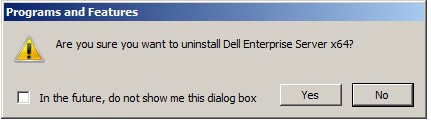
- 单击 Yes。
- 单击确定。
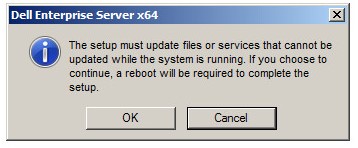
- 重新启动 Windows Server。
要联系支持部门,请参阅 Dell Data Security 国际支持电话号码。
转至 TechDirect,在线生成技术支持请求。
要获得更多见解和资源,请加入戴尔安全社区论坛。
其他信息
视频
受影响的产品
Dell Encryption文章属性
文章编号: 000124927
文章类型: Solution
上次修改时间: 19 10月 2023
版本: 15
从其他戴尔用户那里查找问题的答案
支持服务
检查您的设备是否在支持服务涵盖的范围内。