Updating the BIOS on Dell Computers With BitLocker Enabled
摘要: This article provides information about steps to carry out before updating your BIOS on computers with BitLocker encryption enabled. Also, learn what to do if the latest BIOS update has caused a BitLocker error. ...
本文适用于
本文不适用于
本文并非针对某种特定的产品。
本文并非包含所有产品版本。
症状
Be aware of the following when updating the BIOS on a computer with BitLocker enabled.
Caution: If BitLocker is not suspended, the next time you reboot the computer, the BitLocker key is not recognized. A prompt appears to enter the recovery key to progress. The computer asks for this recovery key on each reboot. If the recovery key is unknown, this can result in data loss or an unnecessary operating system reinstall.
原因
An error may occur with BitLocker where BitLocker cannot enable or resume when the Trusted Platform Module (TPM) is in TPM 2.0 mode. This happens when the BIOS installed is one of the affected BIOS versions that is listed below. Update the BIOS to the latest available version for your computer from Dell Drivers & Downloads to resolve the issue.
| Platform | Affected BIOS Version |
|---|---|
| Latitude 7275 | 1.1.29 |
| Latitude 5175 / 5179 | 1.0.22 |
| Latitude 7370 | 1.11.4 |
| Latitude E7270/E7470 | 1.14.3 |
| Latitude E5270/E5470/E5570 | 1.13.3 |
| Precision 3510 | 1.13.3 |
| Precision 7510/7710 | 1.11.4 |
Caution: Dell Technologies recommends not installing a demoted BIOS for any reason. Always ensure that the latest BIOS version is used when performing a BIOS update.
解决方案
Note: If the BitLocker icon is not seen, this could be caused by restrictions put in place by administrators. If so, contact your administrator for assistance.
There are several possible methods to prevent or resolve this issue:
- Suspend BitLocker before updating the BIOS
- Edit Group Policy for BitLocker
- Edit Services for BitLocker
Click the appropriate method for more information.
Suspend BitLocker before updating the BIOS
- Click the Start menu.
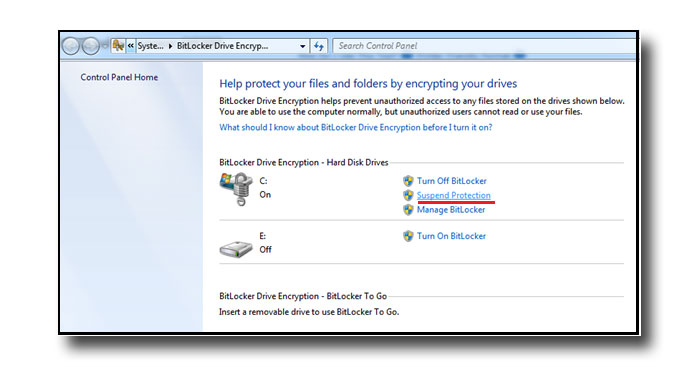
- Go to Control Panel, System and Security, then BitLocker Drive Encryption.
- Select Suspend Protection. Select Yes if prompted to confirm the change.
- Download and install the latest BIOS for your computer from Dell Drivers & Downloads.
Note: For more information about how to update the BIOS, refer to the Dell BIOS and UEFI Update Download and Installation Guide.
- After the BIOS is updated, repeat steps 1-2 and then click Resume Protection.

Edit Group Policy for BitLocker
- Click the Start menu. In the search box, type
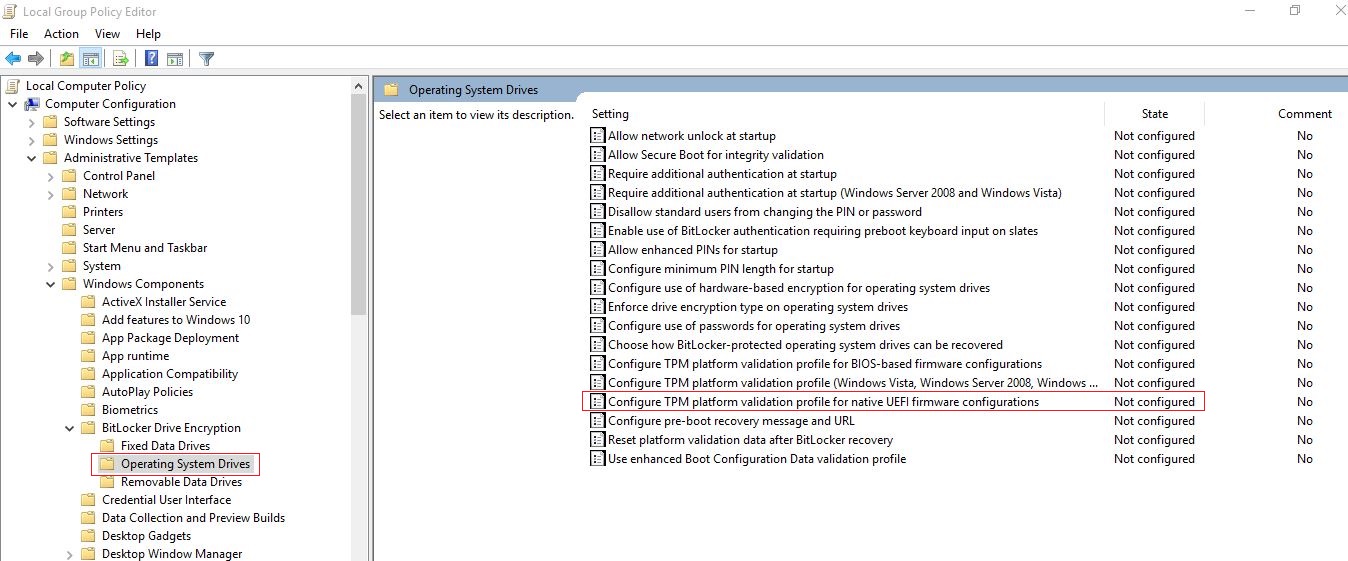
gpedit.mscand then press Enter.Note: Administrator rights are required to make edits to Group Policy. - Local Computer Policy is displayed with options for Computer Configuration and User Configuration. Under Computer Configuration, click Administrative Templates.
- Open Windows Components and then click the BitLocker Drive Encryption folder.
- In the right pane, click Configure TPM Platform Validation Profile.
- Double-click the Require additional authentication at startup policy.
- Set the policy to Disabled.
- Click Apply, then OK. Restart the computer.
- Once the BIOS is updated, repeat steps 1-5 and then Reenable BitLocker. Click Apply and then click OK.
Edit Services for BitLocker
- Click the Start menu. In the search box, type
servicesand then press Enter. - Scroll down and then double-click the BitLocker Disk Drive Encryption Service.
- Under the General tab in the open window, next to Startup type, click the drop-down box and then select Disable.
Note: The drop-down box, by default, says Manual.
- Under Service status, click Stop.

其他信息
How to Update the BIOS
Duration: 00:01:03 (hh:mm:ss)
When available, closed caption (subtitles) language settings can be chosen using the CC icon on this video player.
Refer to these Dell Knowledge Base articles for related information:
受影响的产品
Dell Pro Max Micro, Dell Pro Max Slim, Dell Pro Max Tower, Dell Plus, Dell Pro, Dell Pro Max, Dell Pro Plus, Dell Pro Premium, Latitude, Dell Pro Rugged, Vostro, Fixed Workstations文章属性
文章编号: 000134415
文章类型: Solution
上次修改时间: 20 11月 2025
版本: 13
从其他戴尔用户那里查找问题的答案
支持服务
检查您的设备是否在支持服务涵盖的范围内。