Dell Pro Premium Mouse MS900 Usage and Troubleshooting Guide

摘要: The following article provides information about the Dell Pro Premium Mouse MS900. You can reference each section to learn more about the features of the Dell Pro Premium Mouse MS900 and how to use it. ...

本文章適用於 本文章不適用於 本文無關於任何特定產品。 本文未識別所有產品版本。

說明


Table of Contents:

  1. What is in the Dell Pro Premium Mouse MS900 box
  2. Dell Pro Premium Mouse MS900 Features
  3. Setting up your Dell Pro Premium Mouse MS900
  4. Troubleshooting
  5. Additional Information

MS900 Mouse Product Shot

(Figure.1 Work faster and smarter with the Dell Pro Premium Mouse MS900

"You can get uninterrupted productivity with a rechargeable Mouse that offers up to three months battery life on a full charge. Recharge in two minutes for a full day’s work."


What is in the Dell Pro Premium Mouse MS900 box
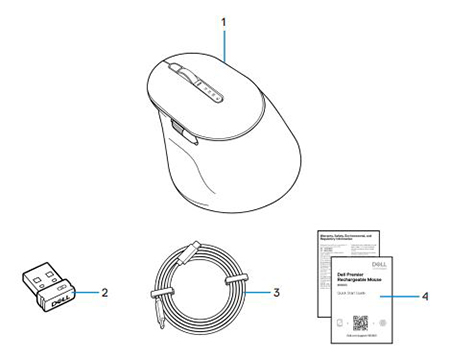
 

MS900 Mouse What's in the box?

(Figure.2 Dell Pro Premium Mouse MS900 Box Contents)

1 Dell Pro Premium Mouse MS900 2 Dell Secure Link USB Type-A Receiver
3 USB Type-C Charging Cable 4 Documents


Back to Top


Dell Pro Premium Mouse MS900 Features


Top View
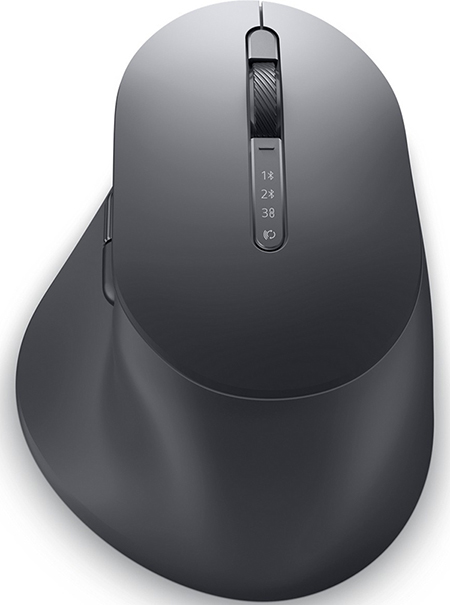
MS900 Top Down View

(Figure.3 DellPremium Mouse MS900 Top View)

Left View

MS900 Left Side View

(Figure.4 DellPremium Mouse MS900 Left View)

Product Features

MS900 Product Features

(Figure.5 Dell Pro Premium Mouse MS900 Product Features)

1 Vertical Scroll Wheel 2 Bluetooth 5.1 Modes
3 RF 2.4 GHz Mode (USB Type-A Receiver) 4 Connection Mode Button
5 Programmable Side Button 6 Horizontal Scroll Wheel
7 USB Type-C Charging Port    


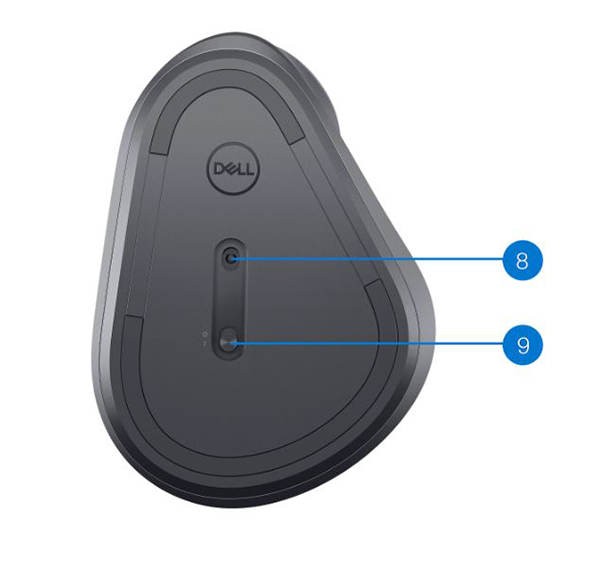
Bottom View

MS900 Product Features (Base)

(Figure.6 Bottom View)

8 Optical Sensor 9 Power Switch


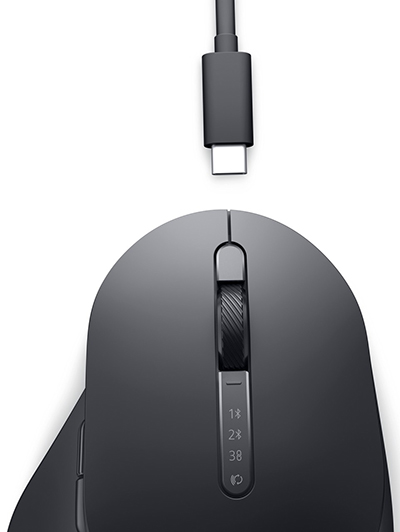
USB Type-C Charging Port View

USB Type-C Charging

(Figure.7 Dell Pro Premium Mouse MS900 Charging Port)


Back to Top


Setting up your Dell Pro Premium Mouse MS900


Compatibility

Operating Systems (OS):

  • Wireless 2.4 GHz Connectivity:
    • Windows 7, 8, 8.1, 10 and 11; Mac; Linux (Red Hat 8.0/Ubuntu 18.04); Chrome; and Android OS

  • Wireless Bluetooth 5.0 Connectivity:
    • Windows 8.1 and 10; Mac; Linux (Red Hat 8.0/Ubuntu 18.04); Chrome; and Android OS

Using the Dell Peripheral Manager application:

  • Windows 10, 11 or later

Using the Dell Pair application:

  • Windows 10 (Version 19041 and above.), 11 or later

  • Bluetooth Version 5.0 or higher

Connecting the Dell Pro Premium Mouse MS900 to Charge

The Dell Pro Premium Mouse MS900 uses a USB Type-C to USB Type-C cable to connect to your Desktop or Laptop and charge.
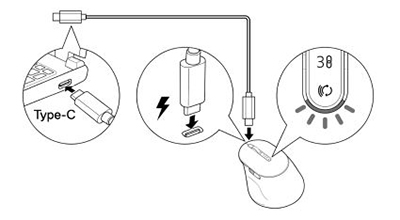
MS900 Charging Diagram

(Figure.8 USB Type-C Cable)

Connecting the Dell Pro Premium Mouse MS900 to your Computer

You can get step-by-step instructions from the following guides:

  • Dell Peripheral Manager User's Guide
  • Dell Pair User's Guide
  • Dell Pro Premium Mouse MS900 Quick Start Guide
  • Dell Pro Premium Mouse MS900 User’s Guide

The guides are located on our support site:


Back to Top


Troubleshooting


Problems Possible Solutions
Unable to use the wireless Mouse.
  1. Check the battery level. This wireless Mouse uses a rechargeable battery, ensure that the battery is fully charged.
  2. Turn the wireless mouse off, and then turn it on again.
Mouse buttons do not work.
  1. Check the battery level. This wireless Mouse uses a rechargeable battery, ensure that the battery is fully charged.
  2. Turn the wireless mouse off, and then turn it on again.
  3. On your computer, turn the Bluetooth off and on.
  4. Restart your computer.
  5. Check for interference that may affect Bluetooth connectivity. For example, any nearby Wi-fi or USB 3.0 devices.
    • Check for any wireless devices that are in close proximity such as wireless networking devices. For example, Bluetooth printer, USB 3.0 devices, and so on.
    • Move away from these devices.
Unable to pair the Mouse to the computer using the Bluetooth pairing button.
  1. Check the battery level. This wireless Mouse uses a rechargeable battery, ensure that the battery is fully charged.
  2. Turn the wireless Mouse off, and then turn it on again.
  3. Ensure that the Bluetooth device is in pairing mode by pressing the Bluetooth pairing button for three seconds. The Bluetooth channel LED blinks white to indicate the Bluetooth pairing is initiated.
Unable to pair the wireless Mouse with the computer.
  1. Check the battery level. This wireless Mouse uses a rechargeable battery, ensure that the battery is fully charged.
  2. Turn the wireless Mouse off, and then turn it on.
  3. On your computer, turn the Bluetooth off and on.
  4. Restart your computer.
  5. Check if you have the latest Bluetooth driver installed on your computer.
  6. Check for interference that may affect Bluetooth connectivity. For example, nearby Wi-fi or USB 3.0 devices.
    • Check for any wireless devices that are in close proximity such as wireless networking devices. For example, Bluetooth printer, USB 3.0 devices, and so on.
    • Move away from these devices.
  7. Ensure that the Bluetooth device is in pairing mode by pressing the connection-mode button for three seconds. The Bluetooth channel LED blinks white to indicate the Bluetooth pairing is initiated.
Wireless connection is lost.
  1. Check the battery level. This wireless Mouse uses a rechargeable battery, ensure that the battery is fully charged.
  2. Turn the wireless Mouse off, and then turn it on.
  3. On your computer, turn the Bluetooth off and on.
  4. Restart your computer.
  5. Check for interference that may affect Bluetooth or RF connectivity. For example, nearby Wi-fi or USB 3.0 devices.
    • Check for any wireless devices that are in close proximity such as wireless networking devices. For example, Bluetooth printer, USB 3.0 devices, and so on.
    • Move away from these devices.
    • Ensure that the distance between your laptop, desktop, or a compatible mobile device where the Dell Secure Link USB Type-A receiver is connected is within 1 m.
    • Ensure that the USB Type-A port where the Dell Secure Link USB Type-A receiver is connected to is not near any USB Type-A ports where other devices are connected. If necessary, connect the Dell Secure Link USB Type-A receiver to the dongle extender and check the wireless connection again.
Dell Pair reports a pairing error. Reconnect through Dell Pair using the following steps:
  1. Download and install the latest Bluetooth drivers on your computer.
  2. If a Bluetooth device is brought near the computer and is in pairing mode, the Dell pair UI aids pairing.
  3. Wait for the pairing error User Interface (UI) to autodismiss.
  4. Move the Bluetooth device far away from the computer.
  5. Bring the Bluetooth device back near the computer.
  6. Ensure that the Bluetooth device is in pairing mode by pressing the connection-mode button for three seconds. The Bluetooth channel LED blinks white to indicate the Bluetooth pairing is initiated
Unable to pair using Dell Pair and Swift Pair.
  1. Press the connection-mode button to switch to the first or second Bluetooth pairing mode.
  2. Press the connection-mode button for three seconds until the selected Bluetooth channel LED starts blinking white.
  3. Open Start > Settings > Bluetooth & other devices > Add Bluetooth or other device.
  4. Select Add device > Bluetooth.
  5. Select Dell Pro Premium Mouse MS900 and add it.
  6. If adding the wireless mouse is not successful, restart the computer and repeat the steps.
Dell Pair notification does not open when a Bluetooth device is turned on for the first time.
  1. . Windows 10 (version 19041) is the oldest version to support Dell Pair.
  2. Bluetooth version 5.0 or higher is required.
  3. Bluetooth is supported on the computer. It is turned ON under Windows settings.
  4. The Bluetooth device supports detection by Dell Pair.
  5. The Bluetooth device is placed close to the detection range of the computer. Lift the mouse and bring this closer to your computer.
  6. Check the computer and the Bluetooth device both have sufficient battery charge to operate.
  7. The Bluetooth device has the latest firmware.
  8. The Bluetooth controller on the computer is from Intel.
  9. Power cycle the Bluetooth device.
  10. Ensure that the Bluetooth device is in pairing mode by pressing the connection-mode button for three seconds. The Bluetooth channel LED blinks white to indicate the Bluetooth pairing is initiated.
Dell Secure Link USB Type-A receiver not working.
  1. Disconnect and reconnect the Dell Secure Link USB Type-A receiver or connect it to another USB Type-A port.
  2. Ensure that the third connection mode is selected.
  3. If the Dell Secure Link USB Type-A receiver is still not working, restart the system or check the Dell Pro Premium Mouse MS900 - Dell Peripheral Manager for errors.


Back to Top


其他資訊

Wireless Mouse Troubleshooting Portal Page

Learn how to use and troubleshoot problems with the Mouse you use with your computer. You can find information about Troubleshooting steps, How-To guides, and relevant Support Videos for assistance.

For the Dell Pro Premium Mouse MS900 User Guide, browse to the: Dell Pro Premium Mouse MS900 Online Manual Page. Touch or click View PDF to the right of the Mouse User Guide, located in the Manuals and Documents section.


Back to Top


受影響的產品

Dell Pro Premium Collaboration Keyboard and Mouse KM900, Dell Pro Premium Mouse MS900, Dell Pair
文章屬性
文章編號: 000208142
文章類型: How To
上次修改時間: 22 4月 2025
版本:  3
向其他 Dell 使用者尋求您問題的答案
支援服務
檢查您的裝置是否在支援服務的涵蓋範圍內。