How to Manually Renew, Manage, or Cancel an Office 365 Subscription
摘要: This article describes the process for renewing Office 365 subscriptions manually, disabling automatic renewal, or canceling the subscription.
本文章適用於
本文章不適用於
本文無關於任何特定產品。
本文未識別所有產品版本。
說明
Note: Office 365 is set to automatically renew your subscription by default when you set it up initially. This setting can be changed at any time. The following steps are necessary if automatic renewal has been disabled, or you want to disable automatic subscription renewal.
- Connect to the Dell Cloud Support Portal.
- Use the credentials provided by Dell to log in to the portal. Generally the username is your Dell customer number unless the user has changed it.
- In case your password is forgotten - click Forgot Password? - A link to reset your password is sent to the email address provided to Dell during the setup of your initial subscription.
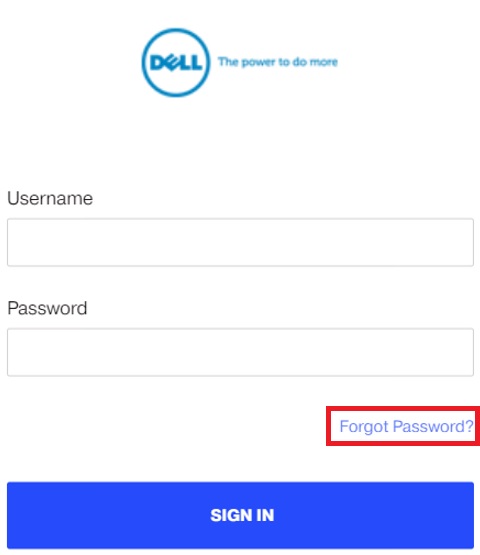
- If any issue occurs during the password reset process, send an email to salessupport@office365.dell.com
- In case your password is forgotten - click Forgot Password? - A link to reset your password is sent to the email address provided to Dell during the setup of your initial subscription.
- Select Account.
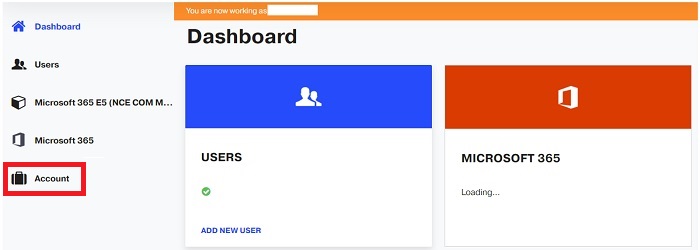
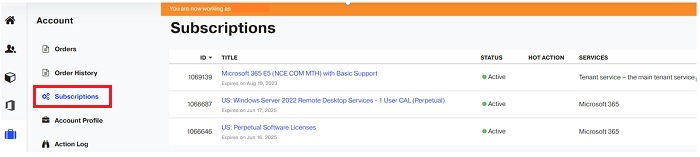
- Select Subscription, and then select the desired subscription to renew.
- Select Renew to manually renew the subscription.
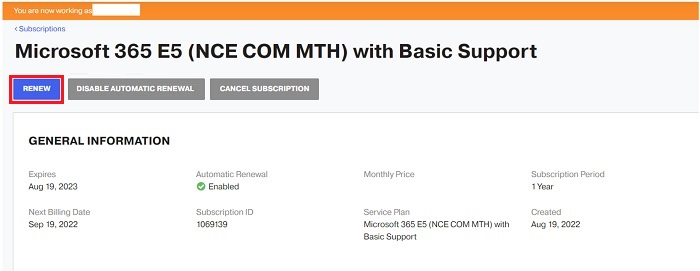 Note: If you prefer to disable automatic subscription renewal, select Disable Automatic Renewal.
For more information contact:
Department - Microsoft 365 Dell Technical Support +833-673-6196
Email Address - cloudsoftwarehelp@dell.com
Operational Hours - 24/7
Department - Microsoft 365 Dell Sales Support +888-927-4010
Email Address - salessupport@office365.dell.com
Operational Hours - Mon-Fri 9am to 6pm EST
受影響的產品
Microsoft 365 from Dell文章屬性
文章編號: 000186188
文章類型: How To
上次修改時間: 09 3月 2023
版本: 6
向其他 Dell 使用者尋求您問題的答案
支援服務
檢查您的裝置是否在支援服務的涵蓋範圍內。