Premier: eQuotes
Summary: This article provides instructions on how to save, edit, and retrieve Premier eQuotes.
This article applies to
This article does not apply to
This article is not tied to any specific product.
Not all product versions are identified in this article.
Instructions
Save an eQuote
eQuotes provide a way for users to prepare an order and save it for purchase later. Users with a Shopper role can send an eQuote for review by an Authorized Buyer. Once all desired products are added to your cart, select "Create eQuote" (Figure 1: Create eQuote).
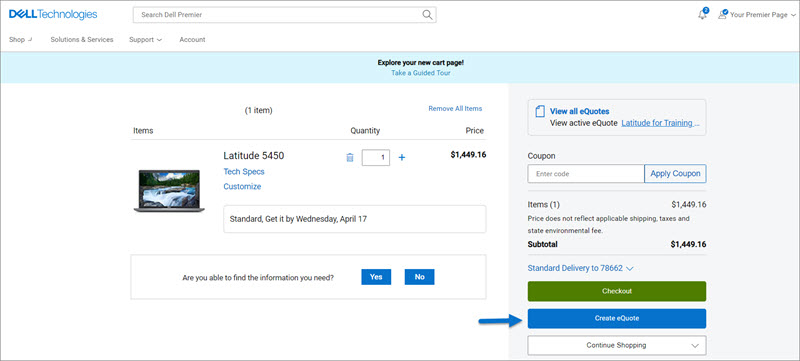
Figure 1: Create an eQuote
Finalize the eQuote by completing all required fields (Figure 2: Save your eQuote):
- Specify the name of your eQuote
- If you must send this eQuote to your purchasing agent and/or any other recipient by email, complete the appropriate fields. The selected Authorized Buyer can approve and purchase eQuotes off the Premier page.
- Enter/Edit the Order Contact information
- By entering your Shipping or Billing address (optional), you enable us to calculate shipping costs and any other applicable fees, and by providing it, you save time when placing your order.
- You can even select your delivery method to save time when placing your order
- Enter description and notes if needed (optional)
- Then click "Save eQuote." You will receive an email confirmation with your saved eQuote information for future reference.
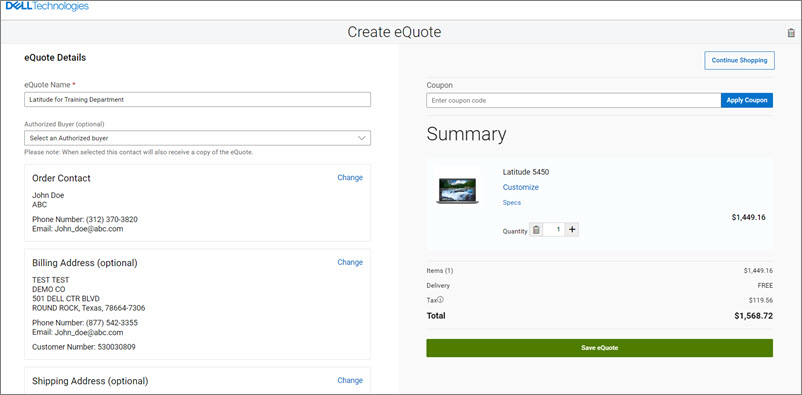
Figure 2: Save your eQuote
Retrieve an eQuote
View and retrieve your Quotes from the module available on the Premier home page. An eQuote can be retrieved by the individual user who saved it or by an authorized eQuote shopper or buyer.
- Find eQuote: The activity dashboard (1) allows you to quickly access information such as the number of active, purchased, nearing expiration, and expired quotes. When you click any of the categories, the quotes are filtered based on the selected status so you can manage quotes more effectively. You can also find the quotes you need with the dynamic search feature or the filtering options (2).
- Purchase eQuote: Quotes can be expanded to provide access to quote details information, such as billing and shipping addresses, product information, quantity, and pricing details (3). Each active quote has a "View and Buy" button that leads you to check out. Once the order has been placed, the quote status shows as "Purchased."
- Requote: An eQuote can be purchased repeatedly as long as the quote is active. If you want to generate a new quote with the same content, click "Requote" (4) at any time. Note: The new eQuote may reflect changes based on item availability and current pricing.
- Share eQuote: You can conveniently email an eQuote to selected colleagues by simply using the "Share Quote" link (5) and entering the necessary information.
- Download eQuote documents: eQuote documentation (pdf) is available for direct download from the Quote page (6).

Figure 3: Retrieve eQuotes
Edit an eQuote
The editing feature allows you to modify an existing eQuote and
- Either resave it as a brand-new eQuote with a unique eQuote number,
- Or save it as a version of your existing eQuote for easy tracking.
Option 1: Save as a new eQuote (new eQuote number)
To create a new eQuote based on an existing one, select "Edit As" and then "New Quote" in the View eQuote page. You can now modify the system, quantity, and address details as well as give your new eQuote a name. To change the system, click "Customize" to reopen the configuration page, select your new options and save your changes. The updated configuration is saved as a new eQuote with a unique eQuote number, leaving the original eQuote unchanged. The original eQuote remains in your list of quotes until it expires or is deleted. This is ideal when reusing an eQuote as a template for a different project or entity.
Option 2, NEW: Save as a new version (version added to existing eQuote number)
You can also save a modified eQuote as a new version, which adds a version number to the original eQuote number (for example 340000155996.2). This allows you to easily keep a record of changes over time. Previous eQuote versions remain accessible, helping you and your team to stay aligned and maintain a clear history of updates. You can edit all fields, including quote name, quantity, and addresses.
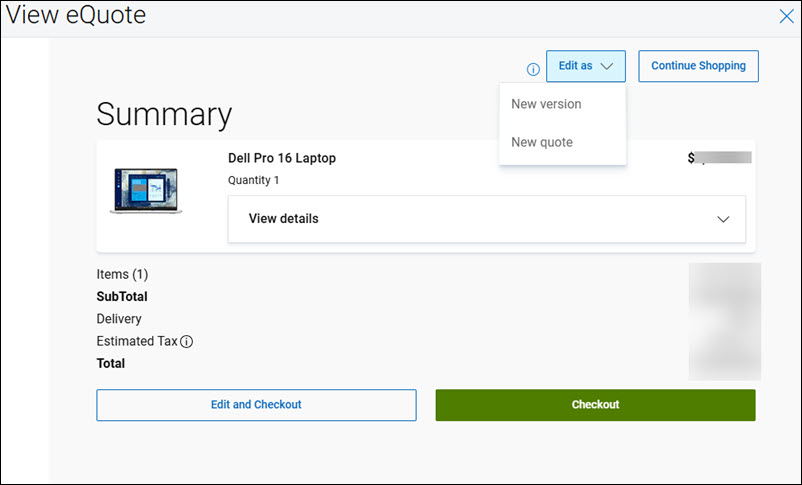
Figure 4: Edit eQuotes
If you have questions or need assistance, engage the Premier Support Teams
Article Properties
Article Number: 000103969
Article Type: How To
Last Modified: 09 Oct 2025
Version: 12
Find answers to your questions from other Dell users
Support Services
Check if your device is covered by Support Services.