
UNSOLVED
CL
christopher.lowden
1 Rookie
•
5 Posts
0
830
August 30th, 2023 22:14
Precision 7760 - Unable to update BIOS
Hello
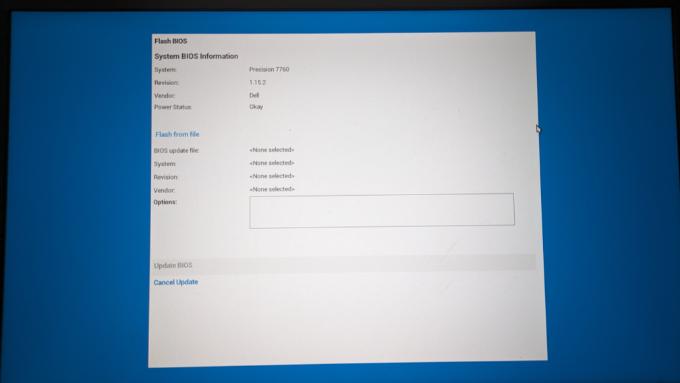
I wish to update the BIOS on my Prescision 7760 but when I enter the menu, I cannot browse to the USB stick that has the firmware. Can someone tell me what I am doing wrong please?
0
0
Posted August 31st, 2023 07:01
@Chino de Oro Hello Chino. I am trying to do exactly what you describe. But I cannot find the ... button on the screen capture above. I presume that this is not normal. I also have a Precision 7530 and it all works as above with the same USB stick.
0
0
Posted August 31st, 2023 08:31
I skipped the general prerequisites assuming you had it covered. The laptop is not attaching to any other USB devices, docking station, external screen(s), and suspend BitLocker (if used).
Exploring the following options:Use a different USB drive, between 8gb - 32gb, preferably non-SanDisk.
Use different USB ports on laptop.
Check your logs, specifically BIOS events to see any history of issue.
Test with a different BIOS version to see if firmware will display.
Considering to flash BIOS in Windows environment.
Considering to perform BIOS recovery (BR2) but using the latest firmware and with the OS drive removed.0
0
Posted August 31st, 2023 09:51
Hello
I found a workaround by activating the network boot services in the BIOS.
By activating the HTTP boot feature in auto mode
 Auto enable the UEFI network stack
 I discovered the BIOS flash remote tab appeared
 And using this tab, I was able to update to the latest BIOS easily using a WAN RJ45 connection.
 It was easier than fiddling about with a USB stick.I also discover that the UEFI HTTP BOOT offers lots of machine test options.I hope this helps someone
(edited)

Chino de Oro
11 Legend
•
8458 Posts
•
46451 Points
0
0
Posted August 31st, 2023 04:27
If you prefer to update BIOS from BIOS boot menu, follow the instructions below:
Installation
1. Copy this Precision_7X60_1.23.0.exe firmware file to a non-bootable, FAT32 formatted USB drive.
2. Insert the USB drive into any USB port.
3. Power on the system.
4. At the DELL logo screen, press F12 to access the one-time boot menu.
5. Select BIOS Flash Update in the Other Options section.
6. Click the ... button to browse the USB drive to locate the downloaded file.
7. Select the file and click OK.
8. Verify the existing system BIOS information and the BIOS update information.
9. Click Begin Flash Update.
10. Review the Warning message and click Yes to proceed with the update.
The system restarts and displays a Flash Progress bar at the Dell logo screen. The system restarts again when the Flash update is complete.