
Solved!
Go to SolutionError code: 2000-0146
Hi,
I have a lap top XPS M1530 Bios System A09, when I switch it on I receive : Windows can not repair this computer automatically, unspecified changes to system configuration caused the , error code 0x490.
When I use Pre-Boot system Assessment(PSA) , I get :
error code: 0146
Msg: Error code: 2000-0146
Msg: Hard drive 1: Self test log contains previous e-mail.
Could anyone help me, Thanks a lot
Janet
No - the drive has a hardware problem. Yes, you might squeak a few more hours or days out by reloading after reformatting - but is it worth doing that knowing how many hours it takes -- and that the drive is on its way out, so you'll have to do it all over again soon with a new drive, anyway?
DELL-Kalyan S
1 Rookie
•
750 Posts
139048
0
Posted July 26th, 2012 20:00
Hi Maya2013,
Welcome to Dell Community.
Let me first appreciate the fact that you have tried the steps yourself to isolate the problem.
Error code: 2000-0146 (DST Log contains previous errors) refers to previous errors in the hard drive which might not really be a hardware failure. In order to confirm this, I recommend you to run a custom test on the Hard drive which takes longer time than the Pre-boot System Assessment which you have already performed on the computer but it will give the accurate result.
Once the Pre-boot System Assessment is completed, the computer will give you an option to “Run the remaining memory test”, please select “No”. Then the computer will launch the 32-bit Diagnostics from the utility partition (if available).
After the diagnostics is launched, in the main menu, please click on “Custom Test”, then select the “Hard drive” and click on “Run Tests”. If the test completes without any error then the hard drive is fine and PC Restore can be performed to restore the computer back to the factory condition (which will result in data loss).
Please refer to the following article for more information on running the Dell 32-bit Diagnostics Utility: http://dell.to/MNJv4B
If you have any further questions feel free to reply.
francesco arcie
1 Message
139048
0
Posted November 19th, 2012 00:00
Janet only thing to do is to adapt the system windows xp, all those that have the windows vista will probemi of the genre, or ask the drive to restart interlock diagniostica menu of your PC. in windows vista lacks many qualities, even in windows 7 to windows 8 and maybe reeds. indotazione to get all the media driver at the time of purchase is your right.:emotion-1:
maury11215
1 Rookie
•
19 Posts
139042
0
Posted December 5th, 2012 20:00
Kalyan--hi.
I've posted this same issue in the Desktop Forum under "Drive Self-Test (DST) log contains previous error(s)".
After the 2000-0146 (Drive Self Test) code occurs, you don't have any option to continue running the PSA, only to reboot the system. Moreover, I have run the Dell 32-bit Diagnostics from a CD and the Hard drive tests all pass without any error (it is a new drive).
When you run PSA with no drives present, it gives a different code saying No Hard Drive Found or something, but after connecting the drive, you still see 2000-0146.
But-- even after clearing the CMOS memory, I am still getting the 2000-0146 code when I run PSA assessment. Can you think of any other way to clear that out? Where is that being saved? It doesn't seem like that should be happening.
-Maury
2000-0146 (Drive Self Test) can also occur if you have not provided a writeable Disc to check the optical drive.
Run the LONG Test on Just the hard drive.
http://en.community.dell.com/support-forums/desktop/w/desktop/3624.beep-codes-and-psa-diagnostic-chart.aspx
It means the log has Previous Errors.
Hard Drive
Remove and reinstall the Hard Drive for the error codes:
- 1000-0141
- 2000-0141
- 1000-0142
- 2000-0142
- 1000-0143
- 2000-0143
- 1000-0144
- 2000-0144
- 1000-0145
- 2000-0145
- 1000-0146
- 2000-0146
- 2000-0151
Please see the Service manual for instructions on how to remove and replace the Hard Drive. Be sure to remove and reinstall the cables for the hard drive if you are on a Desktop Computer.
After reinstalling the hard drive re-run the diagnostics if you receive the same error code
RE Run the Drive Self Test (DST) from the Utility Partition alsoknown as the 32 bit diagnostics to determine if the previous error has been corrected.
If the DST from the Utility Partition does not indicate a failure of the drive,
we consider the error to have been corrected and the drive does not need to be replaced.
- 1000-0146
- 2000-0146
CarolinaGondra
4 Posts
139042
0
Posted February 15th, 2013 18:00
What I dont get is how with the same error code, you guys that work for Dell, keep providing WAY different answers.

DELL-Chinmay S
6 Operator
•
1819 Posts
118873
1
Posted March 2nd, 2013 17:00
Hi CarolinaGondra,
Error code 0146 indicates the test has detected logs of previous errors on hard drive and this might be a possible hard drive failure. For more decisive results, I recommend you to run a 'Custom Test' on the laptop's 'Hard Drive'. 'Custom Test' is an advanced diagnostic test and is capable of producing more reliable results. Follow the steps listed below to launch the hard drive custom test:
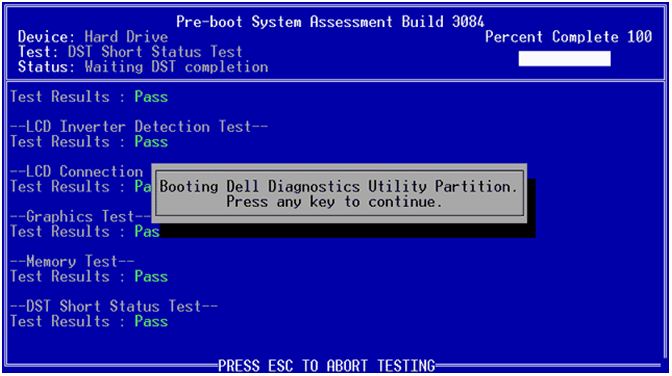
Here are some screen shots demonstrating the progress of the PSA+ Diagnostics:
Tap if color bars appear (Refer to the image above)
If 2000:0146 error appears, please ignore the message and go ahead with the testing
Tap to launch 32 bit Diagnostics (Following screen appears):
From the factory the system's 'hard drive' will include a hidden partition with 32 bit Dell Diagnostics. After the completion of basic diagnostic process, you will be asked to continue to this Diagnostics program. If for some reason the hidden partition is not found on the hard drive, you will be presented with the option to insert the Resource DVD. Following screen appears in that case:

If required, use the Resource CD and follow the steps given below:
Note: If you wait too long and the operating system logo appears, continue to wait until you see the Microsoft Windows desktop; then shut down your computer and try again.
(Following screen appears):
If the tests passes and you want to use the same hard drive, you can format the hard drive and can perform an Operating system re-installation. Before you proceed, I will advise you to take a complete backup your data (pictures, music, applications, videos, documents) if possible. As this step leads to complete data loss. Remove all the external peripherals (like printers, scanners, any USB device except keyboard and mouse) connected to your computer. For more information on this, you can refer to link: http://dell.to/Qe7jyP
Please reply for further clarifications.