PowerEdge: How to Export the PERC Controller Log using OpenManage Server Administrator
Summary: This article explains how to export the RAID controller log (TTYlog) directly from OpenManage Server Administrator (OMSA) using the interface or using the command lines.
This article applies to
This article does not apply to
This article is not tied to any specific product.
Not all product versions are identified in this article.
Instructions
Introduction
OpenManage Server Administrator (OMSA) allows you to export the PERC RAID controller log (TTY log) using the web interface or the command-line interface (CLI). You can also export the system's entire collection of support logs, including operating system logs, application data, and RAID controller logs, by exporting the SupportAssist Collection via iDRAC9 or SupportAssist Collection via iDRAC7 or iDRAC8.
Note: OMSA reached its final release on September 30, 2024, and is in sustenance mode through September 30, 2027. OMSA does not support 17th-generation PowerEdge servers. Dell recommends transitioning to iDRAC with iDRAC Service Module (iSM) for server management on newer platforms. For details, see OMSA End of Life Information.
Using the OMSA Web Interface
-
Log in to OMSA. In the left pane, highlight the controller and click Information/Configuration (Figure 1).
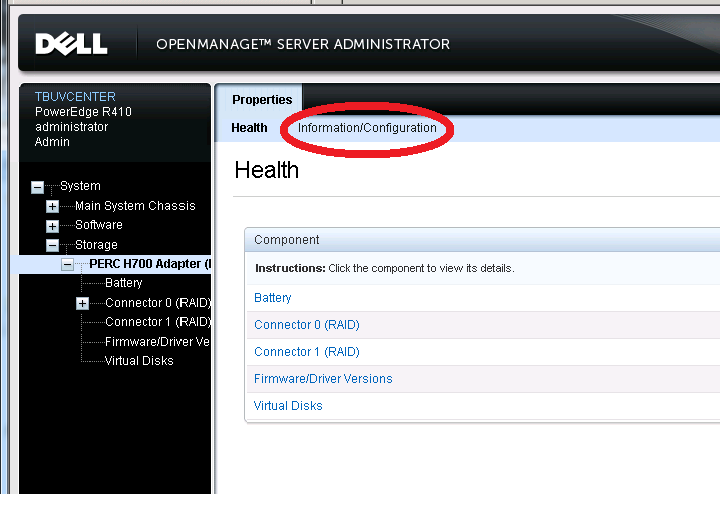
Figure 1: OMSA Controller Menu -
On the next screen (which takes several seconds to load), scroll down to Controller Tasks. Click the drop-down and select Export Log (Figure 2). Then click Execute.
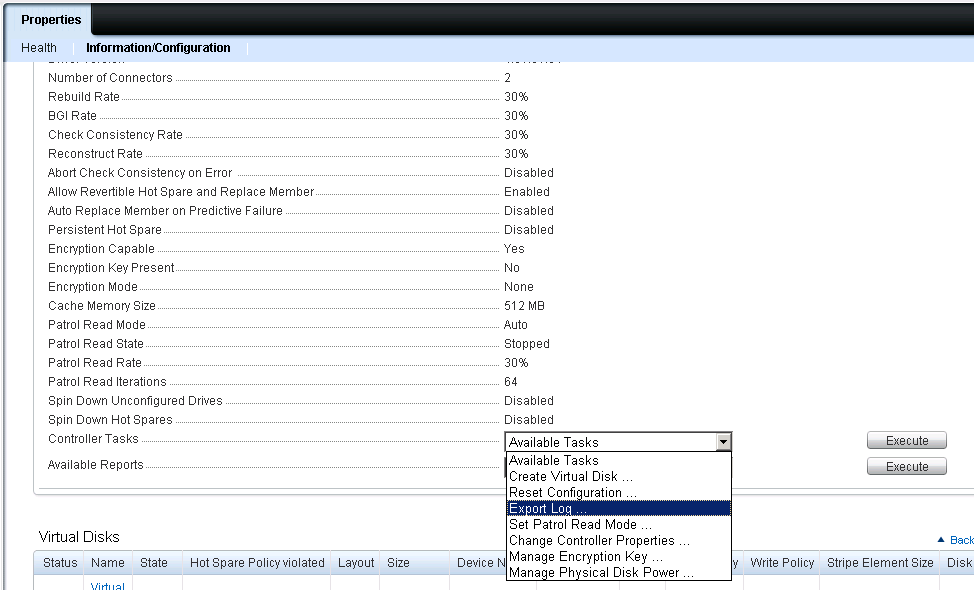
Figure 2: Controller Tasks Drop-Down Menu -
On the next screen, scroll down and click Export Log File (Figure 3).
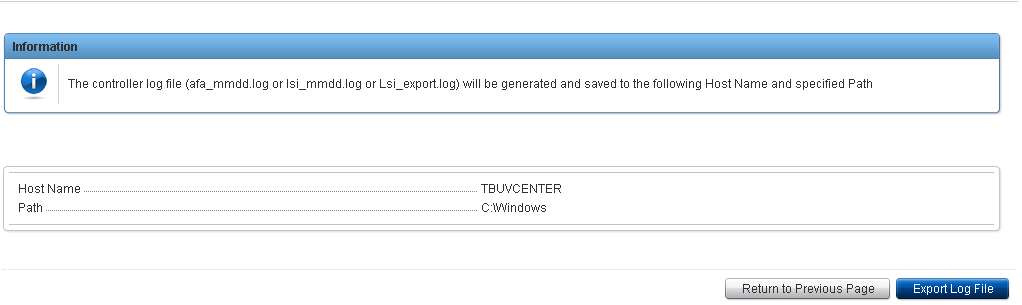
Figure 3: Export Log File -
Find the exported log file in the following location for your operating system:
- Linux:
/var/log/lsi_Date.log - Windows:
C:\Windows\lsi_Date.log - Citrix Xen Server:
/var/log/lsi_Date.log - ESX5:
/var/log/lsiexport.log
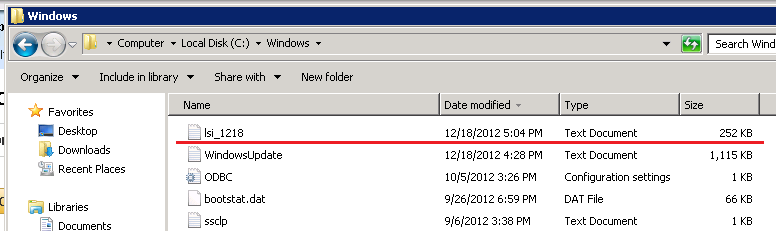
Figure 4: Example for Windows OS - Linux:
Using the Command-Line Interface
OpenManage Server Administrator must be installed on the local server.
Steps:
- Open a terminal (Linux) or command prompt window (Windows).
- Enter the following command to identify the ID of the controller:
omreport storage controller
- Export the log of the controller with the following command. Replace
idwith the identifier of the controller. For example, use 0 for the first controller or 1 for the second controller. If you have only one controller in the server, enter0.omconfig storage controller action=exportlog controller=id
For example:
omconfig storage controller action=exportlog controller=0
After the command runs, the log file LSI_Date.log is saved in the following directory:
- Windows:
C:\Windows - Linux:
/var/log
- Windows:
Video
The following video demonstrates how to export RAID controller logs using OMSA (English only).
Affected Products
OpenManage Server Administrator, PowerEdge RAID Controller H345, PowerEdge RAID Controller H350 Adapter SAS, PowerEdge RAID Controller H355 Front SAS, PowerEdge RAID Controller H355 Adapter SAS, PowerEdge RAID Controller H730P MX
, PowerEdge RAID Controller H745, PowerEdge RAID Controller H745P MX, PowerEdge RAID Controller H750 Adapter SAS, PowerEdge RAID Controller H755 Adapter, PowerEdge RAID Controller H755 MX Adapter, PowerEdge RAID Controller H755 Front SAS, PowerEdge RAID Controller H310, PowerEdge RAID Controller H330, PowerEdge RAID Controller H710, PowerEdge RAID Controller H710P, PowerEdge RAID Controller H730, PowerEdge RAID Controller H730P, PowerEdge RAID Controller H740P, PowerEdge RAID Controller H810, PowerEdge RAID Controller H830, PowerEdge RAID Controller H840
...
Article Properties
Article Number: 000126422
Article Type: How To
Last Modified: 24 Sep 2026
Version: 13
Find answers to your questions from other Dell users
Support Services
Check if your device is covered by Support Services.