KVM Setup for Dell Monitors – Ultimate Guide & Tips
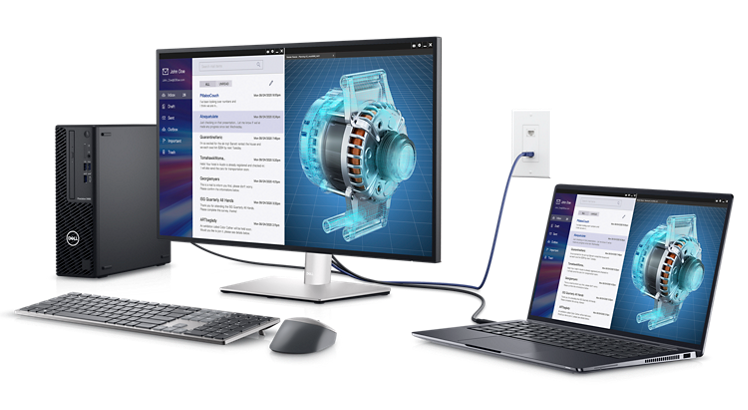
What is KVM and how can it help me?
KVM is an acronym for keyboard, video, and mouse. The KVM feature allows you to view and work with content on two computers using a single keyboard, monitor, and mouse connected to the KVM device.
Select Dell monitors support Auto KVM, a feature that automatically switches control over to the most recently-connected computer.
NOTE: KVM feature is only available on select Dell monitors. See the documentation of your Dell monitor to check if your monitor supports the KVM feature.
What you need
- A Dell monitor that supports KVM
- Two devices (desktops and/or laptops)
- One keyboard and mouse
- Video cables such as HDMI, DisplayPort, or USB-C
- Upstream USB cables
How do I set up the monitor with two computers?
To make the most out of the KVM switch on your Dell monitor, let us look at how to set up and configure the devices together.
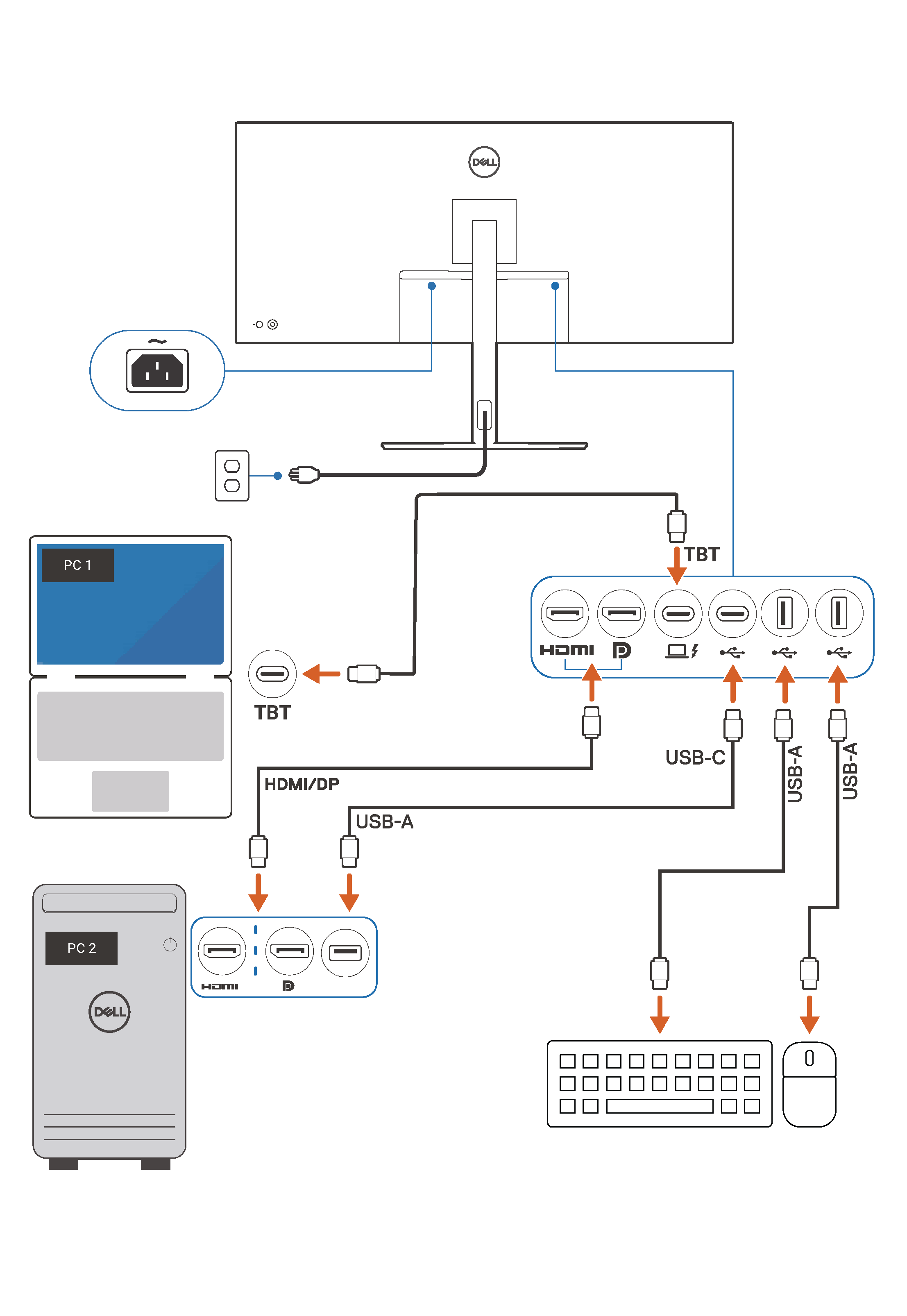
Step 1 - Connect the video cable between the monitor and the computers.
Connect the two computers to the monitor using an HDMI, DisplayPort, or USB-C cable for video.
- Connect PC 1 to the monitor.
- Connect PC 2 to the monitor. If PC 1 is connected using a USB-C cable, connect PC 2 using an HDMI or DisplayPort cable for video.
Step 2 - Connect the USB upstream cables between the monitor and the computers.
Connect the two computers to the upstream ports on the monitor. This allows the computers to recognize the keyboard and mouse that are connected to the monitor. Compatible USB upstream cables are shipped with Dell monitors that support the KVM feature.
- Connect the USB upstream cable from PC 1 to the monitor.
- Connect the USB upstream cable from PC 2 to the monitor. If PC 1 is connected using a USB-C cable, connect PC 2 to the monitor using the USB-B to USB-A upstream cable.
Step 3 - Connect the keyboard and mouse to the monitor.
Connect the shared keyboard and mouse to the USB-A downstream ports on the monitor.
Step 4 - Configure the settings on the monitor.
Your Dell monitor can display one PC at a time (full screen mode) or display both PCs using picture-in-picture or picture-by-picture mode.
Use the KVM wizard in Dell Display and Peripheral Manager. Dell Display and Peripheral Manager works seamlessly with modern Dell monitors and helps you configure KVM functionality.
You can also use the on-screen display (OSD) menu of your monitor to configure your display preferences. See the product documentation of your Dell monitor to learn how to navigate the on-screen display (OSD) menu.
- Install and open Dell Display and Peripheral Manager.
- Go to Input Manager tab and then select KVM Wizard.
- Follow the on-screen instructions to complete the setup process.

Frequently asked questions
Let us help you with some frequently asked questions related to KVM setup on Dell monitors.
Which Dell monitors support KVM or Auto-KVM feature?
- KVM or Auto-KVM feature is supported on select Dell monitors. See the documentation of your Dell monitor to learn more.
How many computers can I connect to a Dell monitor that supports KVM?
- You can connect two computers to a Dell monitor that supports the KVM feature.
Can I control more than two computers using KVM?
- Most Dell monitors that support KVM feature can be connected to up to two computers. Some Dell monitors such as Dell UltraSharp U4323QE can be connected to four computers.
- Check the documentation of your Dell monitor to find out how many upstream connections are supported.
Can I use a wireless keyboard and mouse using KVM?
- Yes, connect the USB receiver provided with your wireless keyboard and mouse to the downstream port on your Dell monitor.
- Bluetooth-enabled keyboards and mouse are not supported.
Can I share a webcam between the two computers using KVM?
- No, the USB downstream port on the monitor does not support sharing a webcam.
My Dell monitor does not have a USB upstream port, how do I use the KVM feature?
- KVM feature is only available on select Dell monitors. If your Dell monitor is not integrated with KVM features, you can use an external KVM switch that is available commercially.
Can I set up shortcut keys to switch between the two computers?
- Yes, Dell Display and Peripheral Manager software allows you to configure a shortcut key that helps switch between the two computers.