Set Up Your Peripherals
Windows plug-and-play feature makes it easier to set up external devices with your new computer running on Windows.
Let us help you with a quick overview on how to connect a monitor, pair Bluetooth-enabled devices, pair your phone, connect a USB webcam, or setup a docking station.
Connect an external display
Need a second display for your laptop or desktop? A second monitor allows you to have a larger workspace, making it easier to multitask and view multiple windows simultaneously. Additionally, it can improve your overall productivity and enhance your viewing experience.
- Connect the power cable to the monitor and power outlet.
- Connect the video cable to the monitor and the computer using the HDMI, DisplayPort, USB-C or Thunderbolt cable.
- Turn on the monitor and select the relevant video source. For example, if the monitor is connected using DisplayPort, set the video source to DP or DisplayPort.
- Turn on the computer and set your display preferences.
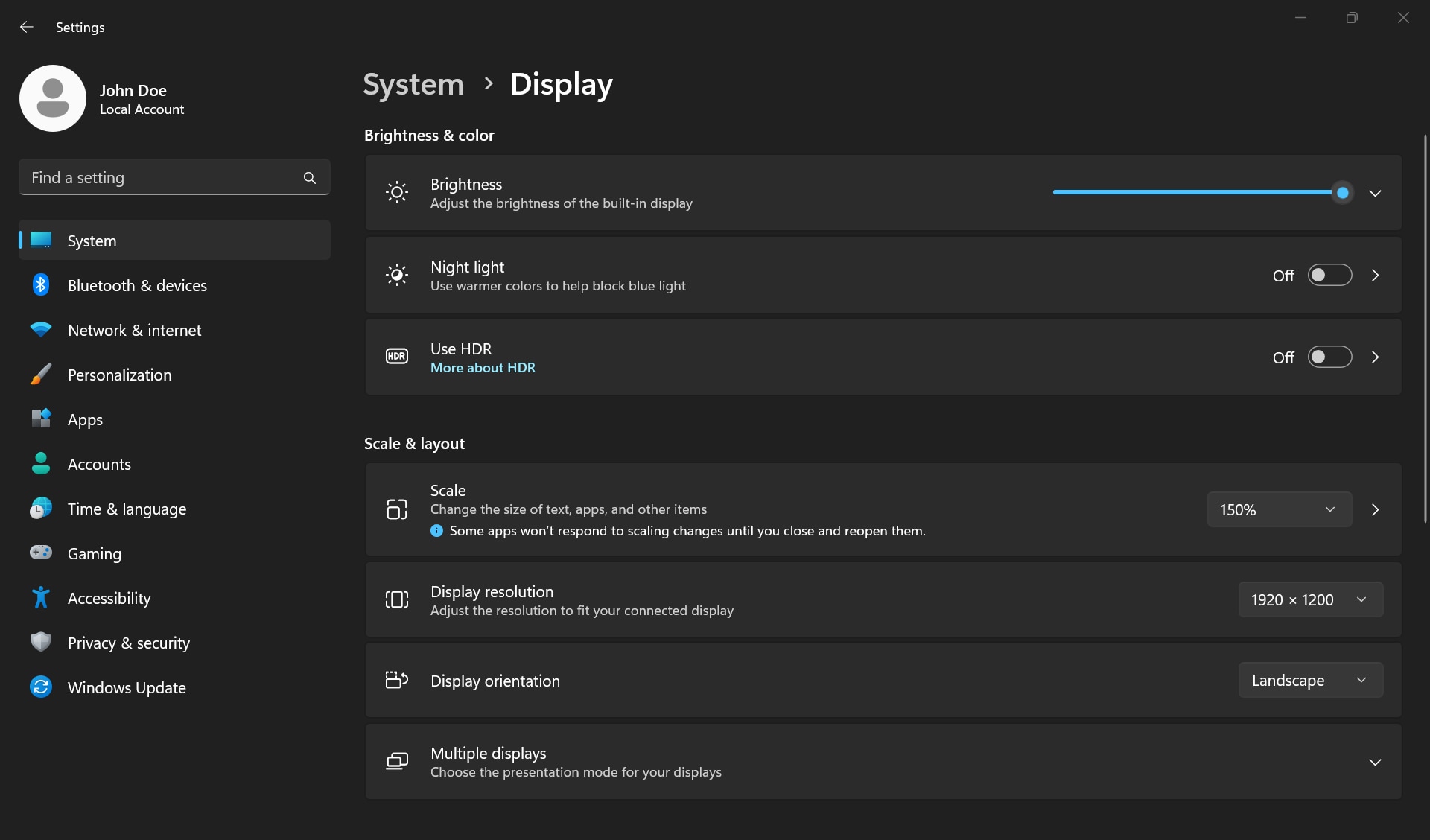

Need additional help with monitors or displays? Go to our monitor or displays support site.
Connect to Bluetooth-enabled devices
Connect your Bluetooth-enabled device in Windows. Whether you are connecting to a Bluetooth speaker, headphone, keyboard, or mouse, the steps to pair your Bluetooth-enabled device are similar.
- First, enable discovery mode on your Bluetooth device. See the documentation of your Bluetooth device to learn how to enable discovery mode.
- Go to Start > Settings > Bluetooth & devices > Add device > Bluetooth.
- Select the device that you would like to connect to. After the pairing is successful, select Done.


Having trouble with Bluetooth? See our quick guide to fix Bluetooth issues.
Connect your phone
Sync your phone to stay connected with Windows.
- Launch Phone Link, or search for and open Phone Link app.
- Select Android or iPhone and scan the QR code to complete the set-up.
- Customize notification preferences.
To troubleshoot issues and learn how to get the most out of device syncing, go to Phone Link help and learning.

Connect your printer
If your printer connects using a USB cable, plug it into your device and turn on the printer. It will connect automatically, and Windows will download and install the right drivers. Windows 11 and Windows 10 support most printers, so you probably won't have to install special printer software. Additional printer drivers and support might be available if you update Windows.
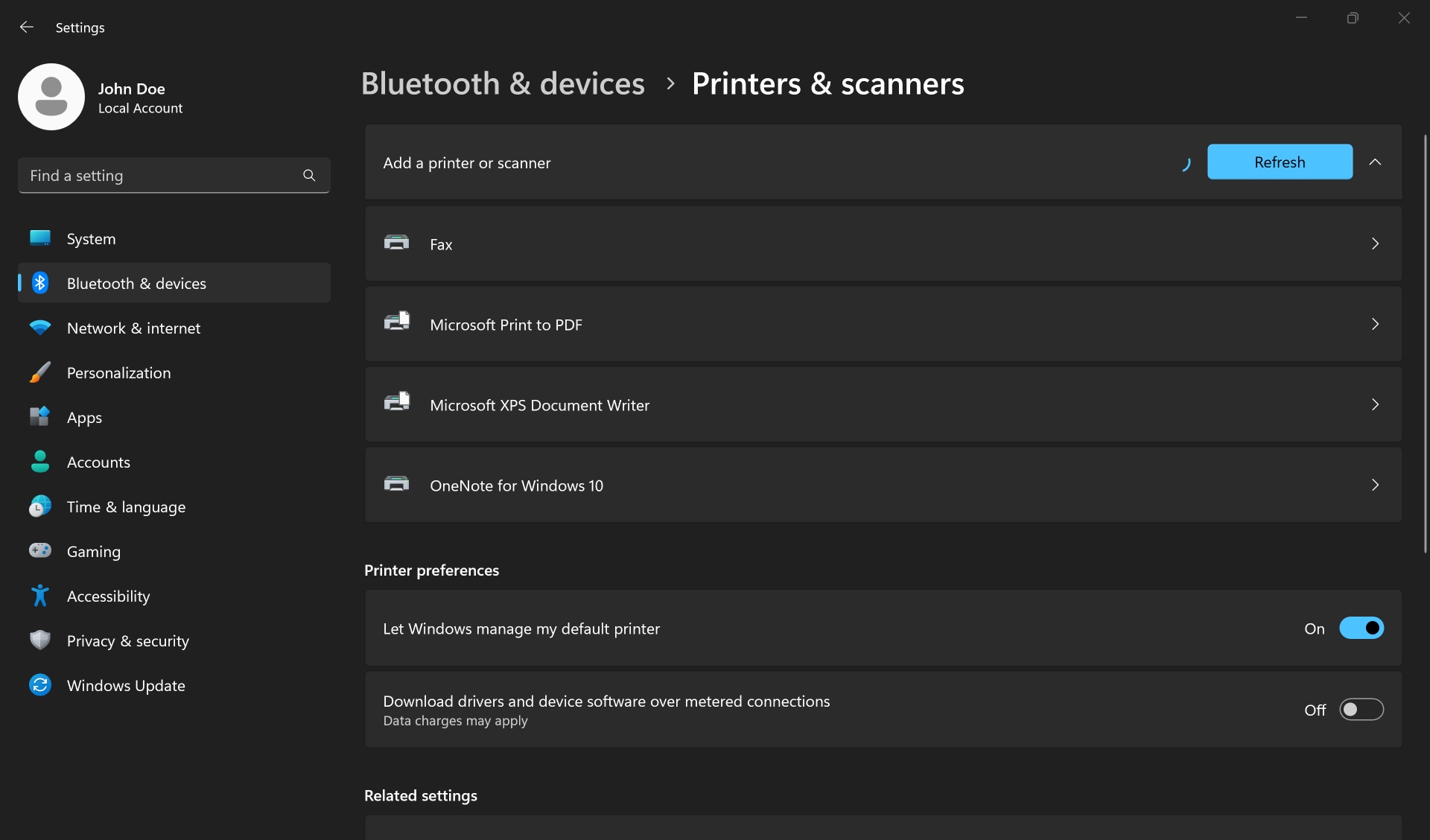
To connect a wireless printer, follow these steps.
- Go to Start > Settings > Bluetooth & Devices > Printers & Scanners
- Next to Add a printer or scanner, select Add device.
- Wait for Windows to find nearby printers, find the one you want to use, and select Add device. If you want to remove the printer, select it, and then select Remove.
- If you cannot see your printer, try to fix the problem by following these quick steps to resolve printer issues.

Connect your webcam
A webcam or camera that is integrated on a laptop works out of the box. There is no additional configuration required. If you are setting up an external USB webcam with your desktop or laptop, plug in the USB cable into your computer. Windows automatically downloads and installs the right drivers.
To test your webcam, go to Start > All apps > Camera.
If you find that your webcam is not working in specific applications, make sure that you allow access to the camera. Continue to troubleshoot if your webcam does not work in Windows.


Set up a docking station
Docking station, also called port replicator helps connect several devices to gain the benefits of a desktop computer without sacrificing the portability of a laptop.
- Before you set up your docking station, make sure to update the drivers and BIOS of your laptop.
- Connect the power cable to the docking station.
- Connect the docking station to the laptop using the USB-C or Thunderbolt cable.
- Download and install the latest drivers using Dell Update or Dell Command Update.
- Connect external devices such as monitor, keyboard, and mouse to the docking station.
Whether you are using a Dell Universal dock or Thunderbolt dock, get help to fix issues with your Dell docking station.

Next, let us help you customize Windows on your new PC.
Video Resources

After you set up your external devices, go to our personalize your Windows page to learn how to customize display settings, change the wallpaper, add users, enhance user account security, and more.
For more information, visit one of these pages:
- If you need additional help to set up a monitor, go to our monitors or displays page.
- If you need help to fix Bluetooth issues, go to our Bluetooth support page.
- Want to learn more about Phone Link or having trouble with the Phone Link app? Go to the Phone Link app help & learning page on Microsoft Support.
- If you are having issues with webcam not working, go to our webcam support page. You can also watch our webcam troubleshooting video on YouTube.
- Need help with a Dell universal or thunderbolt docking station? Go to our Dell Docking Station support page.