How to Physically Secure Your Dell Computer, Monitor or Docking Station

Summary: You can secure your Dell desktop, laptop, docking stations or monitors with a cable, using the security slot.

This article applies to This article does not apply to This article is not tied to any specific product. Not all product versions are identified in this article.

Instructions

What Is a Kensington or Noble Security Slot?

Dell desktops, some laptops, docking stations, and monitors include a security slot that lets you secure the device with a cable lock.

Not all Dell devices use the same type of lock, the correct option depends on the model, generation, and physical design of the device.

Before purchasing a security cable, it is necessary to identify which lock type your Dell device supports.

Use the information below to determine the correct lock type for your device.

Lock Type Most Common Use Location
Noble Wedge Thin, modern Dell laptops
(Starting around 2016–2018)
Left or right side of the chassis
Kensington (K‐slot)
(May also be known as T‑bar slot)
Standard Dell laptops, monitors, Docking Stations

Standard Dell laptops ‐ Left or right side of the chassis

Monitor ‐ Rear of the monitor, normally on the right side as you face the monitor

Docking Station ‐ Right side of the chassis, next to the Undock button.

No Slot Some ultra‑thin or tablet devices  

Table 1: Primary Security Lock Types Used on Dell Computers

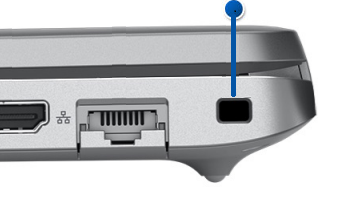
Noble Wedge Lock Slot

  • Shape: Almost square Figure 1.
    Wedge-Shaped Security Lock Slot
    Figure 1: Wedge-Shaped Security Lock Slot
    NOTE: The dimensions are 3/16"x1/8."
  • Where it is used:
    • Newer, thin modern Dell laptops
      (Starting around 2016–2018)
  • Lock compatibility: Noble Wedge‑style locks only (not Kensington)

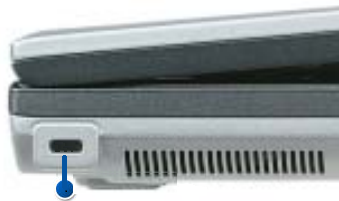
Kensington Security Slot (K‑Slot)

  • Shape: Rectangular slot Figure 2.
    Kensington Security Slot (K‑Slot)
    Figure 2: Kensington Standard K-Slot or T-Bar lock
    NOTE: The dimensions are 1/4"x1/8." The slot may also be installed vertically.
  • Where it is used:
    • Older Dell laptops
    • Dell desktops
    • Dell monitors and docking stations
  • Lock compatibility: Kensington‑compatible cable locks

How to Confirm the Lock Type Needed for Your Dell Device

See the User Manual or Owner's Manual for your Dell Device. For information about obtaining the User Manual or Owner's Manual, see Dell Knowledge Base article Manuals and Documentation for your Dell Product

Once you have the User Manual or Owner's Manual:

Check:

  • System Views
  • Ports and Connectors
  • Security Features


NOTE: The security slot is typically labeled as Security Cable Slot, Security Lock Slot, Noble Wedge Slot, or Kensington Lock Slot.

What Is a Padlock Ring?

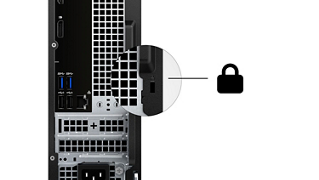
Dell desktops are equipped with a padlock ring on the rear of the chassis to prevent unauthorized entry to the inside of the case. Newer Dell desktop computers are equipped with security slots as well.
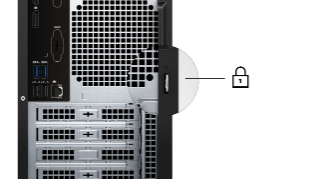
Padlock ring on Vostro 3030s desktop on the back panel

Kensington or Noble security lock slot on Vostro 3030s desktop on the back panel


Additional Resources

  1. Purchase a security cable.
  2. Wikipedia article on the Kensington Security Slot.

Affected Products

Chromebox, Alienware, Dell All-in-One, Dell Pro All-in-One, Dell Pro Max Micro, Dell Pro Max Slim, Dell Pro Max Tower, Dell Pro Micro, Dell Pro Slim, Dell Pro Tower, Dell Slim, Dell Tower, Inspiron, Legacy Desktop Models, OptiPlex, Vostro, XPS , G Series, Alienware and Dell Gaming Monitors, C Series, D Series, E Series, P Series, S Series, SE Series, UltraSharp Premier (UP) Series, UltraSharp (U) Series, Dell Monitors, Dell Plus Monitors, Dell Pro Monitors, Dell Pro Plus Monitors, Chromebook, G Series, Alienware, Dell Plus, Dell Pro, Dell Pro Max, Dell Pro Plus, Dell Pro Premium, Inspiron, Latitude, Dell Pro Rugged, Vostro, XPS, Legacy Laptop Models, Fixed Workstations, Mobile Workstations, D/Dock Expansion-Station, Dell Dock WD15, Dell Dual Charge Dock HD22Q, Dell Dual Video USB3.0 Docking Station D1000, Dell IN1720, Dell IN1910NWFP, Dell IN1920, Dell in1930, Dell IN1940MW, Dell IN2010NWFP, Dell IN2020, Dell IN2020M, Dell MR2217, Dell MR2416, Dell Pro Max Micro XE FCM2250, Dell Pro Max Slim XE FCS1250, Dell Pro Max Tower T2 XE FCT2250, Dell Pro Max 16 XE MC16250, Dell Pro Micro Thin Client Q9M1260, Dell Pro Micro Plus XE QBM1250, Dell Pro Slim Plus XE5 QBS1250, Dell Pro Tower Plus XE5 QBT1250, Dell Pro Smart Dock SD25, Dell Pro Thunderbolt 4 Smart Dock SD25TB4, Dell Pro Thunderbolt 5 Smart Dock SD25TB5, Dell Pro Dock WD25, Dell Pro Thunderbolt 4 Dock WD25TB4, Dell Pro Thunderbolt 5 Dock WD25TB5, Dell Pro Dock WD25Z, Dell Rugged Desk Dock, Dell SuperSpeed USB 3.0 Docking Station, Dell Thunderbolt Dock TB15, Dell Thunderbolt Dock TB16, Dell Precision Dual USB-C Thunderbolt Dock - TB18DC, Dell Universal Dock D6000, Dell Universal Dock - D6000S, Dell Universal Dock UD22, Dell USB3.0 dock D3100, Dell Dock WD19, Dell Performance Dock - WD19DC, Dell Performance Dock – WD19DCS, Dell Dock – WD19S, Dell Thunderbolt Dock - WD19TB, Dell Thunderbolt Dock – WD19TBS, Dell Wireless Dock, Dell Wireless Docking Station WLD15, C/Dock Expansion Station, C/Dock II Expansion Station, Dell Thunderbolt Dock – WD22TB4 ...
Article Properties
Article Number: 000179489
Article Type: How To
Last Modified: 27 Mar 2026
Version:  12
Find answers to your questions from other Dell users
Support Services
Check if your device is covered by Support Services.