Back Up Your Files and Keep Your Data Safe
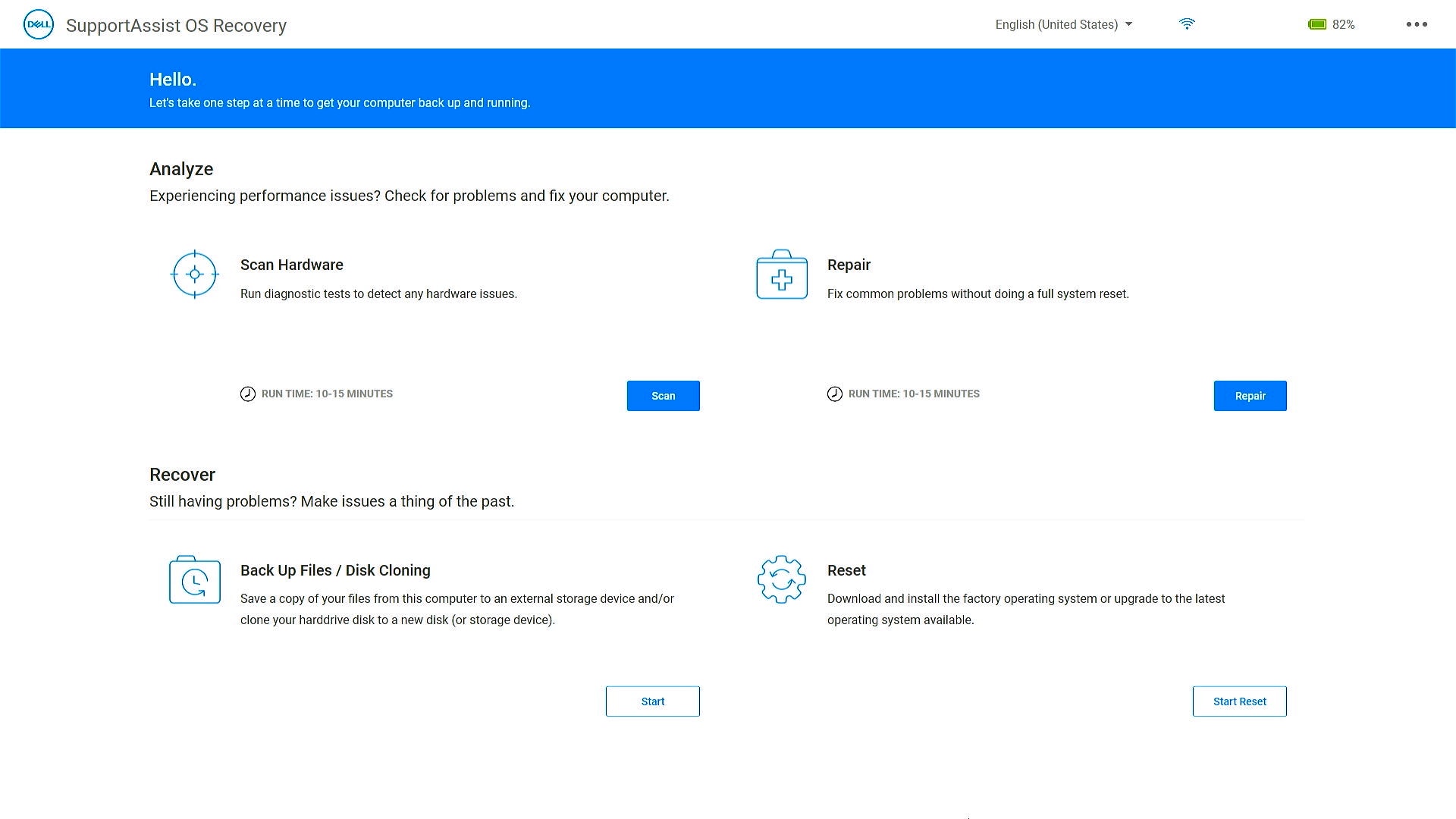
Modern Dell PCs come with SupportAssist OS Recovery that helps you diagnose hardware issues, repair your computer, back up files, or restore your computer factory defaults in case of issues or errors.
Windows Backup
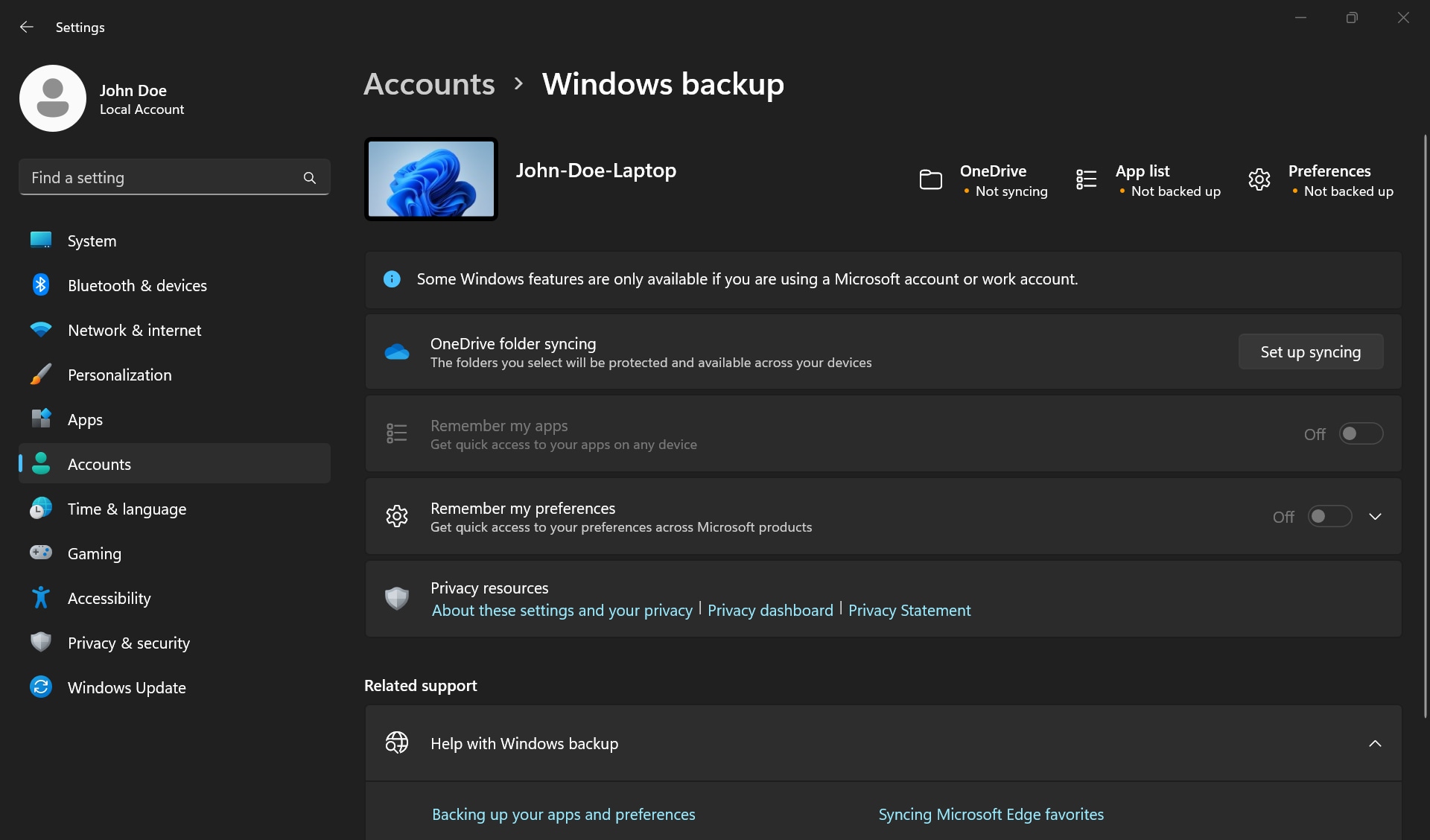
When you turn on Windows backup, Windows saves the settings you select across all Windows devices that are logged in with your Microsoft account.
- OneDrive folder syncing
- Turn on OneDrive folder syncing to start backing up your files and folders right from Settings.
- Remember my apps
- Windows remembers the apps that you have installed and help you restore them from the Microsoft Store on your new devices.
- Remember my preferences
- You can back up your preferences including accessibility, passwords, language, and other Windows settings. If you turn on Other Windows settings, Windows also syncs some device settings (for things like printers and mouse options), File Explorer settings, and notification preferences.
To turn on Windows backup and choose your backup settings, select Start > Settings > Accounts > Windows backup.
Back up your device to OneDrive
Every computer has standard folders such as Desktop, Documents, Music, Pictures, and Video, which you use but may not be included in your OneDrive. Back up these folders to your OneDrive, to ensure they are protected and available across all your devices.
Set up folder backup
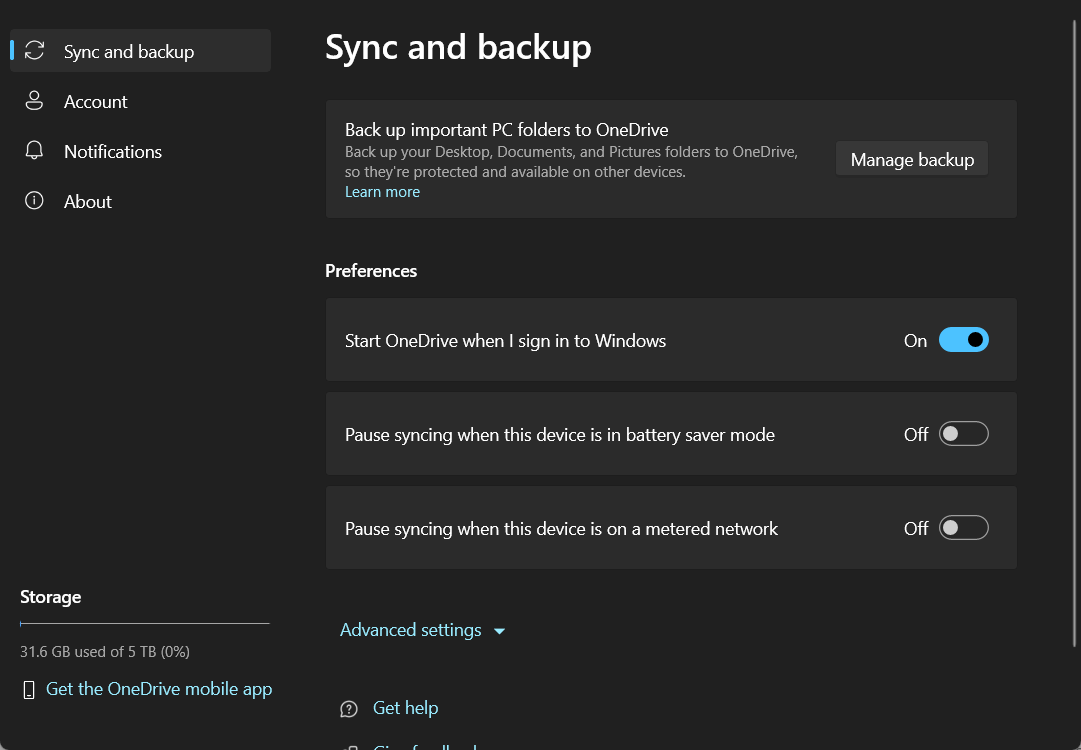
- Open OneDrive settings (select the OneDrive cloud icon in your notification area, and then select the OneDrive Help and Settings icon, then Settings.)
- Go to the Sync and back up tab.
- Select Manage Back up.
To start backing up a folder, select any folder that says Not backed up, and then select Save.
To stop backing up a folder, select the toggle for the folder to turn it off. A confirmation dialog appears with a few options:
- Continue backing up this folder keeps the folder being backed up.
- OneDrive only keeps the files in your OneDrive folder, and they are not stored in your computer’s folder.
- This computer only moves the files from your OneDrive folder to the folder on your computer.
Back up your device to an external drive
In Windows, you can back up and restore files using Backup and Restore or File History. By default, File History is turned off in Windows.
Back up folders using File History, go to Start > File History (Windows 11) or Backup settings (Windows 10) > Add a drive > More options.
To back up the entire computer, go to Control Panel > Backup and Restore > Create a system image wizard.
Recover your device using SupportAssist OS Recovery
SupportAssist OS Recovery environment enables you to diagnose hardware issues, repair your computer, back up files, or restore your computer factory defaults.
Learn how to restore your PC using SupportAssist OS Recovery.
Download the operating system recovery image for your Dell
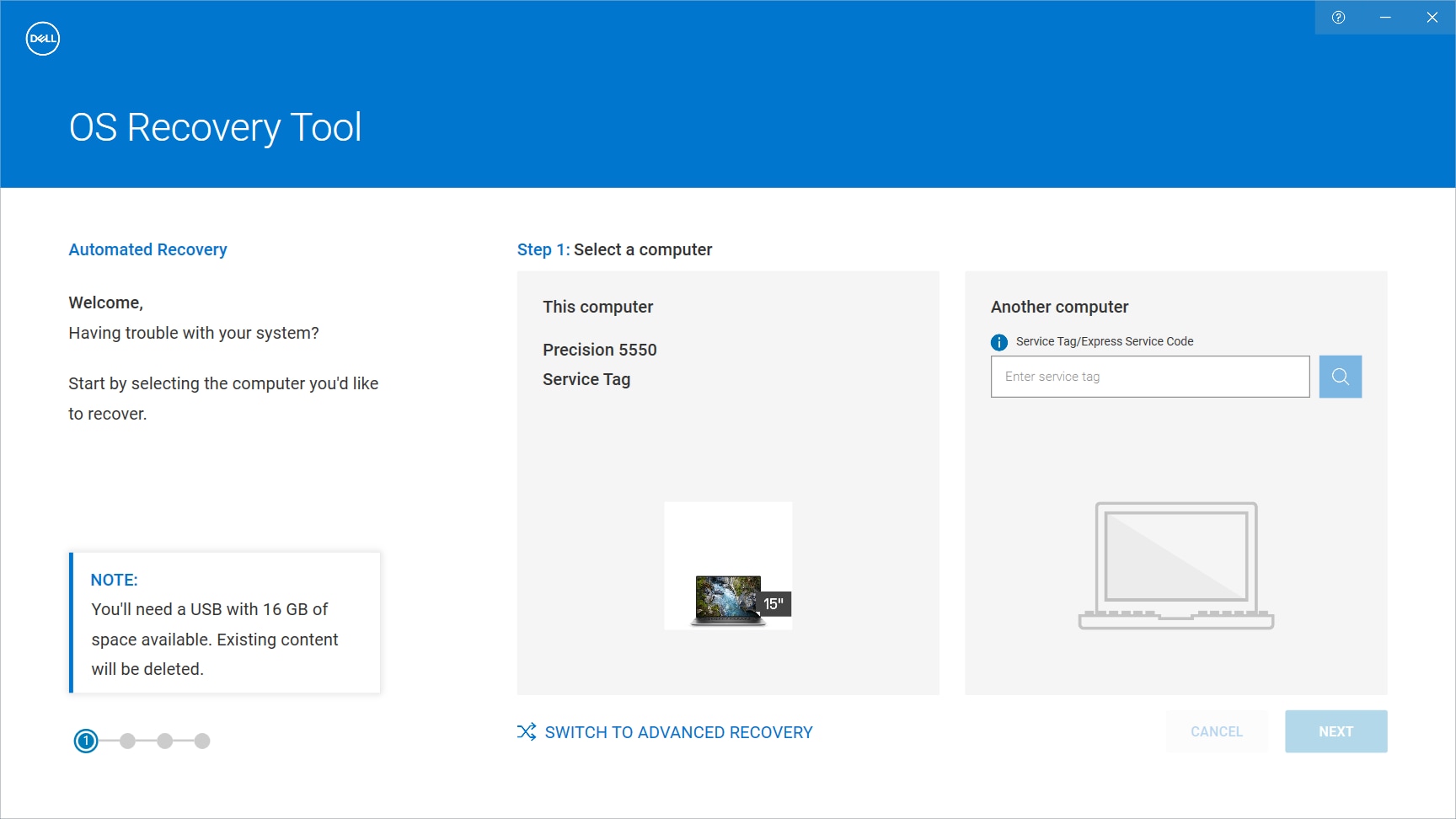
Download the operating system recovery image and create a USB recovery media for your Dell. This recovery image is customized for your Dell device includes the operating system and factory-installed drivers and applications.
Go to Dell.com/support/osrecovery. Use the Dell OS Recovery tool on a Windows computer to download Windows recovery image and create a USB recovery media.
Check out our guide to download Ubuntu ISO image specifically designed for supported Dell computers.
Video Resources

Helpful links:
Learn how to restore your Dell PC using SupportAssist OS Recovery.
Download Dell OS Recovery tool in Windows to create a USB recovery media for your Dell PC.
Learn how to download the Dell OS recovery image, and create a recovery media in Ubuntu, Linux, or MacOS. ...