Update Windows and Drivers
Before you setup your accessories or install apps that you might need for your work or school, let us get the latest Windows updates and device drivers for your Dell.
Getting the latest Windows updates and drivers is important to ensure that your device is secure. Additionally, staying up-to-date with the latest updates ensures compatibility with new software and hardware.
Get updates for Windows
Windows devices may get new functionality at different times as Microsoft delivers security and non-security updates, fixes, improvements, and enhancements. When you run Windows Update, Windows lets you know if you must restart your device to complete an update.
To check for updates, select Start > Settings > Windows Update, then select Check for updates. If updates are available, you can choose to install them.
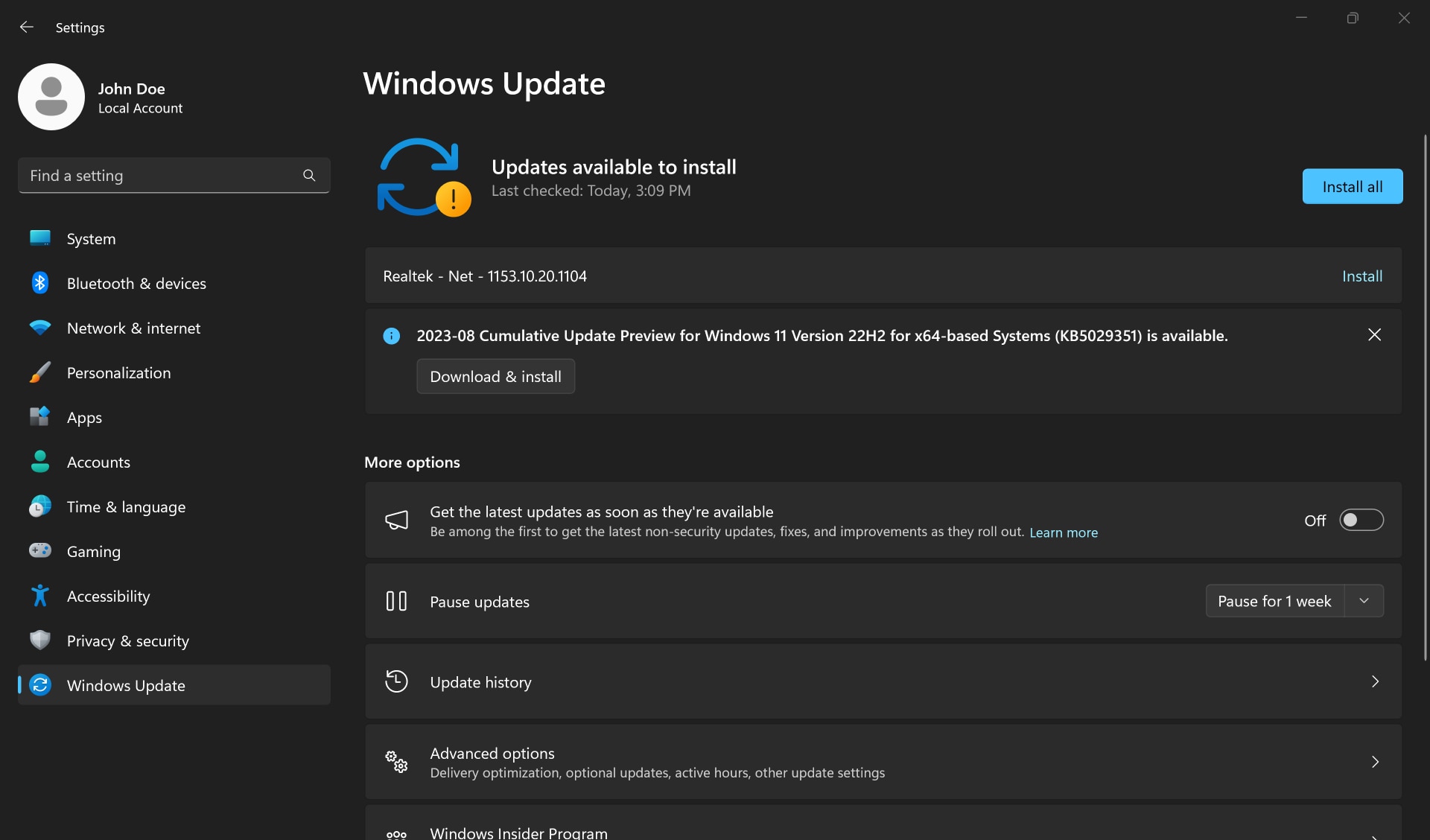
Having trouble with Windows Update? See the Windows Update Troubleshooter from Microsoft.
Get the latest drivers using SupportAssist
Updating the drivers helps improve system performance and fix security risks. SupportAssist helps scan your device and proactively suggest updates available for drivers and Dell applications. To get the latest drivers using SupportAssist, follow these steps.
- Open SupportAssist and select the down-arrow icon.
- Under the Drivers & Downloads tile, select Run.
- Select Update.

What’s next? Let us walk you through a quick overview on how to connect external devices to your new computer.
Video Resources

Next, let us show you how to set up your external devices such as displays, printers, and webcam.
Helpful links:
If you are having trouble downloading or installing Windows updates, go to the Windows Update Troubleshooter - Microsoft Support. ...