Welcome to Part 1 of the Dell Data Protection Encryption Policy Configuration demo.
We'll spend a few minutes going over the prerequisites you'll need to get started. Then we'll review DDP | E policies and the available encryption keys.
We'll finish by going over the policy template options and the process for applying one. Before you configure your encryption policies, you should have a thorough understanding of your organization's security requirements.
The DDP | E software will need to be installed, configured, and connected to your database, and the client licenses should be installed on the server.
Finally, your server will need to be connected to the Active Directory domain for management and the DDP | E client needs to be installed and ready to receive the encryption policies.
Policies can be configured using several different encryption keys. The first is System Data Encryption, or SDE. It's a device-based key that makes data available to any user that logs in to the system.
The second is Common Encryption. This relates to a managed user, which is someone who is known to the DDP | E server through your Active Directory.
Common Encryption is a device-based key that only makes data available when a managed user logs in to the system. The last key is user encryption.
This is a user-based key that only makes data available to a specific managed user. This provides very limited access and is our most secure encryption key.
Encryption policies refer to the rules that specify which files and/or folders should or should not be encrypted and with which encryption key.
The policies are set through the DDP | E centralized management console where you can customize the level of detail, even down to encrypting a specific file type.
Now that we've covered the basics, let's switch to the DDP | E management console and walk through the process to set a policy template.
Once you log in to the console, you'll be taken to the home screen, where you can see all of your available actions. When you're setting policies, you'll stay primarily in the "Protect & Manage" and "Actions" areas.
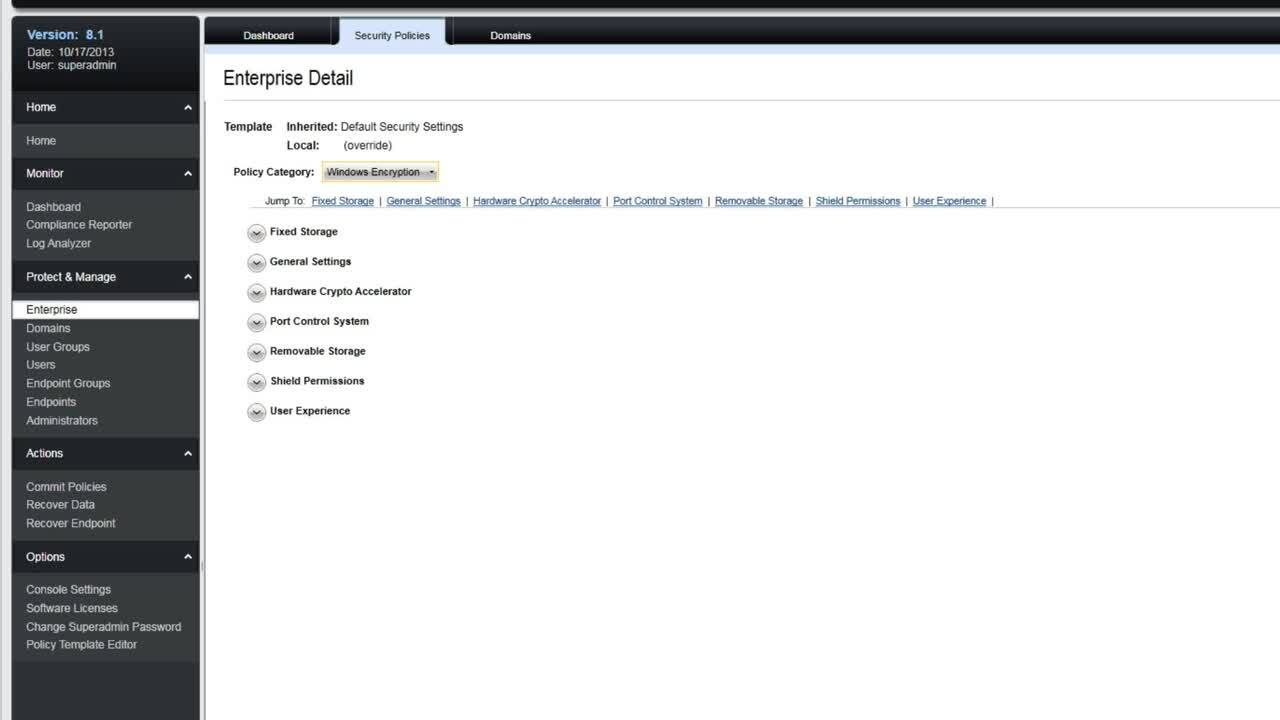
To begin, choose "Enterprise" under the "Protect & Manage" menu. This will take you to the "Enterprise" details screen, where you can view a summary of the entire state of your Enterprise deployment.
From here, you'll select the "Security Policies" tab to manage and set your policies. The first thing you'll see is a list of available policy templates.
These are collections of individual policies that are pre-defined with particular settings. They're designed to make it easier to comply with industry regulations.
When you select a template, you'll see a basic description outlining what that template does. For example, the "PCI Data" template helps ensure you're compliant with PCI regulations, so it's useful for companies in the finance industry.
Likewise, the "HIPAA" template helps healthcare organizations meet HIPAA regulations. These policy templates should only be considered starting points.
You'll want to talk to your security group to make sure the individual policies within the templates meet your security requirements. You can customize the templates to meet your organization's specific needs.
And we'll discuss that in more detail in Part 2 of our Policy Configuration demo. When you're ready to choose a policy template, just select it from the template list and click the "Save" button.
That covers choosing and saving an encryption policy template. Next, you'll want to watch Part Two of our Policy Configuration demo to learn how to customize the individual policies within a template and make your policies available to clients.
If you have any questions about encryption policy templates, just contact your Dell support team. We'll be happy to help. Thank you.