How to Physically Secure Your Dell Device: Find the Right Security Lock Slot and Cable Lock
Summary: Find out which security lock slot your Dell laptop, desktop, monitor, or dock has (wedge-shaped or Kensington), and choose a compatible cable lock.
Instructions
Quick answer
Most current Dell laptops have a Noble wedge lock slot and need a cable lock made for wedge slots. Dell desktops and monitors typically have a Kensington (K-slot) security slot. Some Dell docks have both. A lock made for one slot type does not fit the other, so confirm your slot type before you buy a lock.
To confirm, look for "Security-cable slot" in the Views or Specifications section of your Owner's Manual.
Which lock slot does my Dell device have?
|
Device |
Typical slot |
Typical location |
Notes |
|---|---|---|---|
|
Laptops and 2-in-1 devices |
Wedge-shaped lock slot (most current models) |
Left or right side of the chassis |
Some older models use a Kensington slot. Some very thin devices and tablets have no slot. |
|
Desktops, all-in-ones, and small form factor systems |
Kensington security-cable slot (most models) |
Rear of the chassis |
Many desktops also have a padlock ring. A few models use a wedge-shaped slot. Check your manual. |
|
Monitors |
Kensington-based security lock slot |
Bottom edge or rear panel, often near the power connector |
Location varies by model. |
|
Docks |
Many models have a wedge-shaped slot and a Kensington slot |
Side of the dock |
Examples: WD19 series, WD22TB4, WD25, SD25. You can use either slot. |
Compare the lock slot types
|
|
Wedge-shaped lock slot |
Kensington (K-slot) |
No slot |
|---|---|---|---|
|
Size |
3/16 in × 1/8 in (about 4.8 mm × 3.2 mm) |
1/4 in × 1/8 in (about 6.4 mm × 3.2 mm) |
Not applicable |
|
Shape |
Short slot with a wedge profile |
Longer rectangular slot. It can be horizontal or vertical. |
Not applicable |
|
Where Dell uses it |
Most current laptops, many docks, a few desktops |
Desktops, monitors, many docks, older laptops |
Some ultra-thin devices and tablets |
|
Compatible lock |
Cable lock marked "Wedge," "Noble Wedge," or "N17" |
Standard Kensington-compatible (T-bar) cable lock |
A standard lock does not fit a wedge slot, and a wedge lock does not fit a standard slot. Some universal locks include interchangeable heads for several slot types. Confirm that the lock lists your slot type.
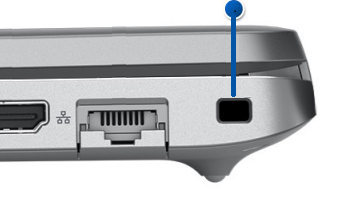
Figure 1: Wedge-shaped lock slot
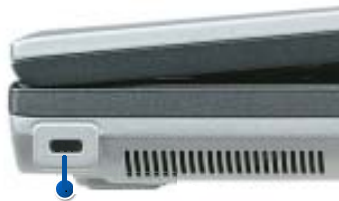
Figure 2: Kensington standard K-slot
How to confirm which lock slot your device has
- Find the model name of your device. For help, see the Dell article about where to find your Service Tag or Express Service Code.
- Open the Owner's Manual or Setup and Specifications document for your model.
- In the manual, go to Views (or Chassis) and Specifications. Look for Security-cable slot, Wedge-shaped lock slot, Kensington security-cable slot, or Padlock ring.
- Compare the slot on your device with the size and shape in the table above.
- Check the compatibility list of the lock manufacturer before you buy.
Choose a security cable lock
- Slot type: Match the lock head to your slot. This is the most important choice.
- Key or combination: A keyed lock uses a physical key. A combination lock uses a code that you set. Store the key or the code in a safe place that is separate from the device.
- Cable length and material: Choose a cable long enough to loop around a fixed object. A steel cable resists cutting better than a plastic or thin cable.
- Several devices: A universal lock with interchangeable heads can secure devices that have different slot types.
Dell sells wedge and Kensington cable locks on Dell.com.
How to attach a security cable lock
The exact steps depend on your lock. Follow the instructions that came with the lock. These steps apply to most locks.
- Choose a fixed anchor point, such as a desk frame, a bolted-down object, or a heavy table leg that cannot be lifted off the cable.
- Loop the cable around the anchor point and pass the lock end through the cable loop.
- Align the lock head with the slot on your device.
- Insert the lock head and engage the lock. For a keyed lock, turn the key. For a combination lock, set the code or push the button as the lock instructions describe.
- Pull gently on the cable to confirm that the lock is secure.
To remove the lock, unlock it with the key or combination, then pull the lock head out of the slot.
Secure a desktop with a padlock ring
Some Dell desktops have a padlock ring on the rear of the chassis. A padlock attached to the ring helps prevent unauthorized removal of the cover and access to the internal components. You can also pass a security cable through the ring with a padlock.
- A padlock ring does not replace a cable lock. Use the padlock ring to protect the inside of the system. Use the security slot to attach the system to a fixed object.
- Padlock shackle size may vary by model. See your Owner's Manual.
- Some desktop models also have a chassis intrusion switch and lockable cable covers. See your Owner's Manual for these features.
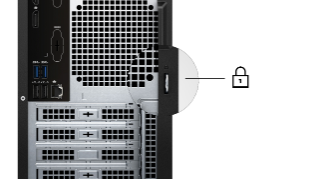
Figure 3: Padlock ring on a Vostro 3030s desktop
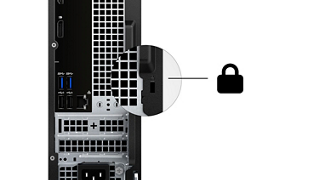
Figure 4: Security lock slot on a Vostro 3030s desktop
If your device has no security slot
Some ultra-thin devices and tablets do not include a security slot. A device must have the security slot built into it, and you cannot add one.
Options include:
- Store the device in a locked cabinet, drawer, or room when you are away.
- Use a locking cart, case, or enclosure that is designed for your device type.
Understand the limits of a cable lock
A cable lock is a deterrent. It helps prevent theft that happens quickly and without planning. It does not stop a determined person who has tools and time.
To protect your data and your device further:
- Keep your device in view, and lock it when you step away, even for a short time.
- Use a strong sign-in method and turn on BitLocker device encryption.
- If your device is lost or stolen, see How to Report a Dell Device as Lost or Stolen.
Frequently asked questions (FAQs)
Q: Which cable lock fits my Dell laptop?
A: Most current Dell laptops have a wedge-shaped lock slot and need a wedge-compatible lock. Older models can have a Kensington slot. Check the Specifications section of your Owner's Manual.
Q: Does a Kensington lock fit a Dell laptop?
A: A standard Kensington lock fits only a Kensington (K-slot) security slot. It does not fit a wedge-shaped slot. Some Kensington products include wedge-compatible heads. Confirm that the lock lists "Wedge" or "N17" before you buy.
Q: What is the difference between a wedge lock and a Noble Wedge lock?
A: They use the same slot design. Noble Wedge is the brand name of the lock manufacturer that created it.
Q: Where is the security slot on my Dell monitor?
A: On most Dell monitors, the slot is on the bottom edge or the rear panel, often near the power connector. See the "About your monitor" section of your monitor user guide.
Q: Do Dell docks have a security slot?
A: Most Dell docks do. Many current docks, such as the WD19 series, WD22TB4, WD25, and SD25, have both a wedge-shaped slot and a Kensington slot. Use whichever matches your lock.
Q: Can I use one lock for several Dell devices?
A: Yes, if the lock head fits each slot. A universal lock with interchangeable heads can work with wedge and Kensington slots. Each lock secures one device at a time.
Q: Can I add a security slot to a device that does not have one?
A: No. The slot is part of the chassis design. See If your device has no security slot.
Q: What if I lose the key or forget the combination?
A: Contact the lock manufacturer. Dell cannot reset or unlock a lock from another manufacturer.
Q: Does Dell sell cable locks?
A: Yes. Dell.com lists wedge and Kensington cable locks under PC accessories. Availability varies by region.
Q: What is a padlock ring?
A: A padlock ring is a metal loop on the rear of many Dell desktops. You attach a padlock to it to help prevent opening the cover. See Secure a desktop with a padlock ring.