Download and Create Ubuntu Recovery Image
In this comprehensive guide, we'll walk you through downloading the official Ubuntu ISO from Dell, creating a bootable USB drive, and installing Ubuntu on your Dell system. We'll cover two common scenarios: creating a recovery media using a working computer with Ubuntu or Windows.
What You'll Need
- Service Tag of the Dell computer that was shipped with Ubuntu
- Access to a working computer with Ubuntu or Windows
- A blank USB drive (8GB minimum recommended)
- A reliable internet connection for downloading the ISO file
- Administrative access on the working computer
Downloading Ubuntu ISO File from Dell Drivers & Downloads
Dell provides tested Ubuntu images that work optimally with your Dell hardware. Before creating your recovery media, you'll need to download the Ubuntu ISO file for your Dell computer. Here's how to get the right ISO file for your system:
Step 1: Navigating to Dell Drivers & Downloads Website
- Open a web browser and go to Dell Drivers & Downloads.
- Enter your Service Tag, Express Service Code, or model number in the search field and click Search.
- Alternatively, click on Browse all products, select your specific model from the catalog.
Step 2: Download the Ubuntu ISO
- In the Operating system dropdown, select Ubuntu.
- Look for the Ubuntu Recovery Image option.
- Click Download and save the ISO file to your Downloads folder.
Note: If you don't see Ubuntu Recovery Image for your model, your Dell computer may not have tested Ubuntu support.
Creating a Bootable USB Drive in Ubuntu
If you're creating a bootable USB drive on your Ubuntu system or using another working computer with Ubuntu, use the built-in Startup Disk Creator to make your bootable USB recovery media.
Using Startup Disk Creator
- Connect your USB drive into an available USB port.
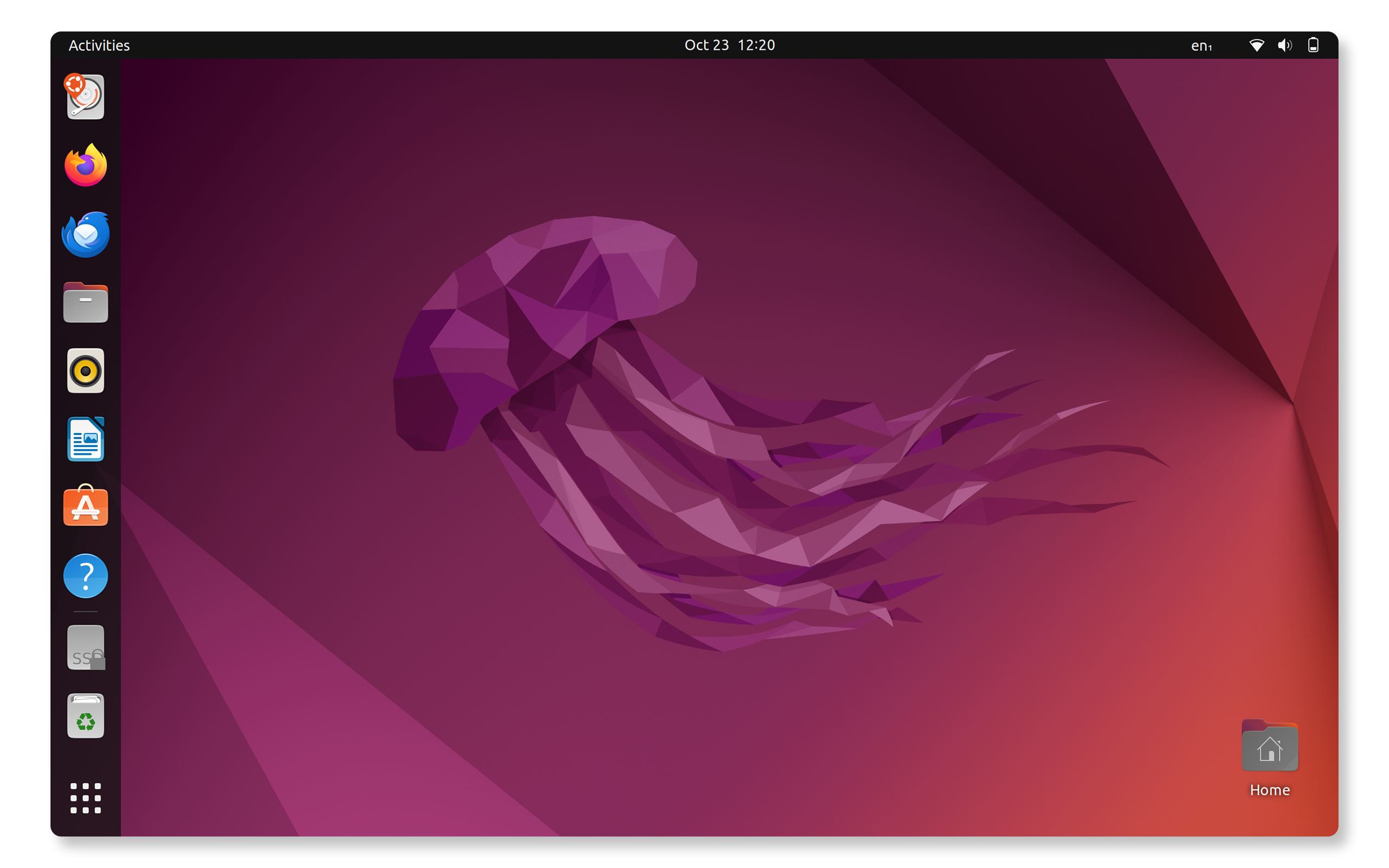
- Open the Activities overview by pressing the Super key.
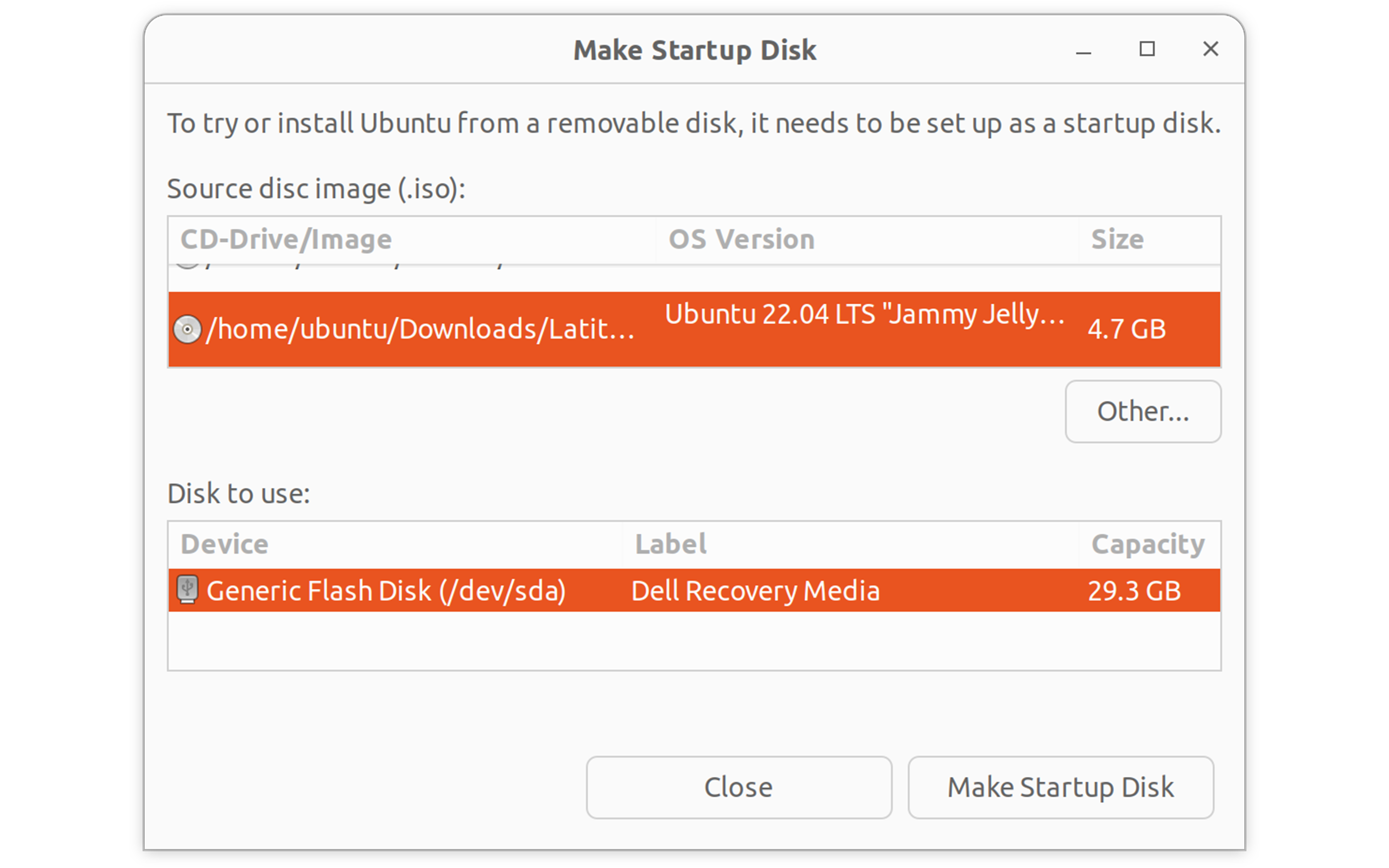
- Type Startup Disk Creator and click to open it.
- In the Source disc image section:
- Click Other to browse for your downloaded Ubuntu ISO file.
- Navigate to your Downloads folder and select the Ubuntu ISO
- In the Disk to use section:
- Select your USB drive from the list.
Warning: This will erase all data on the USB drive.
- Select your USB drive from the list.
- Click Make Startup Disk.
- Enter your password when prompted.
- Wait for the process to complete (usually 5-10 minutes).
- Click Quit when finished.
Your bootable Ubuntu USB drive is now ready for installation. Next, let's install Ubuntu.
Creating a Bootable USB Drive in Windows
If you're currently using Windows, you can use the Dell OS Recovery Tool to create your bootable Ubuntu USB drive.
Using Dell OS Recovery Tool
- Download Dell OS Recovery Tool.
- Install and run Dell OS Recovery Tool as administrator.
- Connect your USB drive.
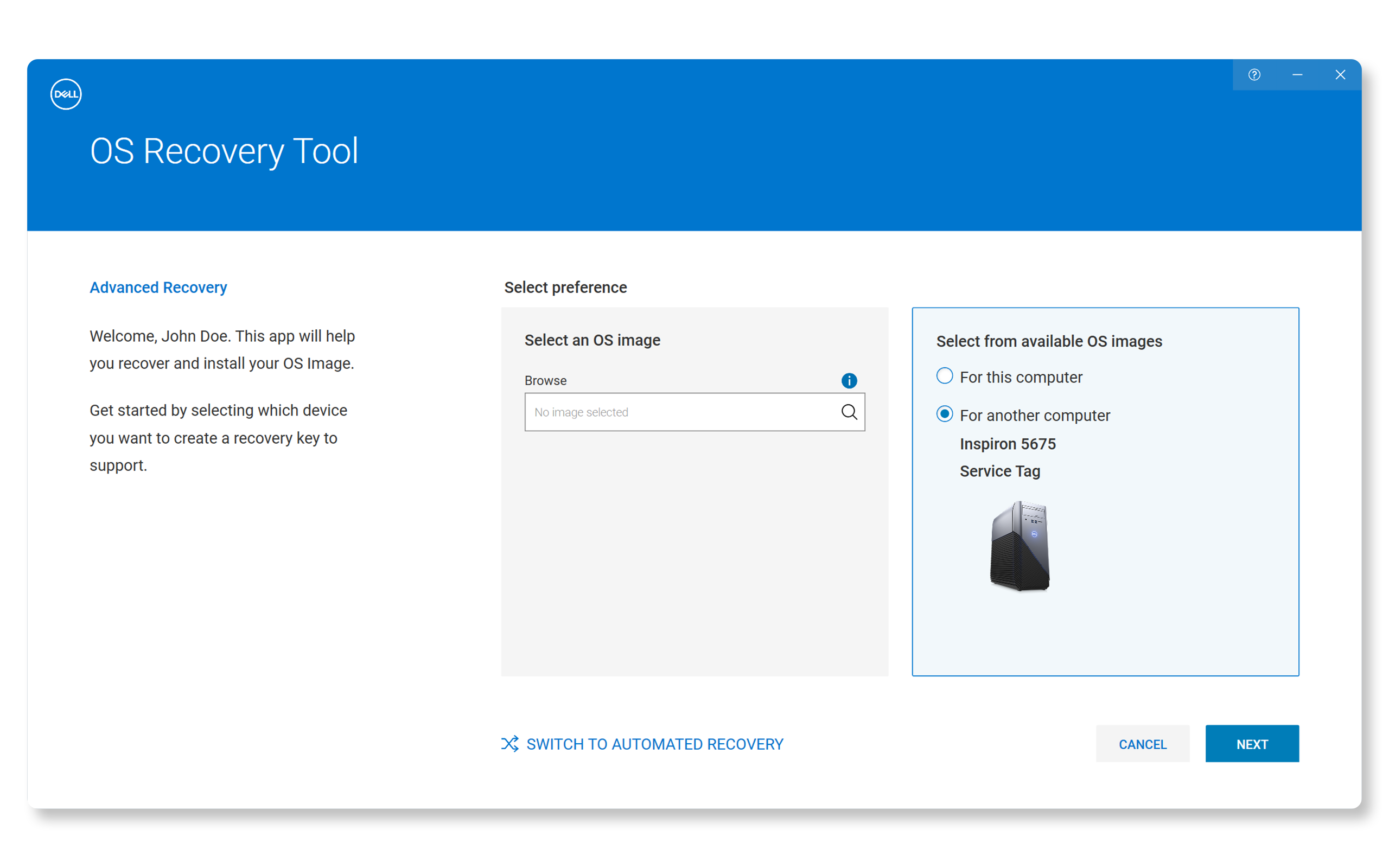
- Click SWITCH TO ADVANCED RECOVERY.
- Under Select an OS image, click the magnifying glass and navigate to your Downloads folder and select the Ubuntu ISO file.
- Click Next.
- In the Select USB drive section:
- Select your USB drive from the list.
- Check the box to confirm that the USB drive will be erased and all data will be deleted.
- Click Next.
- Wait for the process to complete.
- Click Finish when the process is done.
Installing Ubuntu on Your Dell Computer
Now that you have a bootable USB drive, you can install Ubuntu on your Dell computer.
Step 1: Boot from USB Drive
- Connect the bootable USB drive into your computer.
- Restart your computer.
- As soon as the Dell logo appears, press F12 repeatedly to open the boot menu.
- Use arrow keys to select your USB drive (usually shown as "USB Storage Device" or the drive brand name)
- Press Enter to boot from the USB drive.
Step 2: Start Ubuntu Installation
- When the Ubuntu boot screen appears, select Dell OS Recovery.
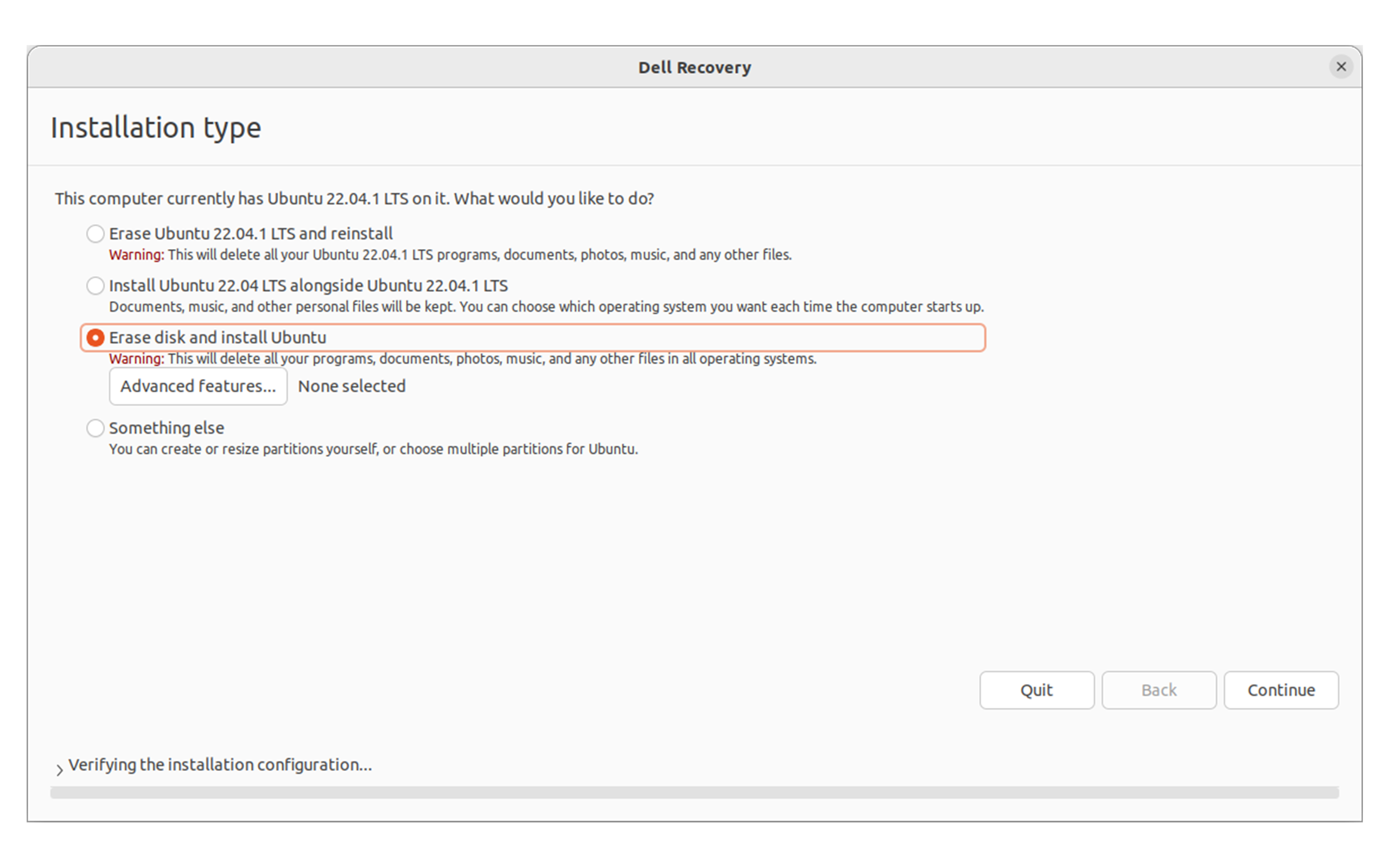
- Choose your preferred installation method and continue.
Step 3: Complete Installation
- Follow the instructions on the screen to customize language, keyboard layout, time zone, and more.
- Wait for installation to complete (20-30 minutes).
- Click Restart Now when prompted.
- Remove the USB drive when instructed.
- Press Enter to restart.

Post-Installation Ubuntu Setup
After Ubuntu installs successfully:
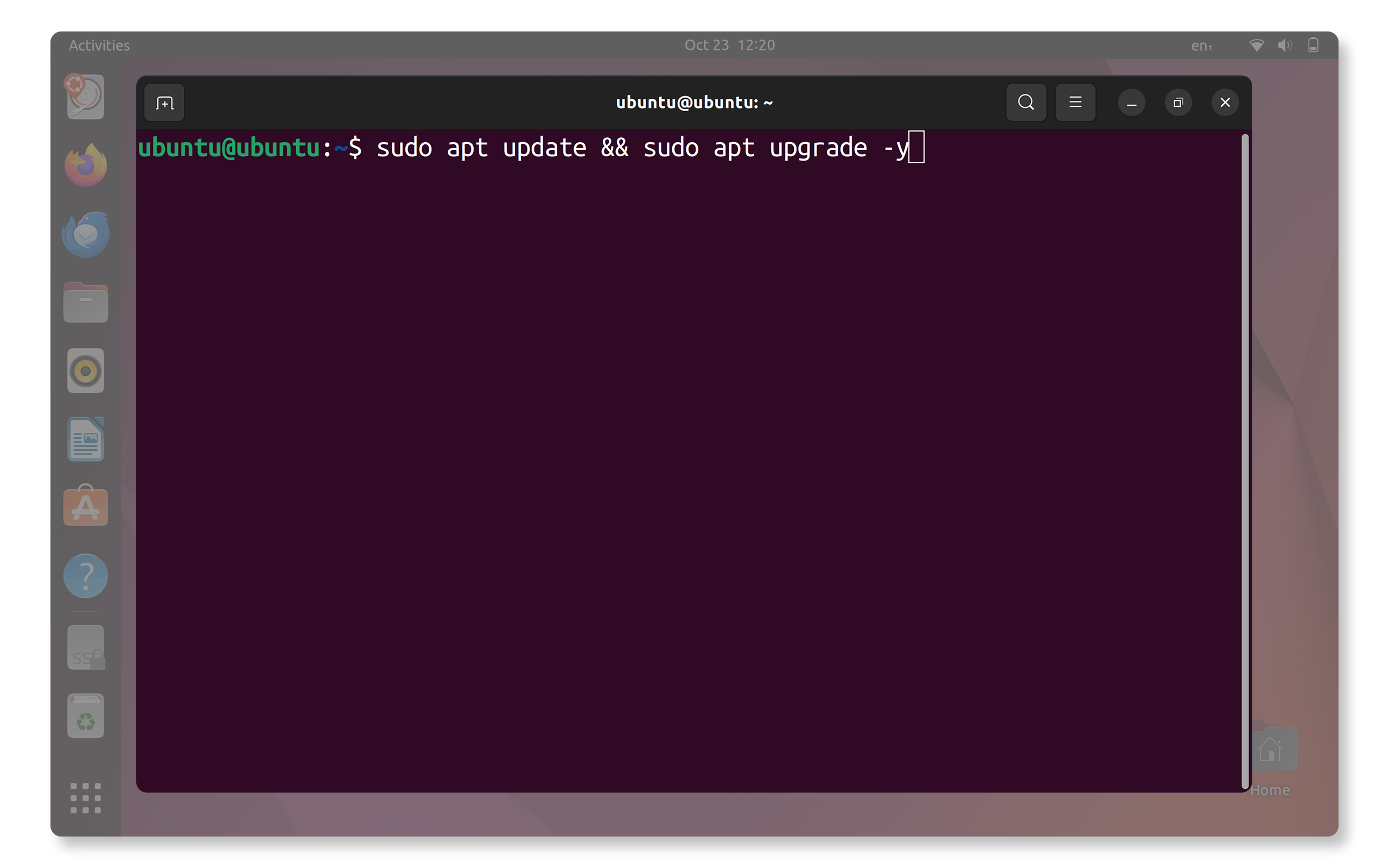
- Update your system:
- Open Terminal (Ctrl + Alt + T)
- Run sudo apt update && sudo apt upgrade -y
- Configure your system:
- Set up additional user accounts
- Install your preferred software
- Customize desktop settings
Frequently Asked Questions (FAQs)
Here are some common questions that users ask when creating an Ubuntu recovery media.
1. Can I use my Dell computer's recovery partition to install Ubuntu?
- No, Dell recovery partitions only restore the original Windows operating system. You need to download the Ubuntu ISO separately from Dell's support website and create the installation media using the methods described above.
2. Can I use third-party software like Rufus to create the bootable USB drive?
- While third-party tools like Rufus can technically create bootable Ubuntu USB drives, Dell recommends using the Dell OS Recovery Tool in Windows for the best compatibility with Dell systems. Dell does not provide technical support for issues related to third-party software.
3. How much disk space do I need for Ubuntu installation?
- Ubuntu requires a minimum of 25GB of free disk space, but Dell recommends at least 50GB for a comfortable experience with room for applications and files.
4. Will my Dell hardware work properly with Ubuntu?
- Dell tests and validates specific Ubuntu versions for compatible models. If Ubuntu is available for download on your computer, your hardware should work correctly. Some newer hardware features may require additional driver installation.
5. Can I dual boot both Windows and Ubuntu on my Dell computer?
- Dell recommends using the operating system that was originally shipped with your computer. While you can dual boot Windows and Ubuntu, Dell does not provide technical support for issues related with dual boot.
6. Do I need to disable Secure Boot to install Ubuntu?
- Most modern Dell computers support Ubuntu with Secure Boot turned on. But if your system doesn’t start up properly, don’t worry—it might just be a Secure Boot setting. Try turning off Secure Boot temporarily in your BIOS or UEFI settings to see if that resolves the issue. Not sure how to get into the BIOS or UEFI or navigate through the settings? check your computer's user manual.