How to Identify Dell Wired Docking Station Diagnostic Indicators
Summary: The following article provides information about how to use the diagnostic indicators that are built into Dell Wired Docking Stations from the WD series.
This article applies to
This article does not apply to
This article is not tied to any specific product.
Not all product versions are identified in this article.
Instructions
Table of Contents:
- Introduction
- Compatible Docking Stations
- Docking Station Power LED
- Docking Cable LED
- Docking Station AC Adapter LED
Introduction
This article explains how to use the diagnostic LEDs on the Dell Wired Dock (WD) series of docking stations.
Note: Some people may find it confusing that the LED on the docks power button is off during normal operation. This was done to minimize light pollution and distractions for the person using the dock. Do not assume that the dock has no power if the dock's power button LED is not lit.
There are three diagnostic LEDs that are useful for troubleshooting a docking station that appears to be unresponsive, not detected, or no power:
- The LED on the docking station power button.
- The LED on the docking station USB Type-C docking cable.
- The LED on the docking station AC adapter pack.
Compatible Docking Stations
This article applies to the following docking stations from Dell:
- Dell Docking Station WD19
- Dell Docking Station WD19S
- Dell Performance Dock WD19DC Dual Cable
- Dell Performance Dock WD19DCS Dual Cable
- Dell Thunderbolt Dock WD19TB
- Dell Thunderbolt Dock WD19TBS
- Dell Thunderbolt 4 Dock WD22TB4
Docking Station Power LED
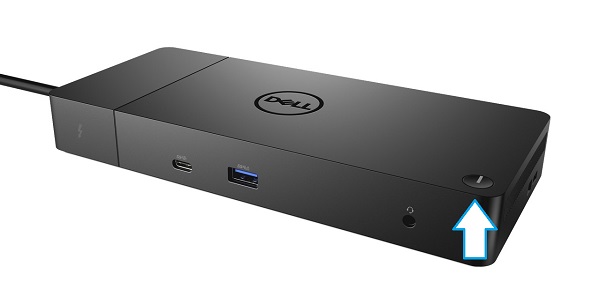
(Figure.1 Power Button LED)
- The LED on the power button does not indicate that the dock has power.
- The light remains off during normal operation to minimize distractions and light pollution. It may appear to be faintly lit, if viewed in a dark room.
- The Power On Self-Test - The power button LED flashes three (3) times indicating that the dock has power and is working. The flashing does not indicate a problem. This self-test only happens if you unplug the dock from the computer, unplug the AC adapter from the dock, then plug the AC adapter back in while the dock is disconnected from the computer:
Docking Cable LED
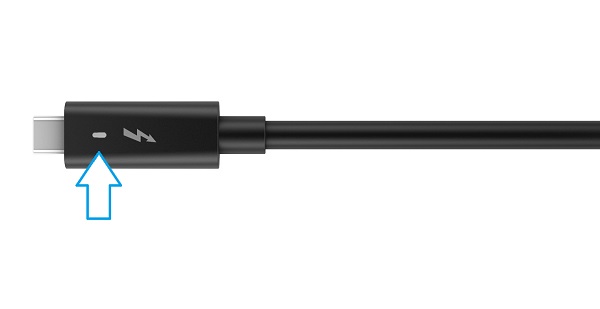
(Figure.2 Type-C Docking Cable LED)
- This light is on the USB Type-C connector that plugs into the computer from the docking station.
- It is the best indicator that the docking station has power and connectivity to the computer.
- It should be lit whenever the computer is connected.
- The WD19DC and WD19DCS have two (2) docking cables, with LEDs on both cables. Both LEDs should be lit when connected to a computer with dual Type-C ports that support power, data and video.
- If the docking cable LED is off, then either there is an issue with the connection, or the dock has no power:
- Try reseating the cable to the port on the computer.
- Check the AC Adapter LED to confirm it is providing power.
- Try the hard reset procedure and confirm that the self-test passes.
- Run the docking station diagnostics in the latest version of Dell SupportAssist on the connected computer.
- Contact Dell technical support for additional troubleshooting.
Docking Station AC Adapter LED
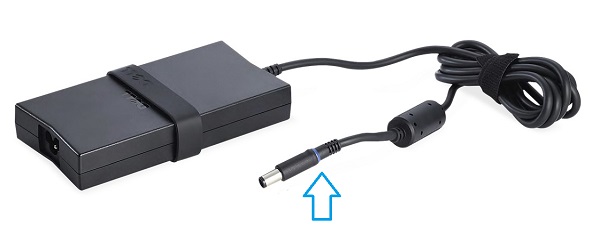
(Figure.3 AC Adapter Pack Cable LED Ring)
Note: Most modern AC adapters use a light ring on the adapter cable. It is behind the connector where it plugs into the laptop or device and lights up to indicate it is supplying power. (See Figure.3) However, you need to be aware that the power LED on some older AC adapters is located on the main body of the adapter.
- If the LED on the AC adapter is lit, this indicates that the adapter is working:
- Follow the cable back from the docking station to avoid confusing it with other AC adapters.
- Confirm that it is the correct 130 Watt, 180 Watt, or 240 Watt Dell adapter that came with the docking station.
- Reseat the power connector to the docking station.
- If the docking station still appears to have no power, then see the troubleshooting in the docking cable section.
- If the LED is off:
- Try unplugging the power cable from the AC adapter and from the outlet socket. Then, plug it back in.
- Try a power outlet socket that you know is working, to rule out an external power issue.
- Try a compatible AC adapter from a different Dell dock that you know is working, if possible. To rule out a docking station issue.
- Contact Dell technical support for additional assistance.
Affected Products
Dell Dock WD19, Dell Performance Dock - WD19DC, Dell Performance Dock – WD19DCS, Dell Dock – WD19S, Dell Thunderbolt Dock - WD19TB, Dell Thunderbolt Dock – WD19TBS, Dell Thunderbolt Dock – WD22TB4Article Properties
Article Number: 000202072
Article Type: How To
Last Modified: 15 May 2026
Version: 4
Find answers to your questions from other Dell users
Support Services
Check if your device is covered by Support Services.