Sécurité électrique pour la réparation de produits Dell : protection et précautions contre les décharges électrostatiques
Résumé: Cet article fournit des informations sur les mesures de sécurité élémentaires que les utilisateurs doivent prendre avant d’accéder aux composants internes d’un ordinateur ou d’un équipement électrique. Vous y trouverez des informations sur la protection contre les décharges électrostatiques, la prévention des dommages électrostatiques sur les composants et les consignes de sécurité lors du portage de matériel électronique. ...
Instructions
Quand utiliser ce guide : Avant d’ouvrir un ordinateur, un ordinateur portable ou un écran Dell pour le remplacement de matériel, la mise à niveau ou l’accès à des composants internes. Ce guide fournit des procédures de sécurité essentielles pour éviter les blessures et les dommages matériels causés par les risques électriques et les décharges électrostatiques (ESD).
Dans cet article :
- Protection contre les décharges électrostatiques
- Consignes générales de sécurité
- Avant d’intervenir dans l’ordinateur
- Après une intervention sur votre appareil
- Consignes de sécurité de l’alimentation
- Sécurité spécifique aux ordinateurs de bureau
- Sécurité spécifique à l’ordinateur portable
- Sécurité spécifique à l’écran
- Levage d’équipement en toute sécurité
- Questions fréquentes
Protection contre les décharges électrostatiques
S’applique à : Tous les ordinateurs de bureau, portables, tout-en-un, écrans, périphériques et serveurs Dell
Qu’est-ce que l’interface ESD ?
Les décharges électrostatiques (ESD) se produisent lorsque l’électricité statique accumulée sur votre corps ou sur un objet est transférée à des composants électroniques. Les produits Dell portant le marquage CE sont conçus pour résister aux décharges électrostatiques standard, mais certaines conditions (faible humidité, tissus synthétiques) augmentent les risques.
Procédure de protection ESD
- Mettez-vous à la terre avant de toucher les composants
Touchez une surface métallique non peinte (par exemple, le panneau d’E/S métallique à l’arrière de votre ordinateur) pendant au moins 5 secondes pour décharger l’électricité statique de votre corps. - Utilisez un bracelet antistatique (recommandé)
Connectez un bracelet antistatique à un objet métallique mis à la terre. Portez-le tout au long de votre séance de travail pour une protection continue. - Rerectifié périodiquement
Pendant l’utilisation, touchez une surface métallique mise à la terre toutes les quelques minutes, en particulier après vous être déplacé ou avoir touché des matériaux non conducteurs. - Gérer les composants par arêtes uniquement
Ne touchez jamais les contacts, les broches ou les circuits en or. Tenez les barrettes de mémoire, les cartes et les processeurs par leurs bords ou leurs supports de montage. - Conservez les composants dans un emballage
antistatiqueNe retirez pas les nouveaux composants des sacs antistatiques tant que vous n’êtes pas au moment de les installer. Lorsque vous retirez d’anciens composants, placez-les dans des sacs antistatiques ou sur des surfaces antistatiques.
Pratique d’excellence : Travaillez sur une surface sans moquette dans une pièce à humidité modérée (40-60 %). Évitez de porter des tissus synthétiques comme le molleton ou le polyester pendant les travaux de quincaillerie.
Consignes générales de sécurité
S’applique à : Tous les ordinateurs de bureau, portables, tout-en-un, écrans, périphériques et serveurs Dell
Espace de travail et environnement
- Surface dure et plane : Placez l’équipement sur une table ou un bureau stable. Laissez un dégagement de 10 cm (4 pouces) sur tous les côtés munis d’entrées d’air pour une bonne circulation de l’air.
- Évitez les surfaces molles : Ne placez jamais d’appareils sur des lits, des canapés, des tapis ou des surfaces en tissu qui limitent la circulation de l’air et peuvent provoquer une surchauffe.
- Contrôle de la température : Fonctionnement entre 10 et 35 °C (50 à 95 °F). Tenir à l’écart des radiateurs, des radiateurs, de la lumière directe du soleil et des sources de chaleur.
- Environnement sec : Ne pas utiliser près de sources d’eau (baignoires, éviers, piscines) ou dans des endroits humides comme les sous-sols humides.
Sécurité des câbles et des connexions
- Routage correct : Assurez-vous que les câbles ne se trouvent pas dans des passerelles ou à des endroits où ils peuvent être piétinés, trébuchés ou coincés.
- Connecteurs corrects : Vérifiez que vous utilisez le port approprié. Les prises réseau et téléphoniques se ressemblent, mais sont différentes.
- Manipulation délicate : Lorsque vous débranchez des câbles, tirez sur le connecteur ou la languette, jamais sur le câble lui-même. Vérifiez les languettes de verrouillage avant de tirer.
- Alignement correct : Assurez-vous que les ports et les connecteurs sont correctement orientés avant de procéder à la connexion afin d’éviter de tordre les broches.
Ventilation et circulation de l’air
- Ne placez pas l’équipement dans des espaces fermés (armoires fermées, unités murales) sans ventilation adéquate.
- N’insérez jamais d’objets dans les entrées d’aération ou les ouvertures, cela peut provoquer un choc électrique ou un incendie.
- N’empilez pas plusieurs appareils et ne les placez pas trop près les uns des autres, au risque de les exposer à un flux d’air déjà chauffé.
Nettoyage et entretien
- Débrancher l’alimentation : Débranchez toujours l’appareil de la prise électrique avant de le nettoyer.
- Utilisez les matériaux appropriés : Nettoyez avec un chiffon doux imbibé d’eau uniquement. N’utilisez pas de produits nettoyants liquides ou aérosols, qui peuvent contenir des substances inflammables.
- Nettoyage de l’écran : Pour les écrans LCD ou les moniteurs, appliquez d’abord de l’eau sur le chiffon (jamais directement sur l’écran), essuyez dans un sens de haut en bas, puis séchez immédiatement pour éviter tout dommage causé par l’humidité.
Intervention à l’intérieur de votre appareil
S’applique à : Tous les ordinateurs de bureau, portables, tout-en-un, écrans, périphériques et serveurs Dell
Check-list préalable
- Enregistrer tout le travail : Enregistrez et fermez tous les fichiers et applications ouverts pour éviter toute perte de données.
- Arrêt complet :
Fenêtres : Cliquez sur Démarrer > Alimentation Arrêt (pas Veille ou Redémarrage)
Linux : utilisez la commande d’arrêt > ou l’option
d’arrêt du menu système Attendez que tous les voyants soient éteints et que les ventilateurs se soient arrêtés. - Débrancher l’alimentation :
Débranchez le câble d’alimentation de la prise
électrique Débranchez le câble d’alimentation de l’appareil
Pour les ordinateurs portables : retirez l’adaptateur secteur - Retirez la batterie (ordinateurs portables uniquement) :
Si votre ordinateur portable est équipé d’une batterie amovible, retirez-la maintenant. Certains ordinateurs portables Dell sont équipés de batteries non amovibles. Consultez votre manuel d’utilisation pour les déconnecter. - Déconnectez tous les périphériques :
Retirez tous les câbles : réseau, périphériques USB, clavier, souris, écran, disques externes, station d’accueil. - Retirez le support (le cas échéant) :
Éjectez les cartes SD, les clés USB ou les disques optiques de l’appareil. - Puissance résiduelle de décharge :
Appuyez sur le bouton d’alimentation et maintenez-le enfoncé pendant 15 à 20 secondes pour décharger toute charge électrique restante du système. - Ancrez-vous :
Touchez une surface métallique non peinte de l’appareil (telle que le panneau d’E/S) pour décharger l’électricité statique avant de continuer.
Ressources supplémentaires : Consultez toujours le manuel de maintenance de votre produit avant de commencer à travailler. Les manuels d’entretien contiennent des instructions spécifiques au modèle et l’emplacement des composants.
Intervention à l’intérieur de votre appareil
Check-list après travaux
- Remettez en place toutes les vis : Assurez-vous que toutes les vis sont réinstallées à leur emplacement d’origine. Vérifiez qu’aucune vis ne reste desserrée à l’intérieur de l’appareil ou sur votre surface de travail.
- Réinstallez les composants retirés : Remplacez les cartes multimédias, les disques optiques ou les pièces qui ont été temporairement retirés.
- Réinstallez la batterie (ordinateurs portables) : Si vous avez retiré ou débranché la batterie, réinstallez-la maintenant en vous assurant qu’elle s’enclenche en toute sécurité.
- Rebranchez les périphériques : Rebranchez le clavier, la souris, l’écran, le câble réseau et tous les autres périphériques externes qui ont été déconnectés.
- Branchement à l’alimentation : Rebranchez le câble d’alimentation à la prise électrique et à votre appareil.
- Mettez sous tension et vérifiez : Appuyez sur le bouton d’alimentation. Vérifiez que le système démarre normalement et que tous les composants nouveaux/remplacés sont reconnus.
Si l’appareil ne s’allume pas : Replacez tous les câbles et composants avec lesquels vous avez travaillé. Vérifiez que la batterie est correctement installée (ordinateurs portables). Vérifiez que tous les connecteurs internes sont bien en place.
Consignes de sécurité de l’alimentation
S’applique à : Tous les équipements optimisés par Dell
Source de tension et d’alimentation
- Vérifier la tension nominale : Vérifiez que les exigences de tension de votre appareil correspondent à votre prise électrique (généralement 100-240 V CA, 50-60 Hz).
- Dispositifs à détection automatique : La plupart des appareils Dell modernes détectent automatiquement la tension (pas d’interrupteur à l’arrière). Ceux-ci fonctionnent dans le monde entier avec des adaptateurs de prise appropriés.
- Sélection manuelle de la tension : Les appareils plus anciens peuvent être dotés d’un interrupteur de tension. Le cas échéant, réglez-le pour qu’il corresponde à votre tension locale (par exemple, 115 V pour l’Amérique du Nord, 230 V pour l’Europe/l’Asie).
Sécurité du câble d’alimentation et de la prise
- Prises mises à la terre requises : Utilisez toujours des prises à 3 broches correctement mises à la terre. Ne retirez jamais la broche de mise à la terre et n’utilisez jamais d’adaptateurs à 2 broches qui contournent la mise à la terre.
- Inspecter les câbles : N’utilisez pas de câbles d’alimentation endommagés avec des fils effilochés, des conducteurs dénudés ou des fiches cassées.
- Rallonges électriques : Si nécessaire, vérifiez que le câble d’extension/la barrette d’alimentation est évalué en fonction de l’intensité totale de l’appareil. Connectez les bandes aux prises murales, jamais à d’autres prises (chaînage en série).
- Insertion correcte : Assurez-vous que les fiches d’alimentation sont complètement insérées dans les prises. Une insertion partielle peut provoquer des arcs électriques et un risque d’incendie.
- Déconnectez-vous correctement : Saisissez le corps de la fiche lorsque vous la retirez de la prise, et non le câble.
Sécurité de l’adaptateur secteur (ordinateurs portables)
S’applique à : Tous les ordinateurs portables et stations de travail mobiles Dell
- Utilisez uniquement des adaptateurs approuvés par Dell : Les adaptateurs tiers peuvent ne pas posséder les certifications de sécurité appropriées et peuvent endommager votre ordinateur portable ou votre batterie.
- Ventilation requise : Placez l’adaptateur sur le bureau ou le sol avec voyant LED visible. Ne le couvrez jamais avec des papiers, des couvertures ou ne le placez pas dans des sacs pendant l’utilisation.
- Manipuler avec précaution lorsqu’il est chaud : Laissez l’adaptateur refroidir avant de le ranger. Ne placez pas l’adaptateur chaud directement sur des surfaces sensibles à la température.
- Vérifiez qu’il n’y a pas de dommages : N’utilisez pas d’adaptateurs dont les câbles sont endommagés, dont le câblage est exposé ou qui présente des signes d’usure excessive.
- Vérification du voyant LED : Le voyant LED doit s’allumer lorsqu’il est branché. Si la LED ne s’allume pas, débranchez-la immédiatement et inspectez les connexions.
Pendant les orages électriques
- N’utilisez pas les appareils branchés sur secteur durant un orage.
- Débranchez les câbles d’alimentation et les câbles réseau pendant les tempêtes.
- Les appareils alimentés par batterie ne peuvent être utilisés que si tous les câbles sont débranchés.
Sécurité des ordinateurs de bureau
S’applique à : Tous les PC bureau Dell
Consignes spécifiques aux ordinateurs de bureau
- Tension d’alimentation : Les alimentations de bureau peuvent être dotées de commutateurs de tension manuels ou à détection automatique. Vérifiez avant de brancher l’imprimante à l’alimentation.
- Composants lourds : Les châssis et les composants des ordinateurs de bureau peuvent être lourds. Utiliser les techniques de levage appropriées (voir la section Équipement de levage ci-dessous).
- Cartes d’extension : Lors de l’installation de cartes PCIe ou PCI, assurez-vous que la carte est bien installée et que le support de fixation est fixé avant la mise sous tension.
- Câbles internes : Éloignez les câbles des ventilateurs et des dissipateurs de chaleur pour éviter toute obstruction et tout bruit.
- Non-utilisation prolongée : Si l’ordinateur de bureau n’est pas utilisé pendant une période prolongée, débranchez-le de la prise de courant pour éviter la consommation électrique en mode veille.
Sécurité des ordinateurs portables
S’applique à : Tous les ordinateurs portables et stations de travail mobiles Dell
Consignes spécifiques à l’ordinateur portable
- Restriction de la circulation d’air : N’utilisez jamais l’ordinateur portable dans une sacoche de transport, une mallette fermée ou tout autre environnement à faible circulation d’air lorsqu’il est sous tension. Cela peut provoquer une surchauffe, endommager les composants ou provoquer un incendie.
- Contact avec la peau : Évitez tout contact direct et prolongé avec la base de l’ordinateur portable lorsqu’il est alimenté sur secteur. À utiliser sur une surface de bureau ou un tapis d’ordinateur portable.
- Surfaces souples : Ne les utilisez pas sur les lits, les oreillers, les couvertures ou vos genoux pendant de longues périodes, car ils bloquent les entrées d’air et provoquent une surchauffe.
Sécurité liée à la batterie
- Inspection des dommages : N’utilisez pas de batteries bosselées, perforées, gonflées, qui fuient ou qui présentent d’autres dommages physiques. Contactez le support Dell pour connaître les options de réparation.
- Limites de température : N’exposez pas l’ordinateur portable ou la batterie à des températures supérieures à 65 °C (149 °F) et ne les stockez pas à proximité de sources de chaleur (radiateurs, tableaux de bord de voiture, lumière directe du soleil).
- Prévention des courts-circuits : Ne transportez pas de piles en vrac dans des poches ou des sacs contenant des objets métalliques (pièces de monnaie, clés, trombones) susceptibles de court-circuiter les bornes.
- Mise au rebut : Ne jetez pas les piles avec les ordures ménagères. Recyclage via le programme de recyclage des batteries de Dell ou des installations locales de traitement des déchets électroniques.
- Batteries non amovibles : Certains ordinateurs portables Dell sont équipés de batteries internes qui ne peuvent pas être retirées par l’utilisateur. Contactez le support Dell pour connaître les options de remplacement de la batterie sur ces modèles.
Sécurité de l’adaptateur auto/aéronef
- Limitation de tension : Ne pas utiliser dans des véhicules commerciaux équipés de systèmes 24 V CC. L’adaptateur automatique est conçu pour 12 V uniquement. Vérifiez les spécifications de l’adaptateur pour confirmer.
- Séquence de connexion : Lorsque le moteur du véhicule est éteint, connectez d’abord l’adaptateur à l’ordinateur portable, puis branchez-le à l’allume-cigare ou à une prise CC.
- Mode d’emploi : Consultez la documentation de l’adaptateur auto avant utilisation. Une mauvaise connexion peut endommager l’adaptateur ou le système électrique du véhicule.
Sécurité des écrans
S’applique à : Tous les écrans Dell et Alienware
Précautions spécifiques à l’écran
- Vérification de la puissance électrique : Assurez-vous que l’écran est adapté à votre alimentation secteur locale (généralement 100-240 V CA, 50-60 Hz). Vérifiez l’étiquette à l’arrière de l’écran.
- Placement stable : Placez l’écran sur une surface plane et solide. Traitez-les avec soin. Les écrans LCD sont en verre et peuvent se fissurer en cas de chute, de choc ou de pression. Évitez d’appuyer sur l’écran LCD lorsque vous tenez ou déplacez l’écran.
- Limites de température : Les écrans LCD sont sensibles aux températures extrêmes. Température de fonctionnement normale : de 0 °C à 40 °C (32 °F à 104 °F) Une chaleur ou un froid excessif peut endommager l’écran à cristaux liquides.
- Évitement des vibrations : Ne soumettez pas l’écran à de fortes vibrations ou à des chocs. Évitez de les placer dans les coffres des véhicules ou de les transporter sans emballage de protection.
- Aucun accès interne : Ne retirez jamais les capots de l’écran et ne tentez jamais de le réparer. Tous les services doivent être effectués par des techniciens Dell qualifiés.
- Non-utilisation prolongée : Débranchez l’écran de la prise secteur s’il est inutilisé pendant une période prolongée.
Nettoyage de l’écran
- Débranchez l’écran de la prise secteur.
- Humidifiez un chiffon doux et non pelucheux avec de l’eau uniquement. Essorez l’excès d’humidité.
- Essuyez doucement l’écran dans un sens, de haut en bas.
- Séchez immédiatement l’écran avec un chiffon sec pour éviter les dommages causés par l’humidité.
Levage d’équipement en toute sécurité
Technique de levage appropriée
- Planifier avant de soulever : Évaluez le poids, la taille et la destination. Dégagez le chemin des obstacles. Si l’équipement pèse plus de 23 kg (50 lb), demandez de l’aide ou utilisez un équipement de levage mécanique.
- Positionnez vos pieds : Tenez-vous debout, les pieds écartés à la largeur des épaules, pour une base stable. Pointez les orteils légèrement vers l’extérieur pour un meilleur équilibre.
- Pliez les genoux, pas le dos : Accroupissez-vous en pliant les genoux et les hanches. Gardez le dos droit dans un alignement naturel. Ne vous courbez pas.
- Engagez les muscles du tronc : Contractez les muscles abdominaux avant de les soulever. Cela soutient votre colonne vertébrale et répartit la charge en toute sécurité.
- Garder la charge à proximité : Tenez l’équipement près de votre corps. Plus vous vous éloignez de votre colonne vertébrale, plus votre dos est sollicité.
- Soulever avec les jambes : Poussez entre vos jambes, en gardant le dos droit. Laissez les muscles de vos jambes faire le travail, pas votre dos.
- Évitez de les tordre : Gardez les épaules alignées avec les hanches. Pour tourner, faites pivoter vos pieds plutôt que de tordre votre torse.
- Posez-le en toute sécurité : Utilisez la même technique à l’envers. Accroupissez-vous avec les genoux pliés, en gardant le dos droit, et placez doucement l’équipement vers le bas.
- Déplacez-vous en toute fluidité : Évitez les mouvements saccadés ou brusques. Gardez la tête haute et regardez devant vous tout en portant.
Pratique d’excellence : En cas de doute, demandez de l’aide. Le transport à deux est toujours plus sûr que de se débattre seul avec des équipements lourds.
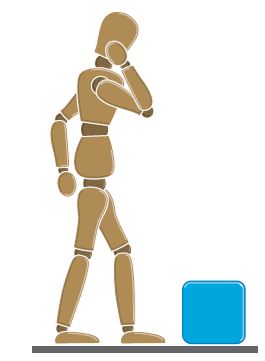
Figure d’une personne qui prévoit de soulever une boîte bleue, illustrant l’importance d’évaluer le poids avant de soulever des objets
Vue de dessus d’un caisson bleu avec deux empreintes positionnées pour une position correcte avant le levage

Figure accroupie avec le dos droit tout en soulevant une boîte bleue, démontrant la bonne technique de levage à l’aide des jambes

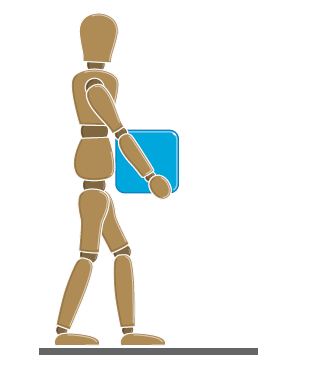
Figure marchant en tenant une boîte bleue près du corps, montrant une technique de portage appropriée après le levage
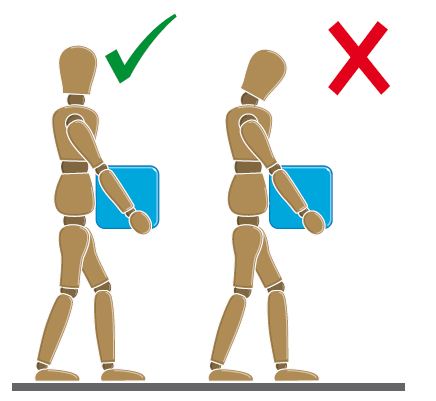
Deux personnages portant une boîte : à gauche montre une posture correcte avec le dos droit, à droite montre une posture incorrecte avec le dos courbé
Questions fréquentes
Q : Quand dois-je m’ancrer pendant le travail sur ordinateur ?
UNE : Ancrez-vous immédiatement avant de toucher les composants internes et périodiquement tout au long de votre séance de travail (toutes les quelques minutes, surtout après avoir déménagé). Touchez une surface métallique non peinte, comme le panneau d’E/S à l’arrière de l’ordinateur.
Q : Puis-je utiliser un adaptateur secteur tiers avec mon ordinateur portable Dell ?
UNE : Non. Utilisez uniquement des adaptateurs secteur Dell conçus pour votre modèle d’ordinateur portable spécifique. Les adaptateurs tiers peuvent ne pas disposer d’une régulation de tension ou de certifications de sécurité adéquates et peuvent endommager votre ordinateur portable ou votre batterie, ce qui peut entraîner un risque pour la sécurité.
Q : La batterie de mon ordinateur portable est déchargée. Est-ce dangereux ?
UNE : Oui. Une batterie gonflée indique une défaillance interne et présente un risque pour la sécurité. Arrêtez immédiatement d’utiliser l’ordinateur portable, débranchez l’alimentation secteur et ne tentez pas de retirer la batterie si elle est bloquée. Contactez le support Dell pour connaître les options de remplacement de la batterie en toute sécurité. Ne percez pas et n’exercez pas de pression sur les batteries gonflées.
Q : Puis-je travailler en toute sécurité à l’intérieur de mon ordinateur en cas d’orage électrique ?
UNE : Non. N’effectuez jamais de maintenance, de connexions de câbles ou de travaux internes pendant un orage électrique. La foudre peut provoquer des surtensions via les prises électriques et les câbles réseau, créant ainsi de graves risques d’électrocution. Attendez que l’orage passe.
Q : Dois-je retirer la batterie de mon ordinateur portable avant de remplacer la RAM ?
UNE : Oui, si votre ordinateur portable est équipé d’une batterie amovible. Retirez toujours la batterie après l’avoir arrêtée et débranchée de l’alimentation secteur. Cela garantit qu’aucun courant électrique n’est présent pendant la mise à niveau. Certains ordinateurs portables Dell plus récents sont équipés de batteries non amovibles. Consultez votre manuel de maintenance pour obtenir des instructions spécifiques au modèle afin de débrancher la batterie.
Q : Puis-je nettoyer mon écran LCD avec un nettoyant pour vitres ?
UNE : Non. N’utilisez jamais de nettoyants pour vitres commerciaux, d’alcool ou de nettoyants chimiques sur les écrans LCD. Cela peut endommager les revêtements antireflet et la surface de l’écran. N’utilisez que de l’eau sur un chiffon doux non pelucheux, appliquez sur le chiffon (jamais directement sur l’écran), puis séchez immédiatement.
Q : De quel espace ai-je besoin autour de mon ordinateur de bureau pour assurer une ventilation adéquate ?
UNE : Laissez un dégagement d’au moins 10 cm (4 pouces) sur tous les côtés munis d’entrées d’air. Cela garantit une circulation d’air appropriée pour le refroidissement. Ne placez jamais vos ordinateurs dans des armoires fermées et ne bloquez jamais les entrées d’aération avec des papiers ou des objets, car cela peut provoquer une surchauffe et des risques d’incendie.
Q : Que dois-je faire si j’ai renversé du liquide sur mon ordinateur portable ?
UNE : Éteignez immédiatement l’ordinateur portable, débranchez l’adaptateur secteur et retirez ou déconnectez la batterie si possible. Retournez l’ordinateur portable pour évacuer le liquide des composants internes. N’essayez pas de mettre l’appareil sous tension. Les dommages causés par un liquide nécessitent souvent un service professionnel. Contactez le support Dell.