Guía del sistema Dell Latitude 7370
Resumen: Esta página contiene una guía del sistema Dell Latitude 7370 con enlaces a información útil.
Síntomas
Guía del sistema Dell Latitude 7370: Contiene enlaces a guías instructivas e información útil sobre el sistema.
Causa
Resolución
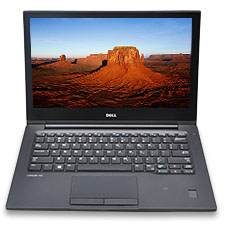
Amplíe todas las secciones a continuación para obtener información sobre cómo usar Dell Latitude 7370.
Familiarización con la computadora:
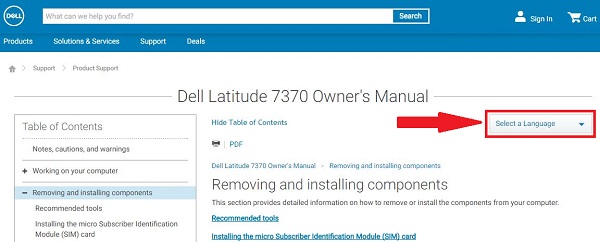
El manual del sistema se puede encontrar en el siguiente enlace:
En esta sección, se proporcionan enlaces de información sobre las ubicaciones de los conectores y puertos, así como imágenes del sistema, que lo ayudarán a familiarizarse con el sistema.
- Guía visual de Dell Latitude 7370
- Guía del teclado de Dell Latitude 7370
- Instrucciones de uso y procedimientos de solución de problemas de la estación de acoplamiento Thunderbolt TB16 de Dell
Opciones de instalación:
En esta sección, se abordan las opciones de reinstalación del sistema operativo compatibles con el sistema.
Consulte las pestañas a continuación para obtener más información:
Microsoft Windows
Para obtener más información sobre las diversas versiones del sistema operativo Windows, haga clic en el siguiente enlace:
Controladores:
En esta sección, se proporciona información sobre los controladores y el orden de instalación necesario para las diversas
versiones del sistema operativo de Windows que son compatibles con la computadora Dell.
Orden de instalación de los controladores:
Identificación de los controladores no admitidos en la orden de instalación:
Ubuntu Linux
Para obtener más información sobre Ubuntu Linux en su sistema, vea el siguiente enlace:
Para obtener más información, también puede consultar el sitio web de Ubuntu:

Respaldo y recuperación del sistema
En esta sección, se entrega información sobre las opciones de respaldo y recuperación para el sistema.
A menos que especifique un medio de recuperación en el pedido, el sistema Windows 10 no contará con una unidad flash USB o discos de recuperación. Para obtener más información sobre cómo crear medios de recuperación para el sistema en caso de una falla catastrófica del sistema, vaya al siguiente enlace:
- Crear medios de recuperación de Windows 10 para su equipo Dell
- Crear medios de instalación de Windows para Windows 8.1 y Windows 10 usando la herramienta de creación de medios
Windows Recovery Environment (WinRE)
En los sistemas con Windows 10 instalado de fábrica, WinRE le permite restaurar el sistema al estado original de fábrica. Para obtener más información, consulte el siguiente enlace:
Imagen de recuperación de Dell de Microsoft Windows
También puede descargar una imagen de recuperación del sistema operativo Microsoft Windows personalizado para su producto Dell desde el sitio de soporte de Dell.
A menos que especifique un medio de recuperación en la orden, el sistema no incluirá una unidad flash USB o discos de recuperación.
Puede encontrar más información en la página de soporte de almacenamiento, respaldo y recuperación de datos:
En el siguiente artículo, se puede encontrar más información general sobre cómo recuperar Windows:
Dell SupportAssist para computadoras y tabletas:
SupportAssist proporciona actualizaciones del sistema, detecta problemas y envía alertas según su dispositivo, lo que facilita más que nunca la resolución y la prevención de problemas. Esta aplicación le brinda acceso a todo lo necesario para eliminar las conjeturas del mantenimiento de PC y tabletas. Para obtener más información e instrucciones de instalación, consulte el siguiente enlace:
Diagnósticos y códigos de error:
En esta sección, se entregan enlaces a artículos sobre diagnóstico y distintos mensajes de error, códigos de sonido y códigos LED de diagnóstico que pueden ayudar a solucionar problemas potenciales de hardware y software en el sistema.
- Resolver problemas de hardware con diagnósticos integrados y en línea (códigos de error de SupportAssist ePSA, ePSA o PSA)
- La computadora se reinicia o se apaga de forma intermitente, se bloquea, deja de responder, o se produce un error.
- Cómo solucionar el problema de la pantalla azul o el código de error de detención en una computadora Dell
- Cómo solucionar problemas de rendimiento lento
También puede utilizar los diagnósticos que se encuentran en la página de soporte de Dell, esto requiere que Dell System Detect y SupportAssist estén instalados en el sistema. Esto se realiza si elige ejecutar los diagnósticos. Puede acceder a los diagnósticos mediante el siguiente enlace:
Hardware:
En la siguiente sección, se proporcionan enlaces a artículos que contienen información sobre los distintos componentes de hardware del sistema. Pueden ayudarlo a solucionar cualquier problema identificado tras realizar los diagnósticos anteriores. También existen artículos "instructivos" que pueden ayudar con distintas tareas. Por ejemplo, la actualización del BIOS o de una unidad de disco duro.
Adaptador de CA y batería
- Cómo comprobar el estado de la batería en laptops Dell
- Cómo mejorar el rendimiento de una batería de laptop Dell
Audio
- ¿La computadora hace ruido? Solucionar problemas de ventiladores ruidosos, disco duro y más
- ¿Cómo solucionar problemas de emisión de ruido no deseado de los parlantes?
- Cómo solucionar problemas de falta de sonido en la computadora o problemas de reproducción de audio
BIOS y placa base
- Actualizaciones del BIOS de Dell
- Cómo realizar una restauración de BIOS o CMOS y borrar la NVRAM en computadoras Dell
- Cómo actualizar el BIOS: Instalar y actualizar el BIOS en Windows
Problemas del ventilador y de sobrecalentamiento
- Cómo solucionar los problemas de sobrecalentamiento, térmicos o de apagado en una computadora Dell
- ¿La computadora hace ruido? Solucionar problemas de ventiladores ruidosos, disco duro y más
Problemas del disco duro
Problemas de los dispositivos de entrada
- Guía de uso y solución de problemas del teclado
- Guía de uso y solución de problemas del mouse
- Reparar el panel táctil de la laptop que no funciona en Windows
Memoria
- Cómo diagnosticar y resolver problemas comunes de memoria en una laptop Dell
- Guía de compatibilidad de la memoria de Dell Latitude
- ¿Qué es la memoria DDR3L?
Redes, Wi-Fi, Bluetooth
- Centro de soporte de redes inalámbricas de Dell
- Cómo solucionar problemas de cualquier adaptador de red cableado en una computadora personal Dell Latitude
- Solución de problemas de conexión a Internet de la computadora Dell
- Guía para el emparejamiento de teclados y mouse Bluetooth de Dell y solución de problemas relacionados
Sin POST, sin alimentación
- Solucionar problemas de alimentación, POST, arranque o video de la computadora Dell
- Cómo solucionar problemas de alimentación en una laptop Dell
Unidad óptica
Puertos, replicadores de puertos y estaciones de acoplamiento
- Los puertos USB no funcionan en Windows: Cómo resolver problemas comunes de USB
- Una guía de los puertos y conectores externos de una computadora Dell
- Guía para las estaciones de acoplamiento de Dell
Problemas de video
Otro software y antivirus:
En esta sección, se cubre el software compatible con el sistema y también tiene enlaces a información sobre el antivirus.
Consulte las pestañas a continuación para obtener más información.
software
El sistema se envía con algunos programas y aplicaciones preinstalados que están diseñados para facilitarle la vida. En esta sección, se proporcionan enlaces de información sobre estos elementos.
Para acceder al Centro de descargas de Dell, haga clic en el siguiente enlace:
Para acceder a la página de aplicaciones y software de Dell, haga clic en el siguiente enlace:
Software que se vende con el sistema:
En esta sección, se entrega información sobre parte del software preinstalado y vendido junto con el sistema.
Parte del software vendido en el momento de la compra se debe descargar una vez que reciba el sistema.
Esto se realiza a través de Dell Digital Delivery. Para obtener más información, consulte los siguientes enlaces:
Adobe
Digital Persona
Microsoft
Skype
Antivirus
Para acceder a la página de soporte de seguridad y protección contra virus de Dell, haga clic en el siguiente enlace:
Es posible que el sistema tenga un programa antivirus preinstalado. Para obtener más información, visite el siguiente enlace.
Para obtener más información sobre virus, spyware y malware, siga los siguientes enlaces:
- ¿Cuáles son los distintos tipos de virus, spyware y malware que pueden infectar mi computadora?
- Protección de la computadora o eliminación de virus, spyware u otro tipo de malware en Microsoft Windows
- Cómo identificar y reparar sistemas infectados con malware o virus