NVP vProxy: Category Tagging based VMware Protection
Summary: VMware Protection Groups can be configured in NetWorker to use dynamic rules for selecting and ignoring VMware objects using VMware Category Tagging (CIS). This article provides a general overview of these tags and how to configure them in NetWorker. ...
This article applies to
This article does not apply to
This article is not tied to any specific product.
Not all product versions are identified in this article.
Instructions
Category tags are configured in the VMware vCenter environment. For examples on how to configure these tags and assign them to VMware objects, see VMware documentation:

Once this configuration is completed in the VMware environment, dynamic rules can be configured in NetWorker to either select or ignore VMware objects.
- Log in to the NetWorker Management Console (NMC).
- Select Protection, then click Rules.
- Right-click in the rules window and click New.
- Provide a name for the rule.
NOTE: The name that is used does not have to match any VMware configuration. The rule is defined in the NetWorker protection group configured to backup VMware objects. Only one rule can be assigned within a protection group; however, multiple definitions can be configured within any rule.
- Set an appropriate "Match Type"
- ALL - This uses "AND" logic. Meaning that for a VMware object to be identified by the rule, it must meet the requirements of ALL of the rule definitions created. If a VMware object only meets some of the rule definitions, it is ignored by the rule. Essentially, "All or nothing."
- ANY - This uses "OR" logic. Meaning any VMware object that meets the specifications of any of the rule definitions is identified.
- Click Add to add a definition.
- Select a Type: VirtualMachine, Host, Cluster, vApp, VmFolder, Datacenter, ResourcePool
NOTE: The category or tag created in VMware determines the type.
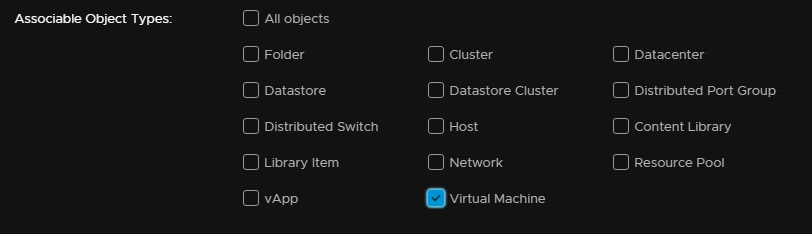
Figure 1: Associated Object Types in VMware
- Set the Property value to Tag.
- Set the operator to Equals (select) or Does Not Equal (ignore); depending on whether you want the rule to select or ignore objects with the defined category and tagging.
- In the Value field, enter:
Category:VMWARE_CATEGORY,Tag:VMWARE_TAG
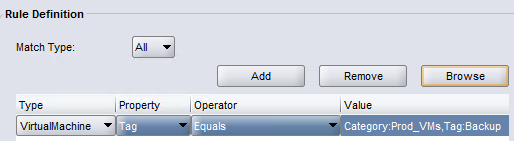
Figure 2: Enter the Rules Definition Value Field.
NOTE: The Browse button can be used to select VMware categories and tags from the vCenter.
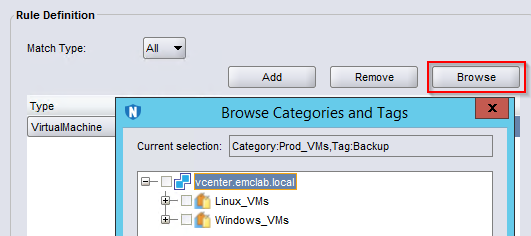
Figure 3: Using the Browse button to select VMware categories and tags
- Click OK to save the rule.
- Click Groups in the Protection tab to assign the rule to a protection group.
- If creating a protection group, the following must be set:
Name: User-defined name to distinguish the protection group, the group is assigned to a Policy > Workflow. Only one group can be assigned per workflow; however, multiple workflows can be configured in any policy.
Group Type: VMware
Sub-Type: All
Backup Optimization: Capacity (recommended)
Dynamic Association: Checked
Group Type: VMware
Sub-Type: All
Backup Optimization: Capacity (recommended)
Dynamic Association: Checked
- Existing groups can be modified to use rule selection.
- From the Group Properties, select the rule from the Rule dropdown.
- With the Rule selected, click Preview All Virtual Machines. Objects with the category or tag assigned in VMware should appear:
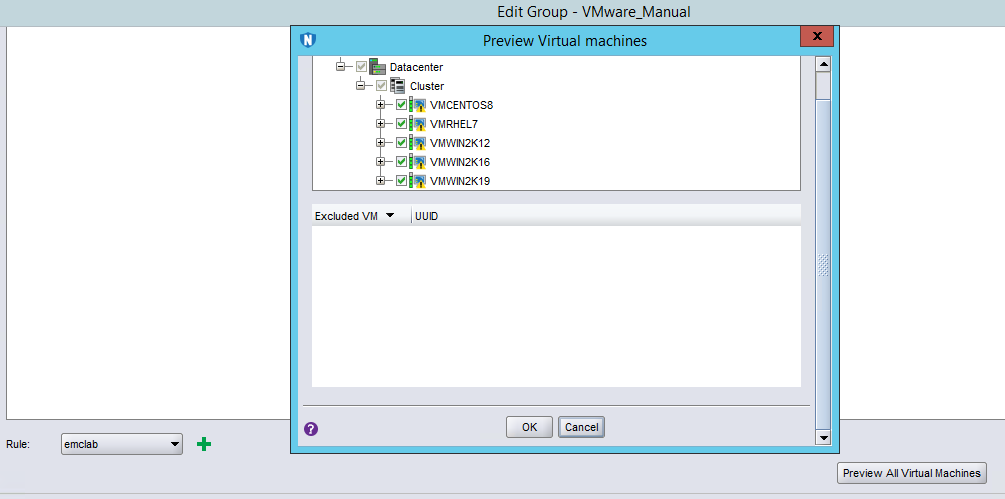
Figure 4: Objects with an assigned category or tag in VMware are shown.
NOTE: NetWorker inventories the vCenter approximately every 15 minutes using the
nsrvim process. If the rule was newly created and assigned to a group, it is possible that no objects return until nsrvim has run and inventoried the vCenter. The yellow caution sign appears when a VM is "over protected"; meaning the VM is assigned in multiple protection groups. It is not indicative of any issue other than a warning to avoid scheduling conflicts of the two groups.
Additional Information
Affected Products
NetWorkerProducts
NetWorker FamilyArticle Properties
Article Number: 000200083
Article Type: How To
Last Modified: 23 Oct 2025
Version: 8
Find answers to your questions from other Dell users
Support Services
Check if your device is covered by Support Services.