Unisphere for PowerMax 10: Replace SSL self-signed certificate with CA-signed
Summary: What are the steps to change the certificate for the standalone and EMGMT instance of Unisphere for PowerMax 10.x?
This article applies to
This article does not apply to
This article is not tied to any specific product.
Not all product versions are identified in this article.
Instructions
With 10.0 Unisphere for PowerMax, the certificate steps were changed. The keytool command is no longer supported for customer use. Now, all certificate steps are done through the Unisphere 10.x UI.
The overall steps are the same:
Go to: Login > Settings > Security > Server Certificates in Unisphere.
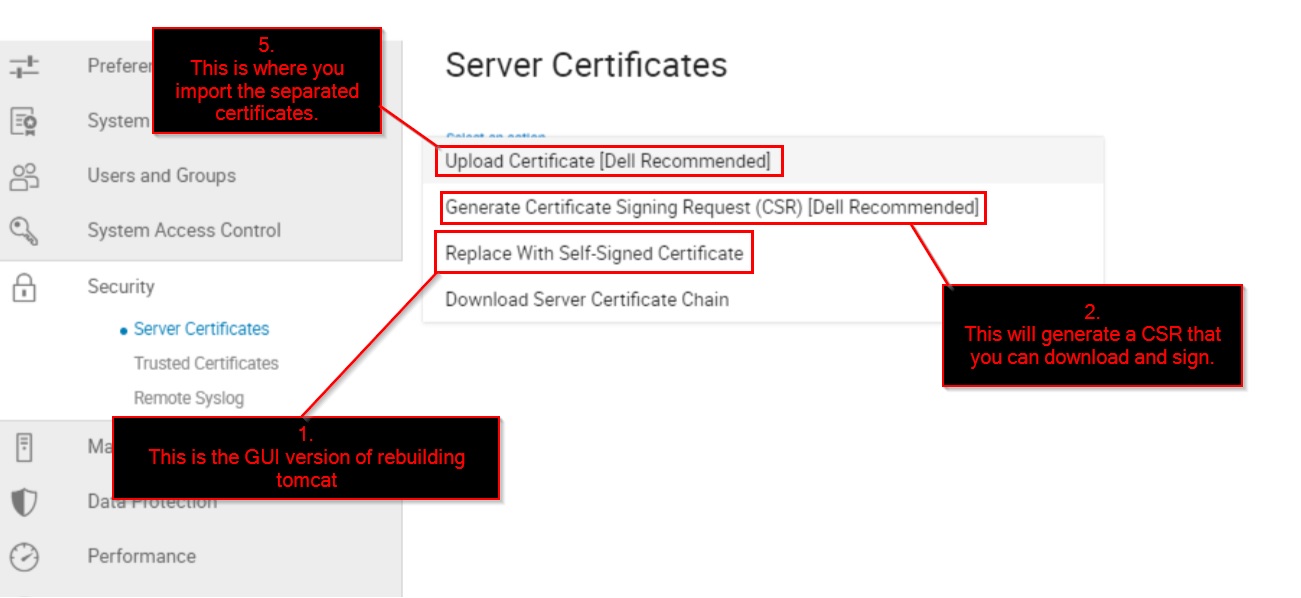
Below is a screenshot showing the different UI options and the steps that they are tied to:
The overall steps are the same:
Go to: Login > Settings > Security > Server Certificates in Unisphere.
- Re-create tomcat with the wanted details
- Create the Certificate Signing Request (CSR).
- Have the Certificate Authority sign the CSR.
- Download the CA-signed cert chain and separate each cert into its own file.
- Import the certificates into the Keystore.
Below is a screenshot showing the different UI options and the steps that they are tied to:
Additional Information
Affected Products
Unisphere for PowerMaxArticle Properties
Article Number: 000210816
Article Type: How To
Last Modified: 06 Aug 2025
Version: 2
Find answers to your questions from other Dell users
Support Services
Check if your device is covered by Support Services.