Data Domain: Common Causes For Space Usage In /ddvar partition
Summary: The /ddvar (also known as /ddr/var) filesystem is the primary location that DDOS uses to store logs. This knowledge base article describes the common causes and steps to take to help alleviate or free up space inside /ddvar ...
This article applies to
This article does not apply to
This article is not tied to any specific product.
Not all product versions are identified in this article.
Symptoms
DDOS stores various log files inside the /ddvar filesystem.
To check the current space usage, the following command can be used, if logged into the system as a user with sysadmin privileges: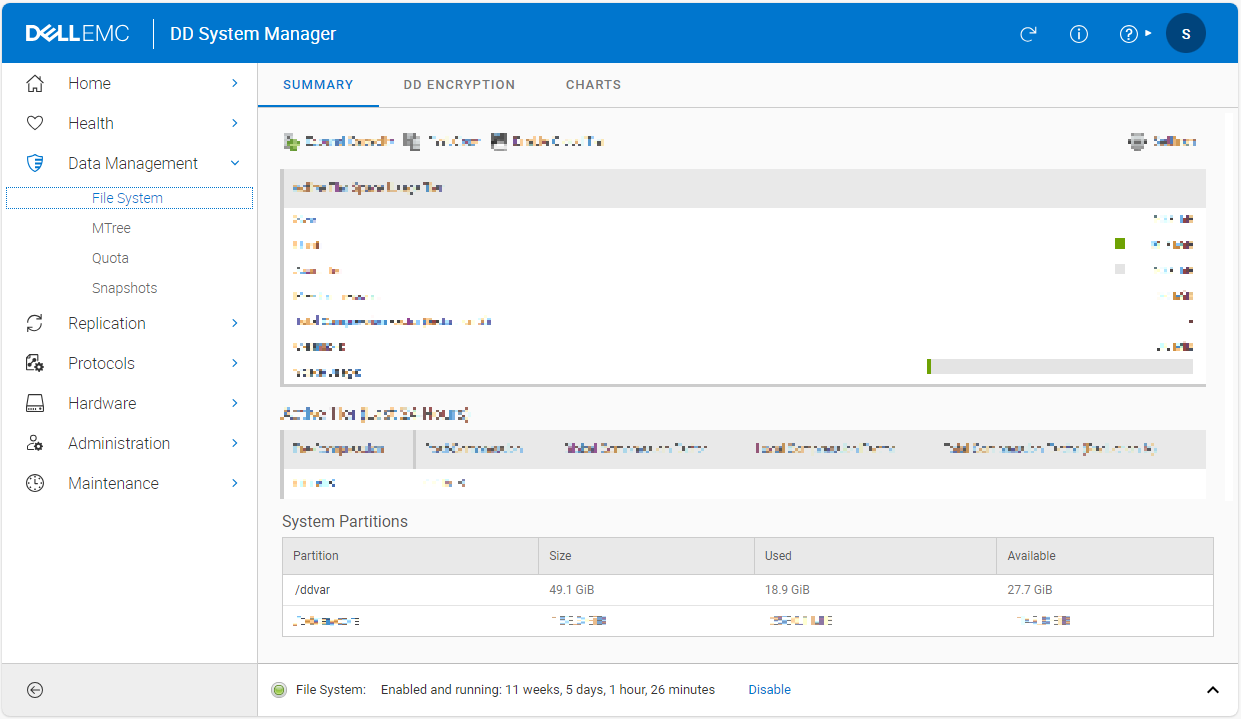
Once the space utilisation for /ddvar reaches 75%, DDOS generates an alert. Typical space usage alerts seen for /ddvar are as follows:
To check the current space usage, the following command can be used, if logged into the system as a user with sysadmin privileges:
filesys show space
An example output from the above command is as follows:
sysadmin@DD# filesys show space

Active Tier:
Resource           Size GiB   Used GiB   Avail GiB   Use%   Cleanable GiB*
----------------   --------   --------   ---------   ----   --------------
...
...
/ddvar                 49.1        7.4        39.2    16%                -
...
----------------   --------   --------   ---------   ----   --------------
To check the current space usage using PowerProtect DD System Manager (DDSM) or the Graphical User Interface (GUI):
- Log in to DDSM/GUI as a user with sysadmin privileges
- Select 'Data Management' from the left hand menu
- Select 'File System' from the left hand submenu
- The information is displayed under the 'System Partitions' heading. For example:
Once the space utilisation for /ddvar reaches 75%, DDOS generates an alert. Typical space usage alerts seen for /ddvar are as follows:
-
EVT-SPACE-00003: Space usage in /ddvar has exceeded 85% threshold.
EVT-SPACE-00003: Space usage in /ddvar has exceeded 90% threshold.
EVT-SPACE-00003: Space usage in /ddvar has exceeded 95% threshold.
EVT-SPACE-00003: Space usage in /ddvar has exceeded 100% threshold.
EVT-SPACE-00004: Space usage in /ddvar has exceeded 85% threshold.
EVT-SPACE-00004: Space usage in /ddvar has exceeded 90% threshold.
EVT-SPACE-00004: Space usage in /ddvar has exceeded 95% threshold.
EVT-SPACE-00004: Space usage in /ddvar has exceeded 100% threshold.
Cause
Common causes for high space usage inside the /ddvar filesystem are:
- Old or redundant support bundles
- Old or redundant upgrade files
- Non-default CIFS log level The default CIFS log level is 1.
- Larger number of vtl.info and dfcuser.info log files present under /ddr/var/log/debug/ in uncompressed form.
Resolution
From DDOS 7.x, the following options exist to help address the above points:

- To list the support bundles present, the following command can be used, if logged into the system as a user with sysadmin privileges:
support bundle list
An example output from the above command is as follows:
sysadmin@DD# support bundle list
File                                          Size   Time Created
                                             (KiB)
-----------------------------------------   ------   ------------------------
DD-support-bundle-1120131912.tar.gz              0   Mon Nov 20 11:19:12 2017
DD-support-bundle-0807095325.tar.gz         712811   Tue Aug  7 05:53:25 2018
DD-support-bundle-0904051933.tar.gz         745409   Tue Sep  4 01:19:33 2018
DD-support-bundle-0925133541.tar.gz         663971   Tue Sep 25 09:35:41 2018
DD-support-files-0719130213.tar.gz              70   Thu Jul 19 09:02:13 2018
----------------------------------------- ------ ------------------------
- To delete a support bundle, the following command-line syntax can be used, if logged into the system as a user with sysadmin privileges:
support bundle delete <name of support bundle obtained from 'support bundle list'>
For example:
support bundle delete DD-support-bundle-1120131912.tar.gz
- To list any DDOS package or upgrade files present, the following command can be used, if logged into the system as a user with sysadmin privileges:
system package list
An example output from the above command is as follows:
sysadmin@DD# system package list
File                                         Size (KiB)   Type     Class        Name        Version
------------------------------------------   ----------   ------   ----------   ---------   --------
7.11.0.0-1035502.rpm                          3885405.6   System   Production   DD OS       7.11.0.0
mdu_clp_cfg_patch_bundle-7.11-releases.rpm          7.2   Bundle   Production   DD-bundle   7.11.0.0
------------------------------------------   ----------   ------   ----------   ---------   --------
- To delete a DDOS package or upgrade file, the following command line syntax can be used, if logged into the system as a user with sysadmin privileges:
system package del <name of file obtained from 'system package list'>
For example:
system package del 7.11.0.0-1035502.rpm
- The default CIFS log level is 1. To check the CIFS log level, the following command line syntax can be used, if logged into the system as a user with sysadmin privileges:
cifs option show all
An example output from the above command is as follows:
sysadmin@dd3300-ddsupport# cifs option show all
All Options:

Option                                Value
-----------------------------------   -------------
...
...
loglevel                              1 (*)
...
...
-----------------------------------   -------------
(*) default value
- To set or reset the CIFS log level to 1, the following commands can be used, if logged into the system as a user with sysadmin privileges:
cifs option reset loglevel
or

cifs option set loglevel 1
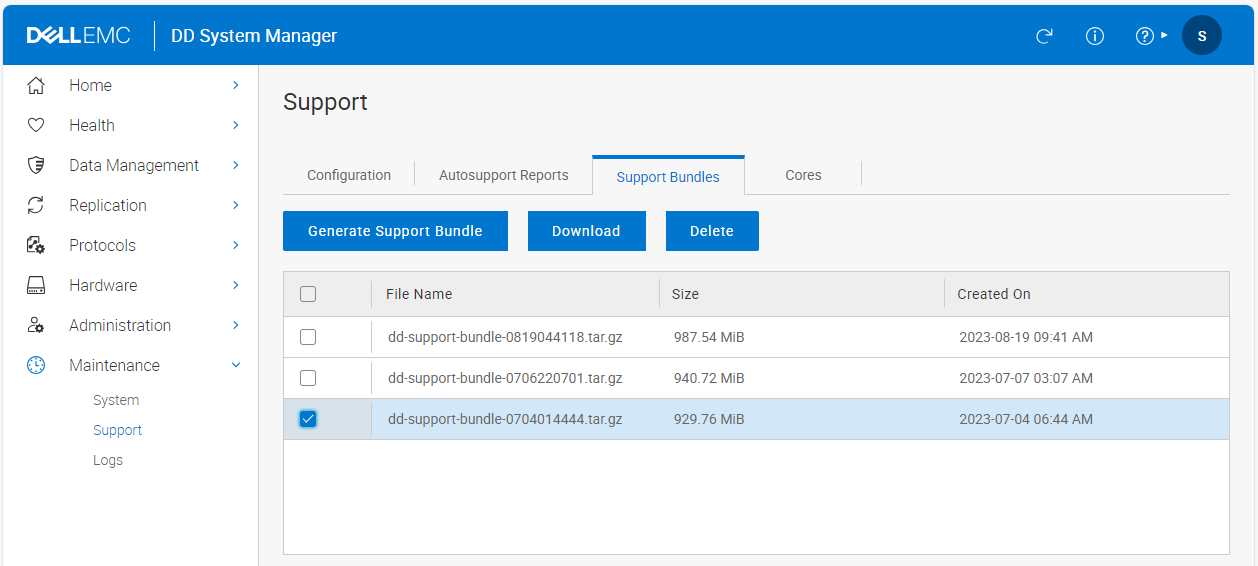
- To list any DDOS support bundles present via DDSM/GUI, the following steps can be used:
- Login to DDSM/GUI as a user with sysadmin privileges.
- Select 'Maintenance' from the left hand menu.
- Select 'Support' from the left hand sub menu.
- Select the 'Support Bundles' tab.
- For example:
- To delete a DDOS support bundle via DDSM/GUI, the following steps can be used:
- Login to DDSM/GUI as a user with sysadmin privileges.
- Select 'Maintenance' from the left hand menu.
- Select 'Support' from the left hand sub menu.
- Select the 'Support Bundles' tab.
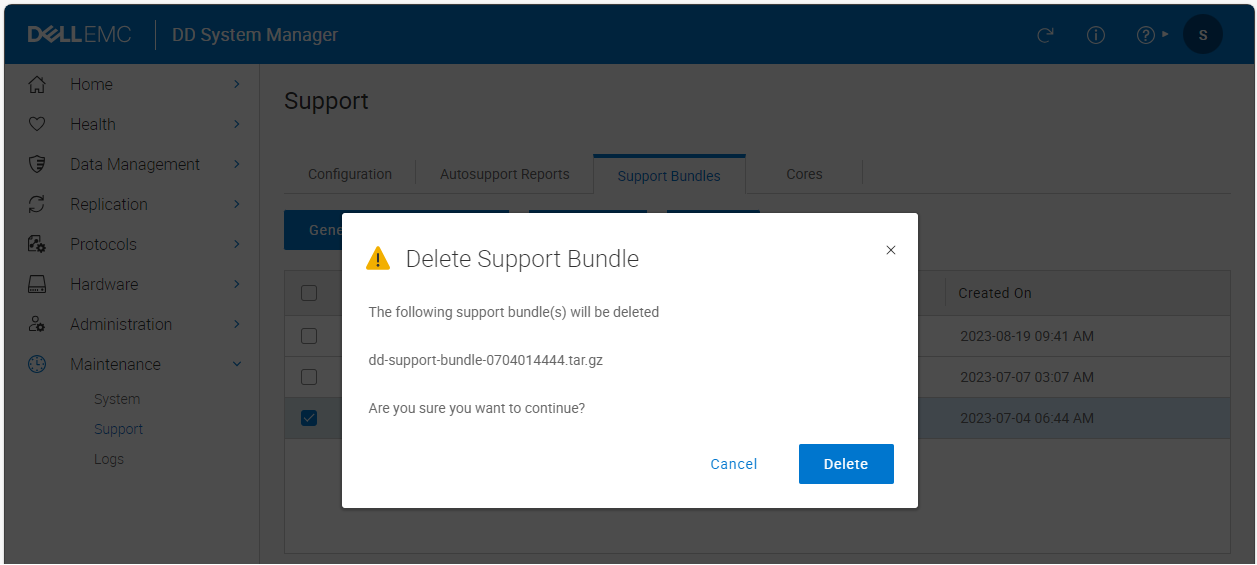
- Mark a support bundle or multiple support bundles to be deleted by left clicking in the check box next to the file name. All support bundles can be marked by left clicking in the box to the left of the 'File Name' heading.
- Once a support bundle or multiple support bundles have been marked, click the "Delete" button.
- A prompt will appear listing the support bundle(s) to be deleted. To delete the marked support bundle(s), select the "OK" button.
- For example:
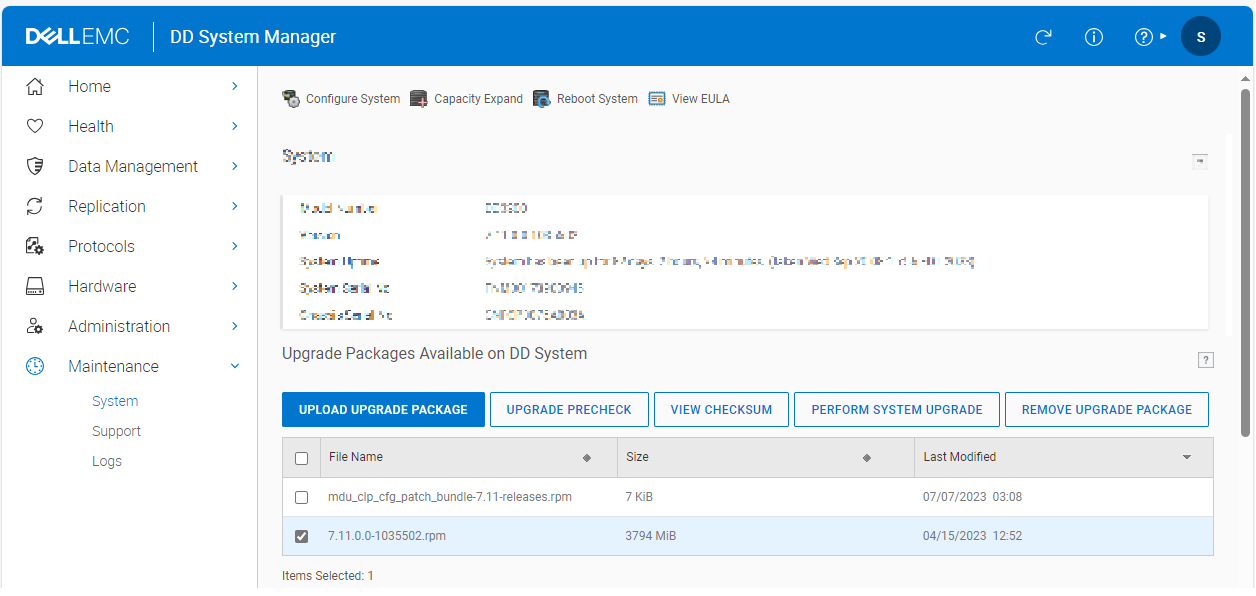
- To list any DDOS package or upgrade files present via DDSM/GUI, the following steps can be used:
- Login to DDSM/GUI as a user with sysadmin privileges.
- Select 'Maintenance' from the left hand menu.
- Select 'System' from the left hand sub menu.
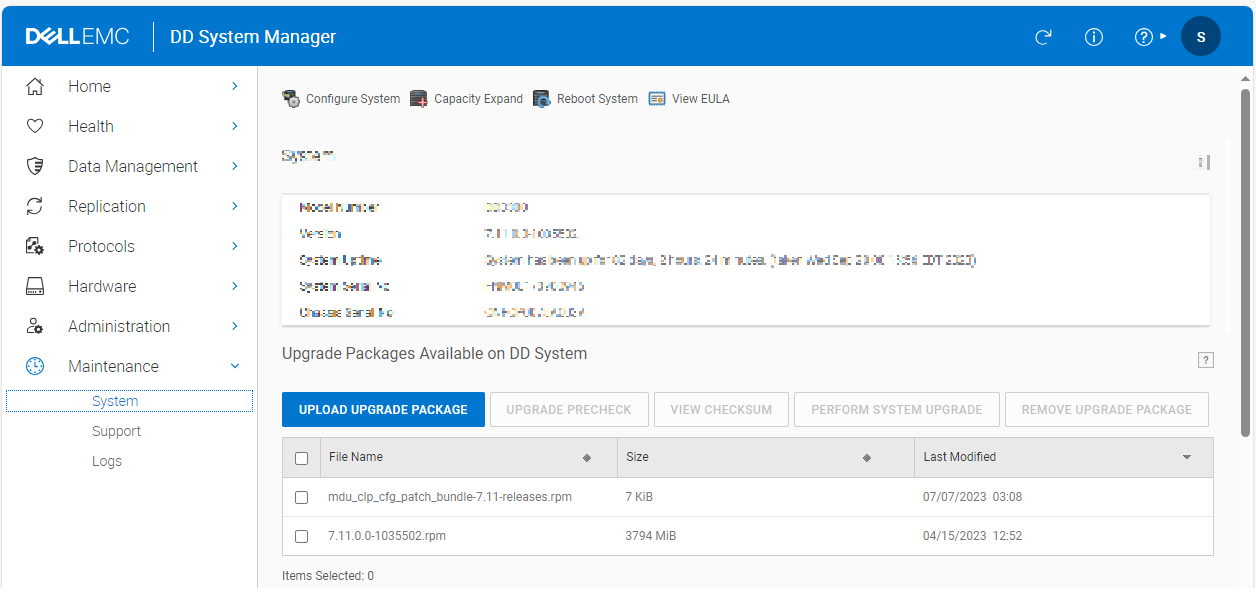
- The information will be displayed under the 'Upgrade Packages Available on DD System' heading.
- For example:
-
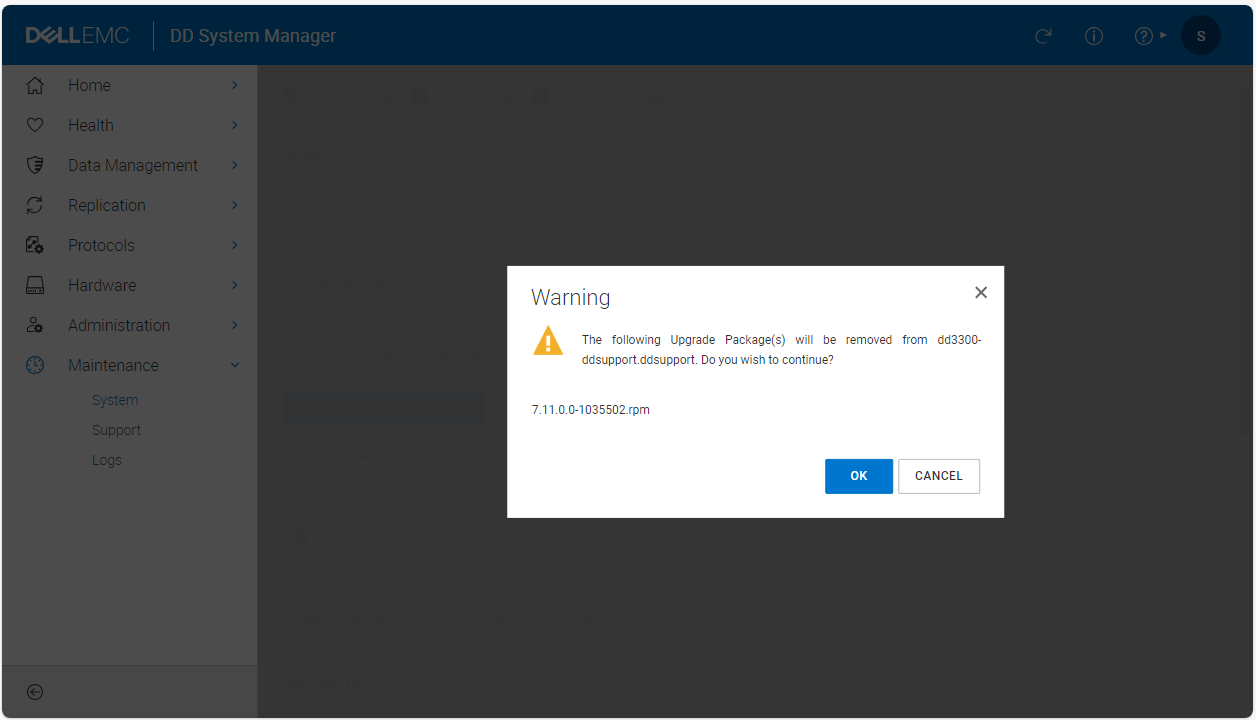
To delete a DDOS package or upgrade file via DDSM/GUI, the following steps can be used:
- Log in to DDSM/GUI as a user with sysadmin privileges.
- Select 'Maintenance' from the left hand menu.
- Select 'System' from the left hand submenu.
- Under the "Upgrade Packages Available on DD System", mark a file or files to be deleted by left clicking in the check box next to the file name. All files can be marked by left clicking in the box to the left of the 'File Name' heading.
- Once a file or files have been marked, click the "REMOVE UPGRADE PACKAGE" button.
- A prompt will appear listing the files to be deleted. To delete the marked files, select the "OK" button.
- For example:
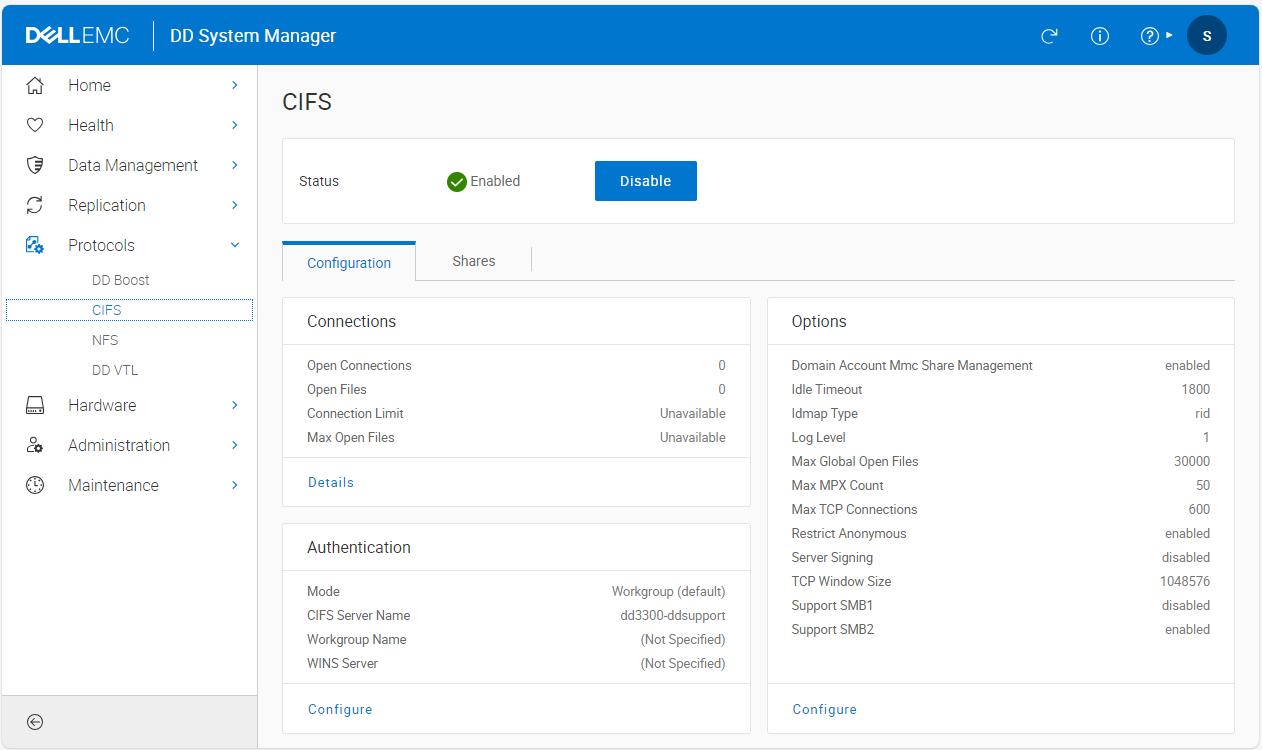
- The default CIFS log level is 1. To check the CIFS log level via DDSM/GUI, the following steps can be used:
- Login to DDSM/GUI as a user with sysadmin privileges.
- Select 'Protocols' from the left hand menu.
- Select 'CIFS' from the left hand sub-menu.
- In the 'Options' pane, the log level will be displayed.
- In older DDOS releases, the log level will be displayed after clicking the 'Configure Options' button.
- For example:
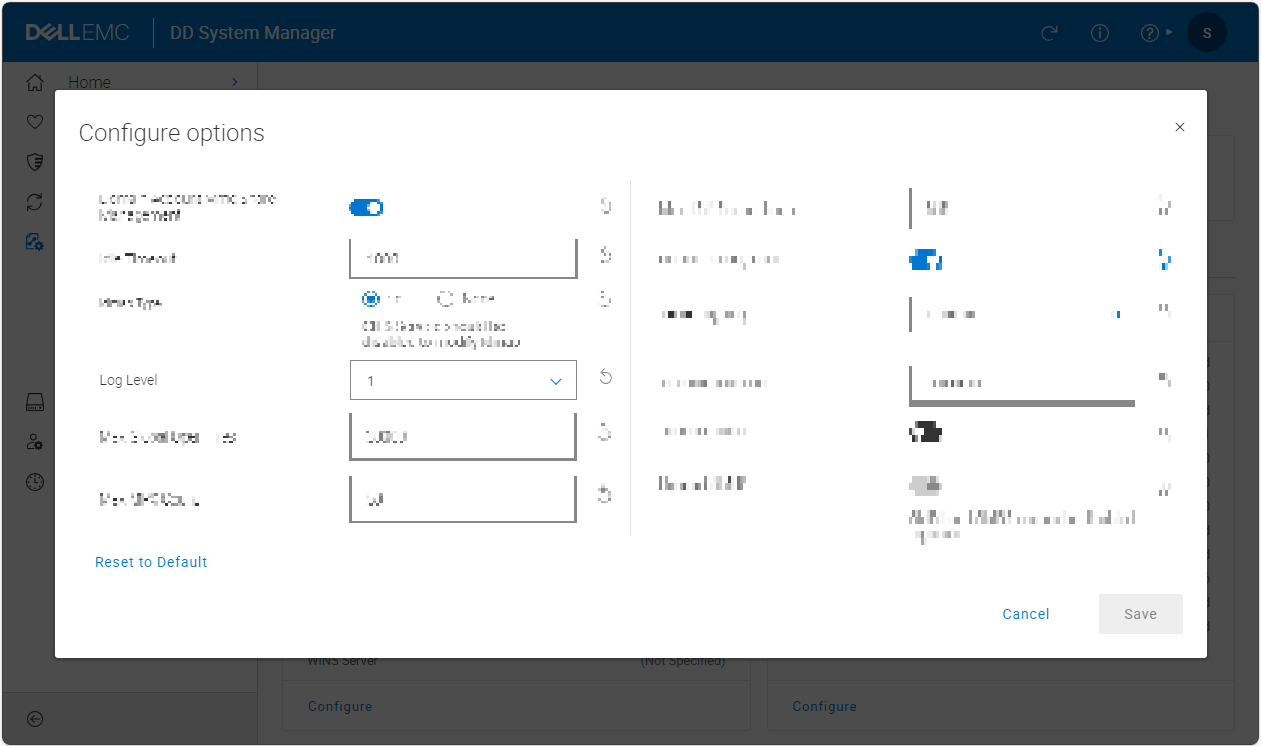
- To set or reset the CIFS log level to 1 via DDSM/GUI, the following steps can be used:
- Login to DDSM/GUI as a user with sysadmin privileges.
- Select 'Protocols' from the left hand menu.
- Select 'CIFS' from the left hand sub menu.
- In the 'Options' panel, click 'Configure'. In older DDOS releases, click the 'Configure Options' button.
- Select '1' from the drop down number selection next to 'Log Level' or click the circular arrow to reset the log level back to the default of 1. In older DDOS releases, the circular arrow is replaced by a clickable 'Default' text.
- Click the 'Save' button. In older DDOS releases, there is an 'OK' button.
- For example:
Video: Common Causes For /ddvar Space Usage:
Affected Products
Data Domain, DD OSArticle Properties
Article Number: 000217848
Article Type: Solution
Last Modified: 19 May 2026
Version: 4
Find answers to your questions from other Dell users
Support Services
Check if your device is covered by Support Services.