Data Domain: Troubleshooting Power Supply Alerts
Summary: This article outlines how to identify and resolve Power Supply Unit (PSU) alerts on Data Domain systems. It explains PSU status indicators, verification methods using CLI and UI, and recommended troubleshooting steps. ...
Instructions
Symptoms
- PSU alert reported in PowerProtect DD System Manager (UI) or CLI, for example
ENVIRONMENT-00003: PSU FailureENVIRONMENT-00004: Power supply fan issueENVIRONMENT-00026: Power supply has failedENVIRONMENT-00065: AC|or|DC Failure
- System health status shows Degraded
Autosupportlogs indicate PSU issues- PSU status appears as Unpowered, Absent, Failed, Faulty, or Unavailable
- PSU reports
AC is pass, DC is fail - PSU reports
AC is fail, DC is fail
Risk Assessment – System Impact
Data Domain systems are designed with dual, redundant power supplies. If a single PSU fails, the system will continue to operate using the remaining PSU.
However, the following considerations apply:
-
- Operating with a single PSU removes redundancy; a failure of the remaining PSU will result in a full system outage.
- A confirmed PSU failure should be addressed and the unit replaced within 24 hours.
- If diagnostics confirm that both PSUs are functioning correctly (refer to the Resolution steps below), the reported alert may be a false positive and does not indicate an immediate risk to system availability.
Cause
One or more of the following conditions may trigger PSU alerts:
| Status | Description |
|---|---|
| OK | The power supply has AC power and is functioning properly. |
| Degraded |
One of the power supplies has no output. Possible reasons:
|
| Unpowered |
The power supply lost AC power. Possible reasons:
|
| Absent |
The PSU is not physically present or available in the slot. Possible reasons:
|
| Failed | The power supply is not OK. |
| Faulty | The power supply is not OK. |
| Unavailable | This may be an issue with the reporting status of PSU. Reboot Data Domain. If the issue still persists, contact Dell Support. |
| AC is pass, DC is fail. | Power supply module failed and must be replaced. |
| AC is fail, DC is fail. | Input Power Supply is unavailable. (Check PDU or Source Power.) |
Resolution
1: Verify PSU Status:
Using the CLI
-
- Connect to the Data Domain system using SSH, Telnet, or serial console.
- Run the following commands:
# alerts show current
# enclosure show all
Using the Web UI
-
- Open a browser and enter the system’s hostname or IP address.
- Log in to PowerProtect DD System Manager.
- Go to:
-
-
- Health > Alerts > Current Alerts
- Hardware > Chassis for detailed PSU status
-
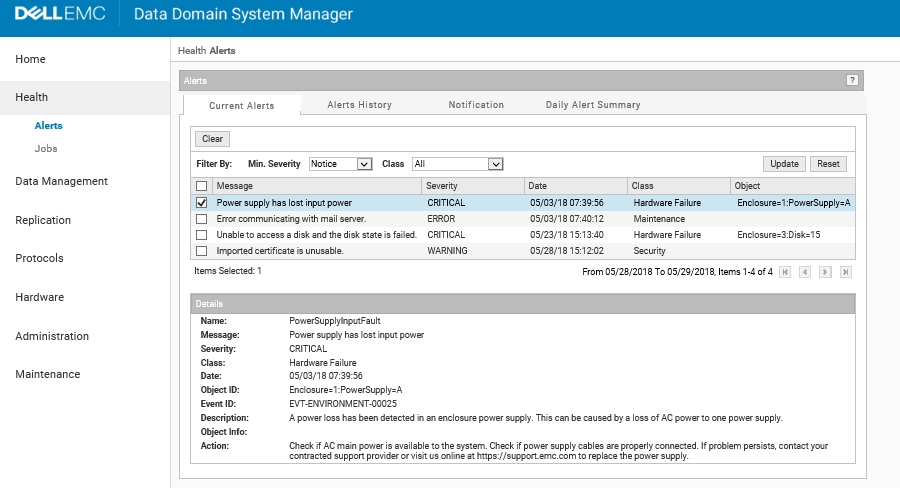
Figure 1. Data Domain System Manager Health Alerts
-
-
-
For additional confirmation, click Hardware > Chassis within the UI:
-
-
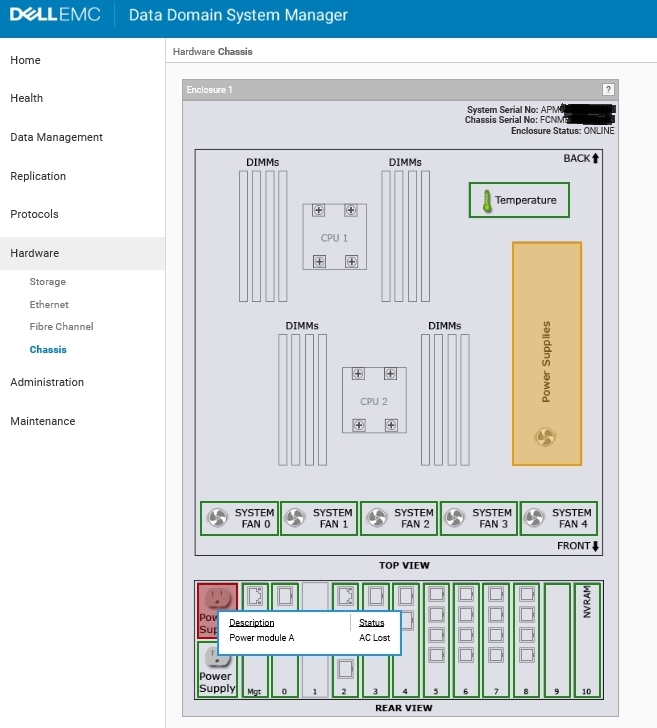 Figure 2. Data Domain System Manager Hardware Chassis
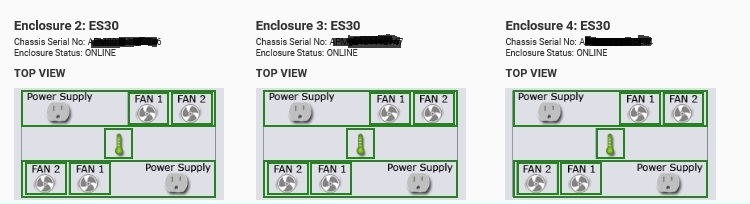 Figure 3. Enclosures
2. Determine if the Alert Is a Real Failure or False Alert:
Before reseating or replacing hardware, validate whether the alert reflects a real failure.
2.1 Check PSU Status
Run: enclosure show powersupply
-
- Review Module A and Module B
- Note the Status field for each
2.2 Interpret Results
If one PSU shows:
-
- Status = Failed or Absent
- Likely a genuine hardware failure
- Proceed with inspection and reseat.
- Arrange replacement if the failure is confirmed.
- Status = Failed or Absent
If more than one PSU shows:
-
- Status = Failed or Absent (with system or storage DOWN)
- Likely an environmental or maintenance event
- Proceed to inspect and address the underlying cause and reapply power to the affected PSUs
- Status = Failed or Absent (with system or storage DOWN)
If more than one PSU shows:
-
- Status = Failed or Absent (with system or storage UP)
- Likely a BMC/iDRAC communication hang event
- Proceed to power down the head unit and perform a BMC Reset (Flea Drain) Procedure.
- Status = Failed or Absent (with system or storage UP)
If both PSUs show:
-
- Status = OK, but:
- Alert persists
- Amber LED remains lit
→ Likely a false alert or persistent indictment
→ Do not replace hardware
- Status = OK, but:
2.3 Clear Persistent Indictments (If Both PSUs Show OK)
-
- Check for active indictments:
system indict list - If an indictment relates to the PSU alert:
system indict remove <id> - Wait two minutes
- Verify:
alerts show current
- Check for active indictments:
-
- If the alert clears and the LED turns off:
- The issue was a false alert
- No replacement is required
- If the alert clears and the LED turns off:
2.4 Check the DDOS Version (Known False Alert Issue)
-
-
A known DDOS issue can cause false PSU failure alerts and incorrect “AC Lost” reporting
Refer to KB article: Data Domain: "AC LOST" reported on DD6400 DD6900 DD9400 DD9900 -
Affected models include:
- DD6400, DD6900, DD9400, DD9900
-
Recommended action:
- Upgrade to one of the following or later versions:
- 7.7.4.0
- 7.9.0.005
- 7.9.0.10
- 7.11.0.0
- Upgrade to one of the following or later versions:
-
-
- On DD6300, if alerts persist but diagnostics show OK:
- Apply indictment clearing steps
- If unresolved, contact Dell ProSupport
- On DD6300, if alerts persist but diagnostics show OK:
3. Perform Basic PSU Troubleshooting
- Ensure all power cables are securely connected.
- Verify the power source (PDU, UPS) is:
- Stable
- Provides sufficient capacity
- Check for recent maintenance activity that may have triggered alerts.
4. Contact Support if the Issue Persists
- If alerts continue after completing the steps:
- Collect a Support Bundle and open a Service Request
- The following video shows: How to Gather a Support Bundle
- The following video shows: How to Gather a Support Bundle
- Collect a Support Bundle and open a Service Request

Additional Information
A Power Supply Unit (PSU) alert (for example, amber system LED or EVT-ENVIRONMENT-00026) may persist on a Data Domain system following a maintenance activity, or power switchover.
If PSUs are verified as healthy, this condition is typically caused by a stale alert triggered by a transient power interruption, not a hardware failure. See KB article Data Domain: Persistent PSU Alert or Amber LED After Power Event for more information.