Data Domain: Integrating Data Domain Cloud Tier with Amazon AWS S3
Summary: This article provides step-by-step instructions to configure Data Domain Cloud Tier with Amazon AWS S3, including IAM setup, certificate configuration, cloud unit creation, and bucket naming. ...
Instructions
This procedure outlines the required steps to integrate a Data Domain system with AWS S3 for Cloud Tier functionality. The process consists of four key stages:
- Configure AWS Identity and Access Management (IAM) credentials
- Import the required CA certificate
- Add the AWS S3 cloud unit in Data Domain
- Understand cloud unit naming conventions
1. Configure AWS IAM Credentials.
Create an AWS IAM user with appropriate permissions for S3 access.
Required Permissions
At minimum, the IAM user must have permissions to:
-
- Create and delete buckets
- List and manage bucket contents
Recommended policy:
-
- AmazonS3FullAccess
Minimum required permissions:
-
- CreateBucket
- ListBucket
- DeleteBucket
- ListAllMyBuckets
- GetObject
- PutObject
- DeleteObject
Procedure
-
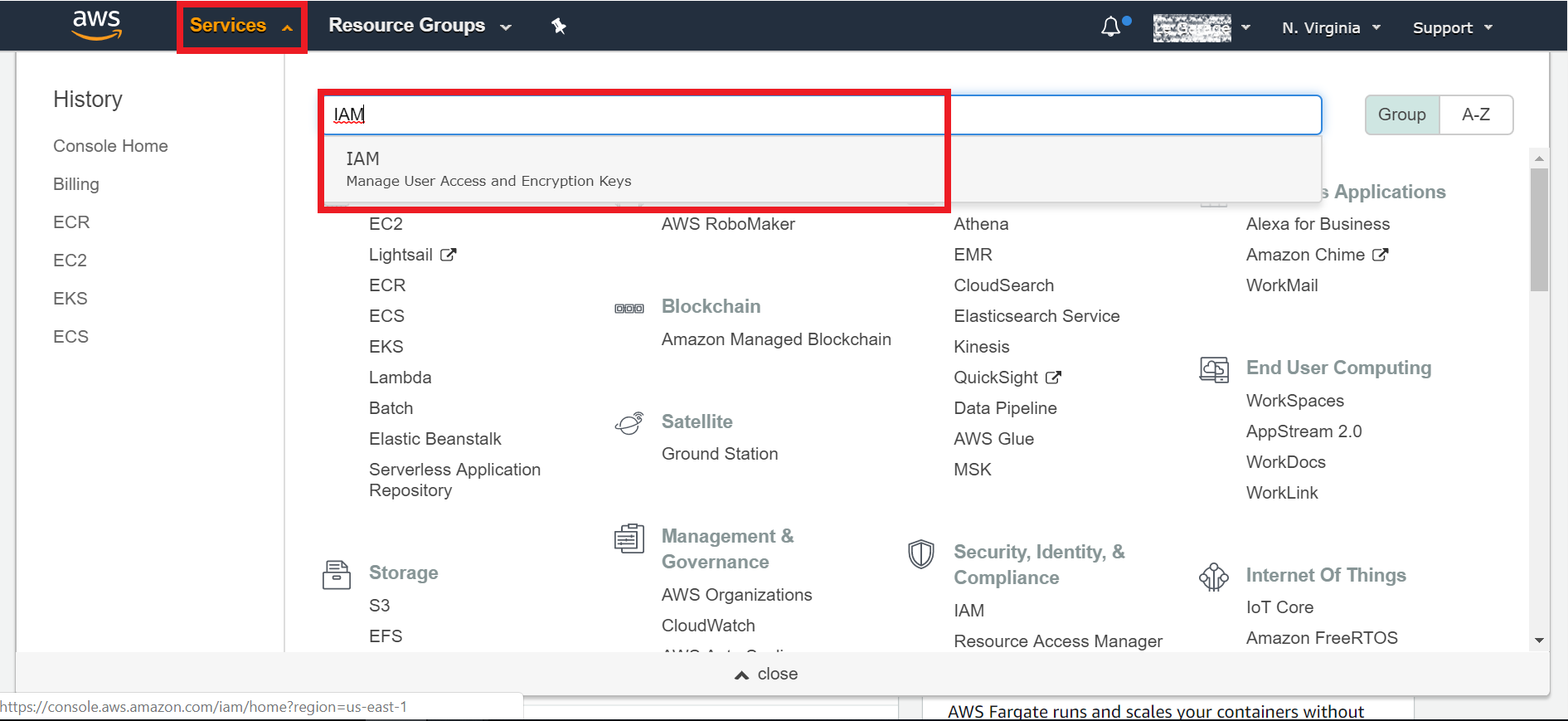
- Log in to the AWS Console:
https://aws.amazon.com/ - Navigate to Services → IAM
-
Select Users → Add user
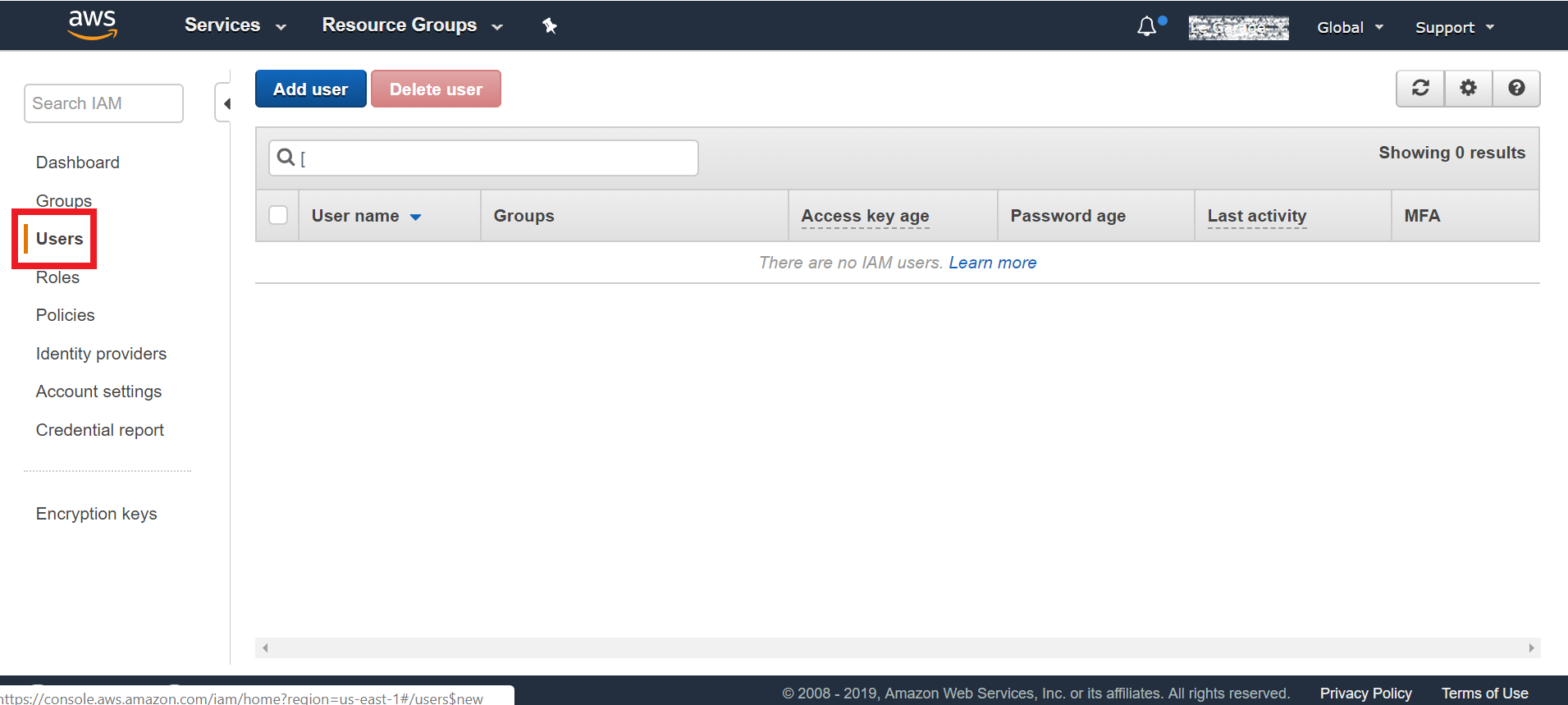
-
Configure:
- Username (for example,
DD_S3_cloudtier) - Access type: Programmatic access
- Then click 'Next Permissions'
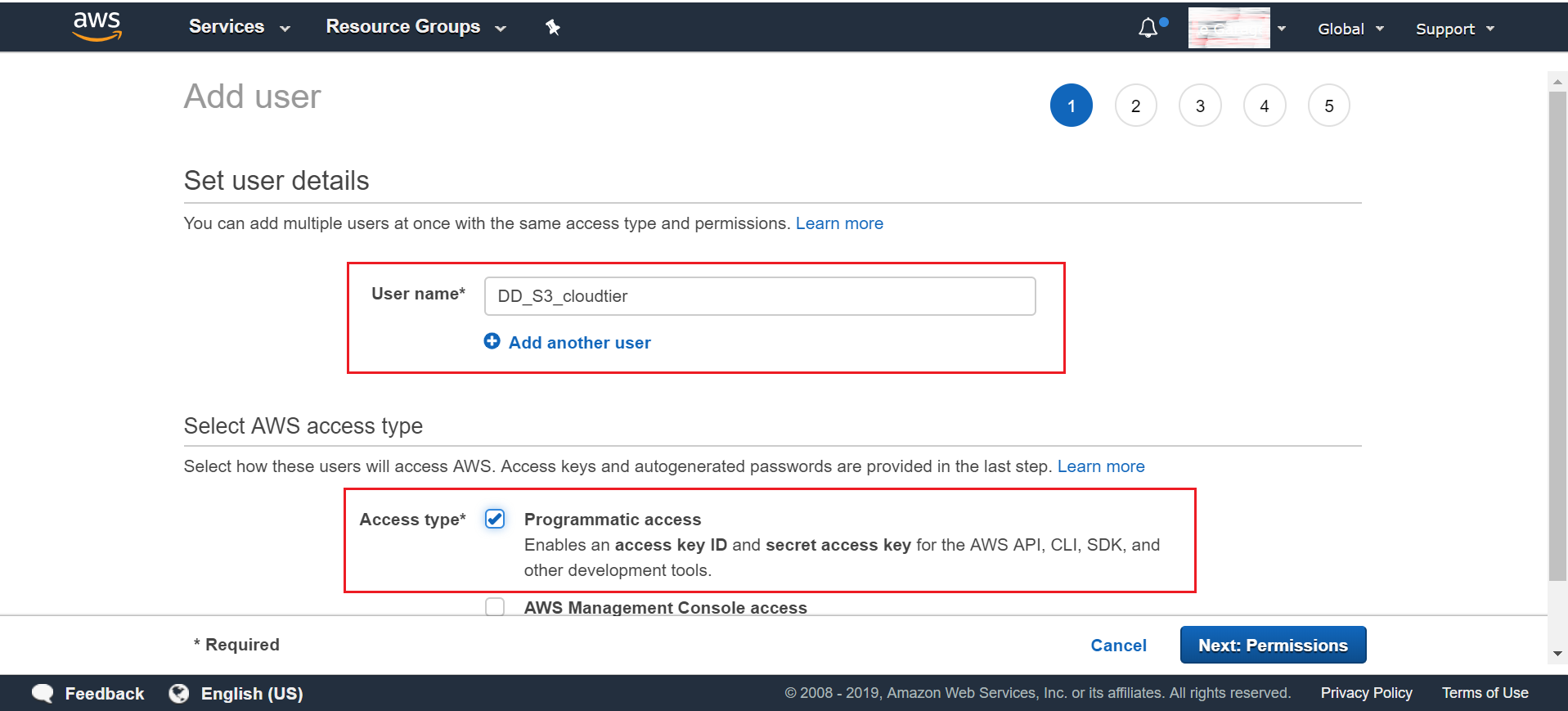
- Username (for example,
-
Assign permissions:
- Create a group (for example,
S3FullAccess_DD_cloudtier) - Attach AmazonS3FullAccess
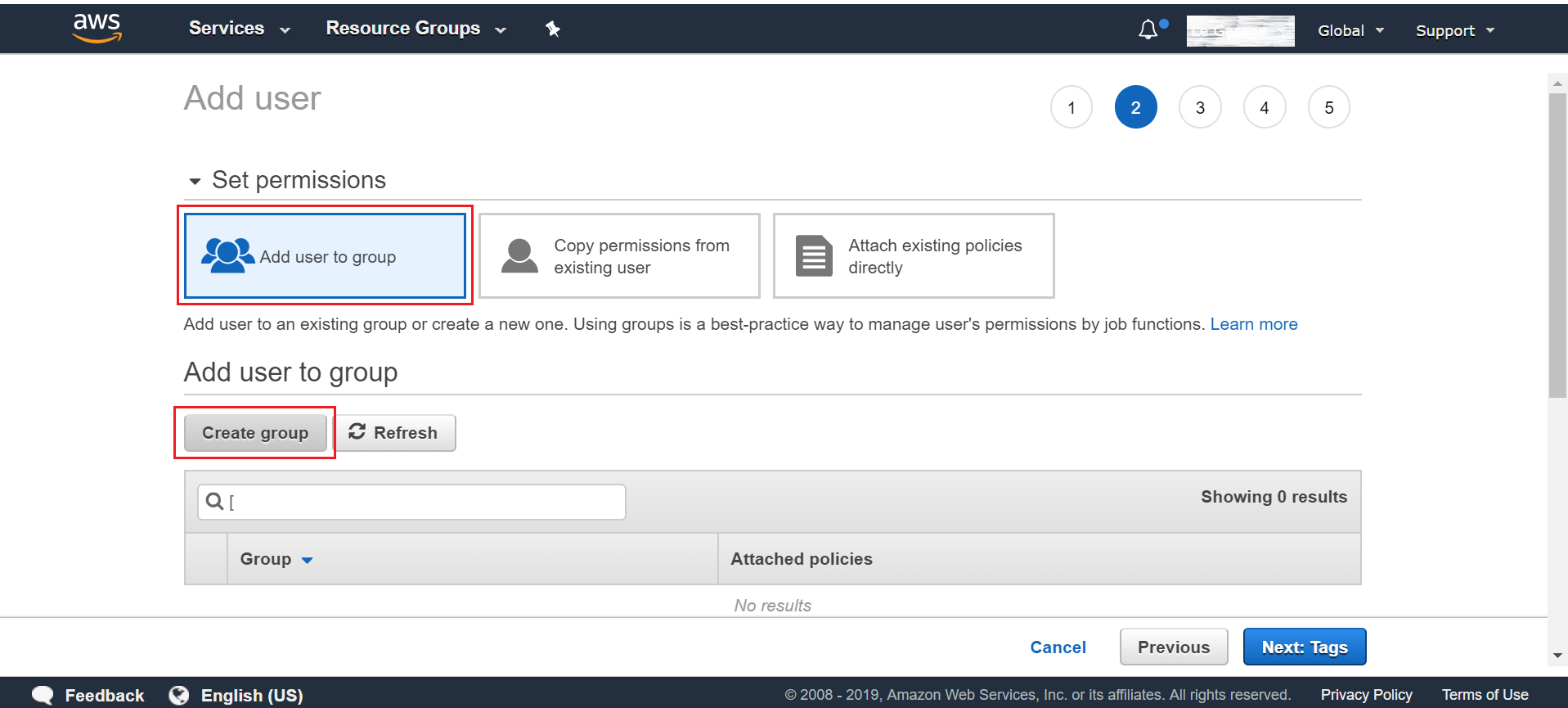
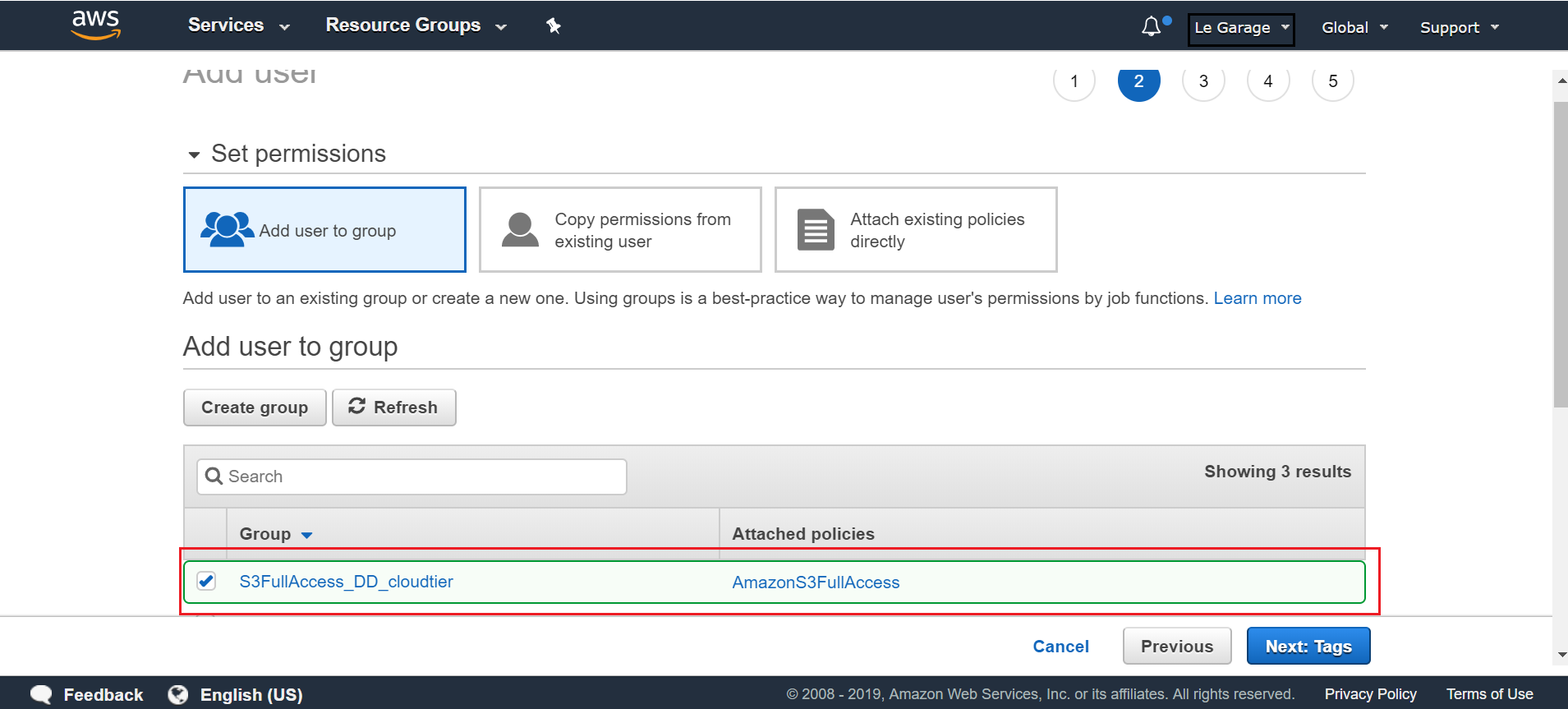
Give a unique name for the group. For example: "S3FullAccess_DD_cloudtier" and then search for "AmazonS3FullAccess" - When the option appears in the result menu select it and then click Create group:
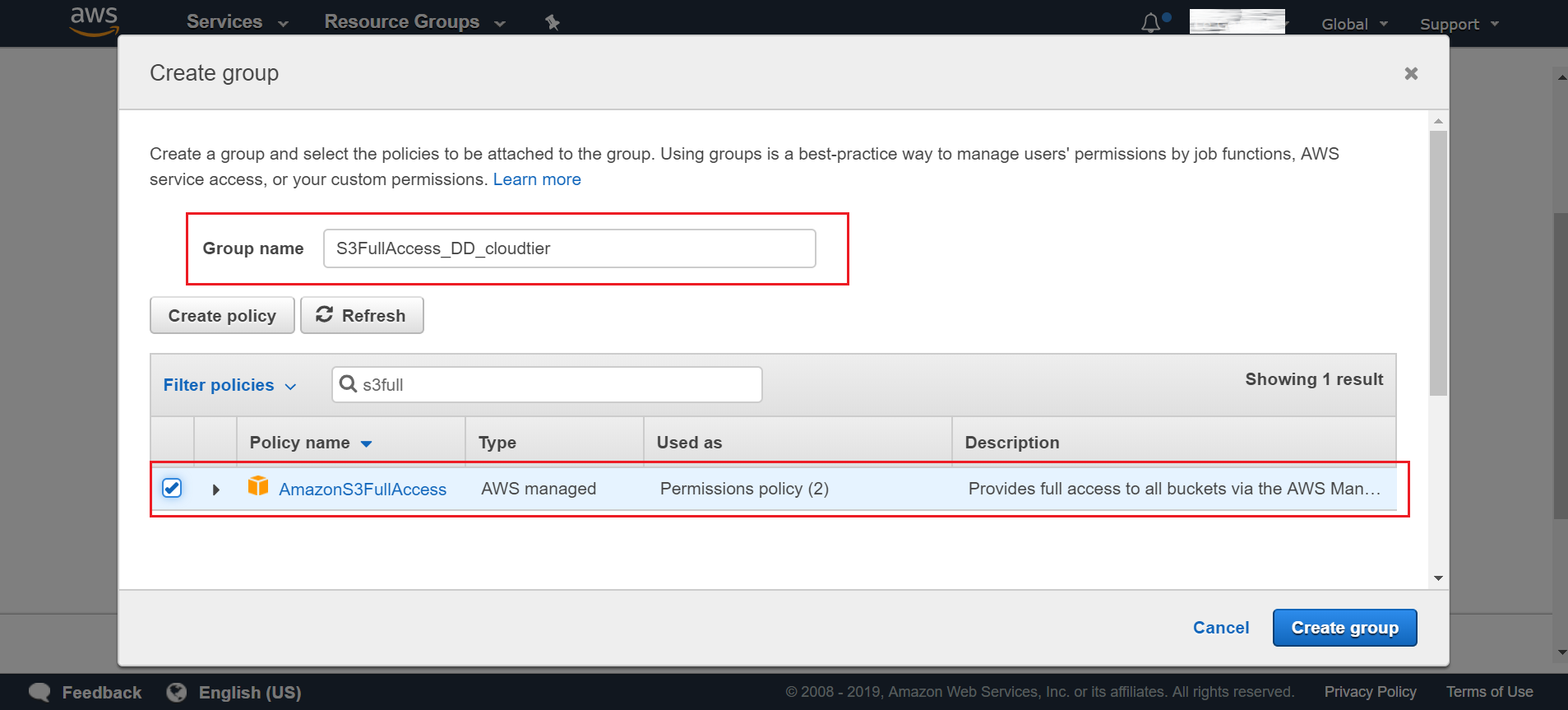
You are prompted back to the previous menu. Select the group we created "S3FullAccess_DD_cloudtier" then click Next Tags:
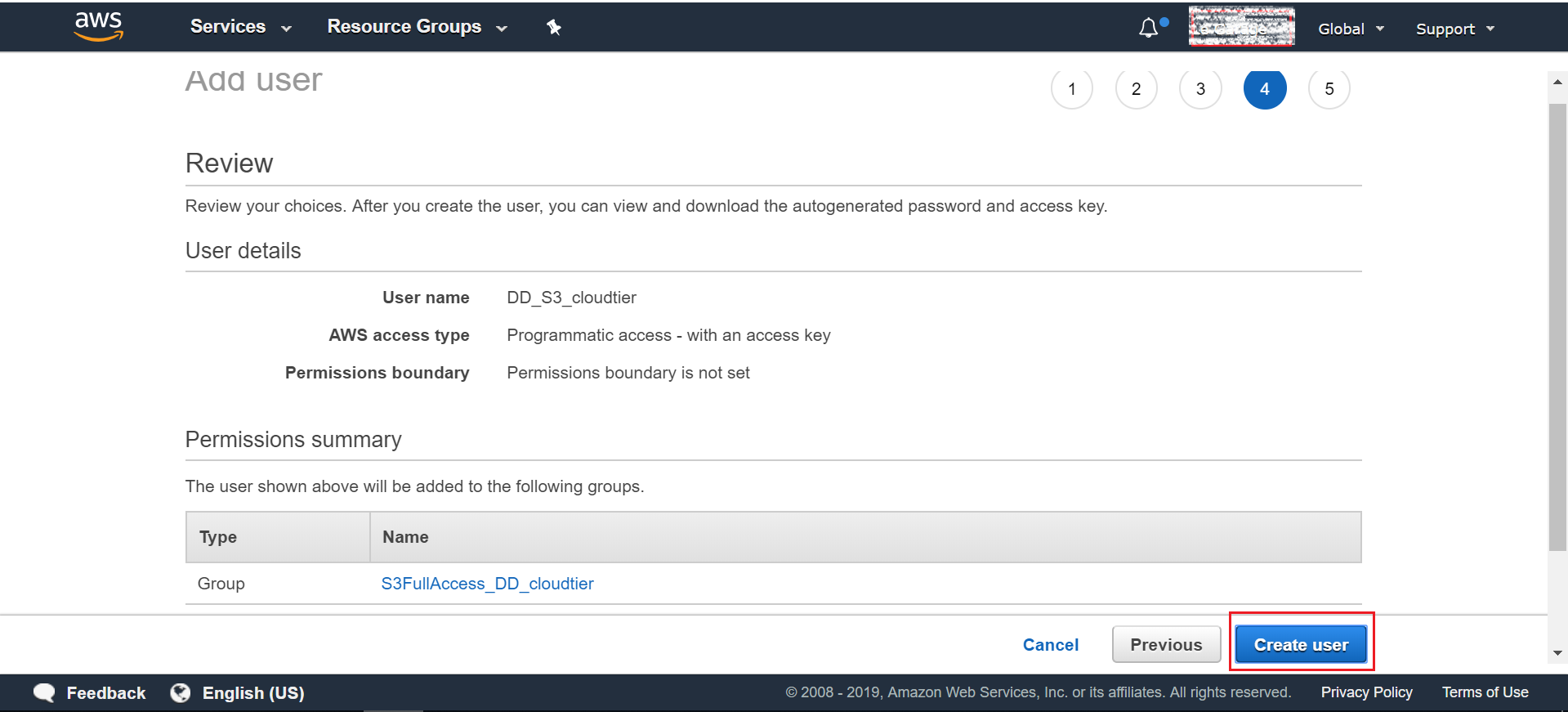
On the Review menu, double check that the details entered are correct then click "Create user":
- Create a group (for example,
-
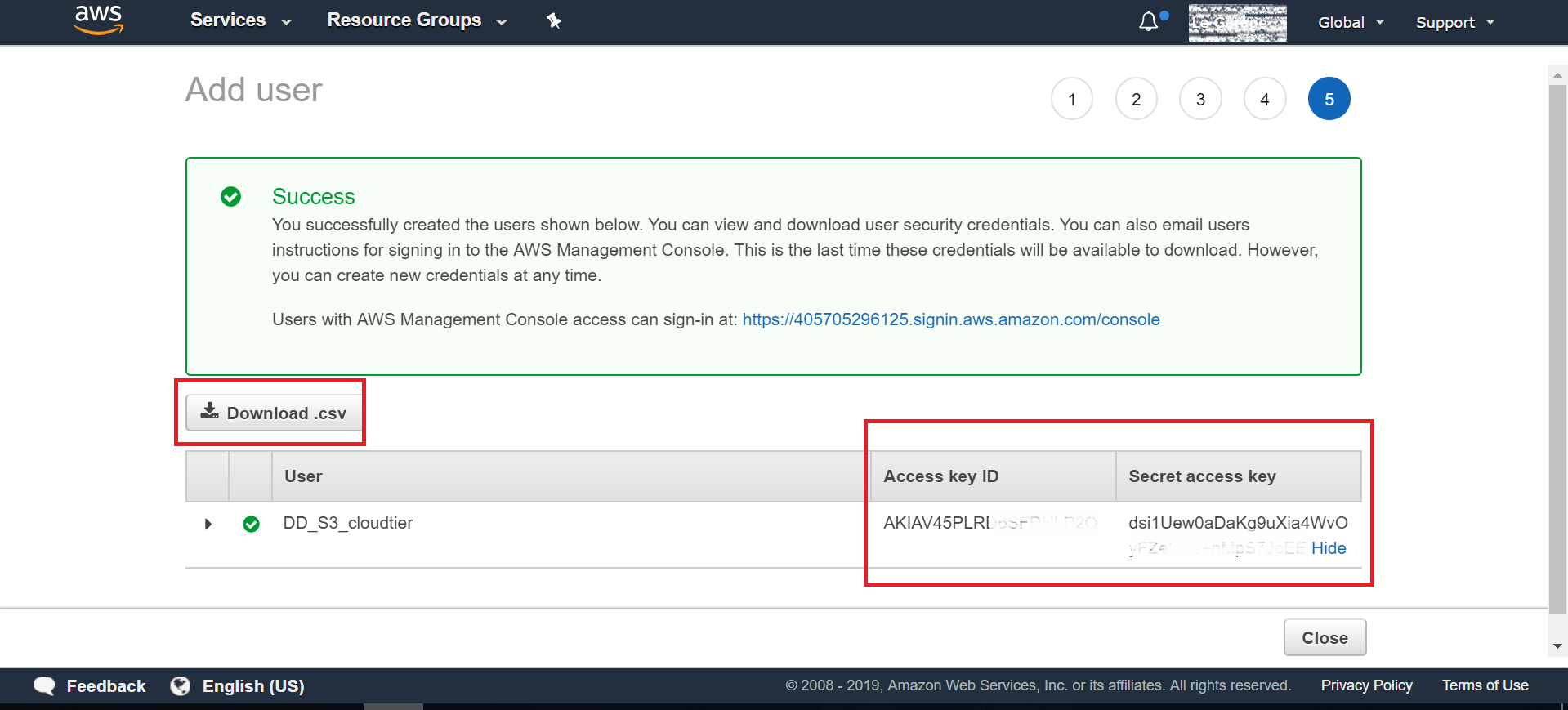
Complete the user creation process
Download the Access key ID and Secret access key
✅ These credentials are required when configuring the Data Domain cloud unit.
- Log in to the AWS Console:
2. Import CA Certificate for AWS S3 Connectivity
Prerequisite
To establish secure HTTPS communication with AWS S3, import the correct root CA certificate into the Data Domain system.
Important Update
-
- The Baltimore CyberTrust Root certificate is no longer valid and must not be used
- AWS S3 now uses certificates issued by Amazon Trust Services (ATS)
Required Certificate
Download and import:
-
- Amazon Root CA 1
Download Location.
https://www.amazontrust.com/repository/AmazonRootCA1.pem - External LinkOptional (Recommended)
For broader compatibility, import all ATS root certificates:
-
- Amazon Root CA 1
- Amazon Root CA 2
- Amazon Root CA 3
- Amazon Root CA 4
Import Procedure
-
- In Data Domain UI:
- Navigate to Data Management → File System → Cloud Units
- Click Manage Certificates
- Click Add
- Choose one of the following:
- Upload
.pemfile - Paste certificate contents directly
- Upload
- Click Add
- In Data Domain UI:
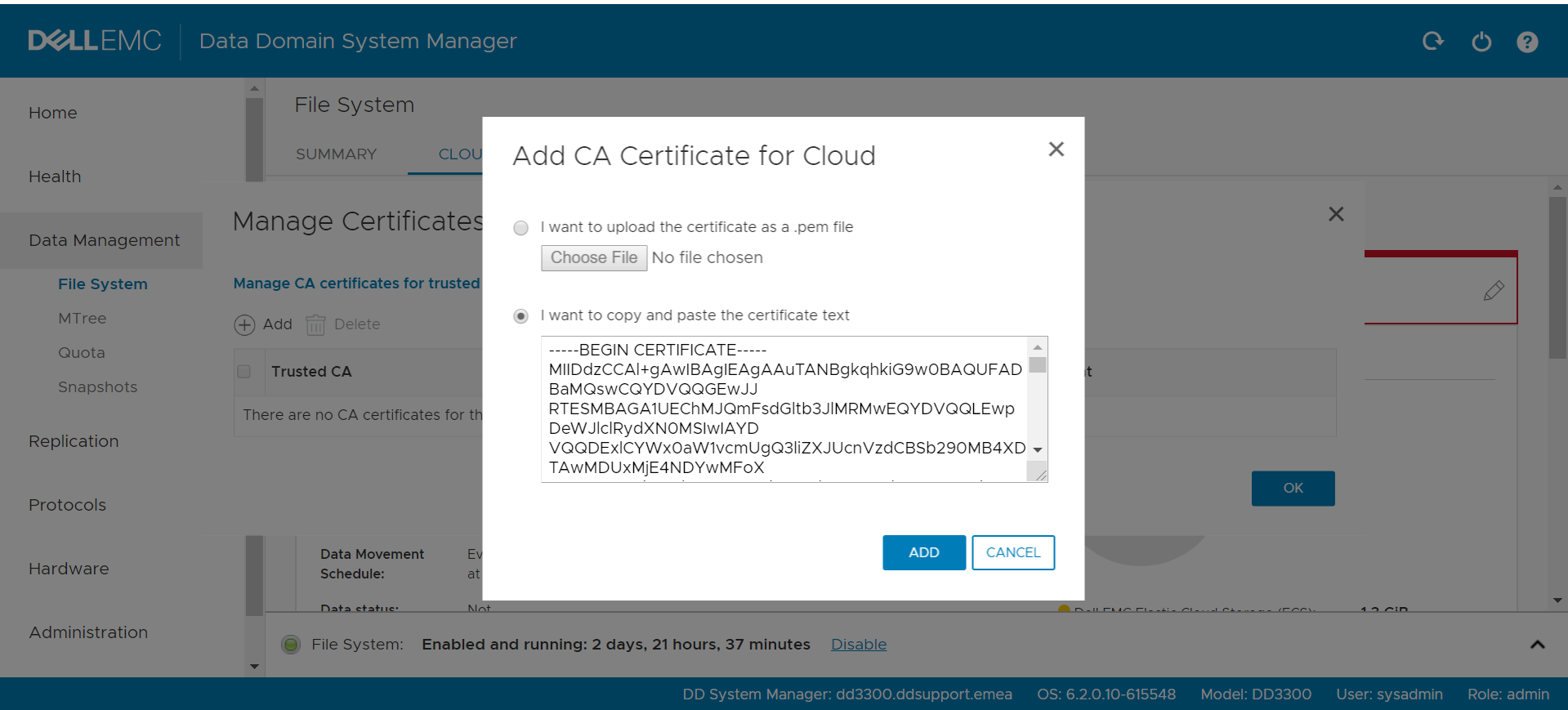
We are done with adding the CA certificate. Next we are going to add our S3 cloud unit from Data Domain UI.
3. Add AWS S3 Cloud Unit to DD
Procedure
-
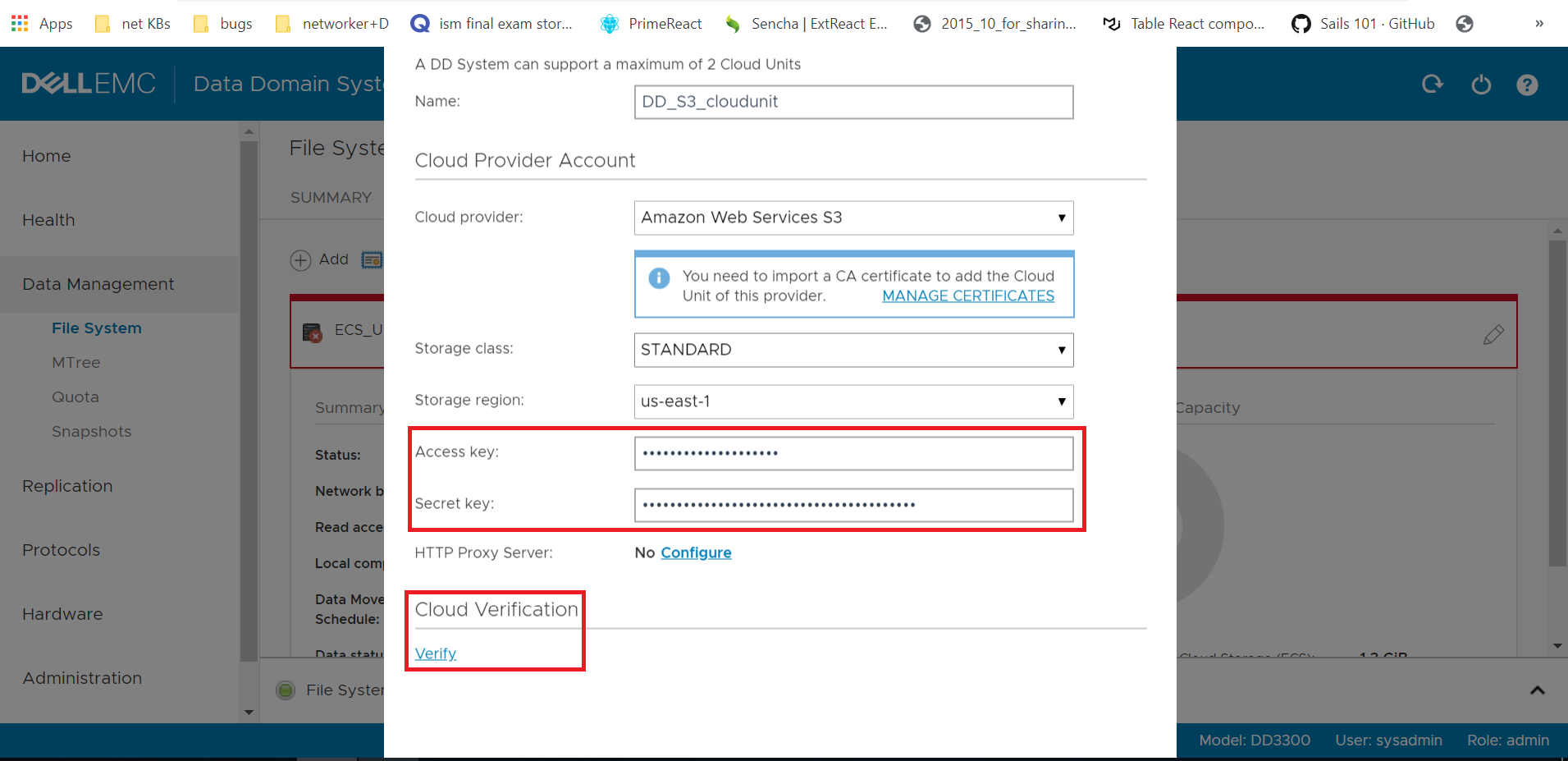
- In the DD Web UI, navigate to:
- Data Management → File System → Cloud Units
- Click Add
- Configure:
- Name: Alphanumeric only
- Cloud provider: Amazon Web Services S3
- Storage class: Select per requirements
(Reference: https://aws.amazon.com/s3/storage-classes/) - External Link - Region: Select appropriate AWS region
- Enter credentials:
- Access Key ID
- Secret Access Key
- Confirm:
- Port 443 (HTTPS) is open
- Use the 'Verify' button to confirm the settings are GOOD
- (Optional) Configure HTTP proxy if required
- Click Add
- In the DD Web UI, navigate to:
✅ The cloud unit is created in the system.
Note: Credentials can be updated later if required.
4. Cloud Unit Naming Convention
After creation, Data Domain automatically creates three S3 buckets.
Naming Format
Each bucket follows this structure:
<16-char hex>-<16-char hex>-<suffix>
Bucket Types
-
-d0→ Data segments-c0→ Configuration data-m0→ Metadata
Each bucket name is unique to the cloud unit.
✅ Completion
Cloud Tier integration is complete. You can now:
- Configure data movement policies
- Migrate data from MTrees to the cloud tier
Additional Information
References:
- Data Domain: Introduction to Long Term Retention Cloud Tier Cleaning and Garbage Collection
- Data Domain: How To Remove Cloud Tier Unit
- Check the relevant DDOS Admin Guide for the data-movement policy configuration