如何在 Dell Security Management Server 管理主控台中管理多重因素驗證
Summary: Dell Security Management Server 可設定為需要雙因素驗證 (2FA) 才能登入管理主控台。
This article applies to
This article does not apply to
This article is not tied to any specific product.
Not all product versions are identified in this article.
Instructions
可為 Dell Security Management Server 或 Dell Security Management Server Virtual 管理多重因素驗證。
受影響的產品:
- Dell Security Management Server
- Dell Security Management Server Virtual
受影響的版本:
- 11.4.0 及更新版本
可在使用者群組或個別使用者層級管理多重因素驗證。如需詳細資訊,請選擇以下適當的章節。
使用者群組
- 使用具有帳戶系統管理員角色的帳戶登入 Dell Data Security 管理主控台。如需詳細資訊,請參閱 如何存取 Dell Data Security Server 管理主控台。
注意: 如需管理員角色的詳細資訊,請參閱 支援 Dell Encryption 手冊與文件中「AdminHelp - Security Management Server PDF」的「系統管理員角色」一節。
- 從左側功能表窗格中展開 填入 標籤,然後按一下 使用者群組。

- 從清單中選取一個要編輯 的使用者群組 。
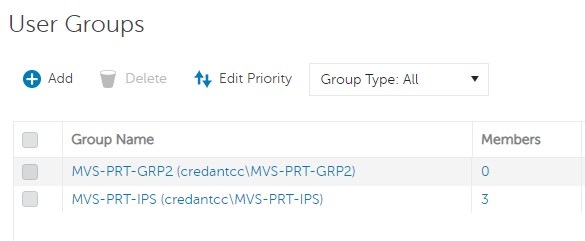 注意: 組在此清單中的位置決定了組優先順序。如需詳細資訊,請參閱 支援 Dell Encryption 手冊與文件中「AdminHelp - Security Management Server PDF」的「編輯使用者群組優先順序」一節。
 - 選取管理員標籤。

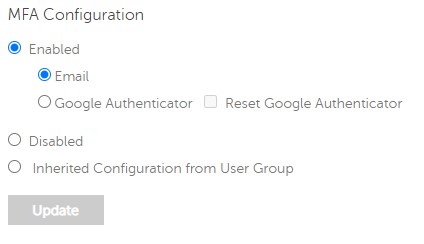
- 從 MFA 組態:
- 選取啟用。
- 選取 電子郵件 或 Google Authenticator。
- 按一下更新按鈕。

個別使用者
- 使用具有帳戶系統管理員角色的帳戶登入 Dell Data Security 管理主控台。如需詳細資訊,請參閱 如何存取 Dell Data Security Server 管理主控台。
注意: 如需管理員角色的詳細資訊,請參閱 支援 Dell Encryption 手冊與文件中「AdminHelp - Security Management Server PDF」的「系統管理員角色」一節。
- 從左側功能表窗格中展開 填入標籤,然後按一下使用者。

- 從清單中選取一個要編輯 的使用者 。
- 選取管理員標籤。

- 從 MFA 組態:
- 選取啟用。
- 選取 電子郵件、 Google Authenticator 或 從使用者群組繼承的組態。
- 按一下 Update 按鈕。
Affected Products
Dell EncryptionArticle Properties
Article Number: 000200440
Article Type: How To
Last Modified: 21 يوليو 2026
Version: 7
Find answers to your questions from other Dell users
Support Services
Check if your device is covered by Support Services.