Dell Security Management Server 관리 콘솔에서 다단계 인증을 관리하는 방법
Summary: 관리 콘솔에 로그인하기 위해 2FA(two-Factor Authentication)이 필요하도록 Dell Security Management Server를 구성할 수 있습니다.
This article applies to
This article does not apply to
This article is not tied to any specific product.
Not all product versions are identified in this article.
Instructions
Dell Security Management Server 또는 Dell Security Management Server Virtual에 대한 다단계 인증을 관리할 수 있습니다.
영향을 받는 제품:
- Dell Security Management Server
- Dell Security Management Server Virtual
영향을 받는 버전:
- 11.4.0 이상
다단계 인증은 User Group 또는 Individual User 수준에서 관리할 수 있습니다. 자세한 내용은 아래의 해당 섹션을 선택하십시오.
사용자 그룹
- 계정 관리자 역할이 있는 계정으로 Dell Data Security Administration Console에 로그인합니다. 자세한 내용은 Dell Data Security Server 관리 콘솔에 액세스하는 방법을 참조하십시오.
참고: 관리자 역할에 대한 자세한 내용은 Dell Encryption 설명서 및 문서 지원의 AdminHelp - Security Management Server PDF에서 관리자 역할 섹션을 참조하십시오.
- 왼쪽 메뉴 창에서 Populations 탭을 확장한 다음 User Groups를 클릭합니다.

- 목록에서 편집할 User Group 을 선택합니다.
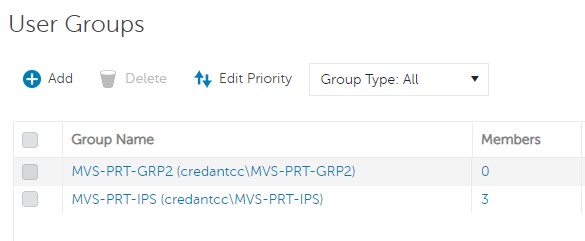 참고: 이 목록에서 그룹의 위치에 따라 그룹 우선 순위가 결정됩니다. 자세한 내용은 Dell Encryption 설명서 및 문서 지원에서 AdminHelp - Security Management Server PDF의 사용자 그룹 우선 순위 편집 섹션을 참조하십시오.
 - Admin 탭을 선택합니다.

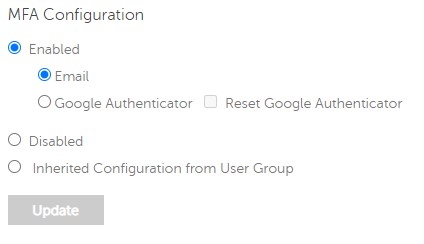
- MFA 구성에서 다음을 수행합니다.
- 활성화됨을 선택합니다.
- Email 또는 Google Authenticator를 선택합니다.
- Update 버튼을 클릭합니다.

개인 사용자
- 계정 관리자 역할이 있는 계정으로 Dell Data Security Administration Console에 로그인합니다. 자세한 내용은 Dell Data Security Server 관리 콘솔에 액세스하는 방법을 참조하십시오.
참고: 관리자 역할에 대한 자세한 내용은 Dell Encryption 설명서 및 문서 지원의 AdminHelp - Security Management Server PDF에서 관리자 역할 섹션을 참조하십시오.
- 왼쪽 메뉴 창에서 Populations 탭을 확장한 다음 Users를 클릭합니다.

- 목록에서 편집할 User 를 선택합니다.
- Admin 탭을 선택합니다.

- MFA 구성에서 다음을 수행합니다.
- 활성화됨을 선택합니다.
- Email, Google Authenticator 또는 Inherited Configuration from User Group을 선택합니다.
- Update 버튼을 클릭합니다.
Affected Products
Dell EncryptionArticle Properties
Article Number: 000200440
Article Type: How To
Last Modified: 21 يوليو 2026
Version: 7
Find answers to your questions from other Dell users
Support Services
Check if your device is covered by Support Services.