Konfigurace plně konvergované sítě Dell Azure Stack HCI
Shrnutí: Tento článek obsahuje příklad konfigurace plně konvergované sítě pro hostitele clusteru Microsoft Azure Stack HCI společnosti Dell Technologies Solutions. Informace v tomto článku jsou převzaty z návodu k nasazení plně konvergované síťové konfigurace, který je k dispozici na https://infohub.delltechnologies.com/en-us/l/e2e-deployment-and-operations-guide-with-scalable-networking-windows-1/fully-converged-network-configuration-38/2/. ...
Pokyny
Všechny níže uvedené kroky se spouštějí pomocí PowerShellu. Správa clusteru a přenosy v síti úložiště používají stejný tým Switch Embedded Team (SET). Tyto tři sítě běží na třech samostatných virtuálních adaptérech. Konfigurace přepínače SET, sítí VLAN a virtuálních adaptérů je uvedená níže.
Níže uvedené příkazy PowerShell nezabalujte, jinak po zkopírování velkých částí skriptu do okna PowerShellu selžou. Níže uvedený konfigurační skript musí být spuštěn na všech uzlech clusteru.
Následující obrázek znázorňuje hardwarový diagram nakonfigurované konvergované sítě Azure Stack HCI pomocí sady SET pro komunikaci sítě pro správu a úložiště:
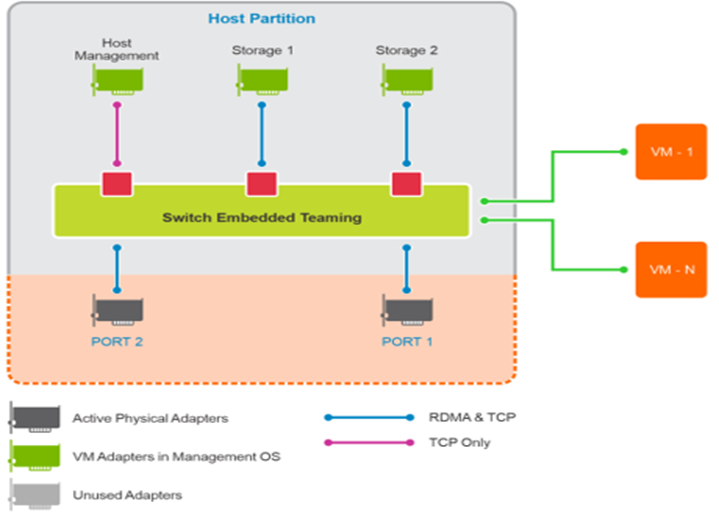
Obrázek 1: Diagram plně konvergované sítě v Azure Stack HCI
Níže uvedené kroky skriptu je nutné spustit v příkazovém řádku správce PowerShellu:
$ErrorActionPreference = 'Stop'
#region Variables for the scenario
# You must specify 2 or 4 network adapter port names
$netAdapterName = @('SLOT 4 PORT 1','SLOT 4 PORT 2')
$switchName = 'S2DSwitch'
# Management Adapter Parameters
$managementAdapterName = 'Management'
# VLAN ID for host management traffic; if no VLAN is preferred set this to 0
$managementVlanId = 102

# Management Gateway address
$managementGateway = '10.0.0.1'

# DNS server address
$managementDns = '10.0.0.19'

# Set this to a string 'DHCP' for a dynamic IP address
$managementIPAddress = '10.0.0.51'

# Management address prefix (24 translates to subnet mask 255.255.255.0)
$managementAddressPrefix = 24

# Storage Adapter Parameters
$storageAdapterPrefix = 'Storage'

# You must specify 1 or 2 or 4 VLANIDs
# You can use 0 as the value if you don't want to use VLANs for storage traffic
$storageVlanId = @(103,104)

# You must specify 2 or 4 IP Addresses
# DHCP as a value is accepted if you want dynamically assigned IP addresses
$storageIPAddress = @('171.16.101.51','172.16.102.51')

# You can specify 1 or 2 or 4 prefix length values
$StorageAddressPrefix = @(24)

#endregion

## Create a VM switch for management and Storage traffic
$null = New-VMSwitch -Name $switchName -AllowManagementOS 0 -NetAdapterName $netAdapterName -Verbose

## Add VM Network Adapters and configure VLANs and IP addresses as needed
### Management Adapter
$managementAdapter = Add-VMNetworkAdapter -SwitchName $SwitchName -ManagementOS -Passthru -Name $managementAdapterName -Verbose

if ($managementVlanId -and ($managementVlanId -ne 0))
{
Set-VMNetworkAdapterVlan -VMNetworkAdapter $managementAdapter -Access -VlanId $managementVlanId -Verbose
Start-Sleep -Seconds 5
}
if ($ManagementIPAddress -ne 'DHCP')
{
$null = New-NetIPAddress -InterfaceAlias "vEthernet ($managementAdapterName)" -IPAddress $managementIPAddress -DefaultGateway $managementGateway -PrefixLength $managementAddressPrefix -Verbose
Set-DnsClientServerAddress -InterfaceAlias "vEthernet ($managementAdapterName)" -ServerAddresses $managementDns -Verbose
}

### Storage Adapters
for ($i = 0; $i -lt $netAdapterName.Count; $i++)
{
$storageAdapterName = "${storageAdapterPrefix}$($i+1)"
# if there is a single VLAN for storage use the first and only element
if ($storageVlanId.Count -eq 1)
{
$storageVlan = $storageVlanId[0]
}
else
{
# else use the right index to get the VLAN ID
$storageVlan = $storageVlanId[$i]
}

# Check if only one prefix is provided
if ($StorageAddressPrefix.Count -eq 1)
{
$StoragePrefix = $StorageAddressPrefix[0]
}
else
{
# if more than one, use the right index to get the address prefix
$StoragePrefix = $StorageAddressPrefix[$i]
}
$storageAdapter = Add-VMNetworkAdapter -SwitchName $SwitchName -ManagementOS -Passthru -Name $storageAdapterName -Verbose

 if ($storageVlan -and ($storageVlan -ne 0))
{
# Set VM Network adapter VLAN only if the VLAN ID specified is other than 0
Set-VMNetworkAdapterVlan -VMNetworkAdapter $storageAdapter -Access -VlanId $storageVlan -Verbose
Start-Sleep -Seconds 5
}
if ($StorageIPAddress[$i] -ne 'DHCP')
{
$null = New-NetIPAddress -InterfaceAlias "vEthernet ($storageAdapterName)" -IPAddress $StorageIPAddress[$i] -PrefixLength $StoragePrefix -Verbose
}
## Set VMnetwork adapter to Physical adapter mapping
Set-VMNetworkAdapterTeamMapping -VMNetworkAdapterName $storageAdapterName -ManagementOS -PhysicalNetAdapterName $netAdapterName[$i]
}