How to Decrypt External Media Managed by Dell Data Security
Zusammenfassung: Learn how to decrypt Dell Data Security and Dell Data Protection software that is used to manage external media devices by following these instructions.
Dieser Artikel gilt für
Dieser Artikel gilt nicht für
Dieser Artikel ist nicht an ein bestimmtes Produkt gebunden.
In diesem Artikel werden nicht alle Produktversionen aufgeführt.
Weisungen
Dell Technologies recommends decrypting protected external media devices managed by Dell Data Security (formerly Dell Data Protection) before uninstalling the software.
Affected Products:
- Dell Encryption Enterprise
- Dell Encryption Enterprise for Mac
- Dell Encryption Personal
- Dell Encryption External Media
- Dell Data Protection Enterprise Edition
- Dell Data Protection Enterprise Edition for Mac
- Dell Data Protection Personal Edition
- Dell Data Protection External Media Edition
Affected Versions:
- v8.0 and Later
Affected Operating Systems:
- Windows
- Mac
The process to decrypt external media differs depending on how the encryption is managed. Click Centrally-Managed or Locally-Managed for the appropriate steps.
Centrally-Managed
The process to decrypt centrally-managed external media differs depending on what version of the Dell Data Security (formerly Dell Data Protection) server manages the encryption. Select either v9.2.0 and Later or v8.0.0 to 9.1.0 for steps to decrypt protected external media devices. For more information, reference How to Identify the Dell Encryption Enterprise or Dell Encryption Personal Version.
v9.2.0 and Later
- From a web browser, go to the Dell Data Security administration console at https://<SERVERNAME>.<COMPANY>.com:8443/webui.
Note:
- <SERVERNAME> = The Dell Data Security server DNS name in your environment
- <COMPANY> = The company domain name in your environment
- The port, 8443, may differ from the administration console port in your environment.
- Sign in to the Dell Data Security administration console.
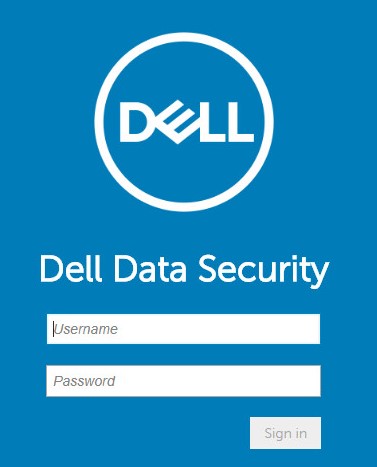
- If decrypting a protected external media device from a:
- Windows endpoint Go to Step 4.
- Mac endpoint: Go to Step 8.
- From the left menu pane, expand the Populations tab and then click Users.
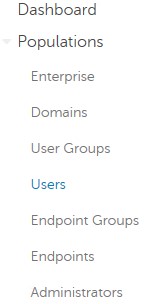
- Click the User Name of the user who must decrypt a device.
- Click Windows Media Encryption.
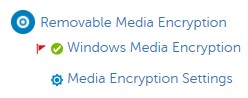
- Switch Windows Media Encryption to Off and then click Save. Go to Step 13.
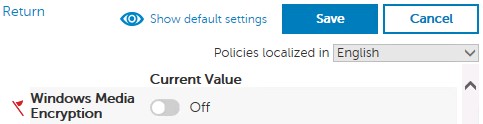 Note: If the protected external media device has been allowlisted, it must also be removed from the EMS Device Whitelist policy.
 - From the left menu pane, expand the Populations tab and then click Endpoints.
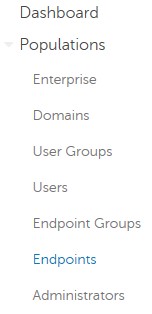
- Click the endpoint to decrypt.
- Click Security Policies.

- Click Mac Media Encryption.

- Switch Mac Media Encryption to Off and then click Save.
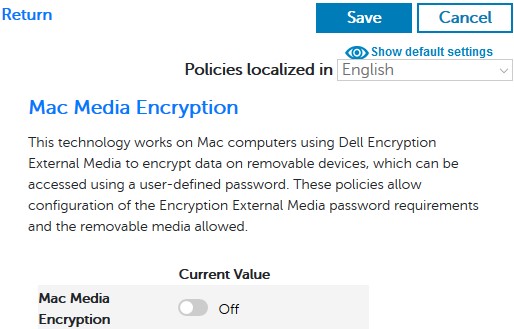 Note: If the protected external media device has been allowlisted, it must also be removed from the EMS Device Whitelist policy.
 - Commit the policy change.
Note: For more information about committing policies, reference How to Commit Policies for Dell Data Security Servers.
- From the endpoint, check for policy updates.
Note: For more information about checking for policy updates, reference How to Check for Policy Updates for Dell Data Security.
- After the policy update is received, insert the protected external media device and allow the decryption sweep to complete.
Note: WSScan may be used to confirm that decryption is complete. For more information, reference How to Use WSScan for Dell Data Security.
v8.0.0 to 9.1.0
- In Windows Explorer, go to
C:\Program Files\Dell\Enterprise Edition\Console\and then double-clickCredant.Console.exe.

- Submit credentials to sign in to the administration console.
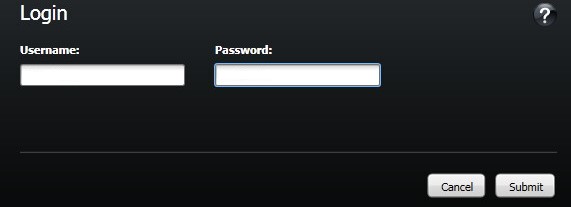
- If decrypting a protected external media device from a:
- Windows endpoint: Go to Step 4.
- Mac endpoint: Go to Step 8.
- From the left menu pane, click Users.
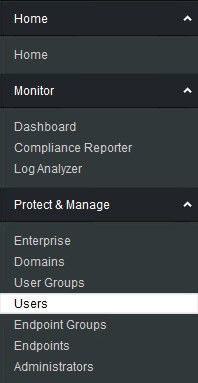
- Locate the user who must decrypt a device, and then click the Policies icon.

- Click Removable Storage.
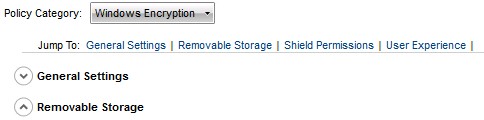
- Switch EMS Encrypt External Media to false and then click Save. Go to Step 12.
 Note: If the protected external media device has been allowlisted, it must also be removed from the EMS Device Whitelist policy.
 - From the left menu pane, click Endpoints.
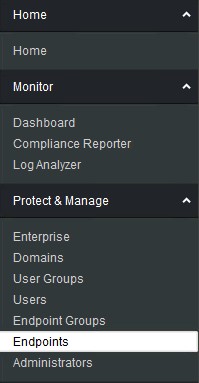
- Locate the endpoint to decrypt and then click the Details icon.
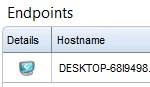
- Click Security Policies.

- From the security policies:
- Set the Policy Category to Mac Encryption.
- Click to expand Removable Storage.
- Use the Local Value column to set the EMS Encrypt External Media policy to false.
- Click Save.
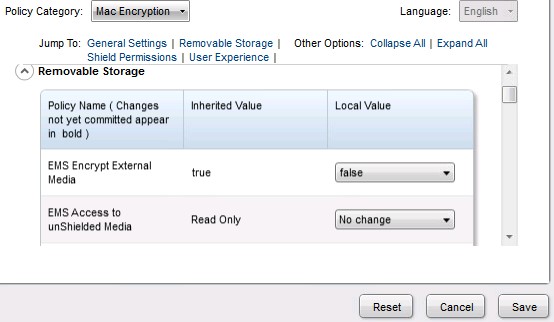 Note: If the protected external media device has been allowlisted, it must also be removed from the EMS Device Whitelist policy.
 - Commit the policy change.
Note: For more information about committing policies, reference How to Commit Policies for Dell Data Security Servers.
- From the endpoint, check for policy updates.
Note: For more information about checking for policy updates, reference How to Check for Policy Updates for Dell Data Security.
- After the policy update is received, insert the protected external media device and allow the decryption sweep to complete.
Note: WSScan may be used to confirm that decryption is complete. For more information, reference How to Use WSScan for Dell Data Security.
Locally-Managed
The process to decrypt locally-managed external media differs depending on what version of Dell Encryption Enterprise or Dell Encryption Personal manages the encryption. Select either v8.15.0 and Later or v8.0.0 to 8.13.0 for steps to decrypt protected external media devices. For more information, reference How to Identify the Dell Encryption Enterprise or Dell Encryption Personal Version.
v8.15.0 and Later
- Log in to the Windows computer.
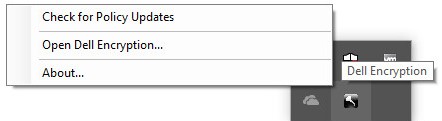
- In the Windows System Tray, right-click the Dell Encryption icon and then select Open Dell Encryption.
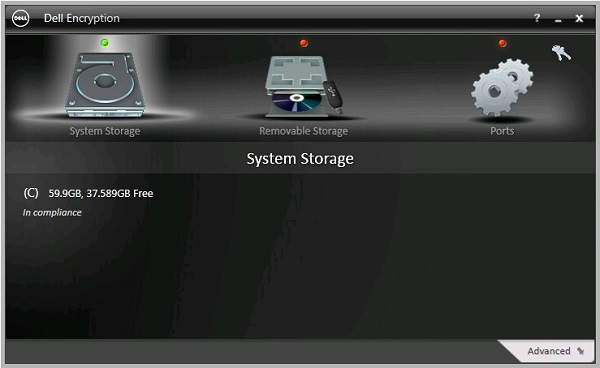
- Click Advanced in the bottom right.
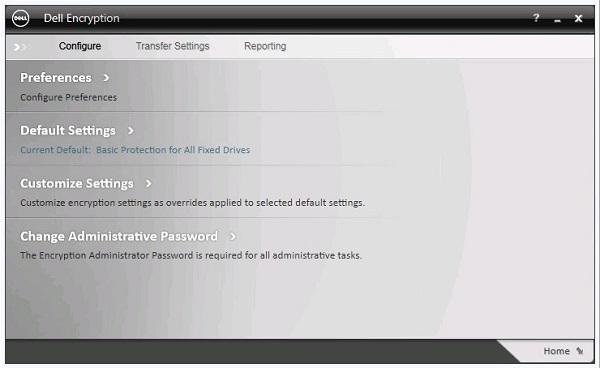
- Click Customize Settings.
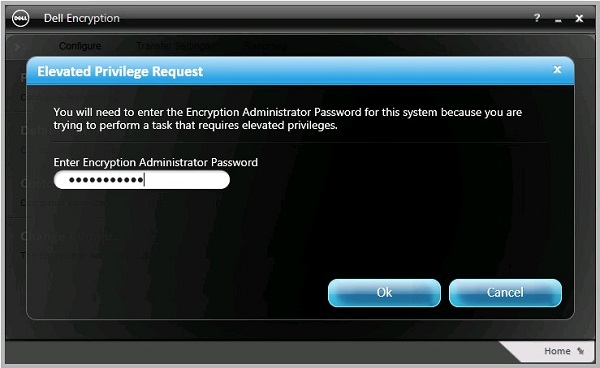
- Populate the Encryption Administrator Password and then click OK.
- From the Customize user interface (UI):
- Click to expand Removable Storage.
- Use the Customization column to set the EMS Encrypt External Media policy to False.
- Click Save.
- Click Back to configure.
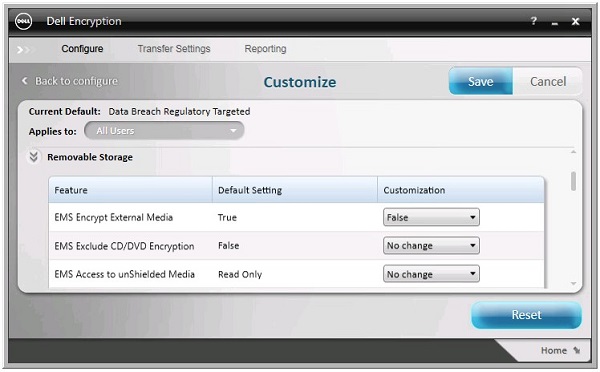 Note: If the protected external media device has been allowlisted, it must also be removed from the EMS Device Whitelist policy.
 - In the bottom-right, click Home.
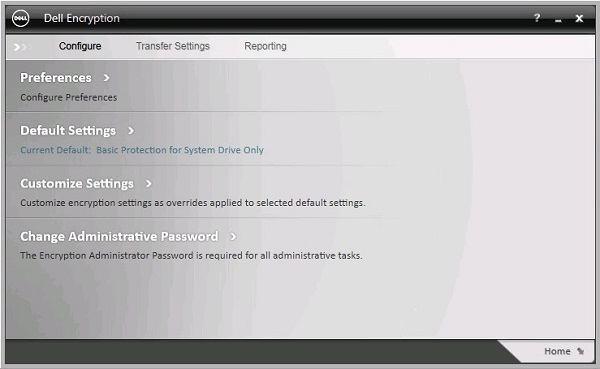
- Perform a backup of the encryption keys.
 Note: For more information, reference How to Manually Back Up Encryption Keys in Dell Encryption Personal.
 - Insert the protected external media device and allow the decryption sweep to complete.
Note: WSScan may be used to confirm that decryption is complete. For more information, reference How to Use WSScan for Dell Data Security.
v8.0.0 to 8.13.0
- Log in to the Windows computer.
- In the Windows System Tray, right-click the Dell Data Protection | Encryption icon and then select Open Dell Data Protection | Encryption.
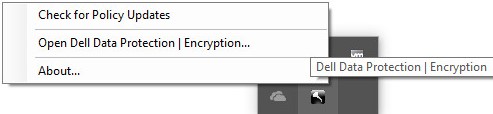
- Click advanced in the bottom right.
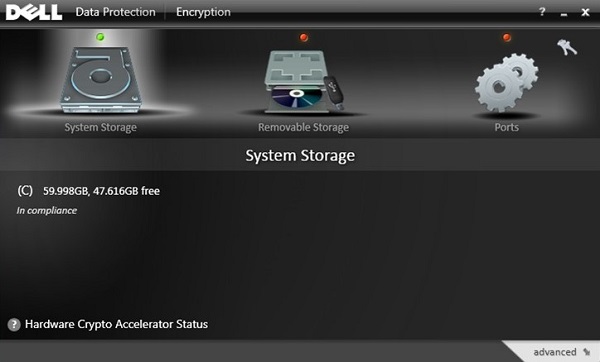
- Click Customize Settings.
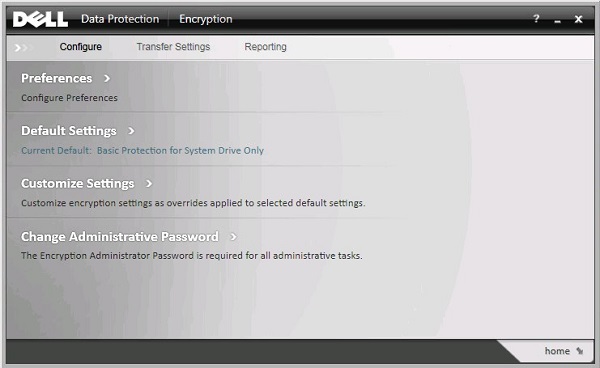
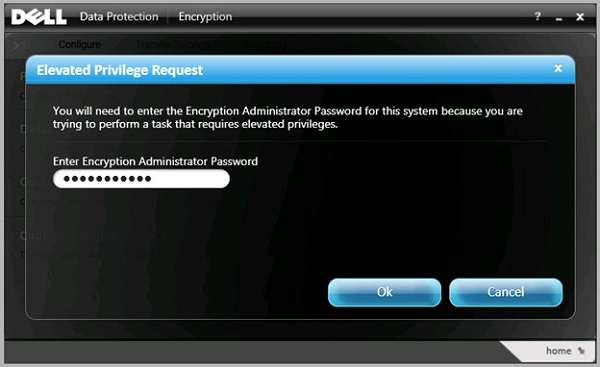
- Populate the Encryption Administrator Password and then click OK.
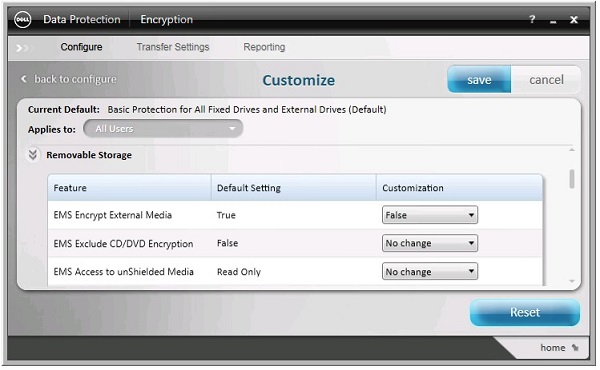
- From the Customize user interface (UI):
- Click to expand Removable Storage.
- Use the Customization column to set the EMS Encrypt External Media policy to False.
- Click save.
- Click back to configure.
 Note: If the protected external media device has been allowlisted, it must also be removed from the EMS Device Whitelist policy.
 - In the bottom-right, click home.
- Perform a backup of the encryption keys.
 Note: For more information, reference How to Manually Back Up Encryption Keys in Dell Encryption Personal.
 - Insert the protected external media device and allow the decryption sweep to complete.
Note: WSScan may be used to confirm that decryption is complete. For more information, reference How to Use WSScan for Dell Data Security.
To contact support, reference Dell Data Security International Support Phone Numbers.
Go to TechDirect to generate a technical support request online.
For additional insights and resources, join the Dell Security Community Forum.
Betroffene Produkte
Dell EncryptionArtikeleigenschaften
Artikelnummer: 000126841
Artikeltyp: How To
Zuletzt geändert: 19 Apr. 2026
Version: 20
Antworten auf Ihre Fragen erhalten Sie von anderen Dell NutzerInnen
Support Services
Prüfen Sie, ob Ihr Gerät durch Support Services abgedeckt ist.