How to Disable Wake on Dell USB-C Docks
Summary: This article describes the steps to disable "Wake on USB-C Dock" which causes a system to turn on when it is docked
This article applies to
This article does not apply to
This article is not tied to any specific product.
Not all product versions are identified in this article.
Symptoms
This article describes the steps to disable "Wake on Dell USB-C Docks" which causes a system to turn on when it is docked
Users may report that when connecting a USB-C Docking station to a system, the system powers on automatically without pressing the power button.
To prevent this behavior, follow these steps:
- Enter the BIOS (press F2 at the Dell logo when booting)
- Select the "Power Management" drop-down
- Select "USB Wake Support"
- Deselect "Wake on Dell USB-C Docks"
- Select "Apply"
- Select "Exit"
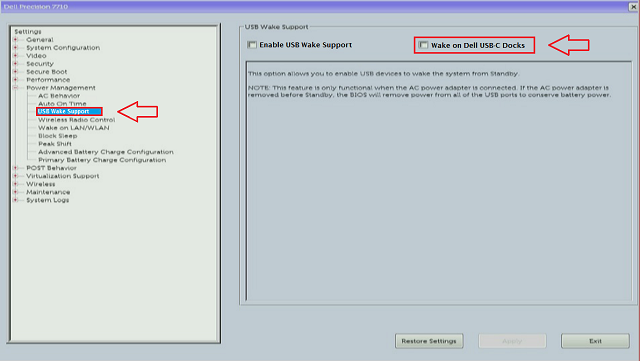
The system should not power on automatically when docked to a Dell USB-C Dock
Article Properties
Article Number: 000148152
Article Type: Solution
Last Modified: 21 Feb 2021
Version: 3
Find answers to your questions from other Dell users
Support Services
Check if your device is covered by Support Services.