如何在戴尔设备上为 Windows 11 启用安全启动
Summary: 了解如何在戴尔设备上启用安全启动并以安全模式启动。本指南介绍 UEFI 安全启动、如何检查 BIOS 中是否已启用安全启动以及如何为 Windows 10 和 11 开启安全启动。
This article applies to
This article does not apply to
This article is not tied to any specific product.
Not all product versions are identified in this article.
Instructions
什么是安全启动?
安全启动可保护启动过程免受恶意软件和勒索软件等恶意代码的攻击。安全启动依赖于固件,需要将计算机 BIOS 设置为 UEFI 模式。
如何启用安全启动
持续时间:01:55
如果有的话,可使用此视频播放器上的“Settings”或 CC 图标来选择隐藏式字幕(字幕)语言设置。
如何验证安全启动功能是否已启用。
- 单击屏幕左下角的 Windows 按钮或按 Windows 键。
- 在搜索栏中键入:
msinfo32 - 按 Enter 键。
- 此时将打开系统信息,默认情况下应选择系统摘要。
- 在此屏幕的右侧,查找 BIOS 模式和安全启动状态。
- 如果安全启动已启用,则 BIOS 模式显示“UEFI”,安全启动状态显示“启用”。
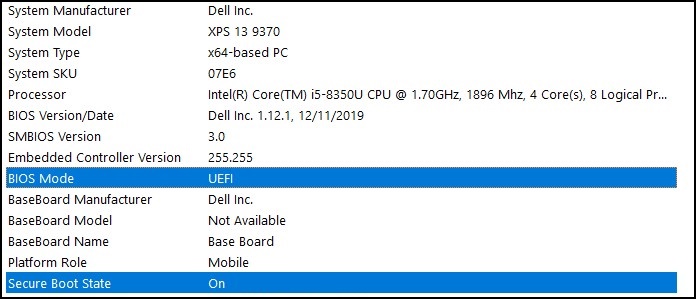
如果 BIOS 模式在计算机 BIOS 的启动设置中显示为“传统”,则必须将其从传统模式切换到 UEFI 模式。
验证您的计算机是否已经过升级至 Windows 11 的测试,然后再继续,因为较旧的计算机可能不符合 Windows 11 的系统要求。
已经过升级至 Windows 11 测试的戴尔计算机
提醒:将启动模式从传统切换到 UEFI 会使当前的 Windows 安装无法启动,并且需要重新安装 Windows。在继续执行此操作之前,请确保备份您的个人数据。
提醒:戴尔 BIOS 屏幕可能因计算机型号而异。以下是有关如何切换到 UEFI 模式和启用安全启动的一般示例。
从“传统”模式切换到 UEFI 模式
- 启动计算机。
- 出现戴尔徽标时,点按 F2 键 以进入 BIOS。
- 进入 BIOS 后,查找 Boot 或 Boot Sequence 选项。
- 此时屏幕上应该会显示 Boot List 选项。
- 将选项从 Legacy 更改为 UEFI。
- 视计算机而定,选择 Apply 或 Save and Exit。
启用安全启动
- 启动计算机。
- 出现戴尔徽标时,点按 F2 键 以进入 BIOS。
- 进入 BIOS 后,查找 Secure Boot 选项。
- 将 Secure Boot 更改为 Enabled。
- 视计算机而定,选择 Apply 或 Save and Exit。
计算机将重新启动并回到 Windows 桌面。
有关 BIOS 的更多信息,请参阅支持资源下适合您的计算机的系统手册。
Additional Information
推荐的文章
以下是您可能会感兴趣的与此主题相关的一些推荐文章。
Affected Products
Alienware, Dell All-in-One, Dell Pro All-in-One, Dell Pro Max Micro, Dell Pro Max Slim, Dell Pro Max Tower, Dell Pro Micro, Dell Pro Slim, Dell Pro Tower, Dell Slim, Dell Tower, Inspiron, OptiPlex, Vostro, XPS, G Series, G Series, Alienware
, Dell Plus, Dell Pro, Dell Pro Max, Dell Pro Plus, Dell Pro Premium, Inspiron, Latitude, Dell Pro Rugged, Vostro, XPS, Fixed Workstations, Mobile Workstations, Dell Pro Max Micro XE FCM2250, Dell Pro Max Slim XE FCS1250, Dell Pro Max Tower T2 XE FCT2250, Dell Pro Max 16 XE MC16250, Dell Pro Micro Plus XE QBM1250, Dell Pro Slim Plus XE5 QBS1250, Dell Pro Tower Plus XE5 QBT1250
...
Article Properties
Article Number: 000190116
Article Type: How To
Last Modified: 30 May 2025
Version: 10
Find answers to your questions from other Dell users
Support Services
Check if your device is covered by Support Services.