PowerProtect | 如何使用 PowerProtect Data Manager 的操作系统身份验证执行 Oracle 备份
Summary: 本文介绍如何使用 PowerProtect Data Manager 设置 Oracle 操作系统身份验证。
This article applies to
This article does not apply to
This article is not tied to any specific product.
Not all product versions are identified in this article.
Instructions
说明:
1) 登录到 Oracle 主机。2) 验证您的数据库是否支持操作系统身份验证,如下所示
sqlplus /nolog

SQL*Plus: Release 19.0.0.0.0 - Production on Thu Feb 17 07:44:56 2022
Version 19.14.0.0.0

Copyright (c) 1982, 2021, Oracle. All rights reserved.

SQL> connect / as sysbackup
Connected.
3)(可选)为 rman_agent.cfg 配置文件中的每个必需 SID 设置 ORACLE_OS_USER
("/home/oracle/opt/dpsapps/rmanagent/config" 是默认位置)
例如,rman_agent.cfg 文件包括以下设置,以启用数据库 SID orcl 的操作系统身份验证:
[SID_orcl]
ORACLE_OS_USER = oracle
对于独立或 RAC 系统中支持的任何 Oracle 版本,SID_name 必须与本地主机上运行的 SID 相匹配。
然后,保存文件。
然后,保存文件。
4) 以 root 用户身份重新启动 Oracle 主机上的代理
systemctl restart agentsvc
5) 通过单击 Administration>Credentials>Add 在 PowerProtect Data Manager 中创建凭据

6) 单击 Protection>Protection Policies>Add,在 PowerProtect Data Manager 中创建保护策略。
7) 单击“Set Credentials”
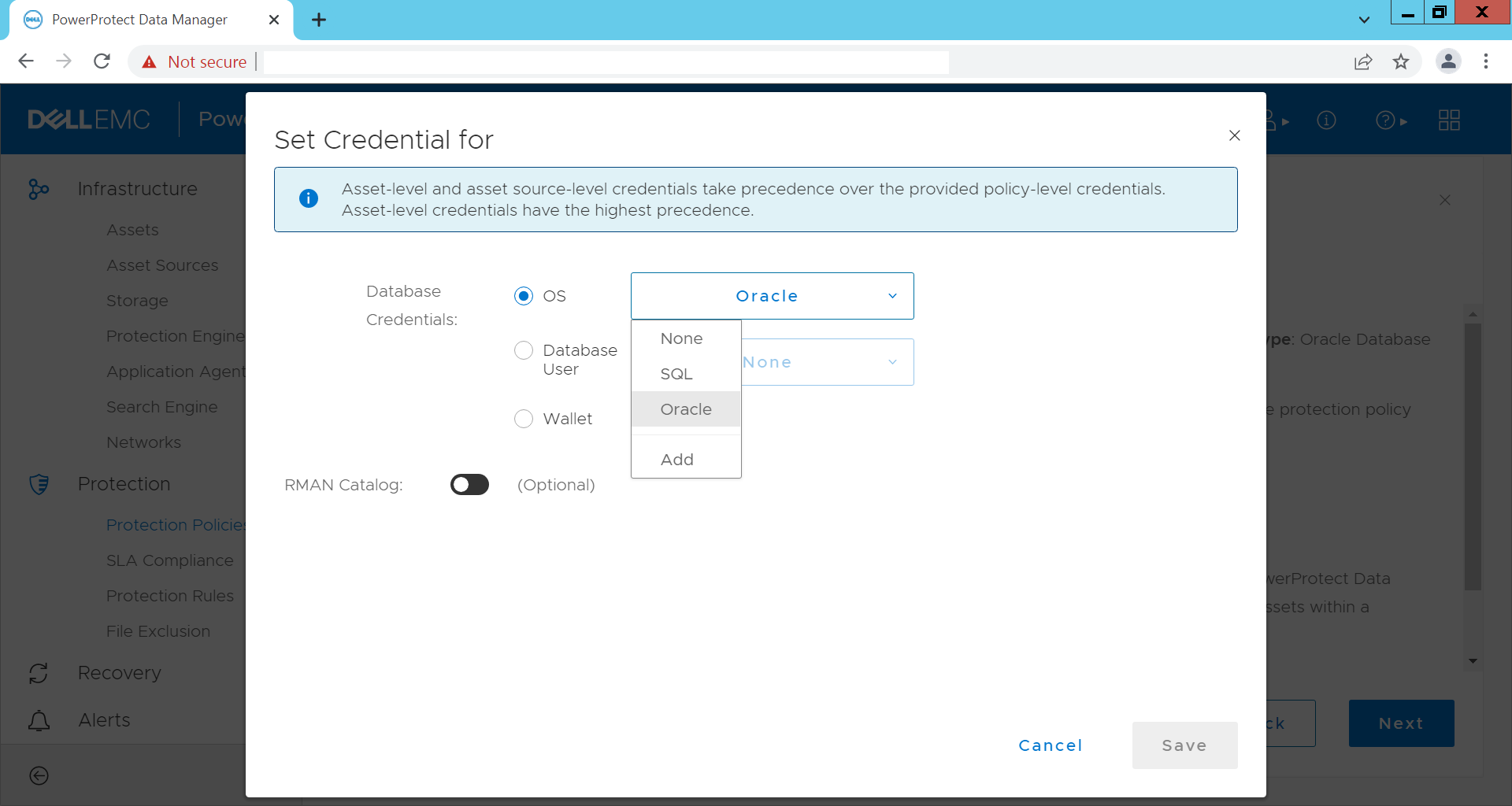
8) 选择“OS User”并选择之前创建的凭据。
9) 运行测试备份以检查配置是否正常
Additional Information
请参阅此视频:
Article Properties
Article Number: 000196402
Article Type: How To
Last Modified: 14 Dec 2022
Version: 6
Find answers to your questions from other Dell users
Support Services
Check if your device is covered by Support Services.