Alienware Command Center Not Showing Go Dark and Go Dim Commands
Summary: The latest version of Alienware Command Center does not offer the Go Dark and Go Dim commands that were available in previous releases.
Symptoms
Go Dark and Go Dim used to be an accessible user interface (UI) feature for users to quickly dim or turn off the lights within Alienware Command Center v5.X. This feature is not present in Alienware Command Center v6.0.10X.0.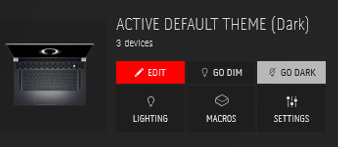
Affected Platform:
- Alienware x14 R2
- Alienware m16
- Alienware m18
- Dell G15 5530
- Dell G16 7630
Affected Software:
- Alienware Command Center v6.0.10X.0
Steps to reproduce this issue:
- From an affected computer with Alienware Command Center v6.0.10X.0 installed, open AlienFX.
- Observe that there is no option for Go Dark or Go Dim.
Cause
Resolution
Either refer to the Long-term Solution or the Workaround for more information.
Long-term Solution
Updating to Alienware Command Center version 6.6.14.0 or later on the computer resolves the issue. To download the latest version of Alienware Command, open Alienware Command Center and follow the prompts to update to the most recent version. Usually, the program automatically updates if the computer is connected to the Internet.
If the program does not automatically update, then complete the following steps to manually update the program.
- Download the latest Alienware Command Center application package from Dell Support.
- Browse to the location where you have downloaded the application package file and double-click the file. The Dell Update Package window is displayed.
- Click INSTALL. The Alienware Command Center Package Manager window is displayed.
- Click Next >. The Dell Software License Agreement is displayed.
- Read the license agreement and select I accept the terms in the license agreement to continue.
- Click Install.
- Click Finish. Select the Restart your computer checkbox to restart immediately or clear the checkbox to restart later. After restarting, the Alienware Command Center installation is complete.
Note: If Alienware Command Center is running, it closes automatically during the update.
Workaround
Switch the Alienware lights off and on either by Creating a Lights-off Preset or by using an Internal Keyboard Function. There are also Frequently Asked Questions. Click the appropriate topic for more information.
Creating a Lights-off Preset
- From the Alienware Command Center, click Game Library.
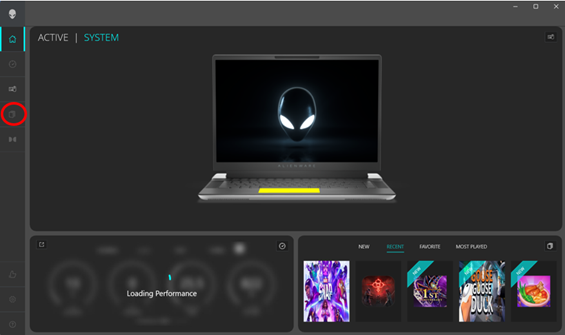
- Double-click System Default.

- Click AlienFX.
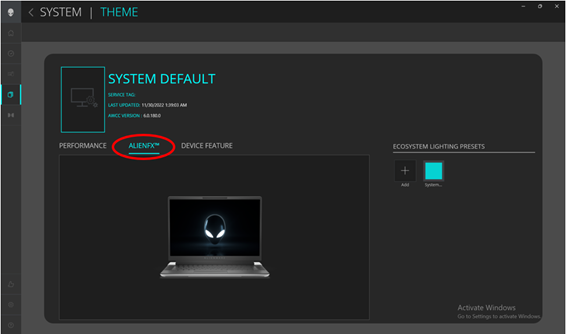
- Click the + sign to add an ecosystem lighting preset.

- Select all devices and zones.
- Select Color.
- Change brightness to 0% or change all RGB color values to 0.
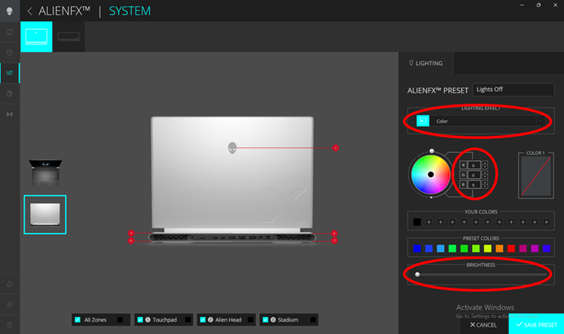
- Save the preset with a specific name.

- Select the preset to enable.
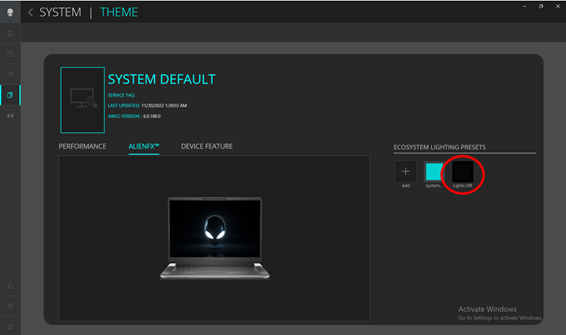
Internal Keyboard Function
Alienware platforms have an internal keyboard function dedicated to turn lights on and off by pressing the key combination Fn and F7.
For standard keyboard 1 zone or 4 zone:
This switches all lighting zones included connected peripherals between 0% and 100%.
For red, green, blue per key (RGBPK) and RGBPK Cherry keyboards:
This switches internal keyboard lighting between 0%, 50%, and 100%.
There is also the option of creating an all-black preset tile to disable lighting.
Frequently Asked Questions
I have created a "Black" preset for system default, but why does it still turn on when I launch a game?
The presets are bound to specific scenarios either under system default or game mode. If you want certain games to launch with no lighting effect, double-click the game title and follow steps 3-9 again.