Fan Speed Offset Configuration on Performance Page in Alienware Command Center
Summary: This article provides information about fan speed offset configuration on the performance page inside the Alienware Command Center (AWCC) application.
Symptoms
Affected Platforms:
- Alienware x14 R2
- Alienware x16
- Alienware m16
- Alienware m16 R2
- Alienware m18
- Alienware m18 R2
- Alienware Aurora R16
- Dell G15 5530
- Dell G16 7630
Affected Products:
- Alienware Command Center
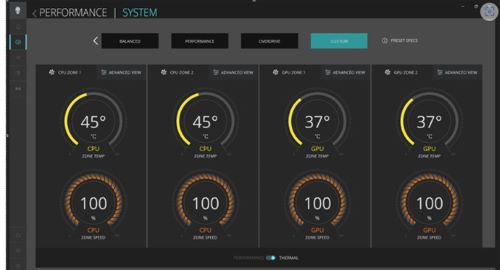
Customer may contact support saying that their Alienware or G series computer does not reflect the same numbers in the thermal view page CPU zone speed (%) and the performance page Fan Speed Offset after configuring the fan offset.
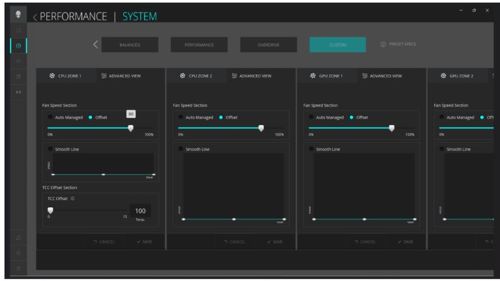
Fan Speed Offset in AWCC Performance Page > click Thermal View > Custom Preset > Advanced View > Offset setting (slider).
Cause
The original design was to set the absolute fan speed offset in percent. For example, if the user sets 60%, it reflects as 60%. However, the result that we observe in the Thermal View is obtained after a mathematical formula, using RPM, temp, and so on.
Resolution
If the Value was set to 80% the reason why it approaches 100% is because the platform set the lower maximum fan RPM to accommodate all different fan vendors and quality.
Hence, it may approach or even equal 100%.
This is working as designed.
Alienware products use different fan manufacturers where the speed of the fan can be different from each other. If a specific speed range would be defined, there is a possibility of a 20% deviation. (for example: fan speed set to 80% and AWCC shows 100%). This is the expected behavior of the application and each computer can have different distances from the desired set speeds.
Alienware command center is constantly updated and enhanced with new features where these differences are mitigated. Look for the latest version of Alienware Command Center.