Alienware Command Center 6.2.7 版錯誤 - 更新按鈕無法開始升級程序
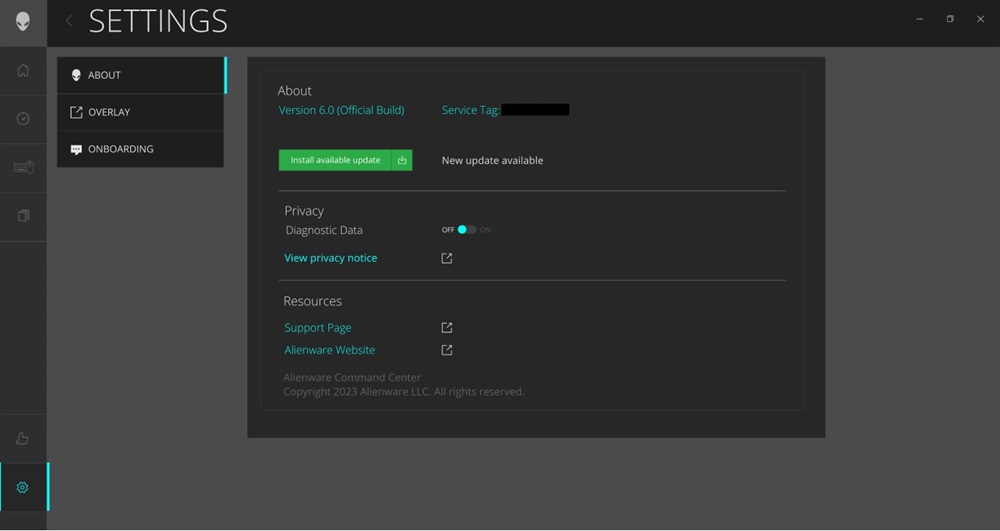
Summary: Alienware Command Center (AWCC) 6.2.7 版全域設定中的更新按鈕相關資訊不會啟動更新程序。當有新的更新可用,而使用者嘗試透過按一下「檢查更新」按鈕來安裝時,即使偵測到新版本,安裝程序也不會啟動。
This article applies to
This article does not apply to
This article is not tied to any specific product.
Not all product versions are identified in this article.
Symptoms
Cause
按一下「安裝可用的更新」按鈕不會觸發起始 Alienware Command Center Package Manager 的動作。
由於控件中的某些重命名操作,按鈕(安裝可用更新)和相應操作(觸發IM升級)之間的連結已斷開。進行這些修復是為了修復某些其他講述人問題。
Resolution
其他 Alienware Command Center 更新方法
建議使用其他更新方法,直到問題在下一個版本中修正為止:
- 使用 任務計劃程式 執行自動每周升級。
- 不需要進一步的動作。工作排程會自動將 Alienware Command Center 更新至最新版本。
- 使用 Alienware Update:
- 啟動 Alienware Update 軟體。
- 按一下檢查按鈕。
- 請確定已在要安裝的程式清單中選取 Alienware Command Center 。
- 按一下安裝。
- 完成下載並安裝新應用程式可能需要至少 10 至 17 分鐘 。請等待安裝完成。
- Alienware Command Center (6.0 版) 安裝管理員會自動移除舊版本。
- 為獲最佳體驗,您必須在安裝完成後重新啟動電腦。
- Alienware Command Center 應用程式現在列在「開始」功能表下。
- 從 Dell 驅動程式與下載網站進行手動更新。
- 前往 Dell 驅動程式與下載 網站。
- 開啟 支援 標籤。
- 選取 驅動程式與下載。
- 開啟 瀏覽所有產品。
- 從清單中找到您的 系統 。
- 在可用程式清單中尋找 Alienware Command Center 6.X 。
- 按 一下下載。
- 下載后,啟動安裝檔,然後按照安裝管理器的指示進行操作。
- 使用 驅動程式流程 更新 (連接支援的 Alienware 週邊設備時)。
Affected Products
Alienware Aurora R15, Alienware Aurora R16, Alienware Command Center, Alienware m15 R7, Alienware m16 R2, Alienware m17 R5 AMD, Alienware m18 R2, Alienware x14, Alienware x14 R2, Alienware x15 R2, Alienware x16 R2, Alienware x17 R2, Alienware m16
, Alienware m18, Alienware x14, Alienware x16, Dell G15 5530, Dell G16 7630
...
Article Properties
Article Number: 000225126
Article Type: Solution
Last Modified: 21 May 2026
Version: 3
Find answers to your questions from other Dell users
Support Services
Check if your device is covered by Support Services.