PowerStore: Yalnızca SMB NAS sunucusunda SFTP parolasız oturum açmayı etkinleştirme
Summary: Bu makale, PowerStore'a yönelik yalnızca SMB NAS sunucusunda SMB hesabı için SFTP parolasız oturum açma özelliğini etkinleştirme konusunda rehberlik sağlar.
Instructions
-
Herhangi bir Linux sunucusunda bir SSH anahtar çifti oluşturun
[administrator@my-linux-server ~]$ ssh-keygen -t rsa
Generating public/private rsa key pair.
Enter file in which to save the key (/home/administrator/.ssh/id_rsa):
Enter passphrase (empty for no passphrase):
Enter same passphrase again:
Your identification has been saved in /home/administrator/.ssh/id_rsa.
Your public key has been saved in /home/administrator/.ssh/id_rsa.pub.
The key fingerprint is:
SHA256:FGwVwmaboco...GC86v+4pc administrator@my-linux-server
The key's randomart image is:
+---[RSA 3072]----+
|     . =+o+o     |
|    . + @o.      |
| o + . O.*       |
|* . = +.B        |
|.= + o =So       |
|o . . o . .      |
|o. o ..          |
|+ +..E           |
|   :)            |
+----[SHA256]-----+
.ssh klasöründe şunları görmeniz gerekir:
[administrator@my-linux-server .ssh]# ls /home/administrator/.ssh/
id_rsa
id_rsa.pub
known_hosts
-
SMB NAS sunucusu oluşturma, Windows AD'ye Katılmış
Örneğin, nas-sftp01 NAS sunucusu:
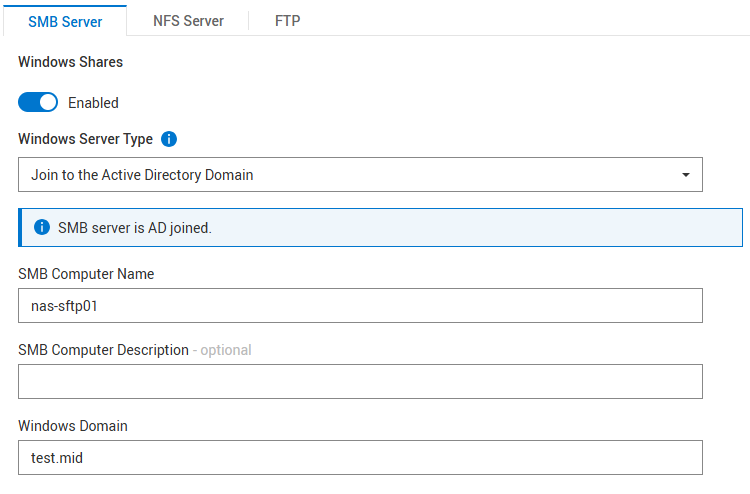
NFS gerekli değildir
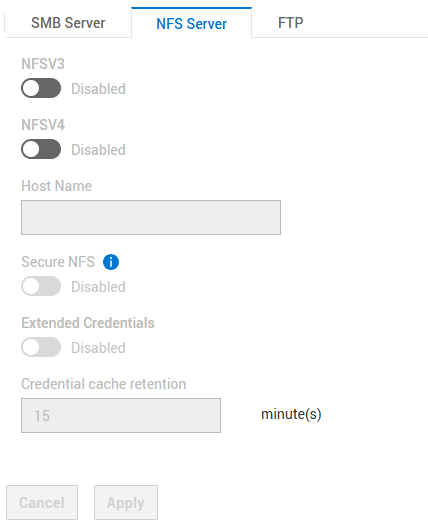
SFTP ayarları:
- SFTP etkin
- FTP/SFTP Sunucu Erişimi: SMB kullanıcıları
- Home directory restriction: Enabled (Etkin)
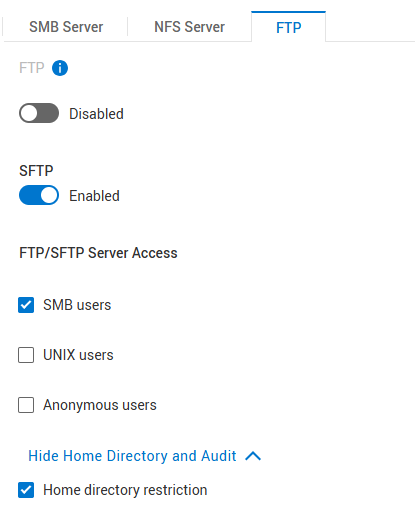
"Home Directory Restriction", kullanıcının yalnızca /Home/ klasörünü açmasına izin verir, ancak bunun üzerinde hiçbir şey görmez. Kullanıcının NAS sunucusunun köküne ve Dosya Sistemlerine erişimi olması gerekiyorsa bu seçeneğin işaretini kaldırın.
-
Dosya sistemi oluşturma
Yukarıda oluşturulan NAS sunucusu altında bir dosya sistemi oluşturun ve bir SMB paylaşımı oluşturun.
Örnek dosya sistemi adı: nas-sftp-fs01.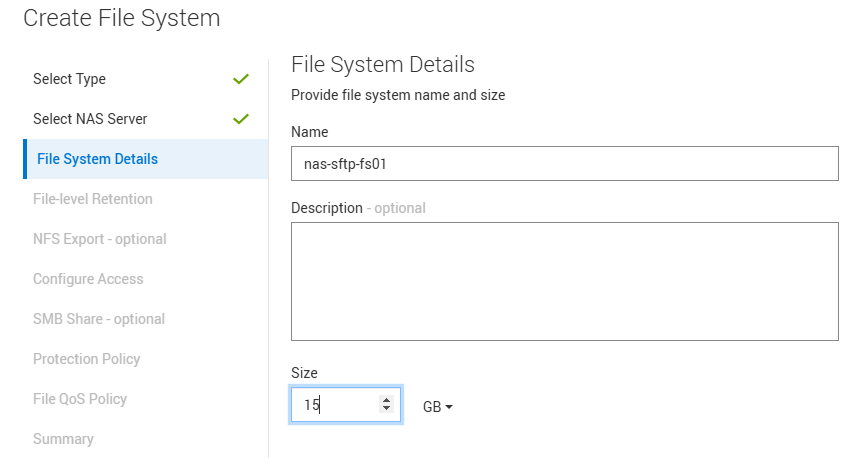
-
NAS sunucusu nas-sftp01 için HomeDir'i etkinleştirme
Homedir yapılandırma dosyasını NAS sunucusu > Adlandırma Hizmetleri > Yerel dosyalarına yükleyin.
Buraya yalnızca dosya sistemi adını koyduğunuza dikkat edin: nas-sftp-fs01. Bazı yönergeler için bu şablonu kullanın:Examples: mydomain:*:/fs2/<d>/<u>:regex:create mydomain:usr1:/fs1/usr1 !:tom:/fs1/tom test:*:/nas-sftp-fs01/<d>/<u>:regex:create
-
Windows AD'de kullanıcı oluşturma
Örnek olarak kullanıcı test cihazı ile gösterme.
Kullanıcı test edicisi ile herhangi bir Windows istemcisinden (Windows AD'ye Katılmış) oturum açın ve kullanıcı test edicisinin Ana dizinini oluşturmak için \\nas-sftp01\HOME Ana dizinine erişin. -
SSH anahtar çiftini oluşturduğunuz Linux sunucusuna ve anahtarın depolandığı konuma gidin.
id_rsa.pub dosyasını autorized_keys olarak yeniden adlandırmanız gerekir
[administrator@my-linux-server]$ cd /home/administrator/.ssh/
[administrator@my-linux-server .ssh]$ pwd
/home/administrator/.ssh

[administrator@my-linux-server .ssh]$ ls -la
total 16
drwx------.  2 administrator administrator   57 Mar  4 09:58 .
drwx------. 20 administrator administrator 4096 Jan 23 08:21 ..
-rw-------.  1 administrator administrator 2622 Mar  3 08:19 id_rsa
-rw-r--r--.  1 administrator administrator  582 Mar  3 08:19 id_rsa.pub
-rw-r--r--.  1 administrator administrator  909 Mar  4 08:34 known_hosts

[administrator@my-linux-server .ssh]$ mv id_rsa.pub authorized_keys
-
Yeni oluşturulan kullanıcıyla NAS sunucusuna bir sftp bağlantısı açın
Bir .ssh klasörü oluşturun ve yeni dosya authorized_keys yukarıdaki konumdan .ssh/ klasörüne taşıyın (bu örnekte /home/administrator/.ssh/).
xx.xx.xx.xx değerini NAS sunucusunun IP'si veya adıyla değiştirin.[administrator@my-linux-server .ssh]$ sftp test\\tester@xx.xx.xx.xx test\tester@xx.xx.xx.xx's password: Connected to xx.xx.xx.xx. sftp> sftp> mkdir .ssh sftp> cd .ssh/ sftp> put /home/administrator/.ssh/authorized_keys Uploading /home/administrator/.ssh/authorized_keys to /.ssh/authorized_keys /home/administrator/.ssh/authorized_keys 100% 582 863.0KB/s 00:00 sftp> ls -la drwxrwxrwx 2 2147483653 2147483653 2147483653 152 Mar 4 10:19 . drwxr-xr-x 3 2147483653 2147483653 2147483653 152 Mar 4 10:19 .. -rw-r--r-- 1 2147483653 2147483653 2147483653 582 Mar 4 10:19 authorized_keys
-
SFTP içinde chmod komutunu kullanarak 700 iznini .ssh klasörüne ve 600 iznini .ssh/authorized_keys dosyasına ayarlayın
sftp> ls -la
drwxr-xr-x   3 2147483650 2147483650 2147483650           8192 Mar  4 12:30 .
drwxr-xr-x   3 2147483650 2147483650 2147483650           8192 Mar  4 12:30 ..
drwxrwxrwx   2 2147483650 2147483650 2147483650            152 Mar  4 12:30 .ssh
-rw-r--r--   1 2147483650 2147483650 2147483650              9 Mar  4 12:22 TESTER_HOME_dir.txt

sftp> chmod 700 .ssh/
Changing mode on /.ssh/
sftp> chmod 600 .ssh/authorized_keys
Changing mode on /.ssh/authorized_keys
sftp> ls -la
drwxr-xr-x   3 2147483650 2147483650 2147483650           8192 Mar  4 12:30 .
drwxr-xr-x   3 2147483650 2147483650 2147483650           8192 Mar  4 12:30 ..
drwx------   2 2147483650 2147483650 2147483650            152 Mar  4 12:30 .ssh
-rw-r--r--   1 2147483650 2147483650 2147483650              9 Mar  4 12:22 TESTER_HOME_dir.txt

sftp> cd .ssh/
sftp> ls -la
drwx------   2 2147483650 2147483650 2147483650            152 Mar  4 12:30 .
drwxr-xr-x   3 2147483650 2147483650 2147483650           8192 Mar  4 12:30 ..
-rw-------   1 2147483650 2147483650 2147483650            582 Mar  4 12:30 authorized_keys
-
Erişimi test etme
Artık herhangi bir şifre girmeden sftp'yi açabiliyor olmanız gerekir.
Oturum açma ayrıntılarını görüntülemek için sftp -v seçeneğini kullanabilirsiniz.[administrator@my-linux-server .ssh]$ sftp -v test\\tester@xx.xx.xx.xx OpenSSH_8.0p1, OpenSSL 1.1.1k FIPS 25 Mar 2021 debug1: Reading configuration data /etc/ssh/ssh_config debug1: Reading configuration data /etc/ssh/ssh_config.d/05-....conf debug1: Reading configuration data /etc/crypto-policies/back-ends/openssh.config debug1: configuration requests final Match pass debug1: re-parsing configuration debug1: Reading configuration data /etc/ssh/ssh_config debug1: Reading configuration data /etc/ssh/ssh_config.d/05-....conf debug1: Reading configuration data /etc/crypto-policies/back-ends/openssh.config debug1: Connecting to xx.xx.xx.xx [xx.xx.xx.xx] port 22. debug1: Connection established. debug1: identity file /home/administrator/.ssh/id_rsa type -1 debug1: identity file /home/administrator/.ssh/id_rsa-cert type -1 debug1: identity file /home/administrator/.ssh/id_dsa type -1 debug1: identity file /home/administrator/.ssh/id_dsa-cert type -1 debug1: identity file /home/administrator/.ssh/id_ecdsa type -1 debug1: identity file /home/administrator/.ssh/id_ecdsa-cert type -1 debug1: identity file /home/administrator/.ssh/id_ed25519 type -1 debug1: identity file /home/administrator/.ssh/id_ed25519-cert type -1 debug1: identity file /home/administrator/.ssh/id_xmss type -1 debug1: identity file /home/administrator/.ssh/id_xmss-cert type -1 debug1: Local version string SSH-2.0-OpenSSH_8.0 debug1: Remote protocol version 2.0, remote software version OpenSSH_8.4 debug1: match: OpenSSH_8.4 pat OpenSSH* compat 0x04000000 debug1: Authenticating to xx.xx.xx.xx:22 as 'test\\tester' debug1: SSH2_MSG_KEXINIT sent debug1: SSH2_MSG_KEXINIT received debug1: kex: algorithm: curve25519-sha256 debug1: kex: host key algorithm: ecdsa-sha2-nistp256 debug1: kex: server->client cipher: aes256-gcm@openssh.com MAC: <implicit> compression: none debug1: kex: client->server cipher: aes256-gcm@openssh.com MAC: <implicit> compression: none debug1: kex: curve25519-sha256 need=32 dh_need=32 debug1: kex: curve25519-sha256 need=32 dh_need=32 debug1: expecting SSH2_MSG_KEX_ECDH_REPLY debug1: Server host key: ecdsa-sha2-nistp256 SHA256:xyc9xUOiKbYg4TEvY8wahgq9ous3ocRTbTWBEmK5wgk debug1: Host 'xx.xx.xx.xx' is known and matches the ECDSA host key. debug1: Found key in /home/administrator/.ssh/known_hosts:6 debug1: rekey out after 4294967296 blocks debug1: SSH2_MSG_NEWKEYS sent debug1: expecting SSH2_MSG_NEWKEYS debug1: SSH2_MSG_NEWKEYS received debug1: rekey in after 4294967296 blocks debug1: Will attempt key: /home/administrator/.ssh/id_rsa debug1: Will attempt key: /home/administrator/.ssh/id_dsa debug1: Will attempt key: /home/administrator/.ssh/id_ecdsa debug1: Will attempt key: /home/administrator/.ssh/id_ed25519 debug1: Will attempt key: /home/administrator/.ssh/id_xmss debug1: SSH2_MSG_EXT_INFO received debug1: kex_input_ext_info: server-sig-algs=<ssh-ed25519,sk-ssh-ed25519@openssh.com,ssh-rsa,rsa-sha2-256,rsa-sha2-512,ssh-dss,ecdsa-sha2-nistp256 ,ecdsa-sha2-nistp384,ecdsa-sha2-nistp521,sk-ecdsa-sha2-nistp256@openssh.com,webauthn-sk-ecdsa-sha2-nistp256@openssh.com> debug1: SSH2_MSG_SERVICE_ACCEPT received debug1: Authentications that can continue: publickey,password debug1: Next authentication method: publickey debug1: Trying private key: /home/administrator/.ssh/id_rsa debug1: Authentication succeeded (publickey). Authenticated to xx.xx.xx.xx ([xx.xx.xx.xx]:22). debug1: channel 0: new [client-session] debug1: Requesting no-more-sessions@openssh.com debug1: Entering interactive session. debug1: pledge: network debug1: Sending environment. debug1: Sending env LANG = en_IE.UTF-8 debug1: Sending subsystem: sftp Connected to xx.xx.xx.xx. sftp> ls TESTER_HOME_dir.txt