NetWorker:如何使用 NMC 來判斷 NetWorker 伺服器和用戶端軟體版本
Summary: 使用 NetWorker Management Console (NMC) 來判斷 NetWorker 伺服器和用戶端軟體版本。
This article applies to
This article does not apply to
This article is not tied to any specific product.
Not all product versions are identified in this article.
Instructions
尋找 NetWorker 伺服器軟體版本:
使用 NetWorker Management Console (NMC) 判斷 NetWorker 伺服器軟體版本
- 登入 NetWorker Management Console (NMC):
- 從 NMC Enterprise 標籤中選取 NetWorker 伺服器。
- NetWorker 伺服器版本會列於右側視窗中:
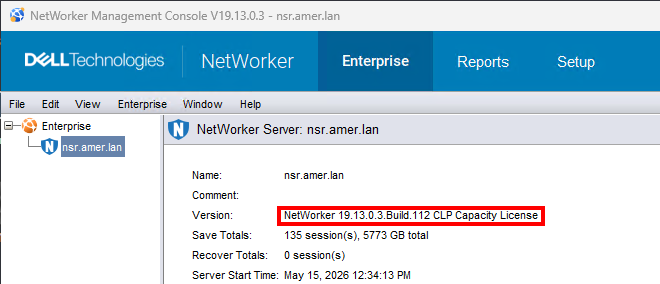
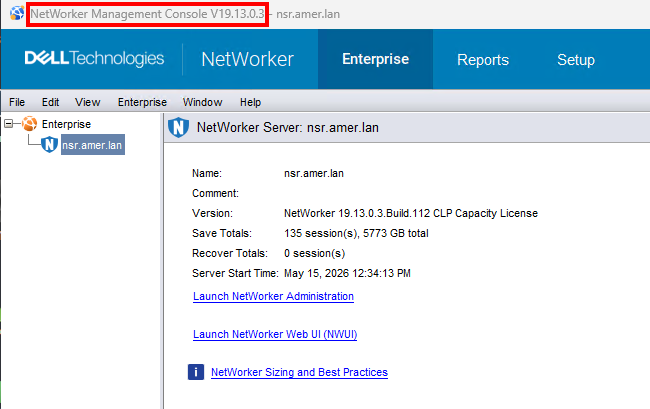
- 在某些環境中,多個 NetWorker 伺服器由單個 NMC 伺服器管理。最佳做法是使用與 NetWorker 伺服器相同的 NMC 版本;但是,版本可能會有所不同。NMC 伺服器版本會列在 NMC 的標題列中:
尋找 NetWorker 用戶端軟體版本:
使用 NMC 來判斷 NetWorker 用戶端軟體版本
注意:僅當用戶端主機連線且 NetWorker 可存取時,才能使用此方法。NetWorker 用戶端服務必須正在執行。
使用 NMC 連線至 NetWorker 伺服器,其使用者是 NetWorker 伺服器上應用程式管理員使用者群組的成員。
- 在 NMC 中,按一下 檢視 ->診斷模式 (必須啟用)。
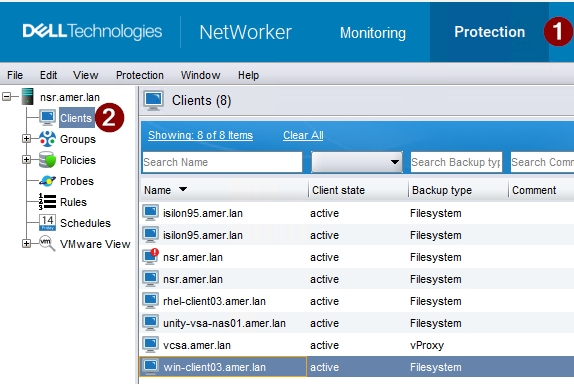
- 按一下保護標籤 (1),然後按一下用戶端 (2)。
- 以滑鼠右鍵按一下發生此問題的用戶端,然後按一下 修改用戶端精靈。
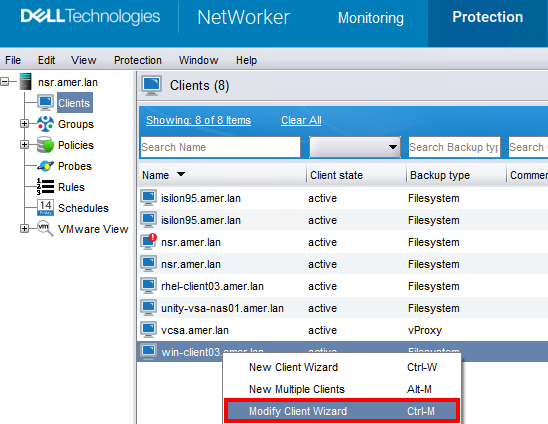
3. NetWorker 版本會列於用戶端詳細資料視窗中。

使用 nsradmin 判斷 NetWorker 伺服器軟體版本:
NetWorker 服務為線上狀態:
若為 NetWorker 伺服器,請執行 nsrwatch 從提升的提示:

針對任何已安裝 NetWorker 用戶端軟體的主機,請執行下列命令以存取 nsradmin 用戶端行程的命令行介面 (nsrexecd)
- 在命令提示字元中,輸入:
nsradmin -p nsrexecd - 從
nsradmin提示,執行:print type: nsrla
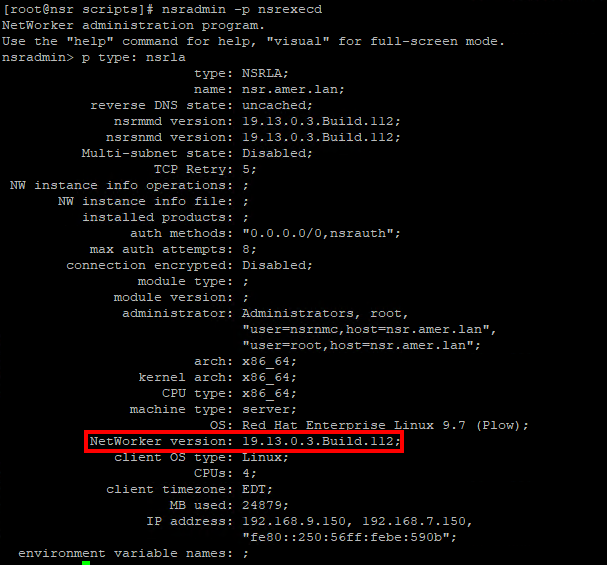
NetWorker 服務處於離線狀態:
- 針對任何已安裝 NetWorker 用戶端軟體的主機,請執行下列命令以存取
nsradmin命令行介面針對nsrladb。
- Linux:
nsradmin -d /nsr/res/nsrladb - Windows (預設安裝路徑):
nsradmin -d "C:\Program Files\EMC NetWorker\nsr\res\nsrladb"
- 從
nsradmin提示,執行:print type: nsrla
Additional Information
Affected Products
NetWorker, NetWorker Series, NetWorker Management Console, NetWorker Module, NetWorker Module for Databases and Applications, NetWorker Module for Microsoft, NetWorker Module for SAPProducts
NetWorker Module for MEDITECHArticle Properties
Article Number: 000198932
Article Type: How To
Last Modified: 25 May 2026
Version: 3
Find answers to your questions from other Dell users
Support Services
Check if your device is covered by Support Services.