Data Domain: How to enable compliance or governance on Data Domain
Summary: This article explains the process of setting up Compliance or governance mode on a Data Domain. Challenges which are faced during setup are shown with screenshots steps by steps.
Instructions
Create Security User (CLI): Create a user with the security role, as this role is required for compliance actions.
user add <username> role securityEnable Security Authorization (CLI): Log in with credentials which have security role assigned user to enable authorization.
authorization policy set security-officer enabledCheck Compliance is enabled or disabled.
system retention-lock compliance status
Configure System Compliance (CLI): Run the system-level compliance configuration, and this requires security user credentials.
system retention-lock compliance configure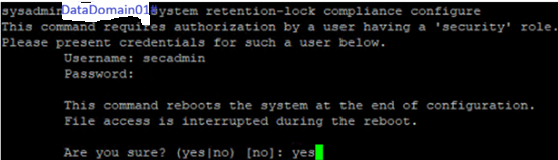
Create integrated Dell Remote Access Controller users to enable Compliance mode, two with Operator role and two Read-Only. Make note of the passwords.
user iDrac create
Enable Compliance Mode (CLI): After reboot, enable compliance mode. Go with the default option as No for system date-change-limit and date-change-frequency.
system retention-lock compliance enable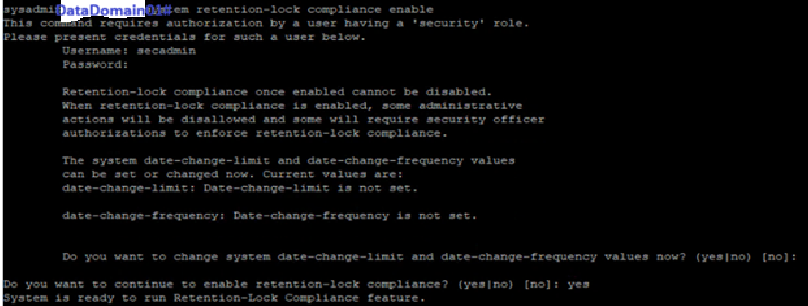
If, we select Yes then we must configure hardening parameters on DD of which one part is date change frequency.
Enable MTree Retention Lock (CLI): Enable the lock on a specific MTree.
mtree retention-lock enable mode compliance mtree <mtree-path>
Additional Information
Data Domain Compliance or governance mode enablement