Secure Connect Gateway Virtual Edition - Comprehensive Network Testing
Summary: A complete network test for a gateway is essential to ensure the reliability, security, and efficiency of network communication. The gateway acts as a critical point of data flow between different networks, so testing it comprehensively helps identify configuration errors, or performance bottlenecks. It includes assessing connectivity, data throughput, latency, security protocols, and failover mechanisms. Thorough testing ensures that the gateway can handle expected traffic loads, maintain data integrity, and protect against unauthorized access, thus providing a robust and secure network infrastructure. ...
Instructions
Please follow the below commands and attach the output over the SR.
Step 1. Command to test the SSL/TLS connection to a specified endpoint and to display detailed information about the SSL certificate being used
1. If no Proxy is used in SCG:
-
curl -k -v https://esrs3-core.emc.com:443
curl -k -v https://esrs3-coredr.emc.com:443
curl -k -v https://esrs3-core.emc.com:8443
curl -k -v https://esrs3-coredr.emc.com:8443
2. If using Proxy in SCG without authentication:
-
curl -k -v https://esrs3-core.emc.com:443
curl -k -v https://esrs3-coredr.emc.com:443
curl -k -v https://esrs3-core.emc.com:8443
curl -k -v https://esrs3-coredr.emc.com:8443
3. If using Proxy in SCG with authentication:
-
curl -k -x proxy_ip:proxy_port -U username:password https://esrs3-core.emc.com:443 -v
curl -k -x proxy_ip:proxy_port -U username:password https://esrs3-coredr.emc.com:443 -v
curl -k -x proxy_ip:proxy_port -U username:password https://esrs3-core.emc.com:8443 -v
curl -k -x proxy_ip:proxy_port -U username:password https://esrs3-coredr.emc.com:8443 -v
- Command and what they mean:
- If the SSL/TLS connection is successful, the output will show the SSL certificate details and the HTTP response from the server. A successful connection is indicated by a 200 OK status code in the HTTP response.
- If the SSL/TLS connection fails, the output will present an error message detailing the cause of the failure. Potential reasons include an invalid SSL certificate, a hostname mismatch with the certificate, or other SSL/TLS configuration issues, such as SSL decryption on the customer's network (which is incompatible with SCG and may result in network traffic being rejected by the Dell backend).
- If the server is unreachable, the output will show an error message indicating that the connection could not be made.
Step 2. Using OpenSSL commands to check the network and gather detailed information about the connectivity between the SCG and Dell services.
Note: This will help us obtain information about the SSL encryption and decryption of the network configuration.
Without certificates:
openssl s_client -connect esrs3-core.emc.com:443
openssl s_client -connect esrs3-core.emc.com:8443
openssl s_client -connect esrs3-coredr.emc.com:443
openssl s_client -connect esrs3-coredr.emc.com:8443
With certificates using Proxy:
openssl s_client -proxy <Proxy ip>:<Proxy Port> -showcerts -connect esrs3-core.emc.com:8443
openssl s_client -proxy <Proxy ip>:<Proxy Port> -showcerts -connect esrs3.emc.com:8443
openssl s_client -proxy <Proxy ip>:<Proxy Port> -showcerts -connect esrs3-core.emc.com:443
openssl s_client -proxy <Proxy ip>:<Proxy Port> -showcerts -connect esrs3.emc.com:443
Command and what they mean:
An OpenSSL network test is essential for verifying the security and integrity of SSL/TLS connections between clients and servers. By performing these tests, you can ensure that the SSL/TLS handshake is correctly established, validate the server’s certificates, and confirm that encryption is properly applied to the data transmitted. This helps in identifying potential issues such as expired or misconfigured certificates, problems with the SSL/TLS protocol, or incorrect proxy settings. In summary, OpenSSL network tests provide critical insights into the security of network communications and ensure that data exchanges are protected against eavesdropping and tampering.
Step 3. To verify the SCG WebUI on port 5700.
In SCG CLI (Command Line Interface)
telnet <Gateway Ip> 5700
netstat -tulpn | grep 5700
Expected Output:
tcp 0 0 0.0.0.0:5700 0.0.0.0:* LISTEN 1234/myservice
Command and what they mean:
Checking port 5700 when the WEBUI is inaccessible is crucial because this port is often used for management and monitoring functions. If the WEBUI (Web User Interface) is not reachable, it might indicate issues with the server’s configuration, network connectivity, or firewall rules blocking access to this port. By specifically checking port 5700, you can determine whether the issue is related to the service listening on this port or if there are network-related problems. Ensuring that port 5700 is open and properly configured helps in diagnosing and resolving accessibility issues with the WEBUI, facilitating effective management and troubleshooting of the system.
Step 4. To verify if the gateway is reachable by pinging it from the command prompt of the base machine.
- Run Windows+R
- type cmd
- ping <gatewayIP> -t
Expected Output: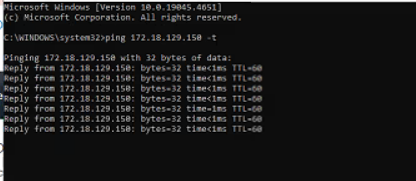
Command and what they mean:
Checking the ping of an IP address from the base machine is essential for diagnosing network connectivity issues. By pinging an IP address, you can determine whether the base machine can reach the target device over the network and measure the latency of the connection. This simple test helps identify if there are any basic connectivity problems, such as network misconfigurations, hardware issues, or firewall restrictions that might be preventing communication. If the ping fails, it indicates that there is a disruption in the network path or an issue with the target device, which helps in isolating and troubleshooting connectivity problems effectively.
Step 5. Execute the following commands on the SCG CLI after logging in with root credentials and provide the output.
1. cat /etc/esrshost.conf
2. wicked show all
3. cat /etc/sysconfig/network/ifcfg-eth0
4. cat /etc/hosts
5. route –n
6. cat /etc/resolv.conf
7. docker exec –it esrsde-app cat /etc/hosts
8. docker exec –it esrsde-app cat /etc/esrsclient.conf
Command and what they mean:
These commands offer a comprehensive view of network and configuration settings across different layers, helping to identify and resolve connectivity and configuration issues effectively.