Avamar: Jetty 서비스가 실행되고 있지 않아 타겟 VM 호스트가 프록시에 연결할 수 없습니다.
Summary: 이 문서에서는 대상 VM이 프록시에 연결할 수 없을 때 VM(가상 머신) FLR(파일 수준 복원)이 실패하고 결국 장기간 실행 후 시간이 초과되는 이유를 설명합니다.
This article applies to
This article does not apply to
This article is not tied to any specific product.
Not all product versions are identified in this article.
Symptoms
가상 머신 FLR 중에 Avamar 관리 콘솔에 다음 창 메시지가 나타납니다.
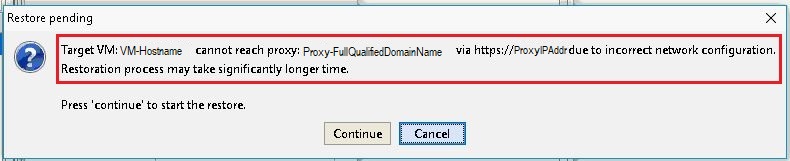
오류 메시지:
Target VM: <VM-hostname> cannot reach proxy: <avamar-proxy-FQDN_or_IP_Address> via https://<proxy-hostname-IP-Address> due to incorrect network configuration.
Restoration may take significantly longer time Press "Continue" to start the restore
Cause
프록시의 포트 443에서 수신 대기하는 서비스가 실행되고 있지 않습니다.
root@avamar-proxy:~/>: netstat -plnt |egrep "Proto|443"
Proto Recv-Q Send-Q Local Address Foreign Address State PID/Program name
root@avamar-proxy:~/>: service jetty status
Jetty Info: Jetty Service is not running.
Resolution
다음 작업을 수행합니다.
- FLR을 재시도하기 전에 서비스를 시작합니다.
root@avamar-proxy:~/>: service jetty start
Shutting down vami-lighttpd:done.
Jetty Info: Jetty daemon started.
root@avamar-proxy:~/>: service jetty status
Jetty Info: Jetty Service is running.[13234]
root@avamar-proxy:~/>: netstat -plnt |egrep "Proto|443"
Proto Recv-Q Send-Q Local Address           Foreign Address         State       PID/Program name
tcp        0      0 :::443                  :::*                    LISTEN      13234/java
- 서비스가 다중 사용자 실행 수준에서 자동으로 시작되도록 구성되어 있는지 확인합니다.
root@avamar-proxy:~/>: chkconfig --list |grep jetty
jetty 0:off 1:off 2:on 3:on 4:on 5:on 6:off
- 서비스가 지정된 실행 수준에서 자동으로 시작되도록 하려면 아래 명령을 사용하여 서비스 구성을 업데이트합니다.
root@avamar-proxy:~/>: chkconfig --level 2345 jetty on
위의 단계를 수행해도 문제가 해결되지 않으면 다음 추가 단계를 수행합니다.
-
편집
/usr/local/avamarclient/bin/config.xml파일을 열고 wget 매개변수의 값을 0에서 1로 변경합니다.<enablewgetrestore>1</enablewgetrestore>
Affected Products
AvamarArticle Properties
Article Number: 000050308
Article Type: Solution
Last Modified: 25 Mar 2026
Version: 7
Find answers to your questions from other Dell users
Support Services
Check if your device is covered by Support Services.