Windows Server:使用 PowerShell 安裝和管理更新服務
Summary: 本文討論如何使用 PowerShell 管理 Windows Server Update Services (WSUS) 角色。我們詳細介紹了用於添加 WSUS 角色和執行各種管理任務的 PowerShell 命令。
This article applies to
This article does not apply to
This article is not tied to any specific product.
Not all product versions are identified in this article.
Instructions
安裝
若要安裝 WSUS 角色,請從提升的 PowerShell 提示符運行以下命令:
Install-WindowsFeature -Name UpdateServices
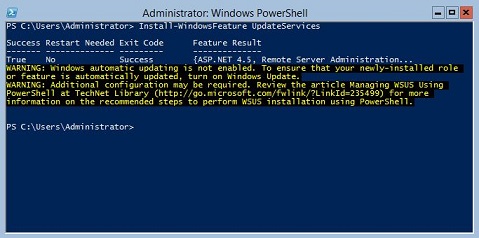
圖 1:Install-WindowsFeature UpdateServices 的預期輸出
其他資訊:
可使用 Windows PowerShell 安裝下列 WSUS 角色服務。
- Windows 內部資料庫 (WID)
- WSUS 服務
- 資料庫
執行命令後將安裝 WID 資料庫和 WSUS 服務角色服務 Install-WindowsFeature UpdateSevices。
管理
下列 Windows PowerShell cmdlet 可用於在執行 Windows Server Core 的伺服器上管理 WSUS 角色。
- 將指定的用戶端電腦新增到指定的目標群組:
Add-WsusComputer -Computer <computername> -TargetGroupName <groupname>
- 核准要提供給用戶端的更新:
Approve-WsusUpdate -Update <update> -Action <approvalaction> -TargetGroupName <groupname>
在此指令中, -Update 交換器接受使用 Get-WsusUpdate 命令(見下文)。的價值 -Action 可以是“安裝”、“卸載”或“未批准”。後者不會拒絕更新,但會刪除預先存在的審批操作。
- 拒絕更新:
Deny-WsusUpdate
和以前一樣, -Update 交換器接受使用 Get-WsusUpdate 命令(見下文)。
- 列出系統中可用的所有更新分類 (例如安全性更新或重大更新):
Get-WsusClassification
- 列出一台或多台 WSUS 用戶端電腦:
Get-WsusComputer
此命令具有許多用於篩選它返回的用戶端電腦清單的開關。如需完整清單,請參閱 Get-WsusComputer
- 列出 WSUS 為其提供更新的所有產品:
Get-WsusProduct
- 在 WSUS 中顯示滿足特定條件的更新清單:
Get-WsusUpdate
有關可用於篩選輸出的開關的清單,請參閱 Get-WsusUpdate
- 開始 WSUS 清理過程:
Invoke-WsusServerCleanup
此命令可以啟動多個清理任務。請參閱相關切換值 的叫用-WsusServerCleanup
- 啟用或停用指定類型的更新 (例如安全性更新或驅動程式更新):
Set-WsusClassification
使用篩選後的輸出來源 Get-WsusClassification 以運行此命令。
- 啟用或停用特定產品的更新:
Set-WsusProduct
使用篩選後的輸出來源 Get-WsusProduct 以運行此命令。
- 指定 WSUS 是與上游 WSUS 伺服器同步還是與Microsoft的更新伺服器同步:
Set-WsusServerSynchronization
可以使用多個交換機來指定與上游伺服器通信的設置。有關詳細資訊,請參閱 Set-WsusServerSynchronization
Affected Products
Microsoft Windows Server 2016, Microsoft Windows Server 2019, Microsoft Windows Server 2022, Microsoft Windows Server 2025Products
C Series, HS Series, Modular Infrastructure, Rack Servers, Tower Servers, XE Servers, XR Servers, OEM Server SolutionsArticle Properties
Article Number: 000121387
Article Type: How To
Last Modified: 13 Jun 2026
Version: 12
Find answers to your questions from other Dell users
Support Services
Check if your device is covered by Support Services.