VxRail: How to enable vSphere Lifecycle Manager mode
Summary: This article introduces how to enable vSphere Lifecycle Manager (vLCM) mode on a VxRail cluster.
Instructions
VxRail has two life cycle management modes which are fully abstracted by the VxRail Application Programming Interface (API). In either mode, VxRail Manager orchestrates the full-stack update.
Here are the two modes:
- Legacy LCM (ESXCLI) Mode: VxRail orchestrates life cycle management and the continually validated state using the ESXCLI.
- vLCM Mode (Recommended): VxRail orchestrates life cycle management and the continually validated state using the VMware vSphere LCM (vLCM) API.
The table below highlights considerations, cautions, and key drivers for vLCM enablement on VxRail and unique considerations for VCF on VxRail.
Review carefully before enabling, either at deployment or after an upgrade.
Starting with VxRail 8.0.300, the default VxRail LCM mode during deployment is now set to vLCM mode to help prepare for future upgrades to version 9.0. This setting can be changed if the cluster is not vLCM-ready.
Review:
VxRail: Best Practices for vLCM in VxRail
| Considerations and Cautions | Key Drivers for vLCM mode | Unique considerations for VCF on VxRail |
|
|
|
Why is this important?
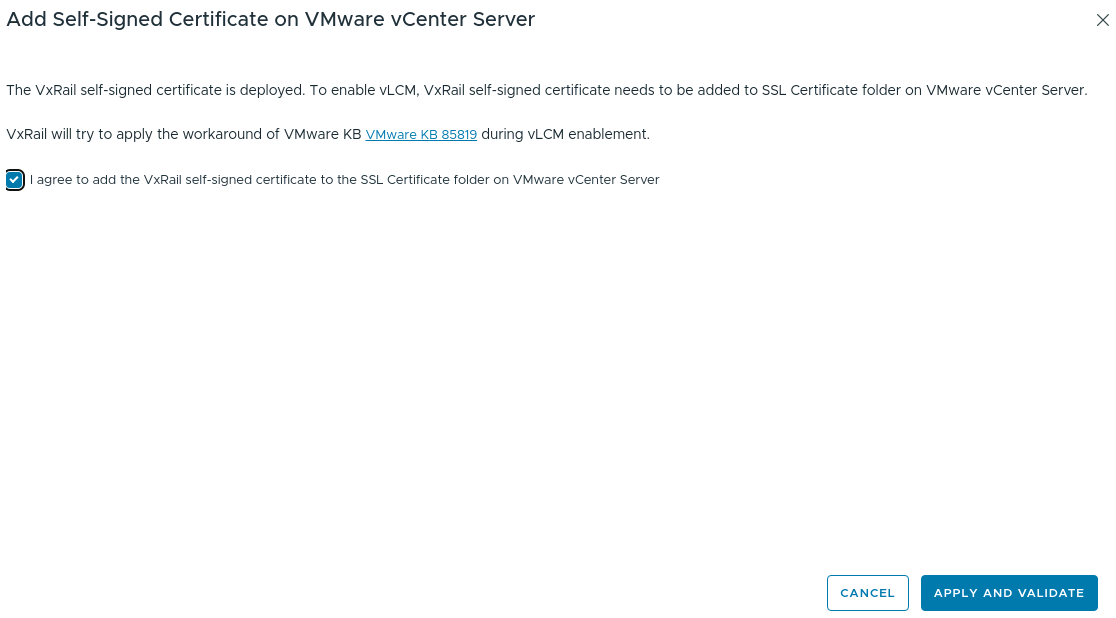
- vCenter must recognize the VxRail self-signed certificate to allow secure communication between vLCM and VxRail Manager.
- Failure to apply this certificate may prevent vLCM from functioning correctly or result in unexpected validation and upgrade failures.
What to do if this option is missing?
- If the checkbox to agree to add the certificate is not visible during vLCM enablement, do not proceed.
- Contact VMware or Dell VxRail Support immediately for assistance.
- Proceeding without ensuring the proper certificate application may cause configuration issues and upgrade failures requiring manual intervention. By ensuring this step is completed, customers can avoid potential issues and ensure a smooth vLCM enablement process.
Steps:
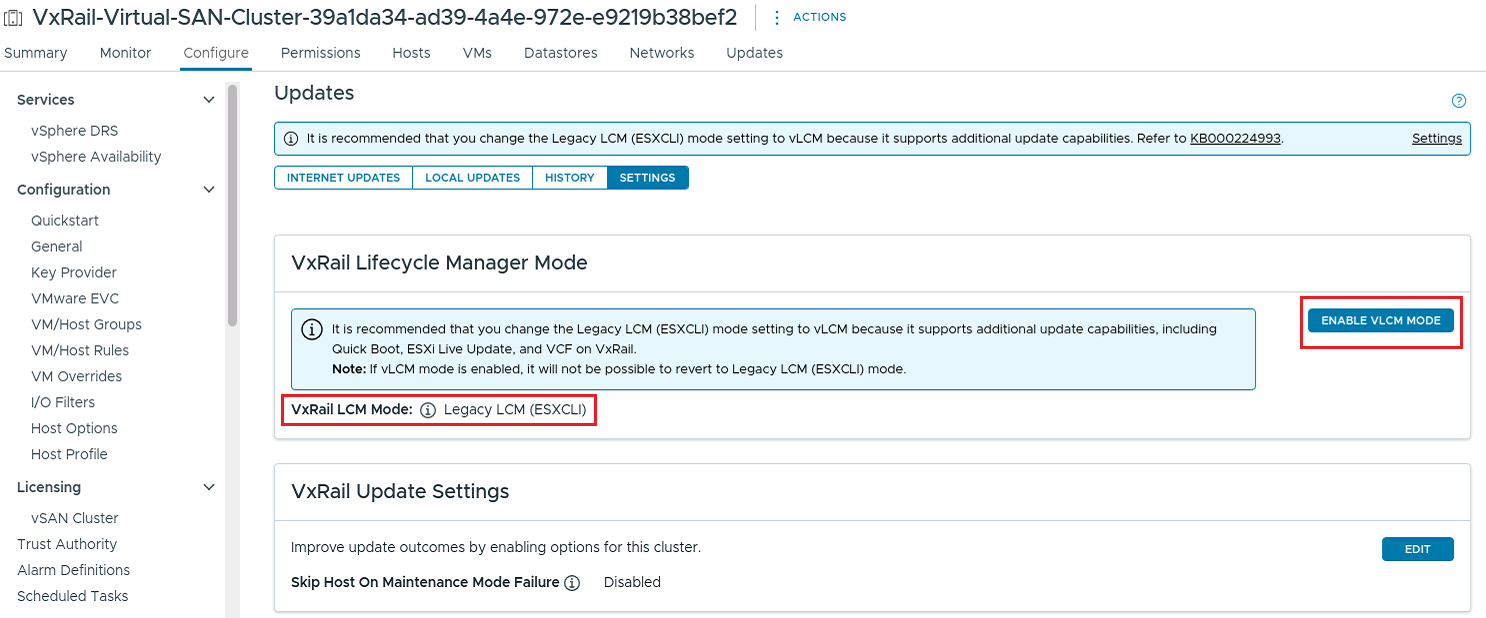
- Log in to the vCenter UI. Go to the VxRail cluster plug-in the Updates panel and choose the SETTINGS tab. Before enabling vLCM, the VxRail LCM Mode is
Legacy LCM (ESXCLI). - Click the ENABLE VLCM MODE button to start the enablement.
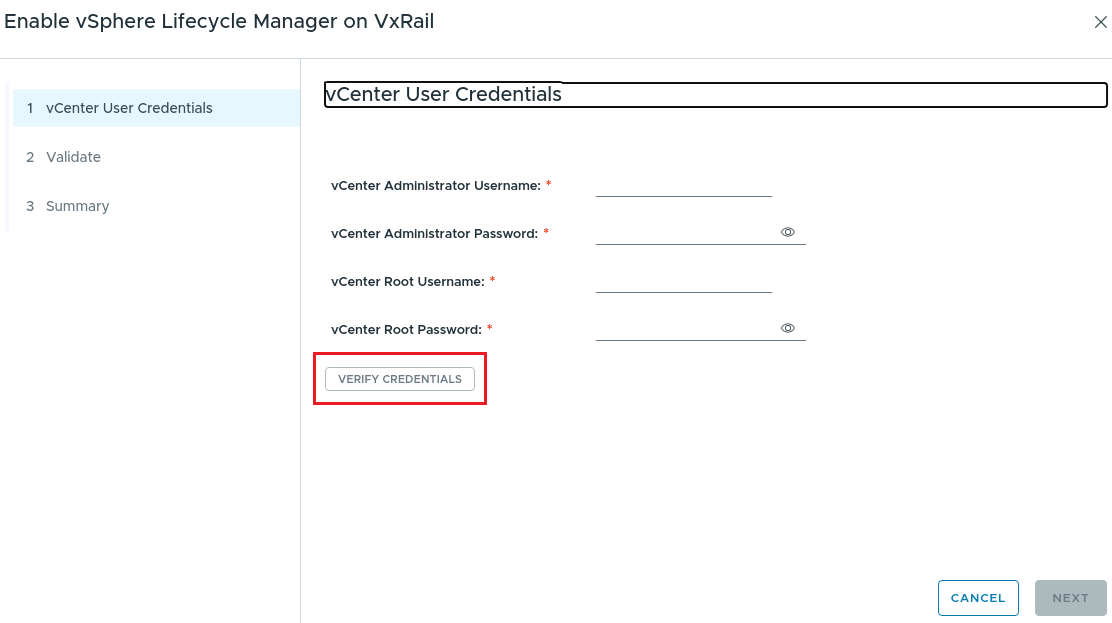
- Fill out vCenter User Credentials then click the
VERIFY CREDENTIALSbutton.
- Check the I agree to add the VxRail self-signed certificate to the SSL Certificate folder on VMware vCenter Server box then click the APPLY AND VALIDATE button.
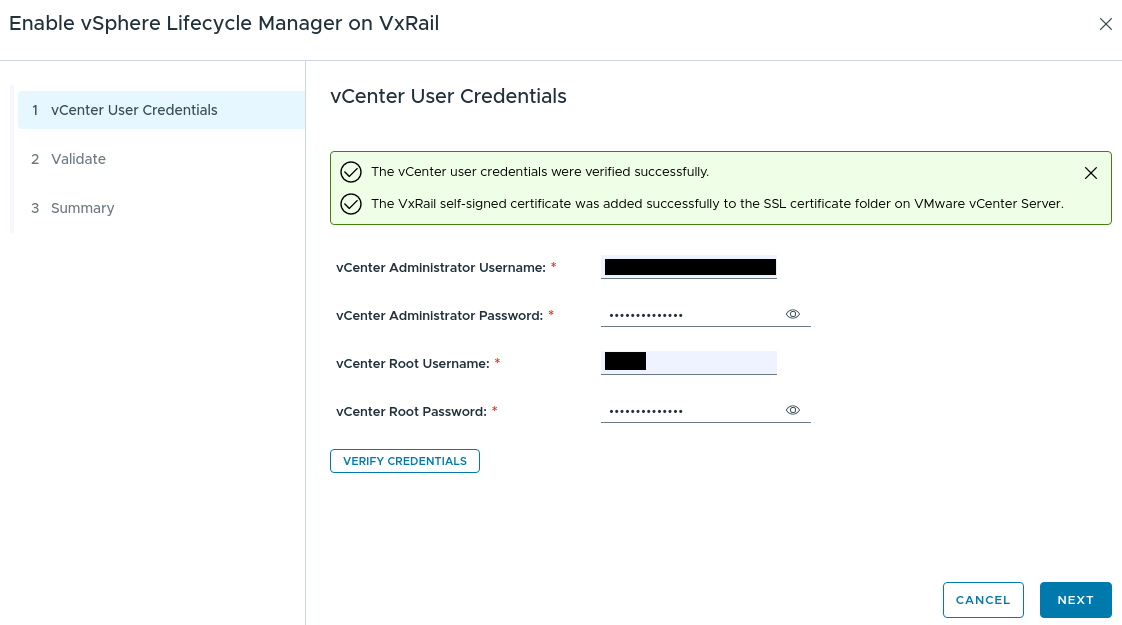
- After the vCenter user credentials are verified as having passed, click the NEXT button to the Validate panel.
- Wait a moment to view the validated results.
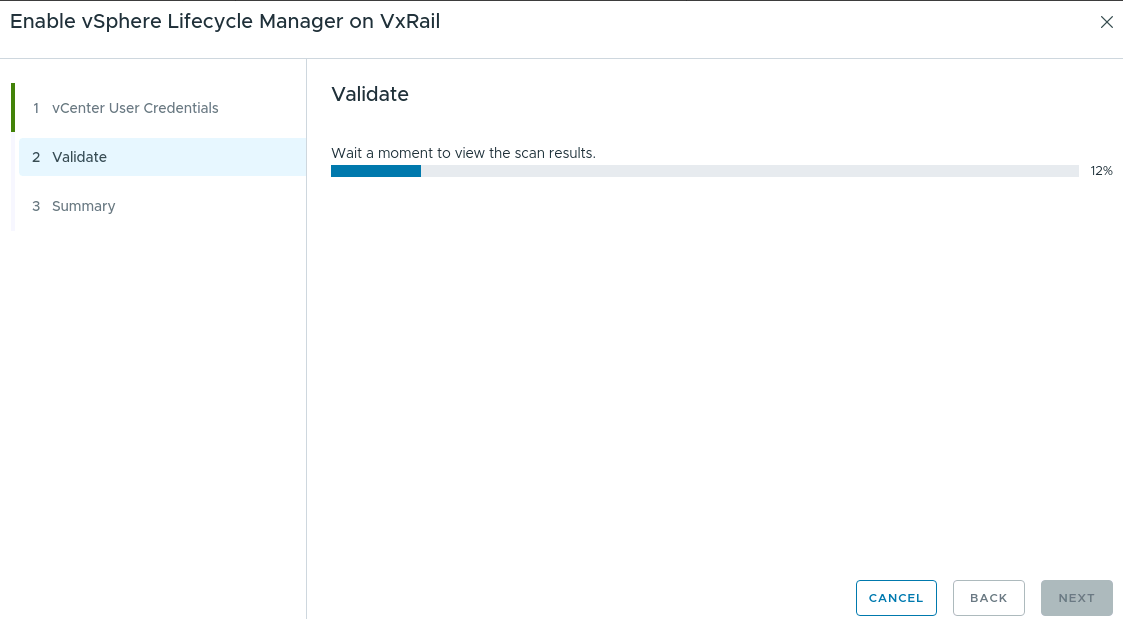
- After the validation is completed, this message appears:
This cluster is compliant with the defined desired state. Click the NEXT button to the Summary panel.
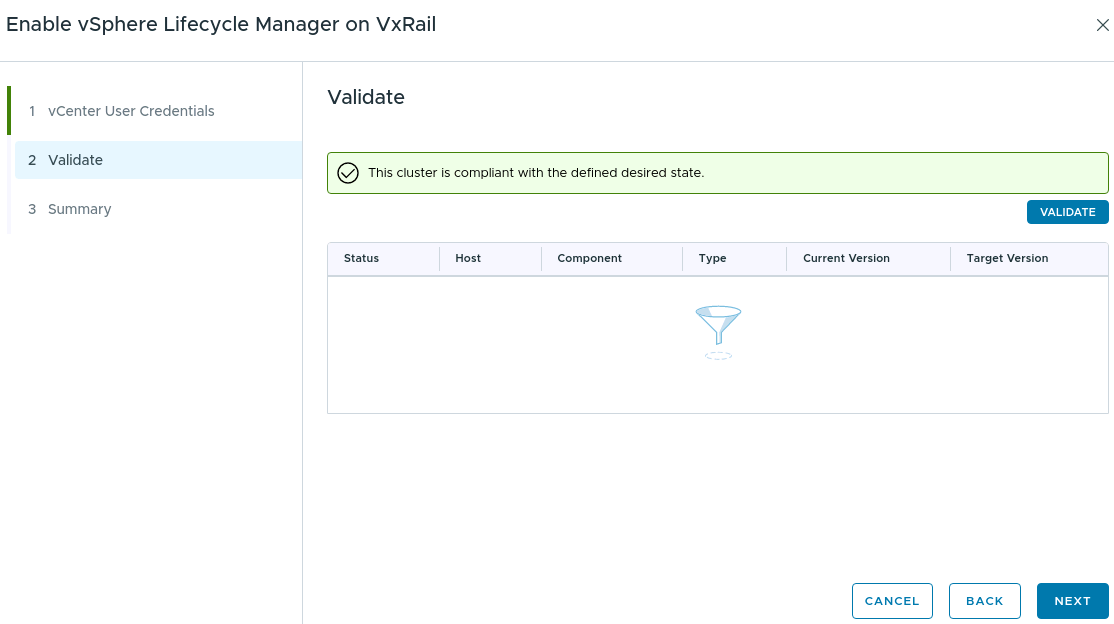
- Check the I want to update the components and enable vSphere Lifecycle Manager (vLCM) for this VxRail cluster box then click the ENABLE button.
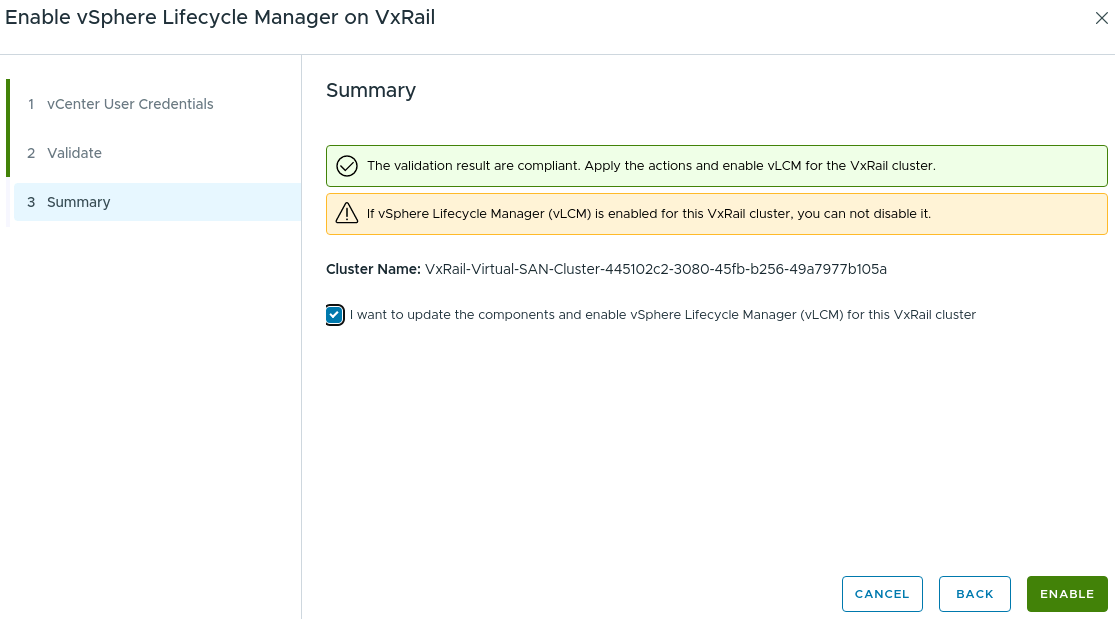
- Wait for the task to complete.
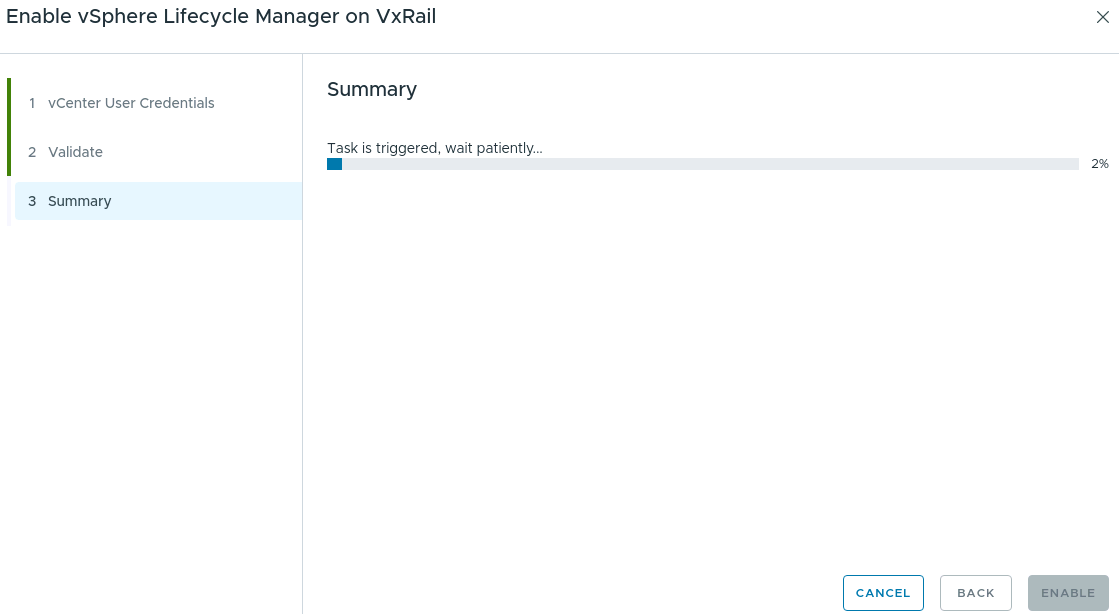
- Click the FINISH button after the UI shows vLCM was successfully enabled.
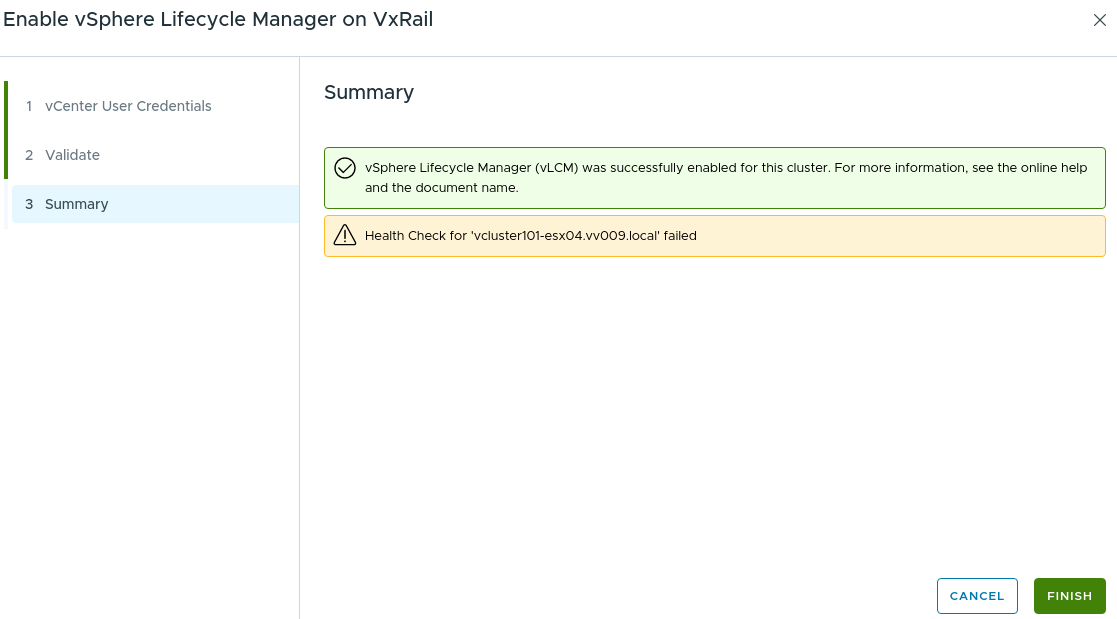
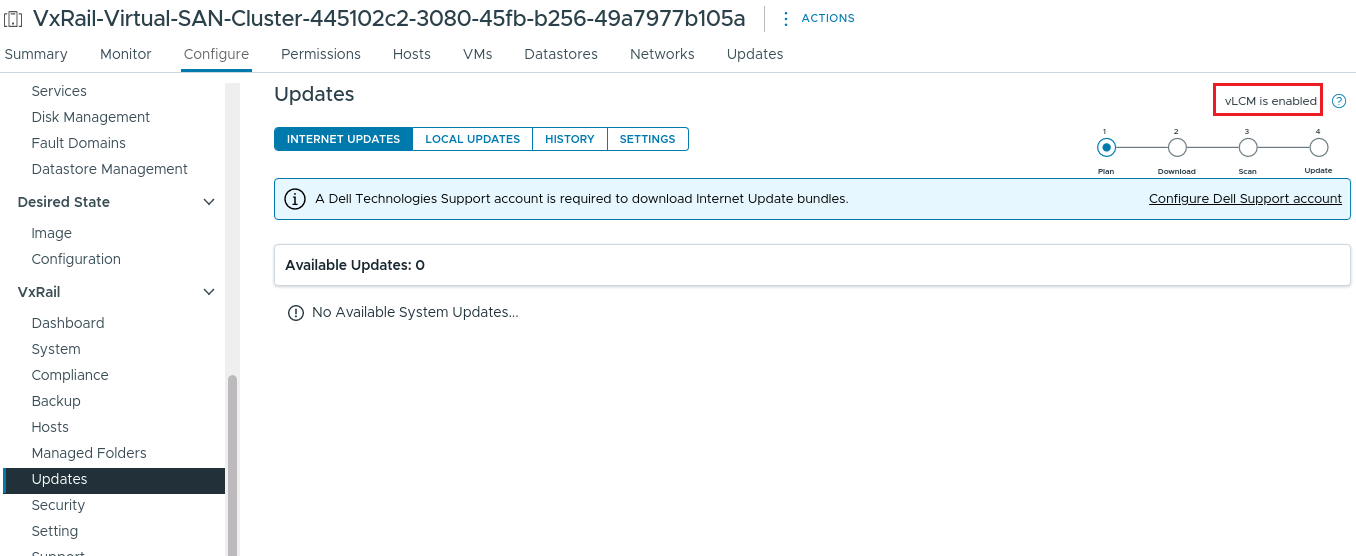
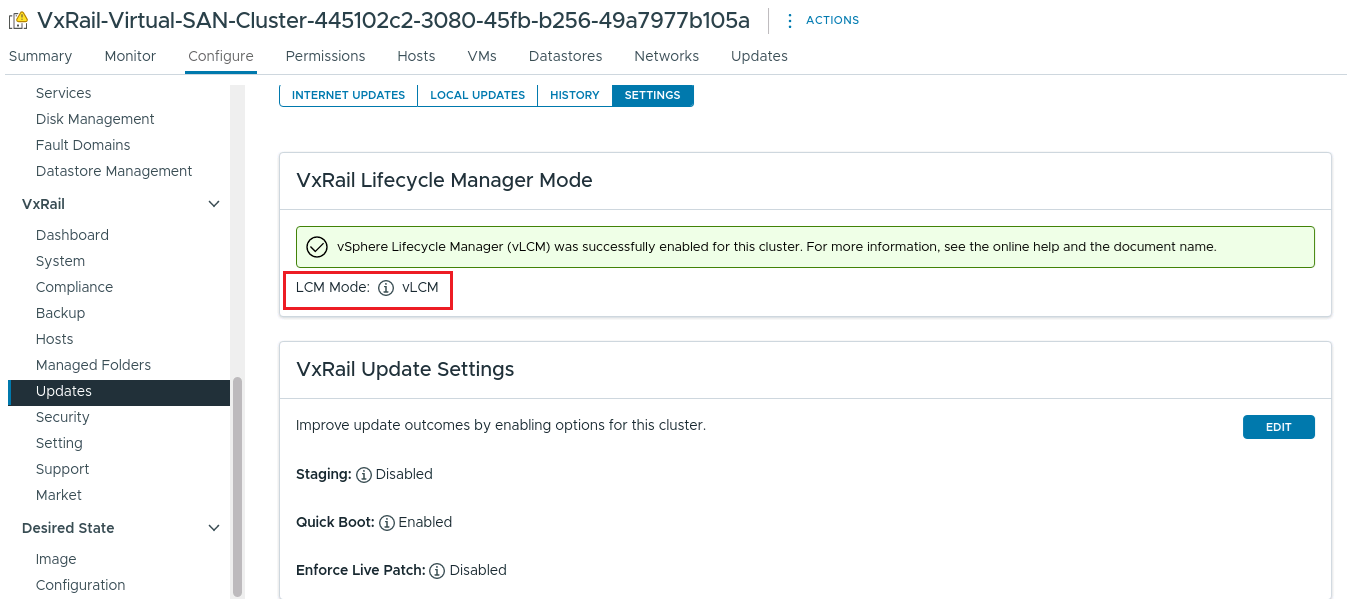
- Go back to the VxRail plug-in the Updates panel INTERNET UPDATES tab and confirm
vLCM is enabledshows at the upper right corner, and the SETTINGS tab shows that LCM Mode isvLCM.
Additional Information
To check if vLCM is enabled on VxRail 8.x clusters, using the VxRail Manager CLI, run:
curl --unix-socket /var/lib/vxrail/nginx/socket/nginx.sock
- If there are third-party drivers installed on the ESXi hosts, such as NVIDIA vGPU driver, vLCM enablement may experience validation error and the drivers must be manually uploaded over UI.
- vLCM enable fails when using external vCenter 8.0 U3, see KB article VxRail: Enabling vLCM Fails When Using External vCenter 8.0 U3 (login required).
- vLCM enable fails when the host driver is higher than the cluster-matched version, see KB article Dell VxRail: Dial-home event code VXR108130 - vLCM enablement was failed (login required).