Så här exporterar du händelseloggar i Windows
Summary: Lär dig hur du exporterar Loggboken loggar i Windows 11 eller Windows 10. Den här guiden förklarar hur du sparar loggar med Loggboken.
This article applies to
This article does not apply to
This article is not tied to any specific product.
Not all product versions are identified in this article.
Instructions
- Tryck på Windows-tangenten.
- Typ
Event Vieweroch välj sedan Loggboken i listan. - I den vänstra rutan väljer du vilken typ av logg som ska exporteras.
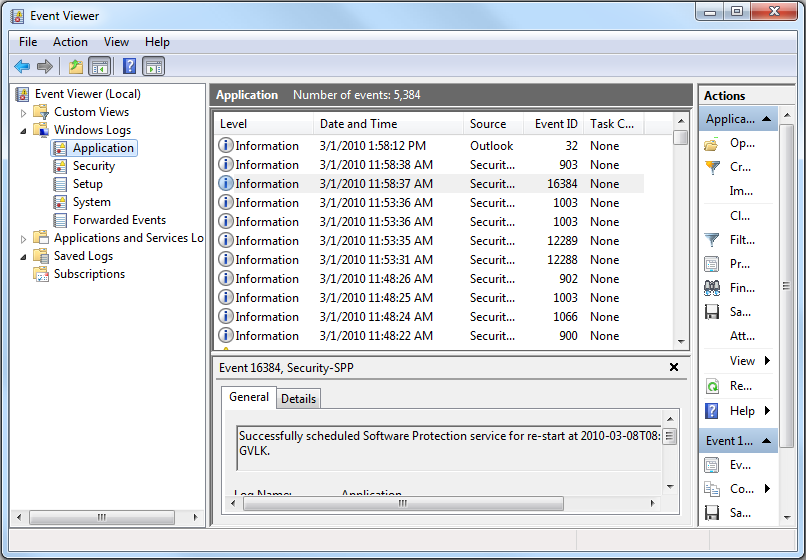
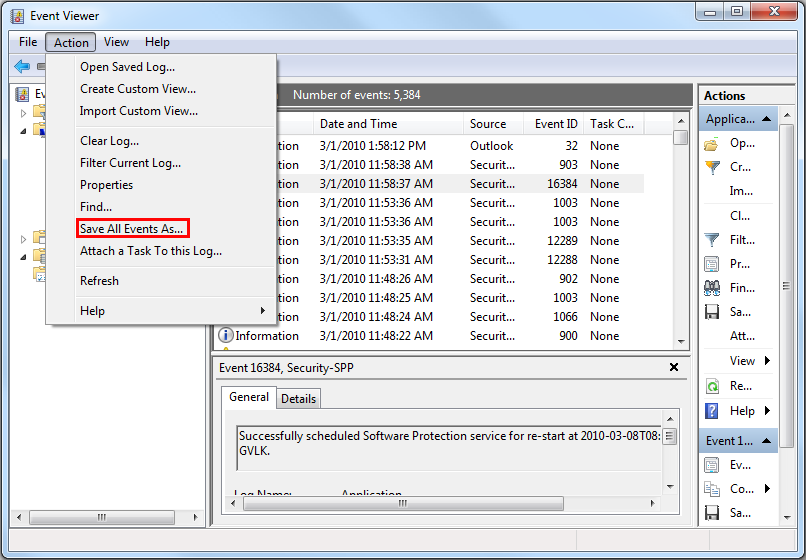
- Spara loggen genom att klicka på Åtgärd och sedan klicka på Spara alla händelser som.
Mer information finns i Så här sparar du händelseloggar
Information om BIOS-händelseloggar för bärbara Dell-datorer finns i BIOS-händelseloggar och Diagnostisk loggning på bärbara Dell-datorer.
Additional Information
Rekommenderade artiklar
Här är några rekommenderade artiklar relaterade till det här ämnet som kan vara av intresse för dig.
Affected Products
Alienware, Dell All-in-One, Dell Pro All-in-One, Dell Pro Max Micro, Dell Pro Max Slim, Dell Pro Max Tower, Dell Pro Micro, Dell Pro Slim, Dell Pro Tower, Dell Slim, Dell Tower, Inspiron, Legacy Desktop Models, OptiPlex, Vostro, XPS, G Series
, G Series, Alienware, Dell Plus, Dell Pro, Dell Pro Max, Dell Pro Plus, Dell Pro Premium, Inspiron, Latitude, Dell Pro Rugged, Vostro, XPS, Legacy Laptop Models, Fixed Workstations, Mobile Workstations, Dell Pro Max Micro XE FCM2250, Dell Pro Max Slim XE FCS1250, Dell Pro Max Tower T2 XE FCT2250, Dell Pro Max 16 XE MC16250, Dell Pro Micro Plus XE QBM1250, Dell Pro Slim Plus XE5 QBS1250, Dell Pro Tower Plus XE5 QBT1250
...
Article Properties
Article Number: 000124382
Article Type: How To
Last Modified: 12 Jan 2026
Version: 8
Find answers to your questions from other Dell users
Support Services
Check if your device is covered by Support Services.